
This guide walks through the Settings menu for VHC providers, in the order it appears in Lookout. Each section explains what it does, why it matters for VHC and whether you need to configure it. By the end, you'll have the core setup in place to start onboarding veterans.
→ New to VHC in Lookout? This is the first article in our VHC series. The series takes providers through the process of setting up and managing VHC members in Lookout, from initial configuration through service delivery and claims. View the full series here.
Overview
Set up the essential VHC foundations in Lookout before creating or managing VHC members.
VHC operates differently from other funding models, so there are a few important considerations to understand:
- VHC covers non-clinical services, such as Domestic Assistance, Personal Care, Home and Garden Maintenance, and Respite.
- Veterans may pay a co-payment, for example, $5 per hour, which can be limited by a weekly co-payment cap.
- VHC has no direct claiming integration. You claim manually by running the VHC claim export from Reports.
- VHC is built into Lookout as its own funding scheme, separate from DVA. You don't need to create a custom funding scheme for it.
Reminder: Complete your setup in order. Your Rates rely on your Services, and each veteran's VHC service plan relies on your existing VHC rates.
Before you start
To complete this process, make sure:
- You have Admin access, or a Role that lets you manage Settings. Most of this setup lives in the ⚙ Settings area.
- You are logged into the web app on a computer, not the Lookout mobile app.
- You have your groundwork ready, including your provider details, staff list, the VHC services you deliver, your VHC service type codes, your co-payment amounts and your worker compliance information.
Essential VHC configuration
Complete these configuration steps before onboarding a veteran.
Each configuration step flows as follows:
- Your team (accounts and Roles)
- Services in Care (your support catalogue)
- Rates (VHC Visit rates with their VHC service type codes)
- Membership plans in Care (bundle Services and Rates)
- Verifications (Helper compliance checks)
Reminder: Your Rates rely on your Services being in place, and your Membership Plans rely on both your Services and Rates already being set up.
Non-essential settings for getting started
A standard VHC setup doesn't need the following settings:
- Subscription - Helpers: View-only information used to check your total number of Helpers and create a new Helper.
- Custom Funding Schemes: Leave this unchanged. VHC is already available by default, separate from DVA.
- Integrations: Not needed for VHC. The only connection here is the Aged Care Provider Portal, which is used for aged care funding.
- Technical: Developer settings that you don't need for day-to-day setup or use.
- Care Settings: Features such as Care Plan Categories, Cohorts, Bulk Should-knows and Custom Attributes are optional. You can add them later as your needs grow.
Complete the core VHC configuration first. You can return to these settings later if your organisation needs additional functionality.
Please note: Lookout support sets your VHC provider reference number during onboarding. You can't enter it in your own Settings. To check it's in place, run a VHC claim export from Reports and look at the Provider reference column. Read more in VHC: Service Delivery and Claiming.
Navigating to settings
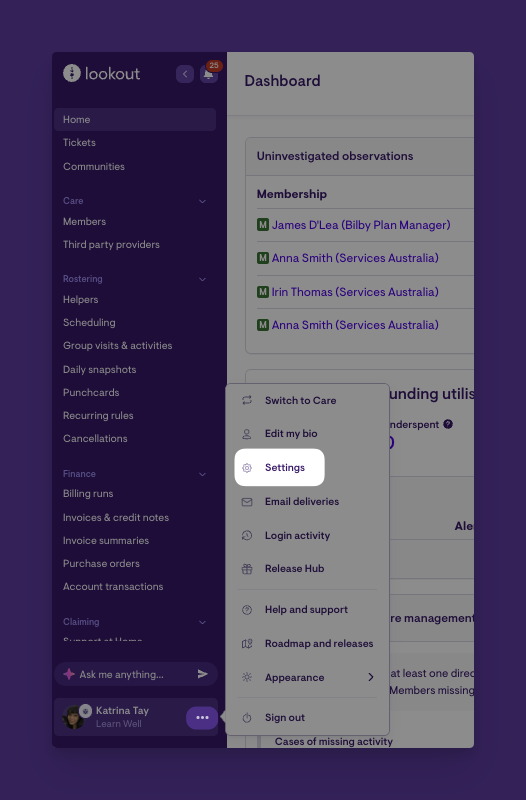
- From your home dashboard, click the ellipsis (...) next to your name in the bottom left-hand corner to open the overflow menu.
- In the overflow menu, click ⚙ Settings. The main settings page will load.
- The settings menu is grouped into sections. Work through them in order using the step-by-step instructions below.
Top tip: If you need help finding your way around Lookout, see our Navigating Lookout article for an overview of the platform's key features and navigation.
Settings overview
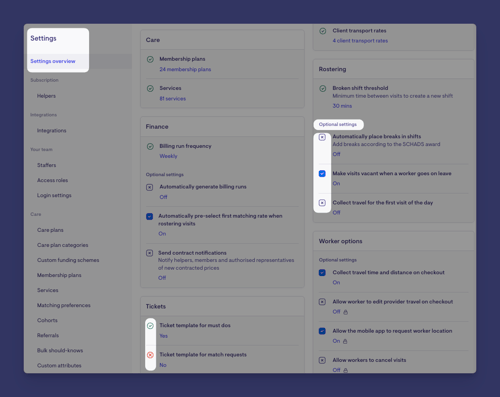
The Settings overview is the home page of the ⚙ Settings area. Think of it as your VHC setup progress board. It doesn't hold any settings itself. Each item on it is a shortcut to the section where you do the actual setup.
What you'll see
The overview groups your key settings into cards, each showing where that area is up to.
For example, it shows:
- How many Staffers you have and whether Roles/permissions are set up.
- Whether your Membership Plans and Services exist.
- Your Rates count (visit rates, provider travel, client transport).
- Your Finance settings, such as billing frequency.
- Rostering settings and Helper settings.
For settings that require configuration, each item displays:
- Round tick = Configured.
- Round cross = Not configured.
- A description showing the current configured value.
For optional settings:
- Blue tick in a square box = Feature is enabled.
- Blue cross in a square box = Feature is disabled or not configured.
The Settings Overview serves as a visual dashboard, providing a quick snapshot of your current settings, configuration status, and enabled features.
Setting up Lookout for VHC
Set up the foundations your organisation needs before managing veterans, services and claims.
1. Your team
What it is: Your office and admin users, what they can access, and your login rules.
VHC context: Set up the people who will run your VHC operations.
- Staffers: Add your office and admin people, such as coordinators, rostering staff and admins.
- Access Roles: Decide what each Role can do, then give each Staffer a Role. Make sure whoever runs your VHC claim and co-payment exports has permission to view finance reports.
- Login settings: Set your sign-in and security rules.
Visit Using Access roles in Lookout and Role-based access controls (RBAC) in Lookout to consolidate your understanding on Access roles.
2. Care
What it is: Care and service settings you can reuse across your organisation. This is one of the most important areas to set up.
- Services: The supports your organisation delivers. Set these up first, because other settings depend on them. VHC example: Domestic Assistance, Personal Care, Home and Garden Maintenance, and Respite Care.
- Care plans: Reusable templates for a veteran's goals, strengths, supports and risks. VHC example: A template for recording the veteran's home support goals and safety considerations at home.
- Custom funding schemes: Leave this unchanged. VHC is already available as a standard funding scheme.
- Membership plans: Reusable templates that bundle funding settings, services and rates. Assigning a plan saves manual setup and keeps veterans' setups consistent. VHC example: A "VHC Standard" Membership Plan that includes your Domestic Assistance and Personal Care services and their VHC rates.
- Matching preferences: Criteria for matching veterans with suitable workers, such as skills, language or personal preferences. VHC example: Matching a veteran with a male worker who has gardening experience.
- Referrals: Set up how referrals are structured and create email templates for sending them. VHC example: A template for recording a new referral from the VHC assessment agency.
Please note: Each veteran's VHC details are not set here. You record them on the veteran's Funding tab (VHC client number, given name and family name) and in their VHC service plans (service type, service plan ID, frequency, hours, co-payment amount, weekly co-payment cap, and approval start and end dates). This is covered in VHC: Member management.
3. Rostering
What it is: How shifts and Visits are scheduled. VHC context: Set how your Helpers are scheduled using Helper settings, Breaks and shifts, Helper leave and Helper availability. These settings apply to all Members, whatever their funding scheme.
4. Verifications
What it is: The compliance checks your Helpers must hold, and the file types you accept.
VHC context: Set up the checks your VHC workers need, such as a National Police Check, Working With Vulnerable People or Working With Children Check, First Aid/CPR and a driver's licence. When you record expiry dates, Lookout tracks upcoming renewals and flags them on the main home dashboard.
Wanting more? Contact Lookout to activate the Verification Renewals add-on and learn how it automates tracking and renewing expiring Helper verifications. Visit our dedicated article on to learn more: Verification Renewals add-on.
Please note: Setting up Verification types and recording them against Helpers is covered in detail in VHC: Worker compliance.
5. Templates & configurations
What it is: Reusable documents, building blocks and settings that shape how your service runs. You set them up once to match how your organisation works, and the system applies them every time. That keeps things consistent for your team and for the veterans you support.
VHC context: Prepare the documents you share with veterans and the ones you use internally.
- Agreement templates for your VHC service agreement, including how co-payments work.
- Forms for intake, consent and home safety checks. Speak to your Lookout representative about custom forms.
- Survey templates for checking how satisfied veterans are.
- Visit cancellation reasons that match your VHC cancellation policy.
Example: You set up your VHC service agreement once, including how co-payments work. Each new veteran's agreement then starts with the right terms already in place. You also add visit cancellation reasons that match your VHC policy, such as "Veteran unwell" or "Veteran in hospital." When a visit is cancelled, staff pick from that list, so every cancellation is recorded the same way.
Please note: Your Agreement template is used to create each veteran's VHC service agreement, as covered in VHC: Member management.
Wanting to manage all your agreements in one place? Contact Lookout to turn on the digital agreements add-on, which lets you send agreements and collect signatures online. Visit our article Agreement management add-on to learn more.
6. Rates
What it is: Your pricing, split into Visit rates, provider travel and client transport.
VHC context: Create a Visit rate for each VHC service you deliver, and give it a name your team will recognise, such as "VHC Domestic Assistance".
Enter the VHC service type code in each VHC Visit rate's External ID field. The VHC claim export uses this code as the Service type for each visit, so claim lines will be incomplete without it. Add your travel and transport rates here too.
Important: Although Rates appear later in the Settings menu, set them up after Services and before Membership Plans. Each veteran's VHC service plan is linked to one of these Visit rates, so your VHC Rates need to exist before you add service plans.
7. Finance
What it is: Billing settings, payment details and tax treatment.
VHC context: Set how Invoices and Billing Runs work, enter your Payment details, and set up your Taxes.
Important: Check the GST treatment of your VHC services carefully, including on co-payments invoiced to veterans.
8. Integrations
What it is: Connections to government portals and third-party apps.
VHC context: The only option here is the Aged Care Provider Portal, which is for aged care, not VHC.
Please note:VHC providers can skip this step. You claim VHC manually by running the VHC claim export, as covered in VHC: Service delivery and claiming.
9. Technical
What it is: Analytics, API keys, single sign-on and data feeds.
VHC context: There's nothing to set up here for VHC. Only review this section if you use single sign-on or connect Lookout to your own systems.
Unify all your business operations - Lookout integrates with over 600+ apps, so you can connect all your favourite tools. Unleash scalability across your business to go from complex manual processes to streamlined and synchronised workflows. Contact Lookout here to learn more.
What happens next?
Once your core setup is complete, your foundations carry through the rest of the platform automatically:
- Every new veteran can be given a VHC Membership Plan and pick up the right Services and Rates, so you don't rebuild pricing for each person.
- Each veteran's VHC service plan links their approved service to your VHC Rate and records their co-payment amount and weekly cap.
- VHC claim exports include your VHC provider reference, each veteran's VHC client number and service plan ID, and the service type code from your Rates.
- Verifications start tracking your Helpers' compliance and flag checks that are close to expiring.
- Your Agreement template is ready to create each veteran's service agreement during onboarding.
What Admins and Staffers will see
Once your VHC setup is complete, what each person sees depends on their access level.
For Admins
- Can view and manage all Settings, including Services, Rates, Membership Plans, Verifications, Finance and Rostering.
- Can track setup progress from the Settings overview, where each card shows its status and key values.
- Can click any incomplete card to go straight to the section that still needs setting up.
For Staffers with configuration permissions
- Can view and manage the Settings areas their Role allows.
- Can select existing Membership Plans, Services and Rates when onboarding veterans.
- Can run the VHC claim export, VHC co-payment report and VHC service plans report if their Role lets them view finance reports.
The Settings overview confirms when setup is complete. When every essential area (your team, Services, Rates, Membership Plans and Verifications) shows as done on the overview cards, your organisation is ready to onboard veterans. If anything is still flagged, the overview takes you straight to the section to finish.
Top tip: Check the Settings overview before onboarding your first veteran. If all the essential cards show as done, you're ready to move on to VHC: Member management.
Troubleshooting
I can't see a Settings section or option
- Check your access Role. Most of this setup is limited to Admins or Staffers with configuration permissions.
- Check that the feature is turned on for your organisation.
- Try logging out and back in.
I completed a step but nothing changed
- Make sure you clicked Save on each screen.
- Check for errors highlighted on the form.
- Check you followed the right order. Membership Plans can't bundle Services and Rates that don't exist yet.
I can't select a service type when adding a VHC service plan
- Check your VHC Visit rates exist in the Rates section.
- Check each VHC Visit rate has the correct VHC service type code in its External ID field.
I can't find where to enter my VHC provider reference
- You don't enter it in Settings. Lookout support records it against your organisation during onboarding.
- To check it's in place, run a VHC claim export from Reports and look at the Provider reference column, as covered in VHC: Service delivery and claiming.
- If the column is blank, contact Lookout support to have it recorded.
Still need help?
If you're still having issues, contact our support team and include:
- Screenshots, if possible
- The user's name and email
- The exact steps you took
- Any error messages you received