
This guide explains how to set up and maintain Helper verifications so that only properly checked workers are matched to your Veterans' Home Care (VHC) Members. It also covers how to track expiry dates and renewals over time.
Overview
This article walks a Staffer through setting up VHC verifications and requisites, recording them on Helper profiles, assigning them to Members, and managing renewals.
Please note: Some screens look different if your organisation has turned on Member contacts & dashboard enhancements (released 1 October 2026). Both layouts are covered where relevant.
Before you start
To complete this process, make sure:
- You have Staffer access, with permission to manage verifications and Helper records.
- Your VHC Members have been set up: See VHC: Set up and configuration.
- You know which checks your organisation requires for VHC work. Check your obligations under the current VHC Program Guidelines and your organisation's policies.
- You have each Helper's evidence on hand, such as certificates, check results, document numbers and expiry dates.
- You know whether your organisation uses the Member contacts & dashboard enhancements. If you're unsure, check the Release Hub or ask your Admin.
Top tip: Decide on your verification names before you start, and keep them consistent. Clear names, such as "National Police Check", make requisites and reports easier to read.
Step-by-step instructions
Step 1: Set up Verification File types
File types describe the kinds of documents Helpers can provide as evidence.
- From your home dashboard, open ⚙ Settings. Under Verifications, click File types.
- Select + New verification file type.
- Enter a Title, such as Police check certificate, First aid certificate or Driver's licence.
- Click Save.
- Repeat for each type of document you accept.
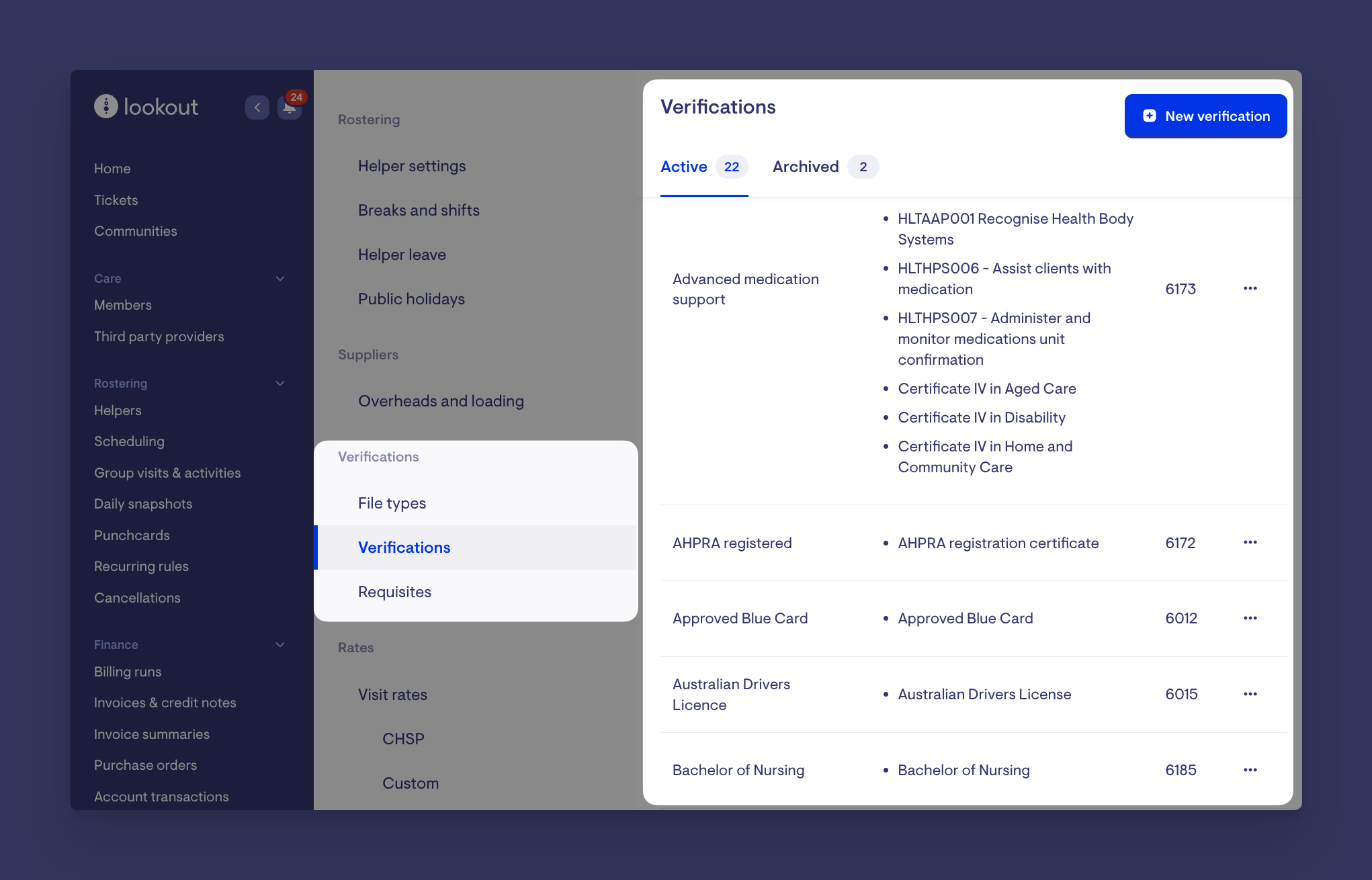
Step 2: Set up VHC Verifications
- From ⚙ Settings, click Verifications.
- Select + New verification.
- Enter a Title, such as National Police Check.
- Under File types, choose the documents that can serve as evidence for this verification.
- Set the Document number requirement:
- Required: a document number must be entered, for example, a police check reference number.
- Optional: a document number can be entered, but isn't needed.
- Disabled: there's no document number field.
- Click Save.
These are examples of verifications commonly used for VHC work. Confirm them against your own obligations:
| Verification | When it's commonly needed |
|---|---|
| National Police Check | All workers entering a veteran's home |
| First Aid / CPR | Personal care and in-home support |
| Relevant qualification (e.g. Certificate III in Individual Support) | Personal care services |
| Driver's licence and comprehensive car insurance | Workers who drive or transport Members |
| Vaccinations | Where required by your organisation's policy |
Please note: If you change an existing verification's document number setting to Required, the change only applies to verifications added or renewed afterwards. Existing Helper verifications without a number are still treated as valid.
Reminder: Lookout warns you when a Helper doesn't meet a Member's requirements, but it doesn't stop you from going ahead. Staffers are responsible for acting on these warnings.
Step 3: Create a VHC Requisite
- From ⚙ Settings, under Verifications, click Requisites.
- Select + New requisite.
- Enter a Title, such as VHC Verified Support Worker.
- Under Verification, select every verification a Helper must hold. All verifications you choose are required. Holding only some of them isn't enough.
- Click Save.
Top tip: If different VHC services need different checks, create a separate requisite for each. For example, a VHC Personal Care Worker requisite might include a qualification, while a VHC Transport Worker requisite might include a driver's licence. Each Member can then be given only the requirements that apply to them.
Step 4: Record Verifications on a Helper's profile
- Open the Helper's profile and go to the Verifications tab.
- Select Add verification.
- Under Type of verification, choose the verification, such as National Police Check.
- Under File to use, upload a new file or select one already on the Helper's profile, and choose its file type.
- Enter the Verification document number if the verification asks for one.
- Set the Expiry date, or select No expiry if the verification doesn't expire.
- Click Save.
Each verification shows a status:
| Status | What it means |
|---|---|
| Verified | Current, with more than 90 days until expiry, or no expiry date set |
| Almost expired | Expires within the next 90 days. The number of days left is shown. |
| Expired | The expiry date has passed |
The Verifications tab also lists Meets matching requirements, which shows each requisite the Helper currently meets.
Important: Only set No expiry for verifications that truly don't expire. A Helper with no expiry date is always treated as meeting that verification, so Lookout will never flag it for renewal.
Please note: A Helper can only have one record for each verification. To update evidence, edit the existing verification rather than adding a new one.
With the Member contacts & dashboard enhancements turned on, the Helper's dashboard is simpler:
- Less-used panels move into the Helper's ⚙ Settings. For example, a Helper's contracts with Members are now under ⚙ Settings → Contracts rather than on their dashboard.
- Contractor-only content is hidden for Helpers who aren't contractors.
The Verifications tab stays where it is, so these steps are the same in both layouts.
Step 5: Assign the Requisite to VHC Members
- Open the Member's dashboard and find the Matching card:
- With the Member contacts & dashboard enhancements turned on, the Matching card is near the top of the dashboard.
- Without the enhancements, scroll down the dashboard to find it.
- Next to Requisites, click Edit and select your VHC requisite, along with any other requirements the Member needs.
- Click Save.
Top tip: If a Member has no matching requirements yet, a setup prompt appears at the top of their dashboard with a Matching requirements link. Click it to go straight to the requisites screen. Use this prompt to spot VHC Members who haven't had their requisite added.
Once assigned:
- Only Helpers who meet all of the Member's requisites appear as eligible matches.
- When you contract a Helper who doesn't meet them, a warning tells you which requirements are missing.
- When you choose a Helper for a Visit, any Helper who doesn't meet them shows a note next to their name, for example "is not verified for VHC Verified Support Worker".
- Existing arrangements with Helpers who no longer meet the requirements are flagged.
Please note: If no Helpers hold the required verifications, no matches will be returned.
Step 6: Manage expiry and renewals
When renewals are turned on for your organisation, Lookout manages the process through a ticket:
- Renewal ticket created. When a Helper's verification is within 90 days of expiry, Lookout creates a renewal ticket. The ticket is assigned to your team and due on the earliest expiry date. If several verifications are expiring, they're grouped into one ticket.
- Helper notified. The Helper receives a "You have expiring verifications" notification on the Lookout app.
- Reminder sent. If the Helper hasn't provided new evidence by 30 days before expiry, they receive a reminder notification.
- Helper uploads new evidence. The Helper uploads the new document in the Lookout app. A comment is added to the ticket so your team knows it has arrived.
- Staffer reviews. Open the ticket and review the new document:
- Approve it and enter the new expiry date. The Helper's verification is updated with the new file and date, and the Helper is told it has been approved.
- Reject it and enter a reason. The Helper is told why and can upload a new document.
Important: A Helper stops meeting a requisite as soon as any of its verifications passes its expiry date. Lookout immediately flags them for the Members who need them. Approve renewals before the expiry date to avoid disruption to the Member's services.
Please note: Renewal tickets need a renewal ticket template with assignees set up for your organisation. If no tickets are being created, contact your Lookout representative.
Ongoing management considerations
Review expiring verifications regularly. Check for Helpers whose verifications are Almost expired so renewals don't slip.
Keep requisites up to date. If your VHC requirements change, update the requisite. Every Member it's assigned to picks up the change straight away, and Helpers who no longer meet it will be flagged.
Act on warnings. Lookout warns you but doesn't stop you from contracting or rostering a Helper who doesn't meet the requirements. Make sure your team knows to stop and check when they see a warning.
Check for Members with no requirements. Look out for the Matching requirements setup prompt on Member dashboards. It means no requisite has been assigned, so any Helper can be matched.
Review your Helper types. If you turn on the Member contacts & dashboard enhancements, check the helper types your organisation offers in ⚙ Settings, especially if you use volunteers. This decides which contractor-only information appears on Helper dashboards.
Handle documents carefully. Document numbers are stored securely, and verification files can contain personal information. Only share them with people who need them.
Changes are tracked. Each verification has a Changes history showing what was updated and when. This is useful for audits.
Archive with care. Archiving a verification or requisite removes it from future use. Check which Members and Helpers rely on it first.
What happens next?
- Helpers who meet your VHC requisite are offered as eligible matches for VHC Members.
- Lookout watches expiry dates and, where turned on, creates renewal tickets 90 days ahead and sends Helpers reminders.
- Helpers who fall out of compliance are flagged on contracts, Visit selection and existing arrangements.
- The verification history gives you an audit trail of each Helper's compliance over time.
What Staffers and Helpers will see
For Staffers
- Can manage verification file types, verifications and requisites in ⚙ Settings.
- Can add, edit and review verifications on each Helper's profile, including status, expiry and the requisites met.
- Can see a Member's matching requirements on the Matching card. With the dashboard enhancements turned on, this card is near the top of the dashboard.
- See a setup prompt on any Member's dashboard that has no matching requirements.
- Can approve or reject renewal evidence from the renewal ticket.
- See warnings when a Helper doesn't meet a Member's requirements.
For Helpers on the Lookout app
- Receive notifications when verifications are expiring, a reminder 30 days before expiry, and updates when renewal evidence is approved or rejected.
- Can upload new evidence for expiring verifications.
- If evidence is rejected, can see the reason and upload it again.
Troubleshooting
I can't find the Matching card on the Member's dashboard
- If your organisation has turned on the Member contacts & dashboard enhancements, the card has moved near the top of the dashboard.
- If not, scroll further down the dashboard.
- Check your Access role.
I can't find a Helper's contracts on their dashboard
- With the Member contacts & dashboard enhancements turned on, contracts are under the Helper's ⚙ Settings → Contracts.
A Helper isn't appearing as an eligible match
- Check the Helper's Verifications tab. Every verification in the Member's requisite must be present and not expired.
- Check Meets matching requirements on the Helper's Verifications tab to see which requisites they currently meet.
- Check the Member's Matching card to make sure only the right requisites are assigned.
Any Helper can be matched to a VHC Member
- The Member probably has no requisites assigned. Look for the Matching requirements setup prompt on their dashboard, and add your VHC requisite.
A Helper has all their checks but still doesn't meet the requisite
- Make sure each check is recorded against the exact verification the requisite uses, not a similarly named one.
- Check that none of the expiry dates have passed.
I can't save a verification on a Helper's profile
- If the verification asks for a document number, enter one.
- The Helper may already have this verification. Edit the existing one instead.
- Make sure a file is selected or uploaded.
Renewal tickets aren't being created
- Check that the verification has an expiry date. Verifications set to No expiry never create renewals.
- Renewals are only created within 90 days of expiry.
- Contact your Lookout representative to confirm renewal tickets are set up for your organisation.
I completed the steps, but nothing changed
- Make sure you clicked Save on each page.
- Check for any error messages on the page.
- Contact support if the issue continues.
Still need help?
If you're still having issues, contact our support team and include:
- Screenshots, if possible
- The user's name and email
- The exact steps you took
- Any error messages you received