
This guide explains what the Verification Renewals add-on is and how it works - automatically tracking expiring verifications, prompting Helpers to upload renewals in their app, and creating tickets so your team can review and approve them.
New to verifications? This article covers the Verification Renewals add-on, which automates renewals. For the basics of recording and managing a Helper's verifications, start with our The Helper Verifications tab article.
Verification Renewals add-on
Verifications are the documents that confirm a Helper is qualified and compliant to provide care, such as certifications, licences, or background checks. Each has an expiry date and needs to be renewed to keep the Helper compliant.
The Verification Renewals add-on automates that renewal process, so nothing is missed. It handles the tracking, prompts Helpers to upload their new documents directly in their app, and creates a ticket for your team to review and approve each renewal, making the whole process easier for both administrators and Helpers.
Without the add-on, tracking expiries and chasing renewals is a manual job. With it, your team gets:
- Automatic tracking: Lookout watches for expiring verifications, so you don't have to.
- Less chasing: Helpers are prompted directly and upload their own renewals.
- A clear workflow: Each renewal becomes a ticket you can monitor, review, and approve.
- Confident compliance: Expiries are surfaced early and handled consistently.
How it works
The add-on runs an end-to-end workflow:
-
Daily check. Every day, Lookout automatically checks for verifications expiring within the next 90 days, and groups the expiring items for each Helper.
-
Helper is notified. The Helper receives a push notification or email (depending on their settings) letting them know they have expiring verifications.
-
Helper uploads in their app. The Helper opens the notification, sees which document is expiring, and uploads their new document directly in the app. The status changes to under review.
-
A renewal ticket is created. Lookout automatically opens a ticket (via the Lookout bot) for the Helper's renewals, so your team can monitor and action them.
-
Your team reviews and approves. An administrator reviews the uploaded document, sets the new expiry date, and either approves it or asks the Helper to upload again.
-
The ticket is completed. Once the renewal is approved and handled, the ticket is marked complete - and it clears from your dashboard.
Monitoring renewals from the Home dashboard
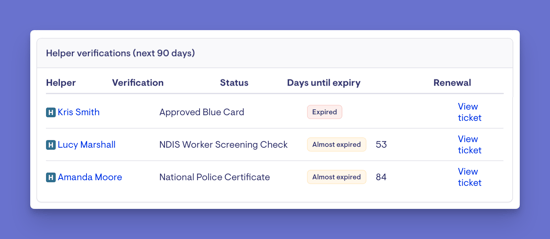
From your home dashboard, the Helper verifications tile shows verifications expiring within the next 90 days. For each, you'll see:
- The Helper
- The verification about to expire
- The status - expired or almost expired
- The days until expiry
- The renewal ticket - which the add-on opens automatically, so you can jump straight to it
Top tip: The renewal ticket is part of the add-on. It's what lets you track each renewal from notification through to approval.
What the Helper does
When a Helper has an expiring verification:
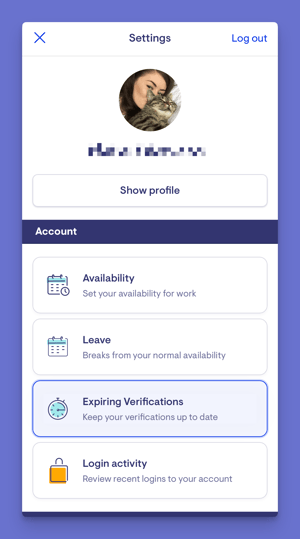
- They receive a notification (push or email).
- Selecting it takes them to the document that's expiring (shown as expiring).
- They click the ellipsis (...) button and upload the new file for renewal.
- Once uploaded, the verification shows as under review (or "added for review"), ready for your team to check.
Reviewing and approving
- From the home dashboard tile (or the Helper's Verifications tab), open the renewal ticket.
- Scroll to the verifications to see the new file the Helper uploaded. Until they upload, the status shows as pending; once uploaded, it's under review.
- Click Edit on the verification to set or accept the new expiry date, then save.
- Once you've reviewed the file, either:
- Recollect - if you need more detail or want the Helper to upload again, or
- Approve - if you're satisfied with the document. Confirm your action, and the renewal is approved.
- Continue working the ticket as normal - the ticket discussion shows everything that's been supplied.
- When the renewal is complete, mark the ticket as complete. It will then clear from the dashboard tile.
Making the most of the add-on
- Let the automation do the chasing. Trust the daily check and Helper notifications to surface expiries - focus your team's effort on reviewing and approving.
- Use the dashboard tile as your worklist. The 90-day view and renewal tickets give you a single place to stay on top of renewals.
- Review promptly. Approving renewals quickly keeps Helpers compliant and available for matching without interruption.
- Use recollect when something's off. If a document isn't right, send it back rather than approving - the workflow is built for it.
Troubleshooting
A Helper didn't receive a renewal notification
Notifications go out by push or email depending on the Helper's settings. Check the Helper has app access and their notification preferences are set.
I don't see renewal tickets or the renewal process on the dashboard
The automatic renewal ticket and renewal process are part of the Verification Renewals add-on. If you don't have them, your organisation may not have the add-on enabled.
A renewal is stuck as "pending" or "under review"
Pending means the Helper hasn't uploaded the new document yet. Under review means they have, and it's waiting for your team to check and approve it.
I approved a renewal but the Helper still shows as expiring
Make sure you set the new expiry date when editing the verification, and that the ticket has been completed. Completing the ticket clears it from the dashboard.
I need the Helper to provide a better document
Use recollect rather than approving - this asks the Helper to upload again.
Still need help?
If you're still experiencing issues, please contact our Support Team and include:
- Screenshots (if possible)
- The Helper's name
- The exact steps taken
- Any error messages received