
Skip to content
  • There are no suggestions because the search field is empty.

Clinical forms

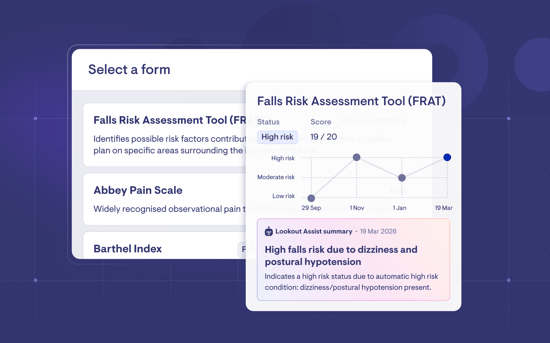
Clinical Forms are Lookout’s new way to complete and track structured clinical assessments for Members. Clinical Forms support standardised assessment tools, scoring, response history, graphs, Admin, Helper and Supplier completions, audit history and Lookout Assist-powered summaries when enabled. 

Before you start

To use Clinical Forms in Lookout, make sure:

  • The Clinical Forms feature has been enabled for your organisation through Release Hub.
  • Your organisation has reviewed which forms should remain active and which should be archived. All pre-built forms are active by default once enabled.
  • Your team has reviewed permissions for viewing, submitting and managing form templates.
  • Lookout Assist is enabled if your organisation wants AI-generated summaries, interpretations and care plan events.
  • Connected Care is enabled if suppliers need to complete forms through the Supplier Portal or purchase order checkout.
Ensure you have the appropriate permissions:

  • Form responses — Read: allows users to view submitted forms.
  • Form responses — Read and write: allows users to submit form responses.
  • Configure form templates: allows users to manage form templates, including archiving and unarchiving.
  • Care plan permissions: required if users will review and publish care plan updates from form events.

Important: Once Clinical Forms are enabled, the previous Focal Assessments / New Assessment workflow is no longer used for new assessments. New assessments should be completed from the Member’s Forms tab.


Clinical forms

Clinical forms in Lookout are structured assessment tools used to collect and track clinical information about a Member. They include standardised tools commonly used in aged care and community care. Forms can be filled out by Helpers, admins and suppliers, with the responses stored against the Member's profile for ongoing tracking and care planning.

What’s changing from Focal Assessments?

Previously, Focal Assessments such as FRAT were completed from the Lookout tab by selecting New Assessment or via a Assessment ticket. The FRAT workflow included steps such as Fall Risk Status, Risk Factor Checklist, Action Plan and Transfer to Help Plan.

Key workflow differences

Focal Assessments before Clinical forms:
  • Completed by admin/office staff.
  • Accessed from the Lookout tab or tickets using New assessment.
  • Assessment workflows could create or relate to tickets depending on the assessment process.
  • Scoring was hard-coded by assessment type.
  • Care plan updates required manual review and transfer/update steps.

Previous assessment records are not migrated into the new Forms workflow; old assessment history remains accessible in existing records, while new submissions are managed through Forms.

Clinical forms from June 1:
  • New assessments are completed from the Forms tab on the Member profile.
  • Forms can be completed by Admins, Helpers and Suppliers depending on access and workflow.
  • Forms can be attached to exceptional visits, recurring visits, and purchase order line items as must do's. Service-level must-dos with forms can also be added for specifics services.
  • Form responses are stored against the Member’s Forms tab for review and tracking.
  • Lookout Assist can generate interpretations, rolling summaries and care plan events when enabled.
  • Forms can be partially completed by helpers and suppliers; previous responses are retained even if they navigate away or lose connectivity (offline support).
  • Can be edited after submission with a full audit history showing who changed what and when.

Please note: Admin-submitted forms and ad hoc Helper form submissions do not automatically create tickets. A ticket is created when the form is completed as part of a must-do workflow.

Where clinical forms appear in Lookout

Clinical forms reach across several areas of Lookout:

Area

What you can do

Member profile > Forms tab (Admin)

View all form responses for a Member, submit new forms, see scores, trend timelines and Lookout Assist generated summaries.

Settings > Forms (Admin)

Search, archive, and manage form templates for your organisation.

Visits > Must-dos (Admin)

Attach a form to a visit as a must-do task for the Helper to complete. Alternatively, attach a form to a service level must-do.

Recurring schedules (Admin)

Set a form as a recurring must-do, so it automatically appears on all future visits in a schedule.

Purchase order lines > Must-dos (Admin)

Attach a form to a supplier job as a must-do for the supplier to complete.

People > Forms (Helper App)

Helpers can select and fill out forms for Members they support.

Visit checkout (Helper App)

If a form is attached as a must-do, the Helper completes it during or after the visit.

Job details (Supplier Portal)

Suppliers can complete forms attached as must-dos when checking out of a job.


Setting up form templates (Admin)

Clinical Forms are enabled through Release Hub. Once enabled, the available pre-built form templates are loaded into your organisation’s Forms settings.  

Step 1: Navigate to form template settings

  1. Go to Settings from the ellipsis icon next to your name.
  2. Under the Templates and configurations section, click Forms.

      All available forms will be added to your instance by default upon enabling the feature.

      Step 2: Manage form templates

      From the Forms settings page, you can:

      • Search for forms by name using the search bar
      • Switch between viewing Active and Archived templates using the available tabs
      • Each form has an actions menu - click their responding ellipsis icon on the right-hand side to see:
        • Preview opens a preview of what the form looks like when being filled out
        • Archive a form template if you no longer want it to be available for new submissions (existing responses are preserved)
        • Unarchive a previously archived template to make it available again

      Clinical forms template settings

      Please note: Archived forms will not appear when Helpers or Admins go to submit a new form. However, any previous responses to that form are still stored and accessible.


      Submitting a form response (Admin)

      Admins can submit forms directly from the Member profile.  

      Step 1: Navigate to the Member's Forms tab

      • Open the relevant Member's profile.
      • Click the Forms tab.

            If no forms have been submitted for this Member yet, you'll see an empty state message.

            Step 2: Start a new form submission

            • Click Submit a form
            • A form selection screen will appear showing all active (non-archived) form templates
            • Click Select this form next to the form you want to complete

                  Step 3: Fill out the form

                  • Complete the required fields. Required fields will show validation errors if left blank.

                  • Some forms include calculated fields - these fill in automatically based on your other answers (for example, a total risk score).

                  • Some forms use progressive disclosure - additional questions only appear based on how you answer earlier questions.

                        Step 4: Submit

                        • Click Submit when complete.
                        • If there are validation errors (missing required fields, invalid values), you'll see a message explaining what needs to be corrected.
                        • Once successfully submitted, you'll see a confirmation message: Form submitted.

                        Clinical forms new form


                         Important: A form submitted directly by an admin does not automatically create a ticket. If your team needs a ticket or notebook entry, copy the form URL or export the PDF and add it to your usual ticket or notebook workflow. 


                        Attaching forms to visits as must-dos

                        Forms can be attached to visits (exceptional and recurring) so that Helpers are required to complete them as part of their service delivery.

                        For a exceptional (single) visit:

                        1. Navigate to the Member's roster and select required visit.

                        2. Click Add a must-do.

                        3. Fill in the must-do title and description.
                        4. Click Add a form.

                        5. Select the form template you want to attach.

                        6.  Choose who should be notified when the must-do is completed.   

                        7. Click Save.

                                      The form will appear as a must-do on that visit. The Helper will be prompted to complete it when checking in or out.

                                      For recurring visits:

                                       When attached to recurring visits, a new form can be created for each future occurrence. 

                                      1. When adding a must-do to a visit that's part of a recurring schedule, after saving you'll be asked: “This visit is recurring, would you like this must-do to recur in future visits?”
                                      2. Click Add to future visits to attach the form to all future scheduled visits in that rule.

                                        You can also manage recurring must-dos directly from the schedule rule editing screen.


                                        Editing or removing a form from a must-do

                                        • From the must-do editing screen, you can see the currently attached form.

                                        • Click Remove to detach the form.

                                        • Click Add a form to attach a different one.


                                        Submitting a form response (Helper App)

                                        Helpers can complete forms in two ways:

                                        • As part of a visit must-do.
                                        • Ad hoc from People > Member > Forms for a Member they support.

                                        Completing a form on ad hoc basis:

                                        1. Open the Lookout App and go to People

                                        2. Select the Member you want to submit a form for

                                        3. Tap  Forms

                                        Choose and complete the form

                                        1. Tap Submit a form
                                        2. Select a form from the available templates (archived forms won't appear)
                                        3. Fill out the form fields step by step
                                        4. Tap Submit when complete

                                                You'll see a confirmation message: "Form response submitted successfully".

                                                        Completing a form from a must-do:

                                                        If a form has been attached to a visit as a must-do:

                                                        1. Open the visit.
                                                        2. You'll see the must-do listed with the attached form.
                                                        3. Complete the form as part of your check out workflow.
                                                        4. Continue the normal check-in/check-out process.  

                                                          You can also leave a partially completed form and return to finish it later; previous responses are retained even if you navigate away or lose connectivity (offline support). 

                                                          If a Helper submits an ad hoc form from People > Forms, it appears in the Member’s Forms tab but does not create a must-do ticket or notification. 

                                                          Must-do form completions will generate a ticket for admin to review, action and mark complete.

                                                          clinical forms in helper app


                                                          Attach forms to purchase order line items (for suppliers)

                                                          If Connected Care is enabled, forms can be attached to purchase order line items as supplier must-dos.

                                                          To attach a form to a purchase order line:  

                                                          1. Open the relevant purchase order line item.

                                                          2. Click the ellipsis menu.

                                                          3. Select Manage checkout.

                                                          4. Open Additional visit information.

                                                          5. Add a must-do and select Add a form.

                                                          6. Choose the form template.

                                                          7. Assign who should be notified when the must-do is completed.   

                                                          8. Save and publish the checkout information as required.

                                                          Suppliers complete the form during check-out in the Supplier Portal or through a secure checkout link. 

                                                          Suppliers cannot submit standalone forms, they will only see forms when attached to a must-do.


                                                          Viewing form responses and history

                                                          All submitted forms appear on the Member’s Forms tab, whether submitted by an Admin, Helper or Supplier.  

                                                          On the Member's Forms tab (Admin):

                                                          1. Go to the Member's profile and click the Forms tab.

                                                          2. You'll see a list of forms that have responses.

                                                          3. Click View details on any form to see the submission details

                                                          4. A side panel will load, showcasing the full submission details, along with an Export to PDF and Edit button.

                                                            1. The Edit button allows you to update the forms responses

                                                          5. There is also a History tab available. Clicking this will show a change history of who, when and what was changed with time/date stamps of when they occurred.

                                                          Scores and tracking:

                                                          Some forms have promoted properties - key scores that are tracked over time. When available:

                                                          • You'll see the score displayed (e.g., "15 / 100") alongside the response history.
                                                          • If the form supports graphing, you'll see a visual chart showing how the score has changed across multiple submissions.

                                                              This helps care managers quickly identify trends - for example, a rising falls risk score over several months.

                                                              Clinical forms view responses


                                                              Lookout Assist and Clinical forms

                                                              When the Care Plans and assessments agent is enabled in Lookout Assist settings, clinical forms get additional intelligence:

                                                              Individual response interpretation

                                                              Each time a form is submitted, Lookout Assist automatically:

                                                              1. Analyses the form response data
                                                              2. Compares it against the previous response for the same form and Member (if one exists)
                                                              3. Generates a plain-language interpretation - a concise summary of what's notable about the response

                                                              This interpretation appears as an "Lookout Assist generated summary" on the individual response view in the Admin area.

                                                              History summary (rolling)

                                                              After each response interpretation is completed, Lookout Assist generates a history summary - a higher-level overview that looks across all interpreted responses for that form and Member over time. This surfaces:

                                                              • Trends and patterns
                                                              • Notable changes between assessments
                                                              • Key information for care managers to be aware of

                                                                    This rolling summary appears on the Forms tab overview, giving care managers an at-a-glance understanding without needing to read each individual submission.

                                                                    Connection to care plans

                                                                    Form responses can also trigger care plan update events. This means:

                                                                    • When a clinically significant form is submitted, it can appear as an event that prompts a care plan review.
                                                                    • Lookout Assist's Care Planner agent can factor these form responses into proposed care plan updates.

                                                                      Risk categories

                                                                      Some forms are linked to specific risk categories (e.g., the Falls Risk Assessment is linked to a "Falls" risk category). This means:

                                                                      • When a form with associated risk categories is completed, the results can feed into the Member's risk assessments on their care plan.

                                                                      Please note: Lookout Assist's AI-generated interpretations and summaries are only visible when the Care Plans and assessments agent is enabled. If it's disabled, form responses still work normally - you just won't see these summaries.


                                                                      Review care plan events

                                                                      When Lookout Assist is enabled, submitted forms can automatically appear as care plan events for review. 

                                                                      Care managers can:

                                                                      1. Open the Member’s Care Plan.

                                                                      2. Review events since the last care plan update.

                                                                      3. Select which form submissions should be considered.

                                                                      4. Add additional Member information if needed.

                                                                      5. Generate a draft care plan update.

                                                                      6. Review changes and sources.

                                                                      7. Publish the care plan update once approved.


                                                                                    What different users will see

                                                                                    For Admins and Care Managers:

                                                                                    • Can manage form templates in Settings (archive, unarchive, search)

                                                                                    • Can submit forms for any Member from the Member's Forms tab

                                                                                    • Can view all form responses, scores, graphs, and Lookout Assist generated summaries

                                                                                    • Can attach forms to visits and purchase order lines as must-dos

                                                                                    • Can set up recurring must-dos with forms

                                                                                    For Helpers:

                                                                                    • Can submit forms for Members they work with from the People > Forms area

                                                                                    • Can complete forms attached as must-dos during visit checkout

                                                                                    • Can see their own previous submissions

                                                                                    • Cannot manage form templates or access Lookout Assist summaries

                                                                                    For suppliers (via the supplier portal):

                                                                                    • Can complete forms attached as must-dos when checking out a job

                                                                                    • Cannot submit standalone forms or manage templates


                                                                                    Troubleshooting

                                                                                    I don't see the Forms tab on a Member's profile

                                                                                    1. Make sure the Clinical Forms feature is enabled for your organisation

                                                                                    2. Check that you have the Custom Forms responses read permission


                                                                                    I can't submit a form - I'm seeing validation errors

                                                                                    1. Check that all required fields are filled in

                                                                                    2. Make sure numerical fields contain valid numbers within the allowed range

                                                                                    3. Look for specific error messages that indicate which fields need attention


                                                                                    I don't see Lookout Assist generated summaries on form responses

                                                                                    • The Care Plans and assessments agent must be enabled in Lookout Assist settings.

                                                                                    • If it was recently enabled, only new submissions going forward will receive interpretations.


                                                                                    A form I need isn't available

                                                                                    • Check with your administrator - the form may have been archived.

                                                                                    • If the form doesn't exist in the pre-built library, speak to your Lookout account manager about custom form templates.

                                                                                    The score/graph isn't showing for a form

                                                                                    • Not all forms have trackable scores. Only forms configured with promoted properties will show scores and graphs.