
A Member is a person receiving care and support - a client or care recipient. This article covers finding, adding and removing Members within a community.
New to communities? For what communities are and how Members, Helpers and Staffers fit together, read our Communities: an overview article first before continuing.
A Member can belong to more than one community at once - for example, one for their location and one for their funding program.
Before you start
Managing Members in a community is controlled by your access to that community, not by a separate permission. Two things decide what you can do:
- Whether you can reach the community at all: Set by your access reach, or by being assigned to that community.
- Whether your access to it is full or read-only: Read-only lets you view its Members; full access lets you add and remove them.
So if you can see a community's Member list but there's no Add members button and no remove action on the rows, your access to that community is read-only. Whoever manages roles and access in your organisation can change it to full.
Please note: This is different from creating communities or assigning Staffers, which do need a specific permission. Please see our Managing communities as an Admin and Managing staffers in a community articles to learn more.
For how access reach and full/read-only access work, take a look at our Communities: an overview article.
Finding Members in a community
To see all Members in a community:
- From the main navigation menu, click Communities.
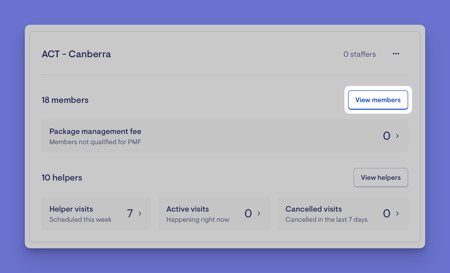
- Find the community you want, then click its View Members button.
- Alternatively, click the community's title to open it.
- Now that you are inside the community, click the Members tab (if it's not already loaded) to continue.
You'll see every active Member linked to the community, along with their funding type, plan, care-plan status and how long ago they joined.
To find a specific Member in that list: Use the search box at the top of the Members tab and start typing a name — the list filters as you type.
Viewing which communities a Member belongs to
If you're focused on one person rather than one community, you can see their community assignments from their own profile.
- From the main navigation menu, click Members to open the full list of Members.
- Find the Member you're after - use the search box to type their name, or narrow the list using the filters.
- Click the Member's name to open their profile. This will load their Member dashboard.
- Find to the Communities panel. Each community the Member belongs to appears as its own tab.
- Select a tab to see that community, along with the Staffers assigned to look after the Member there, with their role and a quick way to view their profile or call them.
If the Member isn't in any community yet, the panel shows nothing until one is added.
Adding Members
There are three ways a Member ends up in a community: you add existing Members to a community, you assign communities from a Member's own profile, or you choose their communities when you first create them. Please read our dedicated article on Onboarding a Member to learn more.
Please note: The Add members button and the profile options described below appear only if your organisation manages Members across multiple communities. If you don't see them, your organisation probably assigns each Member to a single community, and the screens behave as a move rather than an add/remove. If you're unsure which applies, check with an administrator.
Adding existing Members to a community
- Open the community and go to the Members tab.
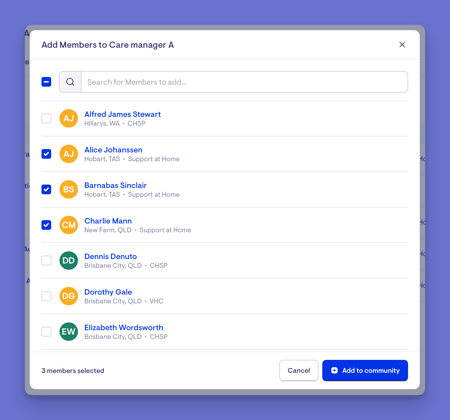
- Click the + Add members button on the right-hand side. A searchable list appears, showing Members who aren't already in this community.
- Search by name or funder, and tick the Members you want. You can select several at once; for example, typing "CH" in a CHSP community brings up matching Members to tick.
- Click the blue +Add to community button to confirm.
- A green banner will display confirming your actions.
Adding or removing communities from a Member's profile
You can manage a single Member's assignments from their own profile. This is useful when you're focused on one person.
- From the main navigation menu, click Members to open the full list of Members.
- Find the Member you're after - use the search box to type their name, or narrow the list using the filters.
- Click the Member's name to open their profile. This will load their Member dashboard.
- Find to the Communities panel. Each community the Member belongs to appears as its own tab.
- Click the Manage communities button.
- The Edit communities screen will load.
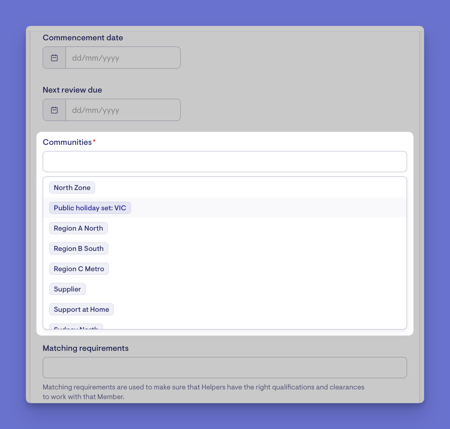
- Click into the communities search bar to load the full list of communities. You can type to search or scroll through the list.
- Select the communities you wish to add this Member to.
- To remove a community, click the X icon next to its name.
- When you are ready, click the blue Save button to apply any changes.
- A green banner will display to confirm that the Member's assigned communities have been updated.

Please note: If your access is restricted, communities you can't see are left untouched when you save. You can only add or remove the ones you have access to - the Member's other assignments stay safely in place.
Assigning a community when you create a new Member
You don't have to wait until a Member exists to put them in a community. When you create a Member from scratch, choosing their community is part of the intake:
- Start creating a new Membership and fill in the Member's details - name, contact information, plan, funding and so on.
- On the same form, in the communities section, select the community (or communities) they should belong to. You can choose more than one. This is a mandatory field, so you must choose at least one community for the Member.
- Complete the new profile. The new Member is created and immediately linked to the communities you chose, so they appear in those communities straight away.
Please note: The full onboarding process for a Member is covered in our Onboarding Members article - this article only covers the community part.
Removing a Member from a community
You can also remove a Member from within the community.
Important: Every Member must belong to at least one community. For this reason, the remove action only appears when a Member is in more than one community. If someone is in a single community, you can't remove them from it - add them to another community first, then remove the original.
- From the main navigation menu, click Communities.
- Find the community you want, then click its View Members button.
- Locate the Member you wish to remove. You can use the search feature to help.
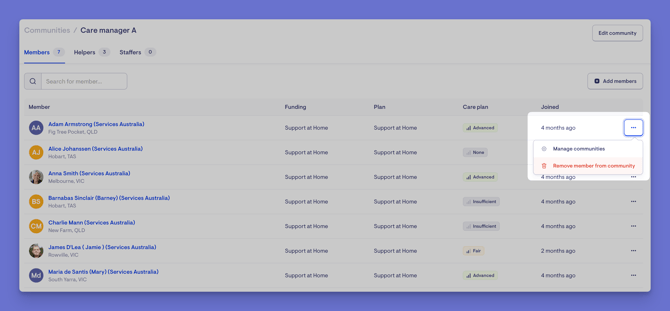
- Click the Member's ellipsis icon (...) on the right-hand side of the screen. A couple of actions will appear: Manage communities and Remove Member from community.
- Click Remove Member from community and confirm your actions.
- A green banner will display to confirm that the Member has been successfully removed.
Troubleshooting
There's no Add members button on the community's Members tab.
Either your access to that community is read-only (you can view Members but not change them), or your organisation assigns Members to a single community rather than several. An administrator can confirm which, and adjust your access if needed.
I removed a Member from a community and it wouldn't save.
Every Member must belong to at least one community. Add them to another before removing the old one.
A Member I want to add doesn't appear in the list.
The add list only shows Members who aren't already in this community. If someone's missing, they may already be in it - check the existing Member list. Also confirm you're searching by their name or funder as it's recorded.
I removed a Member but they're still in another community.
Removing a Member from one community only breaks that one link. Their other community assignments, and all their records, stay in place — that's expected.
I saved changes on a Member's profile but some communities didn't change.
If your access is restricted, communities you can't see are left untouched when you save. You can only add or remove the ones you have access to.
The Communities panel on a Member's profile is empty or missing.
The panel needs the Member to be in at least one community, and only appears for organisations that manage Members across multiple communities. If your organisation uses a single community per Member, their community shows differently.