
A Staffer is a member of your own internal team - a Care Manager, rostering staff, an administrator, etc. This article covers assigning Staffers to a community, setting what they do there, ordering them, and removing them.
New to communities? For what communities are and how access works, please read our Communities: an overview article first. You'll need an understanding of the basics before continuing with this article.
Staffers work differently from Members and Helpers. Members and Helpers are added to a community as a simple list. Staffers are assigned a role - a small record of what they do there, how much they can change, and whether Members can see them. So there's a bit more to set for each one.
A Staffer can hold a role in several communities at once, but only one role per community.
Before you start
Assigning Staffers is controlled by the Community access & Roles permission - the same permission used to create and edit communities.
Without it, you can still open a community, but the Staffers tab won't appear at all. If you can see a community's Members and Helpers but there's no Staffers tab, your account doesn't have this permission. Whoever manages roles and access in your organisation can adjust it.
You also need to be able to reach the community in the first place. You can only assign Staffers in communities within your own access reach.
Top tip: How access reach and the Community access & Roles permission work together is explained in our Communities: an overview and Managing communities as an Admin articles. If the Staffers tab is missing, that's the first place to check.
Rules and limitations
One role per Staffer per community.
A Staffer can't hold two roles in the same community - if someone spans, say, Care Management and Workforce, pick the category that best reflects their primary function. They can hold different roles in different communities.
Being assigned doesn't override the access level.
A Staffer with a Restricted (read-only) assignment can see everything in the community but change nothing. If they need to make changes, edit their role and set the access level to Full.
Assignment is what activates a Staffer's dashboard.
A Staffer's home dashboard only shows the community panels: uninvestigated observations, Member and Helper leave, expiring verifications, and so on - once they're assigned to at least one community. A Staffer with full access reach but no assignments sees organisation-wide figures instead. If a colleague's dashboard looks generic, this is almost always why.
For more information on the dashboard panels, see our Communities: an overview article.
Important: Archiving a community removes all its Staffer assignments. When a community is archived, every Staffer role attached to it is deleted - not hidden. If the community is later restored, its Members come back, but its Staffers do not, and you'll need to reassign each one. We advise taking a note of who was assigned before archiving.
Viewing the Staffers in a community
- From the main navigation menu, select Communities.
- All of your active communities will appear as cards with their name and key stats.
- A search bar is available to find a specific community if needed.
- To open a community, click its name or, alternatively, on the community's card, click the ellipsis button (…).
- This will display a short options menu, where you can select View community.
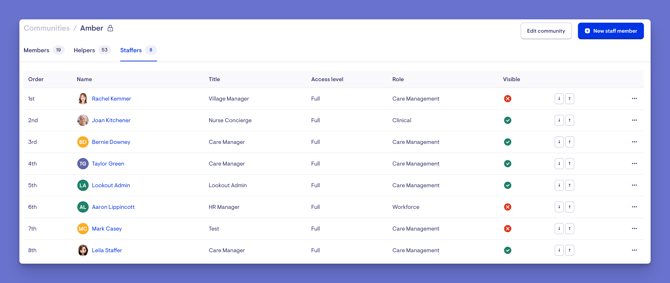
- You'll see tabs for Members, Helpers, and Staffers.
- Select the Staffers tab.
The tab shows a count of everyone assigned, and lists each Staffer with the order they appear in, their name, job title, access level, role category, and whether they're visible to Members.
Assigning a Staffer
- Open the community and click the Staffers tab.
- Click + New staff member button in the top right-hand corner.
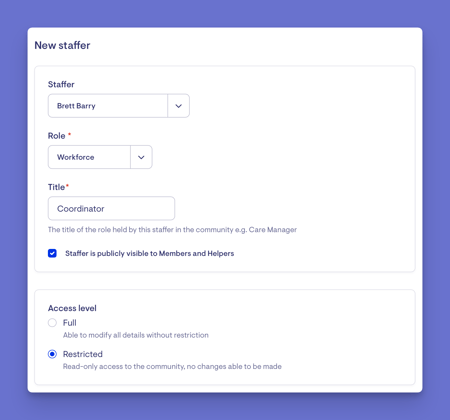
- The new staffer screen will load. Mandatory fields will be marked with a red asterisk. The table below breaks down each field:
Field What it does Staffer Who you're adding as a new Staffer to this community. The dropdown lists all Staffers in your organisation, alphabetically. Role The role they will take on within this community: Care Management, Workforce or Clinical. This is also used to route new workflows to the most relevant person. Title A free-text job title, such as Care Manager or Area Coordinator. This is what Members and families see — write it the way you'd want it read. Access level Full (can change everything in this community) or Restricted (read-only — can see everything, change nothing). Set per community, so the same person can have full access in one and read-only in another. Staffer is publicly visible to Members and Helpers When ticked, this Staffer appears in the care team Members see in the app, alongside their title. Leave it unticked for back-office staff who shouldn't be a contact point. - When you have made your selections and are ready, click the blue Save button in the top right corner.
- A green banner will display confirming your actions.
Editing a Staffer's role
To change any of the details above:
- Open the community and click the Staffers tab.
- Locate the Staffer, and click their ellipsis (...) on their row.
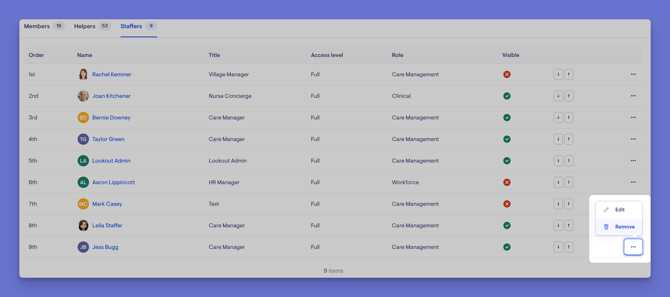
- A short options menu will load, with the option to Edit or Remove.
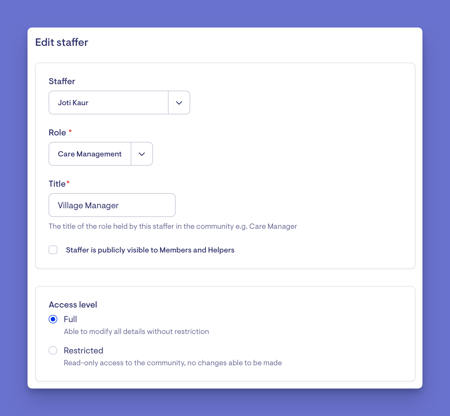
- Click Edit. This will load a new screen where you can edit the Staffer's role.
- Make any updates, then click the blue Save button when ready.
- A green banner will display confirming your Staffer has been updated.
Remove a Staffer from a community
- Open the community and click the Staffers tab.
- Locate the Staffer, and click their ellipsis (...) on their row.
- A short options menu will load, with the option to Edit or Remove.
- Click Remove and confirm your actions.
- A green banner will display confirming the staffer has been successfully removed from the community.
Staffer order
Assigned Staffers appear in a set order, and you can move any of them up or down using the arrows on their row.
This order isn't just cosmetic - it carries through to the care team that Members and families see, so put the primary contact at the top. Members only see Staffers whose role is marked as publicly visible.
- Open the community and click the Staffers tab.
- You will see the Order column, stating the current Staffer order.
- To re-order, locate your Staffer and click their up or down arrow buttons to change their placement.
- You can continue to do this for each Staffer until you are happy with the order.
- These changes are saved and updated in real-time, and a green banner will display confirming your Staffer's new position.
Troubleshooting
There's no Staffers tab when I open a community.
The tab only appears if you have the Community access & Roles permission. An administrator can add it to your access role.
I can see the Staffers tab but can't add or edit anyone.
Check the community is within your access reach — you can only manage Staffers in communities you can reach.
A Staffer I assigned isn't showing up for Members in the app.
Their role needs to be marked as publicly visible. Edit the role and tick Publicly visible to Members and Helpers. Only Staffers with a visible role appear in the care team that Members see.
The wrong person shows as the main contact for Members.
Members see Staffers in the order they're listed. Use the up/down arrows on the Staffers tab to move the right person to the top.
A Staffer can see the community but can't change anything.
Their access level for that community is Restricted (read-only). Edit their role and set it to Full.