
Communities tie together Members, Helpers and Staffers. When you set up or edit a community, you're shaping who is connected to whom.
They're the main way to organise your operation - by location, by team, by service type, by funding scheme, or any other structure that suits your business - and they're what makes management and oversight practical once you're supporting more than a handful of people.
What is a community?
A community is a group. It's how you divide the people you look after, and the people who support them, into clusters that reflect how your organisation actually works.
Most organisations group by location, because that's how care is usually delivered. But nothing forces this. A community can be built around any grouping that makes sense: a region, a branch, a funding stream, a service specialisation, a partnership, or a single large residential site.
Three profiles belong to a community:
|
Profile |
Who They Are |
Their Role |
Community Example |
|
Member |
The person receiving care and support from your organisation. |
They are the client, participant, or care recipient at the centre of the platform. |
Margaret, a Member, belongs to two community groups: ‘CHSP Members’ and ‘Brisbane North’ |
|
Staffer |
A member of your organisation's internal workforce. |
They coordinate, manage, and deliver care and services to Members. |
Sarah, an Area Coordinator, belongs to the ‘CHSP Members’ and ‘Brisbane North’ because she oversees and supports Members from the funding program and area. |
|
Helper |
An employee or Third-party provider who provides direct care services to a Member. |
They provide services directly to the Member. |
Jenny, an internal employee, belongs to the ‘Brisbane Wellness Community’, ‘Brisbane North’, ‘Support at Home (SaH) Members, ‘CHSP Members’. |
Top tip: A single Member, Helper, or Staffer can belong to more than one community. Multi-community assignment is normal, not an edge case - most organisations end up with people who span several.
What you can use communities for
- Geographic regions — for example North Brisbane or Western Suburbs
- Teams — a group of workers and the clients they look after
- Service types — grouping Members who receive a particular kind of care, such as clinical care or wound care
- Funding schemes — grouping Members by CHSP, SaH or NDIS
- Sites — a retirement village, apartment complex or supported living site becomes its own community
- Partnerships and contracts — where you deliver services on behalf of another organisation, a dedicated community keeps that caseload cleanly separated
- Reporting and billing — sorting invoices and payroll by community, including by funding type
Most organisations combine a few of these. There's no need to pick one model.
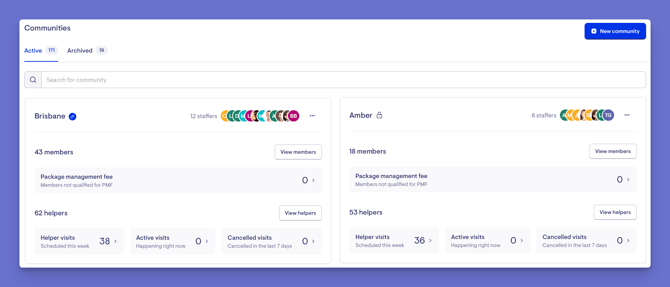
Why communities matter
Your home dashboard
This is the benefit most teams notice first. Once a Staffer is assigned to communities, their home dashboard stops showing everything and starts showing their work:
- Observations that haven't been investigated yet
- Members currently on leave, and whether their package is suspended
- Helper leave requests awaiting a decision
- Helper verifications that have expired or are about to
- Matches where a worker is missing a requirement the Member needs
- A rolling summary of visit ratings and observation rates over the last 30 days
- Members with a review date coming up
Without communities, a dashboard shows organisation-wide figures. With them, it becomes a genuine work queue.
Filtering across the whole platform
Communities act as a lens you can apply almost anywhere - Member lists, worker lists, workflows, invoices, group activities and the daily visit view all let you narrow down by community. For an organisation with thousands of Members, this is the difference between a usable list and an unusable one.
Controlling who sees what
Communities are the backbone of access control. Rather than granting or denying access record by record, you assign people to communities and let that decide what they can reach. A Care Manager in the north region sees only north region Members and doesn't need to see or accidentally edit anything else.
Publishing the care team
Staffers assigned to a community can be made visible to Members and their families, complete with a job title you choose. When a Member opens their care team, they see real names and real roles rather than a generic support address.
Grouping operational settings
Some settings hang off communities rather than being set organisation-wide. Public holiday sets are the clearest example: if your workforce spans multiple states or territories, you attach the relevant holiday set to each community so pay and scheduling follow local rules. Group activities and events can also be made available to specific communities, so Members only see what's genuinely near them.
Community access
Three settings decide who can reach a community. They stack, and understanding all three explains almost every "why can't I see this?" question.
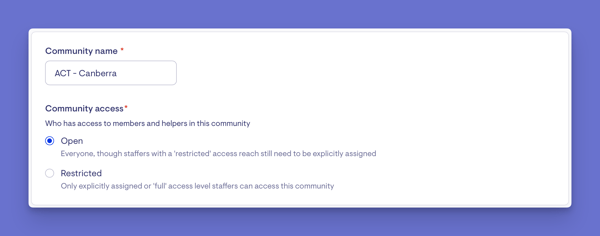
1. Each community is either Open or Restricted.
| Setting | Who can reach it? |
|---|---|
| Open | Everyone, though Staffers with a restricted access reach still need to be assigned individually. |
| Restricted | Only Staffers explicitly assigned, or who have Full access reach. |
Open is the default. Restricted suits caseloads that shouldn't be broadly visible — sensitive cohorts, a partner organisation's clients, or a program with tighter confidentiality requirements. Restricting a community narrows who can see its Members, its Helpers and their profiles in lists and searches across the whole platform, not just on the community screen. It's a real privacy boundary.
Summary: Restricting a community limits visibility to a defined group of staff, rather than making it broadly available.
2. Each Staffer has an access reach.
Set on their own staff record, this is their default reach across every community:
- Full: every community, no assignment needed. Also required for anyone building reports or exporting data.
- General: any Open community, plus anything they've been specifically assigned to.
- Restricted: only what they've been explicitly assigned. Nothing else.
Put together:
| Full reach | General reach |
Restricted reach |
|
|---|---|---|---|
| Open community | Can reach it | Can reach it | Must be assigned |
| Restricted community | Can reach it | Must be assigned | Must be assigned |
3. Each assignment has its own access level.
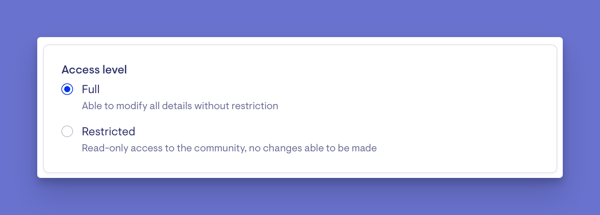
When a Staffer is assigned to a community, they get either Full access (read & write; can change things) or Restricted access (read-only; can see everything, but can't change anything). This is per community, so the same person can have full access in one and read-only in another. Useful for oversight roles that need visibility across several areas but should only be making changes in their own.
So being assigned to a community and still being unable to edit it isn't a fault, that's the third layer doing its job.
Recap
The three factors stack in this order:
- Visibility determines who can see the community.
Open = everyone
Restricted = assigned staff and full-access staff only - Staff access level determines which communities a person can access and whether they can make changes across the system.
Full = reaches everything and can edit
Restricted = only assigned communities, read-only - In-community permission level decides what a person can actually do within each community they're assigned to: read & write or read-only.
Working with communities
Managing communities as an Admin
Creating a community, naming it, choosing whether it's Open or Restricted, and archiving communities you no longer need.
Archiving is the one to approach carefully. A community can't be archived while it still has active Members, so you nominate another community to move them to. All Staffer assignments are removed at the same time, and if you later restore the community, its Members return, but its Staffers don't.
→ Please view our dedicated article to learn more about managing communities as an Admin.
Managing Members in a community
Adding Members, removing them, and working with Members who belong to several communities at once.
The rule that catches people out: every Member must belong to at least one community. If you're trying to remove someone from their only community, add them to another one first.
→ Please view our dedicated article to learn more about managing Members in a community.
Managing Helpers in a community
Helpers can be added to a community two ways: manually one at a time, or automatically using rules.
Rules are the more powerful option. You define criteria such as location, distance, services, requirements, products, or engagement type, and any Helper that matches them is pulled into the community and kept up to date as your workforce changes. Helpers added by rules are labelled differently from ones you've added by hand, so you can always tell how someone got there.
One constraint to know: a Helper can't belong to two communities that each have a state public holiday set attached.
→ Please view our dedicated article to learn more about managing Helpers in a community.
Managing Staffers in a community
Staffers work differently from Members and Helpers. Rather than being added to a list, each Staffer is assigned a role, recording the category of work they do (Care Management, Workforce, or Clinical), their job title as Members will see it, their access level, and whether they're visible to Members at all.
The role category also drives automatic behaviour: new workflows try to route to the most relevant person in the Member's care team or the Helper's community.
Assignment is also what activates the dashboard. Those community panels described above only appear once a Staffer is assigned to at least one community. Someone with Full access reach but no assignments sees organisation-wide figures instead.
→ Please view our dedicated article to learn more about managing Staffers in a community.
Troubleshooting
I can't find the Communities section at all.
Communities appear in the main navigation for organisations using the care features. If the section isn't there, your organisation likely doesn't have that part of the product enabled — check with whoever manages your account setup.
The Communities page is empty, or shows fewer than I expect.
You only see communities within your reach. With a Restricted access reach you'll see nothing until someone assigns you. With General you'll see Open communities plus your assignments, but Restricted ones stay hidden. Ask an administrator to check your access reach and your assignments.
I can open a community but everything is read-only.
Your assignment to that community has a Restricted access level. Someone with permission to manage community access and roles can change it to Full.
I can view communities but can't create, rename or archive them.
That requires the Community access & Roles permission, which is separate from simply being able to see communities. The same permission covers assigning Staffers. An administrator can add it to your access role.
There's no Staffers tab when I open a community.
Same permission as above — the tab only appears if you can manage community access and roles.
My home dashboard doesn't show any community panels.
Those panels need at least one community assignment. Full access reach on its own isn't enough — being assigned is what switches the view over.
A Member or Helper isn't appearing where I expect.
Members appear only in communities they've been added to. Helpers may have been added manually or pulled in by rules — if a Helper is missing, the rules may not be matching them. See the Helpers article for how to check.