
This article walks you through viewing, adding and removing Helpers in a community, and setting up rules that keep a community's Helpers up to date automatically - so your team always has an accurate picture of who's involved.
New to communities? For what communities are and how access works, please read our Communities: an overview article first. You'll need an understanding of the basics before continuing with this article.
A Helper is a worker who delivers direct care services to Members. They may be an internal employee or a worker from an outsourced third-party provider.
Before you start
You'll need the Community access & Roles permission. This is what lets you add Helpers, remove them, and set up or edit Helper rules.
Without it, you can still view a community's Helpers, but the add, remove and Edit Helper rules controls won't appear. If you can see the list but there are no buttons, your account doesn't have manage rights - whoever handles roles and permissions in your organisation can adjust this.
Please note: Two different things control your access. Your access reach decides which communities you can get into at all; the Community access & Roles permission decides what you can do once inside. You need both. See our Communities: an overview article for how access reach works.
Step-by-step instructions
Viewing Helpers in a community
-
From the main navigation menu, select Communities.
-
Find the community you want, and either:
-
- Click View Helpers on the community, or
- Open the community and select the Helpers tab.
The Helpers tab shows a live count, so you can see the group's size at a glance.
What each row shows
- Photo and name: each Helper appears with their avatar and full name. The name is a link to their full profile.
- On-leave indicator: Helpers currently on leave are flagged on their avatar, so you can spot availability issues quickly.
- How they got there: Every Helper is labelled either Manually added or Dynamic, telling you whether they were added by hand or pulled in by a Helper rule.
What you can do from the list
With manage access, each row behaves according to how the Helper was added:
- Manually added Helpers show a Remove action (the red bin icon). You can remove them individually.
- Dynamic Helpers (added by a rule) show Dynamic instead, and can't be removed one at a time as the rule controls them. To remove a dynamic Helper, you have to change the rule.
At the top of the list you'll also find Edit Helper rules (with a number showing how many conditions are currently active) and Manually add Helpers.
If a Helper isn't showing
- Only active Helpers appear; archived Helpers are excluded from both the count and the list.
- Each Helper is counted once, even if they match a rule and were added manually.
Adding Helpers to a community
Helpers can join a community in two ways, and you can use both in the same community:
- Manually: You add individual Helpers by hand. Best for small or fixed groups, or for people who don't meet your rule criteria but still need to be included.
- Automatically, using a rule: You set conditions once, and any Helper who matches is added and kept up to date as your workforce changes. Best for larger or shifting groups.
A common setup is a rule that handles the bulk automatically, plus a few manual additions that'll always remain regardless of how the rule changes.
Adding Helpers manually
-
From the main navigation menu, select Communities.
-
Find the community you want, then click its title to open it.
-
Now that you are inside the community, click the Helpers tab (if it's not already loaded) to continue.
-
Click the + Manually add Helpers button on the right-hand side of the screen.
-
Search by name, or narrow the list using the filters (location, services, requisites, tags and so on).
-
Next to the Helper you want, click Add to community.
-
When you're finished, click Done to return to the list.
To remove a manually added Helper, open the community's Helpers list and click Remove on their row.
Please note: Some Helpers can't be added. A Helper can belong to only one community with a state public holiday set attached. If a Helper already has one from another community, they'll show a message instead of an Add button and can't be added here. To move them, remove them from the other community first.
Adding Helpers automatically with a rule
A Helper rule lets a community fill itself with the right workers. You define the conditions once, and any Helper who matches is added. The community then keeps itself current as people join, leave or change.
-
From the main navigation menu, select Communities.
-
Find the community you want, then click its title to open it.
-
Now that you are inside the community, click the Helpers tab (if it's not already loaded) to continue.
-
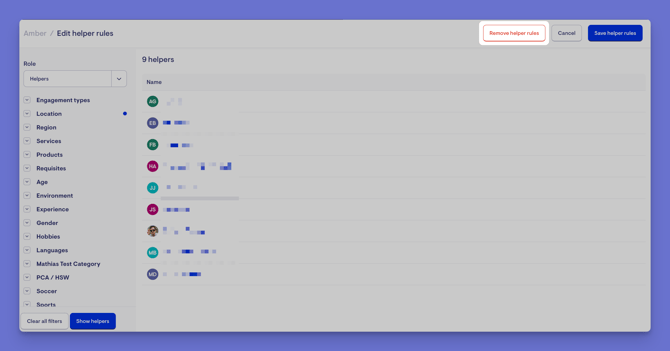
Click the Edit Helper rules button on the right-hand side of the screen.
-
The Edit Helper rules window opens with a long list of filters you can apply. Some key filters include:
- Engagement types - e.g. directly employed workers versus contractors
- Location - workers within a set distance of an address
- Region - workers who cover a particular area or zone
- Services - workers who provide a given service, such as personal care, cleaning or transport
- Products - workers associated with particular products
- Requisites - workers holding required checks or clearances, like a police check or a first aid certificate
- Tags - any tag categories your organisation uses, such as skills or experience (for example, wound care or dementia support)
-
Once you have set your filters, click the blue Show Helpers button. A list of filtered Helpers will appear.
-
When you are happy, click the blue Save Helper rules button.
-
A green banner will appear confirming your Helper rule has been successfully saved.
Top tip: A coloured dot next to a filter shows that it currently has something set. For example, a Melbourne community might set Location to 45 km from the city centre and Region to Victoria, combining the conditions to be precise.
Top tip: Combine conditions to narrow the group. For example, "workers within 15 km of the office who provide personal care." Save the rule, and the community keeps itself up to date automatically.
How editing a rule affects Helpers
Rule-added Helpers are managed by the rule. Change the rule, and it recalculates immediately. Newly matching Helpers are added, and any who no longer match are dropped. Changing the radius from 10 km to 20 km, for instance, instantly widens the group.
Manually added Helpers are never affected by the rule. Editing or even clearing the rule leaves them in place.
So if you turn the rule off entirely, every Helper the rule added is removed, but anyone added manually stays.
Removing a rule
-
From the main navigation menu, select Communities.
-
Find the community you want, then click its title to open it.
-
Now that you are inside the community, you will land on the Members tab by default. Click the Helpers tab to continue.
-
Click the Edit Helper rules button on the right-hand side of the screen.
-
Click Remove Helper rules.
-
Confirm your action.
-
A green banner will appear confirming your Helper rule has been successfully removed.
This removes all Helpers the rule had added. Manually added Helpers remain.
Troubleshooting
A Helper doesn't appear when I try to add them manually.
Check they aren't archived - archived Helpers can't be added. Confirm they're one of your organisation's Helpers, search using their exact name, and clear any filters that might be hiding them. Also, check they don't already have a state public holiday set from another community, which blocks them from being added here.
A Helper is in the community but isn't being offered work.
Being in a community doesn't create work on its own. Check they have availability set, aren't on approved leave, and have current verifications and credentials.
I want to remove a Helper without affecting their history.
Removing a Helper from a community only removes that link. Their records, notes, visits, files and verifications all stay intact. To stop them working entirely, archive their profile instead.
A Helper I removed keeps coming back.
They match your Helper rule, so the rule keeps re-adding them. To keep them out, adjust the rule so they no longer match — removing them by hand won't stick.
The count or list looks wrong.
Only active Helpers are shown, and each is counted once even if they were added both manually and by the rule. If someone's missing, check they aren't archived and, if you're expecting the rule to include them, confirm they actually match its conditions.