
This guide helps your organisation prepare for and roll out the budget enhancements in Lookout. It's not a how-to for using budgets - it's about getting ready: who to involve, how to introduce the change to your team, and a checklist to work through before you enable it.
This update won't switch on automatically. This update won't switch on automatically. Your organisation enables the budget enhancements through the Release Hub when you're ready. Nothing changes in your instance until you choose to turn them on, giving you time to prepare your team first.
New to what's changing? Start with our What's changing in budgets and why article for an overview of the improvements. For the how-to, see Budgets: An overview and Creating and managing budgets.
Why a considered rollout matters
The budget enhancements change how funding is displayed and managed, particularly for Support at Home, where budget planning, live and projected tracking, and budget plan vs. spend are now separated into distinct tabs. Because you control when you enable the enhancements, you have the opportunity to prepare your team, become familiar with the new experience, and roll it out with confidence.
Taking a little time up front means fewer surprises for your team and a smoother transition across your organisation.
Who to involve
The changes touch several roles, so it's worth making sure the right people are across it before you enable:
- Care partners - key users of budget planning and live tracking. They'll notice some of the biggest changes.
- Finance - for visibility of funding, spend and utilisation, and the impact of changes made through expense tracking.
- Rostering - because rostered services inform budget planning and projected utilisation, and budget information can help inform decisions about what services can be afforded and which funding source they draw from.
- Lookout administrators - the person or team responsible for enabling the enhancements via the Release Hub.
Top tip: Consider nominating one or two people to become familiar with the new experience first, so they can support the rest of the team once it's enabled.
Impact at a glance
Before you enable the budget enhancements, it helps to understand what will change for each team, the current limitations, and what your Members may notice. Knowing this up front will help your team prepare for the change and avoid surprises.
What each team needs to know
Care partners:
-
Budget information is now separated by purpose across three tabs: Live & projected balance tracking, Budget plan vs spend, and Budget planning.
-
Budget planning is a point-in-time plan. It should be reviewed and updated when needed, but it doesn't update automatically.
-
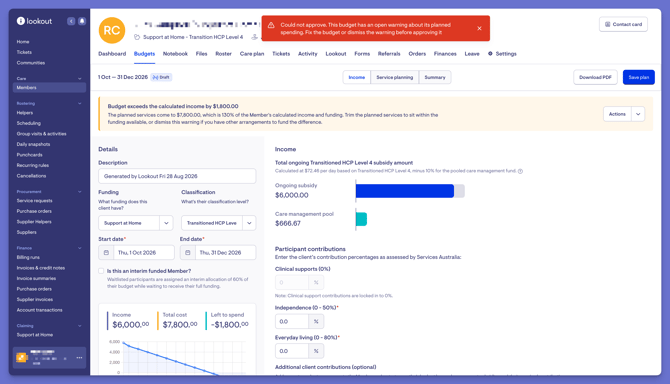
Budget plans can be built from the Member's roster, with the option to choose which services are included. Each rate variant, such as a weekend rate, appears as its own line in the budget plan.A budget showing an error can't be approved until the error is fixed or dismissed with a note.
Finance:
-
Live & projected balance tracking shows each funding source separately, including ongoing/quarterly funding, restorative care, Assistive Technology and Home Modifications.
-
Live & projected balance tracking makes it easier to monitor utilisation and projected balances, including potential over- and under-utilisation across funding sources.
-
Bulk actions are available from expense tracking, allowing authorised users to update multiple services at once, including changing service dates or funding, managing claiming status and cancelling services.
-
Bulk actions require a separate permission from finance edit access. Decide who should have this permission before enabling the enhancements.
-
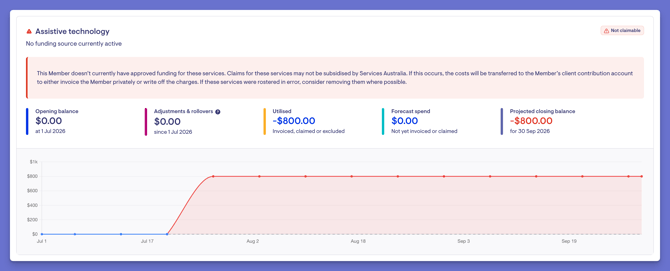
Services not covered by an available funding source are called out separately, making it easier to identify where the funding or payment arrangement needs to be reviewed.
Rostering:
-
Rostered services feed into budget plans and projected utilisation, while budget information can help inform rostering decisions about what services can be afforded.
-
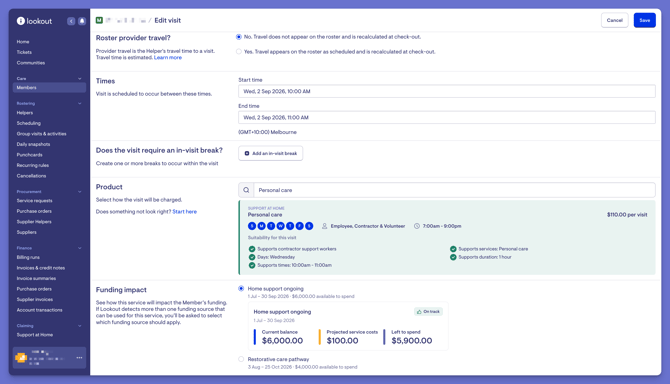
When ongoing and restorative care funding overlap, Lookout prompts the user to choose which funding source a visit, purchase order or ad hoc item should draw from.
-
Rosterers may also be given the bulk-actions permission. If so, they need to understand that changes made through expense tracking can flow through to claiming and billing (see Impact on billing and claiming below).
Known limitations
Knowing these in advance saves your team from working them out for themselves:
Funding alerts use fixed thresholds.
Over- and under-utilisation alerts are graded as high, medium, or low using set thresholds. These thresholds can't be adjusted by your organisation.
Assistive Technology and Home Modifications aren't flagged for underspend.
These funding types are generally used for specific approved purchases or modifications, rather than regular ongoing services, so under-utilisation alerts aren't applied.
The opening balance figure is shown differently.
The opening balance now shows the Services Australia opening amount, with subsequent rollovers and adjustments displayed separately. For Members with rollovers or adjustments, the opening balance may look lower than before, but the overall balance hasn't changed.
Home support is split into three cards.
Ongoing, restorative care and end-of-life funding are shown separately rather than in a single combined home support view. Each funding source draws down independently, so the figures may differ from what you previously saw in the combined view.
Funding Analyser requires the new MSA contract.
Funding Analyser is part of Lookout Assist, requires the new MSA contract and reviews Support at Home funding sources only. The rest of the budget enhancements are available across contract types and funding schemes.
Impact on billing and claiming
Budgets are a planning and tracking tool. Enabling the enhancements doesn't change your existing Services Australia statements, claims, invoices or saved budgets, and nothing is recalculated in the background.
The opening balance amount from Services Australia doesn't change either. Only how it's displayed changes (see Known limitations above).
Bulk actions are different because they make changes to the underlying service records. Changes such as switching the funding source or funder, changing a service date, or excluding a service from claiming can affect what is claimed or billed. Make sure anyone with permission to use bulk actions understands the downstream impact. After running a bulk action, check the completion notification for any rows that failed.
What your Members may notice
Most of these changes happen behind the scenes in how your team plans and tracks funding. There’s no specific action Members need to take when you enable the enhancements, but they may notice:
- Changes to the budget plans you share with them or ask them to sign.
- Conversations with their Care Partner about how their funding is being used, with potential over- or under-utilisation now easier to identify.
A suggested rollout approach
A phased rollout gives your team time to understand the changes, explore the new experience and prepare before enabling the enhancements. Start with What's changing in budgets and why for an overview of the changes and the key steps to prepare, then use the approach below to plan your rollout in more detail.
1. Learn
Have your key people read the articles (What's changing in budgets and why, Budgets: An overview, and Creating and managing budgets) and attend a Q&A webinar. This will help build a shared understanding of what's changing and why.
2. Explore
Become familiar with the new experience before your whole team relies on it. If your organisation has a sandbox environment, try the enhancements there first. If not, work through the support articles and attend our Budgets webinars, to understand the three tabs and the redesigned tracking view before rollout.
3. Prepare your team
Brief your care partners, finance and rostering teams on what's changing for each of them, using Impact at a glance above. Cover where the key information now lives, the things they should be aware of, and any changes to their workflows. Decide who should have permission to use bulk actions. Make sure the people who explored the new experience first are ready to support others.
4. Enable
Enable the budget enhancements through the Release Hub when your team is prepared.
5. Support
In the first few weeks after enabling, check in with your team and address questions as they come up. Make sure everyone knows where to find the budget guides and who within your organisation can help with the new experience. If something doesn't look right, your team can contact Lookout Support.
Readiness checklist
Before enabling the budget enhancements through the Release Hub, work through our Readiness checklist to make sure your team is prepared.
Keeping on top of utilisation after you enable
Enabling the enhancements is the start, not the end. A big part of the value is making it easier to monitor utilisation, identify potential over- and under-utilisation early, and take action where needed.

Coming soon: We're preparing a dedicated Staying on top of utilisation guide with practical tips on what to monitor and actions to consider. In the meantime, Budgets: An overview explains what Live & projected balance tracking can show you.
Lookout Assist: Funding Analyser
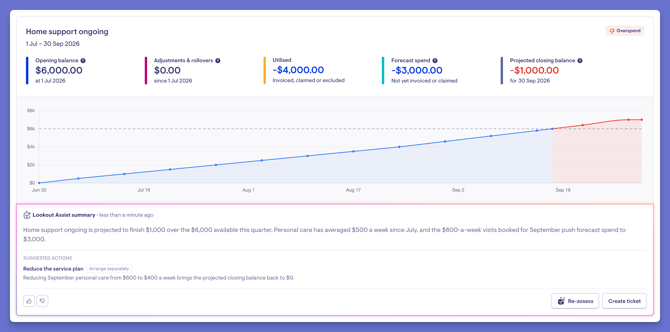
Funding Analyser is part of Lookout Assist and can help investigate what’s driving a projected funding position. It reviews factors such as service lines, price or schedule changes and funding sources, then suggests actions for you to review. It never makes changes on its own.
Funding Analyser requires Lookout Assist and the new MSA contract. The rest of the budget enhancements are available across contract types.
Still need help?
If you have questions about preparing for or enabling the budget enhancements, please contact our Support Team or your account contact.
You can also visit Budgets: FAQ for answers to common questions about the budget enhancements.