
This guide explains what a Budget is in Lookout, why budgets are so important for managing a Member's funding, and how to access the Budgets tab on a Member's profile.
Please note: Any updates to Budgets won't switch on automatically. Budget enhancements are enabled by your organisation through the Release Hub when you're ready. Nothing changes in your instance until you choose to turn it on - so you have time to read these articles, attend a Q&A webinar, and get comfortable with anything new in budgets the changes before enabling.
New to Budgets? Before you dive in, you may find it helpful to review our Budgets: Glossary or terms, which explains the key terms you'll come across - like income, client contribution, service plan, and left to spend.
What is a budget?
A Budget in Lookout is a plan for how a Member's funding will be used over a set period of time. It brings together three things in one place:
- What's coming in - the funding available to the Member, such as government subsidies and any client contributions.
- What's planned to go out - the services and expenses the Member intends to use their funding for.
- What's left - how much of the funding remains to be spent.
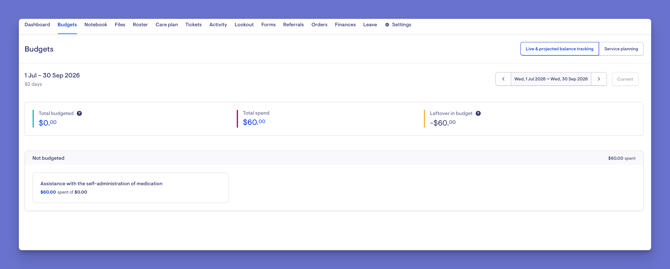
Budgets in Lookout support a range of funding types - including Support at Home, Home Care Packages, NDIS, and private funding, so the budget reflects the rules of the Member's specific funding arrangement.
Please note: Support at Home Budgets are structured differently to other funding schemes: they're organised by quarter and show a breakdown of funding sources. Other funding schemes can use a flexible date range.
The three budget tabs
The budgets area is organised into three tabs, each answering a different question about a Member's funding:
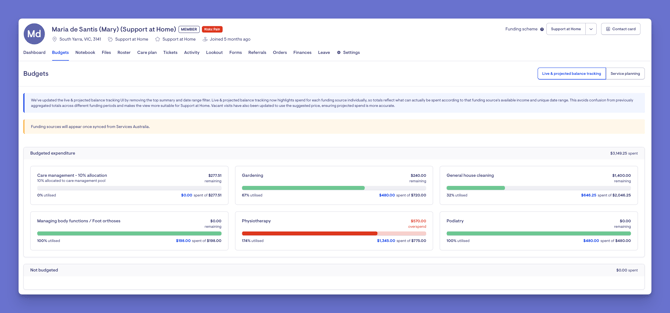
- Live & projected balance tracking - how the Member's funding is being utilised and where they're projected to land by the end of the period.
- Budget plan vs spend - how the plan you agreed compares to the actual spend, so you can see where things are tracking over or under.
- Budget planning - the point-in-time plan you agreed with the Member.
Keeping these separate makes it clear at a glance whether you're looking at the agreed plan, the live position, or how the two compare.
What the tracking tabs show you
Live & projected balance tracking
This tab makes a Member's funding easy to follow in real time:
- A spend-over-time chart - an accumulating line showing how spending is tracking across the period, and when a Member moves into overspend.
- A clear opening figure - the opening balance from Services Australia provides a stable starting position. Any rollovers or adjustments are shown separately and clearly dated, so you can see when and why the balance changed.
- Funding sources broken out - each funding source (for example, ongoing/quarterly, restorative care, assistive technology, and home modifications) is shown in its own panel, so you can see how each is tracking.
- A projected closing balance - where the Member is forecast to land by the end of the period, so you can identify potential issues early.
Budget plan vs spend
This tab compares the plan you agreed with the Member against actual spend, with a per-service breakdown so you can see where spending is tracking ahead of or behind the plan.
Why these tabs matter: Support at Home isn't just "how much money is left today." It's about multiple funding sources, how they're being used, what's rolling over, and which direction spending is trending - so you can identify under- and over-utilisation early.
Making the most of budgets
A well-maintained budget is one of the most powerful tools you have for delivering good care and running a healthy service. Here's how to get the most out of them:
Keep the funding picture accurate
A budget is only as useful as the information in it. Keep income, planned services, and expenses up to date so the Budget plan accurately reflects what you've agreed with the Member. Live & projected balance tracking then shows how their funding is being utilised over time. Together, they give you a clearer picture and support better decisions.
Direct funding to what matters
Use the budget to help direct a Member's funding towards their planned supports. Planning services against available funds helps you maximise the value each Member gets from their funding.
Identify under- and over-utilisation early
The live tracking view lets you see how each funding source is trending, so you can have timely conversations with the Member before funding runs short or goes unused.
Plan ahead with confidence
Because a Budget covers a defined period, it lets you look forward rather than react. Reviewing a budget before committing to new services helps you understand the financial impact in advance.
Stay compliant and audit-ready
A clear, documented budget provides a record of the agreed plan for a Member's funding. This supports compliance and good record keeping, and can make reviews and audits simpler.
Review regularly
A Member's needs and circumstances can change. Revisit their budget plan as part of regular reviews, assessments and changes to funding, as well as following any significant health changes. Keeping the plan up to date and aligned with what's been agreed helps the budget and live tracking together show the full picture.
Top tip: A budget plan is a point-in-time capture of a Member's funding and planned spend. Reviewing and updating it as things change keeps it aligned with what's been agreed, while Live & projected balance tracking shows how funding is being utilised and where it's projected to land over time.
Navigating to budgets
You'll find Budgets on each Member's profile:
- From the main navigation menu, click Members to open the full list of Members.
- Find the Member you're after - use the search box to type their name, or narrow the list using the filters.
- Click the Member's name to open their profile. This will load their Member dashboard.
- On their profile, select the Budgets tab from the row of tabs beneath their name.
Here is an example of a Support at Home budget screen:
Here is an example of what the budgets tab looks like for a different funding type:
Ready to get hands-on? Head to our Creating and Managing Budgets article for step-by-step instructions on setting up, editing, and approving a Member's Budget.
Troubleshooting
I can't see the Budgets tab
- Confirm you have access to the Member's community and the correct permission (Finance view accounts) to view their financial information.
The Budget looks empty or incomplete
- A Budget may still be in draft, or may not yet have been set up for the current period. See Creating and Managing Budgets to set one up.
The figures don't look right
-
Check the budget's period (start and end dates) and that the correct funding type has been selected.
-
Confirm the Member's funding has synced from Services Australia and that their funding scheme details are correct. Missing funding information or incorrect scheme details can affect the figures shown in the budget.If the issue persists, contact Support.
The budget looks different to what I expected
The way budgets display depends on the funding type. Support at Home budgets are organised by quarter with funding sources broken out; other funding types can use a flexible date range.
Still have a question? Take a look at our Budgets: FAQ, where we answer the most common questions in one place.