
This article explains the enhancements coming to budgets in Lookout, why we've made them, and what they mean for you. It's here to help you feel confident and prepared before you turn the new experience on.
This update won't switch on automatically. The budget enhancements are enabled by your organisation through the Release Hub, when you're ready. Nothing changes in your instance until you choose to turn it on, so there's no rush. Take the time to read through our articles and guides, attend a Q&A webinar, and get comfortable with the changes before enabling them.
Want the how-to? This article covers what's changing and why. For step-by-step guidance, see Budgets: an overview and Creating and managing budgets.
Why we've made these changes
Support at Home is complex, and we've listened closely to your feedback over the first year of the program. A lot of that feedback came down to one thing: making it easier to understand and stay on top of a Member's funding.
Budgets aren't just "how much money is left today." Under Support at Home, it's about balancing multiple funding sources, how each can be used, amounts rolling over, and which direction spending is trending. Utilisation is critical under Support at Home, so it's just as important to identify under-utilisation as over-spending, helping you have timely, informed conversations with Members before small issues become big ones.
These improvements are all about giving you more clarity, sooner - so you can see what's happening, understand why, and act in time.
What’s changing
Planning and live tracking are now separate
Previously, budget planning and tracking sat together on one screen, which could make it difficult to distinguish the agreed plan from actual and projected spending. They're now separated into three distinct tabs:
- Live & projected balance tracking: How the Member’s funding is being utilised, and where their balance is projected to finish at the end of the period.
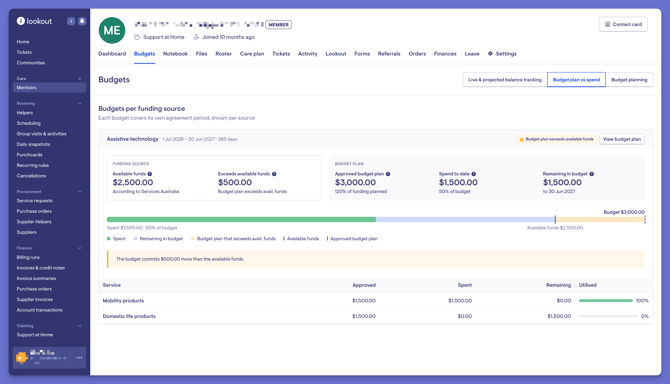
- Budget plan vs spend: How the agreed budget plan is tracking against actual spend, so you can see where spending is tracking over or under the plan.
- Budget planning: The point-in-time plan agreed with the Member.
This makes it clear at a glance whether you're looking at the agreed plan, actual spend or projected balances.
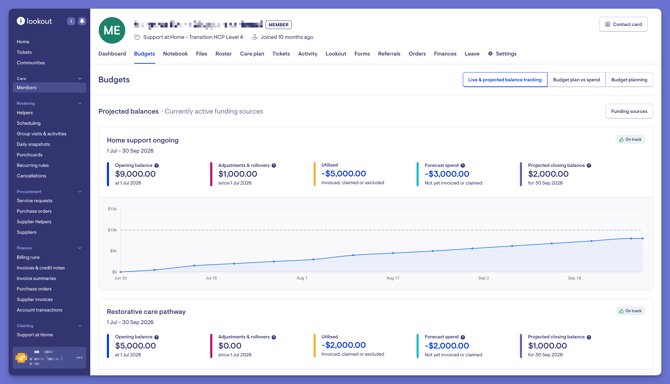
A clearer view of live & projected balance tracking
The live tracking view has been redesigned to make funding easier to follow:
- A spend-over-time chart that shows how spending is tracking, and when a Member may move into overspend.
- Funding sources broken out into their own panels (for example, ongoing, restorative care, assistive technology, and home modifications), rather than combined into one balance.
- A projected balance showing the Member’s expected position at the end of the period.
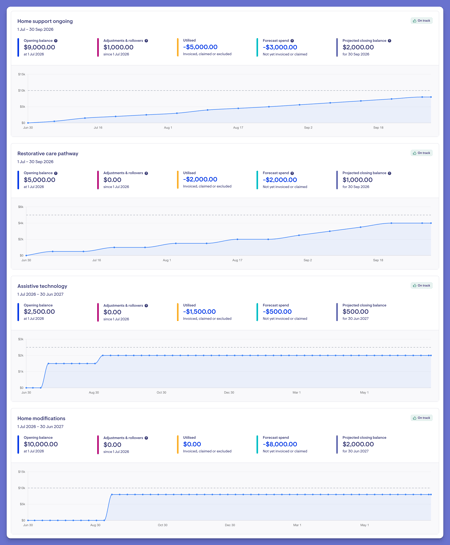
A stable transparent opening balance
Opening balance information is sourced from Services Australia (SA). Previously, if SA made changes, such as to rollover or adjustment amounts, the opening balance in Lookout would shift. This was a common source of confusion, as it could be difficult to understand what had changed and why.
Now, the opening balance is held as a stable starting position, with subsequent rollovers and adjustments shown separately and clearly dated, so you can see when and why the balance has changed

Seeing how the plan compares to actual spend
The new Budget plan vs spend tab compares the agreed budget plan against what’s actually been spent, so you can see at a glance where spending is tracking over or under the plan, and where the plan exceeds the funding available.
Introducing the Lookout Assist Funding Analyser
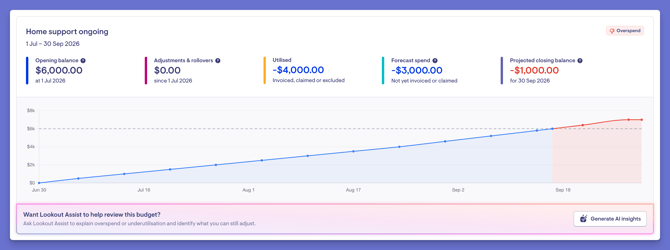
The new Funding Analyser, powered by Lookout Assist, helps you understand what's happening in a Member's Support at Home budget. Rather than working through the budget yourself to identify what's driving a change, Lookout Assist can analyse it and explain what's happening in plain English.
Funding insights are specific to the funding source they relate to, helping you identify where funding may be over or under-utilised and where to look for more detail.
To learn more, please view our dedicated article – Budgets with Lookout Assist: Funding Analyser.
Improvements to creating budgets
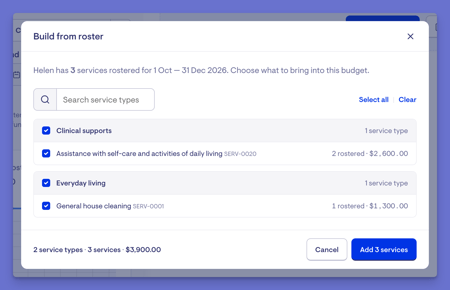
Creating a budget from a Member's roster is now more accurate, including weekend and variant rates for Support at Home. You can also select which roster items to include before generating the budget.
For bulk budget generation, you can choose the budget type and generate budgets for a future period. Generated budgets will also flag potential issues, such as an empty plan or planned spending exceeding the available funding, so you can review them before finalising or sending the budget.
What this means for you
- Nothing changes until you enable it. You're in control of the timing via the Release Hub.
- The information you rely on is presented more clearly. The enhancements change how budget information is organised and displayed, without changing the Member's underlying funding arrangements. It's worth preparing your team. Because planning and tracking now sit in separate tabs, and the live tracking view looks different, it's a good idea to make sure your care partners, finance and rostering teams know what to expect before enabling the enhancements.
Lookout Assist required. The Funding Analyser is only available if your organisation has Lookout Assist switched on, and it specifically requires the new master services agreement (MSA). If you don't see the option to review a budget with Lookout Assist, your account either doesn't have Lookout Assist enabled or isn't on the required agreement. Speak to your Lookout contact to enable it.
How to prepare
- Read the articles - Budgets: An overview and Creating and managing budgets walk through the new experience.
- Attend a Q&A webinar - a chance to see it in action and ask questions before enabling.
- Plan your rollout - decide who needs to know what, and consider how you’ll help your team become familiar with the new budget experience before enabling it organisation-wide. For a step-by-step approach and a readiness checklist to work through first, see our Adopting the budget enhancements: a rollout guide.
- Enable when ready - turn on the budget enhancements via the Release Hub when your team is prepared.
Still have a question? Take a look at our Budgets: FAQ, where we answer the most common questions in one place.
Still need help?
If you're still experiencing issues or have questions about the changes, please contact our Support Team and include:
- The specific area or change you have a question about
- Screenshots (if possible)
- Any error messages received