
A billing run is how Lookout turns the services delivered in a period into items that can then be invoiced. This article covers what billing runs are for, what they include and how they move from draft to published. It also explains how billing runs fit into a typical week or month, and who sees what along the way.
Overview
Each day, Helpers deliver services, Members receive support, and charges accrue across visits and memberships. Rather than invoicing each charge individually, Lookout consolidates eligible charges for a defined period into a single billing run.
A billing run cycle represents a specific billing period, such as a week, fortnight, or month. It collects all billable items within that period, validates them, and generates the corresponding invoices in a single process.
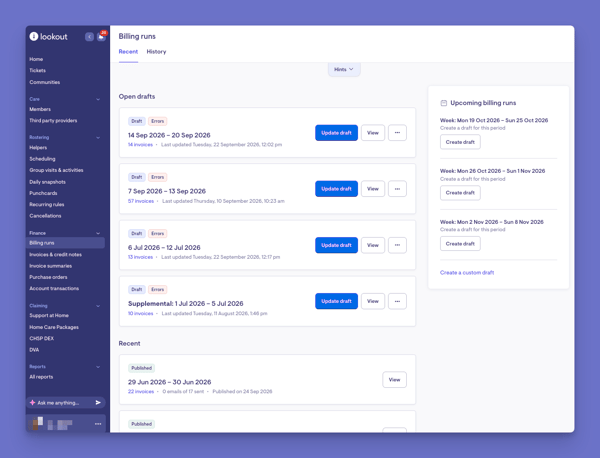
You can think of a billing run as the process of finalising a billing period. Throughout the period, Lookout maintains a working version of the billing data, known as a draft billing run. This draft allows you to review and verify charges before finalisation. Once the billing run is confirmed, the billable items are generated and become the authoritative record for that billing period.
Before you start
This article provides an overview of how billing runs work in Lookout. It is intended to help you understand the billing run process and does not require any configuration or system changes.
You will benefit most from this article if:
- You are a Staffer responsible for finance, invoicing, claiming, or billing administration.
- You have been assigned the Billing runs permission required to access and manage billing runs.
Important: Lookout is not accounting software. A billing run gathers the services delivered to Members during a billing period and turns them into billable items. Once the billing run is published, you can export those billable items and bring them into your accounting software, where your invoices to Members are created and managed.
What is a Billing run?
A billing run is the regular process Lookout uses to turn the work delivered in a set period into invoices. Rather than creating invoices one by one, the system gathers everything that should be billed for the period and creates all the invoices together in one batch.

Warning: Lookout is not accounting software. The term 'Invoice' in Lookout refers to a record, document, or report describing items that can be invoiced at a later date.
In Lookout, an invoice is a record of charges for services, such as a completed visit or a Membership fee. Most invoices are created during a billing run. Ad hoc invoices are created manually and included in the next billing run. Therefore, an invoice is best thought of as an item that is subject to invoicing. Lookout collates the details of each service so your organisation knows what needs to be billed and to whom. It is not always the document sent to someone to pay. In many cases, the information is exported to your accounts payable (AP) or accounts receivable (AR) system, where the final invoice is created and issued.
Depending on the funding type and the systems your organisation connects to, invoices may be used to:
- Claim funding from a government program, such as Support at Home
- Report services delivered
- Track spending against a Member's budget
- Export billing details to your AP or AR system, where the final invoice is created and issued
- Record what workers and suppliers have delivered
- Correct earlier charges through credit notes
Accounts and financial flow
Support at Home Members have their accounts opened automatically when their funding scheme is saved. Other Members do not need an account. An Admin can open one from the Member's Transactions & statements tab by selecting Open account if you want to track a balance of funds.
When a billing run is published, invoices and invoice summaries are created for all Members, with or without an account. AR and payroll exports are based on this invoice data, so they are not affected.
Please note: Opening an account does not add invoices from billing runs that have already been published. Open the account before publishing if you want those amounts recorded.
Billing run stages
Every billing run moves through the stages below:
Draft
A draft is a preview of the invoices for a billing period.
While in draft, you can:
-
Review charges.
-
Check reports.
-
Resolve errors.
-
Refresh the billing run with updated information.
-
No invoices are issued while a billing run remains in draft.
Published
Publishing finalises the billing run and creates the invoices for the period.
Once published, the billing run cannot be changed.
Sent
After publication, invoice summaries can be sent and billing data can be exported for claiming or accounting.
Billing run frequency options
Weekly: each billing run covers seven days. You choose the day the cycle starts, from Monday to Sunday.Fortnightly: each billing run covers 14 days. You choose the day the cycle starts, from Monday to Sunday.
Monthly: each billing run covers one calendar month, from the 1st to the last day of the month. You don't choose a start day for this option.
Custom: there is no fixed cycle. You pick the date range for each draft yourself on the Billing runs page by selecting Create new draft. New companies start on Custom until a cycle is chosen.
How billing runs are created
Manually: you create each draft yourself and select Update draft whenever you want to pick up changes made since it was last updated.Automatically: when Automatically generate draft billing runs? is turned on, Lookout creates a draft on the first day of each billing run period and updates it every morning. You can also update it yourself at any time.
Automatic generation only works with Weekly, Fortnightly or Monthly. If the cycle is set to Custom, automatic generation is switched off.
Other things to know:
The Upcoming billing runs panel shows the next periods in your cycle that don't have a billing run yet, so you can create a draft from there.Supplemental billing runs: if you change your cycle and there are days left between your last billing run and the next regular period, Lookout points out the gap. It then offers to create a supplemental billing run to cover those days.
No overlaps: a new draft can't include dates that are already part of another billing run.
Drafts can be changed until published: any draft, including a supplemental one, can be reviewed, updated or deleted until it is published.
Supplemental Billing runs
A supplemental billing run is a one-off run that fills the gap left when your organisation changes its billing cycle, for example from weekly to monthly. It works like any other billing run. The difference is that it covers an odd-length period and carries a "Supplemental" label.
Please note: When automatic generation is on, Lookout only creates and updates the draft for the regular period that matches your frequency. It never creates the gap period, and it never refreshes a supplemental draft once someone has made one. Regular automatic drafts carry on as normal from the next full period.
Why it's needed
Regular billing runs follow your cycle (weekly, fortnightly or monthly). If you switch cycles partway through, your last run often ends partway through a period of the new cycle. The system spots this and offers a run covering the days from the end of the last run to the end of that period. After that, the new cycle carries on normally.
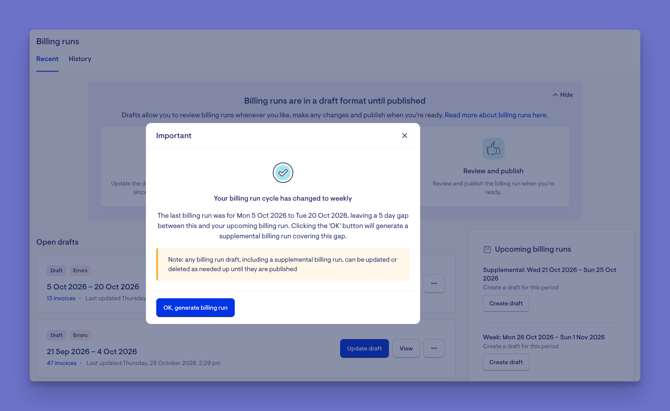
Example: Say you move from weekly to monthly. Your last weekly run covered Monday 5 October to Sunday 11 October. The new monthly period is 1 to 31 October, so the system offers a supplemental run for Monday 12 October to Saturday 31 October, a 20-day gap. Regular monthly runs then start on 1 November.
How it appears on the Billing runs page
A pop-up titled "Important". Once the gap period has started, a pop-up appears on the billing runs page. It says your billing run cycle has changed, gives the dates of the last run, and says how many days the gap is. A note explains that any draft, supplemental ones included, can be updated or deleted until it's published. The button reads "OK, generate billing run".In the "Upcoming billing runs" panel. The gap is also listed among the upcoming periods as "Supplemental:" followed by its start and end dates, with a "Create draft" button. It's listed even before the gap starts.
In the draft and published lists. The run's dates are shown with a bold "Supplemental:" label in front of them.
What happens when it's created
It works like any other run. It starts as a draft, finds every billable item in its date range and creates invoices for them. You can review it, download the draft report, update it, delete it or publish it in the usual way.If you update the draft, it stays marked as supplemental.
Once it's created, the gap is filled, so the pop-up and the upcoming entry stop appearing.
The supplemental label is also sent to connected systems through the integration feed.
When it doesn't apply
Custom billing periods: organisations that use custom periods don't have a regular cycle, so they never get supplemental runs.Automatic billing runs: from what I found, the system doesn't create the supplemental run itself even if your runs are generated automatically. Someone has to click the pop-up button or "Create draft".
Why billing runs matter
Billing runs help your organisation invoice services and charges for a specific period, such as a week, fortnight or month.
They allow you to:
Review and correct billing issues before invoices are finalised.
- Keep billing periods separate and organised.
- Generate invoice summaries (Items that are captured that can be used with external AP/AR systems) for Members and Helpers (optional).
- Prepare billing data for claiming, reporting and accounting.
What a billing run includes
A billing run can contain:
-
Visit charges
-
Membership fees
-
Third-party charges
- Ad hoc charges and credit notes
- Visit charges: A charge for each completed visit that ends within the period, including any travel or transport costs recorded on the visit. No setup is needed. Cancelled visits are not included.
- Platform fees: A percentage of a contractor Helper's earnings, charged as a fee on their visits.
- Care management fees: A charge for care management or nursing time logged against a Support at Home Member.
- NDIS support co-ordination tracked time: A charge for support co-ordination time logged against an NDIS Member.
- Third-party charges: A charge for goods or services from a supplier, created from a purchase order.
- Adhoc charges and credit notes: created manually for dates in the period, published along with the billing run to reduce or reverse charge and is included when the billing run is published.
How special charges are included
Platform fees:- Your organisation must turn on Collect platform fees in Finance settings.
- The percentage is set on your rates.
- The fee only applies to visits delivered by contractor Helpers.
Care management fees:
-
- The Member must be funded through Support at Home.
- Time must be logged with Track time, for example on a ticket, care plan, progress note or observation.
- Each time entry must include a funding source and a Support at Home care management or nursing rate.
- Time marked as no charge is not invoiced.
- Your organisation must turn on Generate invoices for NDIS support co-ordination based on time tracking logs in Finance settings, under NDIS support co-ordination invoicing.
- The Member must be an NDIS Member.
- Time must be logged with Track time and include a rate.
- Time marked as no charge is not invoiced.
Third-party invoices:
- The goods or services must be recorded on a purchase order.
- When the invoice is created depends on the third-party invoicing setting in Finance settings.
Please note: For Members funded through Support at Home, some invoices are titled "Billing note" instead of "Invoice" or "Tax invoice". This happens when the service is delivered by an employed Helper, because tax isn't charged to the Member. A billing note is created, published and exported in the same way as any other invoice in a billing run.
Typical billing process example
Most organisations follow the example workflow:
-
Services are delivered throughout the billing period.
-
Staffers review and update the draft billing run and resolve any errors.
-
The billing run is confirmed and published.
- All reports > Finance reports or Data exporter is utilised to extract reports to use with external account systems.
Common reports include accounts receivable or payable.
Exported billing data is commonly used for:
-
Accounts Receivable (AR): recording and collecting what Members owe, for example Membership itemised report, Itemised invoices report, Transaction Report or Membership Ezidebit export (V4) for direct debit collection.
-
Payroll exports: paying Helpers, for example Payroll report, Helper summary report (v5) or Helper itemised report (v5).
Please note: The available reports depend on your organisation's setup and access level, so you may not see all of them.
Top tip: Reviewing billing runs regularly throughout the period helps identify issues before invoicing is due.
When you publish a billing run
Once a billing run is published, it can't be changed and is essentially "locked".
Lookout:
- Publishes every invoice in the billing run. Their details can no longer be edited.
- Publishes any ad hoc invoices and credit notes dated within the period.
- Removes Update draft, Confirm and publish and Delete draft, so the billing run can't be rebuilt, published again or deleted.
- Stops the same dates being used in another billing run.
- Uses the invoices to update Member accounts, so spending against budgets can be tracked.
- Makes the billing run ready to export and lets you email invoice summaries.
- Keeps the billing run available to view, including its invoices and reports.
- Adds visits from the period that are completed or changed after publishing to the next billing run as missed invoices, instead of the published one.
- Makes corrections to published charges through credit notes, which are included in a later billing run.
Important: Publishing a billing run can't be undone. Before you click Confirm and publish, review the draft, resolve any errors and click Update draft so it shows the latest changes. Once a billing run is published, you can only correct its charges with credit notes. Visits completed or changed after publishing are added to the next billing run.
Impact on Member accounts
How a billing run affects a Member's account depends on their funding scheme.
Members on Support at Home (SaH)
Publishing a billing run does not update Support at Home accounts. These accounts are updated only after:
-
The claim is finalised
- The Services Australia payment statement is processed
-
At that point, amounts are recorded against the Government subsidy, Client contribution, Home care and Provider-held Commonwealth funds accounts, as they apply to the Member.
Members on other funding schemes
This applies to Members who are not on Support at Home, such as those funded through the Commonwealth Home Support Program (CHSP), the National Disability Insurance Scheme (NDIS), Veterans' Home Care (VHC), the Department of Veterans' Affairs (DVA) or private funding.
Invoice-able items are recorded against the Member's account (The account must be open), found within the Member's Finances tab:
-
Invoices reduce the account balance
- Credit notes increase the account balance
-
Each item is recorded as a separate transaction, showing the balance before and after
-
Publishing does not affect the Client contribution accounts.
Warning: Items are only recorded if the Member has an open account when the billing run is published. For most funding schemes, this account is not opened automatically. To open one, go to the Member's Finances tab and click Open account. If an account is missing or closed at the time of publishing, it will not be updated later.
Member statements
Statements are generated from account transactions.
-
Services appear on statements using the service date.
- Late services from closed claim periods are dated to the start of the current open claim period.
-
Earlier-dated entries automatically recalculate later balances.
-
For Support at Home, statements become available once the claim is completed.
-
Invoice summaries (optional).
Helpers: Independent contractors receive summaries; employees do not.
Suppliers and clinicians: Optional, based on finance settings.
Member budgets (with budget & live tracking enhancements switched on)
When a billing run is published, Lookout updates the budget for every Member with billable items in that run, regardless of their funding scheme.
-> Learn more about budget & live tracking enhancements here.
Before publishing
Planned services appear in the Member's budget as Forecast spend. These include:
-
Scheduled visits, including vacant visits that have not yet been filled.
-
Group activity bookings.
-
Purchase orders.
-
Logged tracked time (Cancelled visits and group activity bookings that are cancelled or marked absent are removed from the forecast.
Please note: Each forecast expense is assigned to a Support at Home budget based on its service code. Care management is tracked against the care management pool (the 10% allocation), not the Member's home support budget.
After publishing
- Forecast spend is replaced with the actual billed amounts. Each amount is dated on the day the service was delivered or on the publication date if there is no delivery date. These expenses show as Invoiced.
- If a purchase order is only partly billed, the unbilled remainder stays as Forecast spend.
- Credit notes are added back to the budget.
- Services not included in the billing run stay as Forecast spend until a later billing run bills them.
Support at Home Member budgets
Each budget card shows two amounts:
| Label | What it includes |
|---|---|
| Forecast spend | Services not yet invoiced or claimed |
| Utilised | Services that have been invoiced or claimed |
When the billing run is published, the billed items move from Forecast spend to Utilised. The Projected closing balance updates to reflect the change. The budget plan card shows Spend to date, which is the total claimed, invoiced and forecast for the period.
Members on other funding schemes
Billed amounts count towards the Member's spend as soon as the billing run is published. These Members see the standard budget view, as the enhanced view is only available for Support at Home Members.
Please note: To compare billed amounts against a budget plan, the Member needs a budget set up. Only billable items linked to a Member affect their budget. Helper invoices do not.
Member budgets (without budget & live tracking enhancements)
Publishing a billing run doesn't update Member budgets.
On the Member's Budgets tab, you can create, approve, and share and sign budget plans. There's no live tracking view, so neither projected costs nor billed amounts appear against the budget plan.
--> Want to create and manage a Member's budget? Navigate to our article to get a walk through here.
What happens next?
Now that you know what billing runs are and how they're used, master billing runs by reading:
- Billing run errors: How to fix billing run errors in Lookout to learn what errors mean and how to clear them.
- How to complete a billing run: To configuration, creating a draft, updating a draft and publishing it.
What Staffers, Helpers and Members will see
Staffers
Staffers with the Billing runs permission see Billing runs under Finance. They can create, update, publish and delete billing runs. Staffers without the permission don't see the page.
Helpers
Helpers don't see draft billing runs. They receive an invoice summary email after a billing run is published and a Staffer sends the summaries.
Members
Members don't see draft billing runs. They receive an invoice summary email after a billing run is published and a Staffer sends the summaries.
Troubleshooting
Why can't I see Billing runs in the menu?
You need the Billing runs permission. Ask your Admin to add it.The Billing runs page says "Billing run cycle not specified".
Your organisation hasn't set a billing run cycle yet.You can still create a custom draft. See "How to complete a billing run in Lookout".
Why is a billing run labelled Errors?
Some items in the draft couldn't be invoiced, so see "How to fix billing run errors in Lookout".
Still need help?
If you're still experiencing issues, please contact our Support Team and include:
Screenshots (if possible)The user's name/email
The exact steps taken
Any error messages received