
Completing a billing run turns the services for a period into final invoices. This article covers creating a draft, then reviewing and updating it. It also covers publishing the billing run and emailing invoice summaries.
Top tip
Top tip: If you're new to billing runs, read What are Billing runs first. To fix errors before you publish, Billing run errors.
Overview
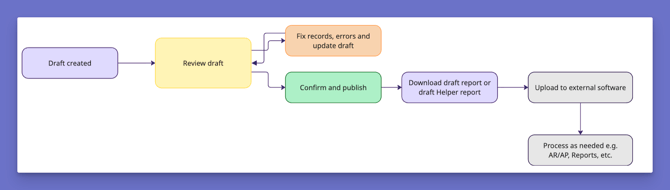
Completing a billing run involves five stages:
- Create: Create a draft for the period, or open one Lookout created for you.
- Review: Check the draft's invoices and figures.
- Update: Regenerate the draft so it includes the latest changes.
- Publish: Confirm the billing run. This closes it, and it can't be changed. Optionally, Draft report and Helper draft report can be downloaded.
Optional: Send: Email invoice summaries to employee Helpers and selected Members.
Before you start
- Under Access roles > Financial Access, you have the Billing runs permission switched on.
- To set the billing run cycle, you also need the Configure finance settings permission.
- You're logged in to the Lookout web app.
- Visits for the period have been completed and checked out.
Setting your billing run cycle (first time only)
If your organisation already has a billing run cycle, skip this section.
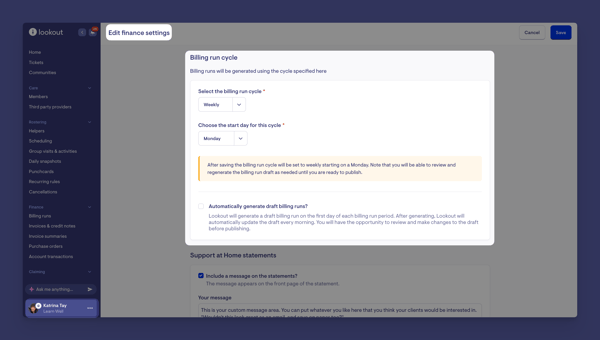
- Click Settings, navigate to Finance and Click on Finance settings.
- Click Edit.
- Under Billing run cycle, select weekly, fortnightly, monthly or custom in Select the billing run cycle.
- For a weekly or fortnightly cycle, select a day in Choose the start day for this cycle.
- Tick Automatically generate draft billing runs? if you'd like Lookout to create drafts for you.
- Click Save.
Expected result: Lookout shows "Finance settings updated successfully." The Billing runs section shows your cycle, for example "Billing runs will be automatically generated weekly on Monday".
Please note: If changing the cycle leaves a gap since your last billing run, the Billing runs page shows a message. Click OK, generate billing run to create a supplemental billing run that covers the gap.
Step-by-step instructions
How to run a billing run
Step 1: Navigate to Billing runs
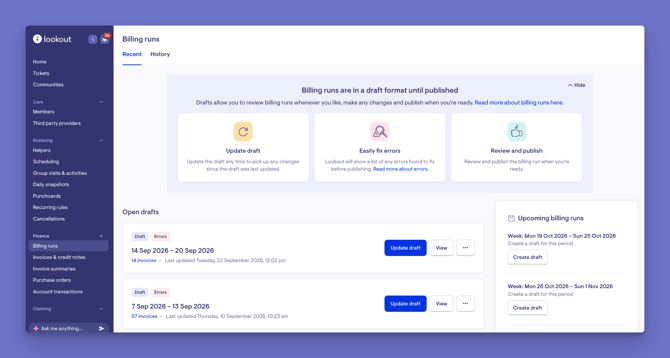
On the left-hand side main navigation bar, click Finance, then Billing runs.Expected result: The Billing runs page opens, showing Open drafts, the Upcoming billing runs panel and the Recent and History tabs.
Step 2: Create or open a draft
If automatic drafts are turned on, your draft may already be under Open drafts. Click View to open it.
To create a draft for the next period:
- In the Upcoming billing runs panel, find the period you're seeking.
- Click Create draft. If automatic drafts are turned on, click Create draft now.
To create a custom draft for your own dates:
- Click Create a custom draft. If your cycle is set to custom, you can also click Create new draft.
- Select the start and end dates in Select the range.
- Click Create.
Expected result: Lookout shows "Generating invoices for period ending [date]. You will receive an email when the process is complete." The draft shows Processing until it's ready, then click View to open it.
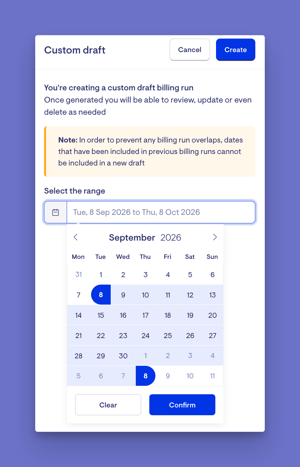
Please note: You can't include dates that are already in a previous billing run. This stops billing runs from overlapping.
To create a supplemental billing run
A supplemental billing run covers the days between your last billing run and your next regular billing run. This gap usually happens after you change your billing run cycle, for example, from weekly to monthly.
- Go to the Billing runs dashboard.
- If there is a gap, Lookout shows a message that appears as an Important banner: "Your billing run cycle has changed to [frequency]". The message shows the dates of your last billing run and how many days the gap covers.
- Check the dates, then click OK generate billing run.
Expected result: Lookout shows "Generating invoices for period ending [date]. You will receive an email when the process is complete." The supplemental draft shows Processing until it's ready. Then click View to open it.
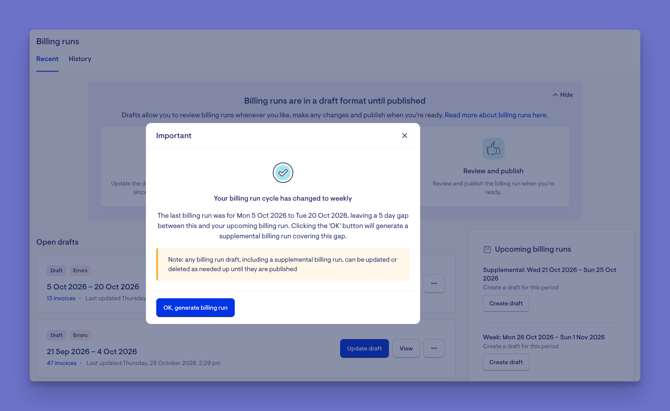
Please note: Lookout creates the supplemental dates for you, so you don't need to select them. The message only appears when your cycle is set to weekly, fortnightly or monthly, and only once the gap period has started. Like any draft, a supplemental billing run can be updated or deleted until it is published.
Step 3: Review the draft reports
- Check the invoices listed for the period. Use the filters on the left to narrow the list, then click Apply filters.
- Review Draft reports
- Click Download draft report, then choose from Download draft report or Download draft Helper report. Lookout emails the report to you as a spreadsheet. Each row is marked "PREVIEW ONLY", and the file name starts with "PREVIEW". You can download two draft reports from an open billing run, before you publish it. They let you check the figures in a spreadsheet first, so you can find and fix mistakes before any invoices go out.
| Name of report | Use of report |
| Draft report
This report shows each client's charges in a draft billing run, so you can check them for errors before publishing. |
|
| Draft Helper report This report shows what each Helper, Supplier or clinician will be Paid. |
|
Please note: The reports show the draft as it was last updated. Click Update draft first so the reports include your latest changes. These are previews only. Don't use them in place of the final reports created when you publish
Expected result: Lookout shows "You will be sent an email with the draft report", and the report arrives by email.
- Check the report against what you expect for the period.
- Fix any errors flagged - If you see an "Errors found" banner, click View errors and fix them. --> See our article on Billing run errors here.
Step 4: Update the draft
Update the draft after any changes, such as fixing errors, completing visits or editing contracts.
- Click Update draft.
- At "Are you sure you want to regenerate the preview?", click Confirm.
- After fixing any errors, the Errors flag will be removed from the draft billing run heading.
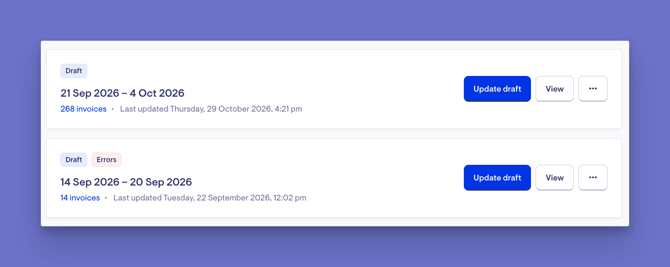
Expected result: The button shows "Updating draft..." while Lookout regenerates all the invoices, and Lookout lets you know when it's finished. "Last generated" then shows the new date and time.
Important: The published billing run uses exactly what you see in the draft. Always update the draft after making changes.
Step 5: Publish the billing run
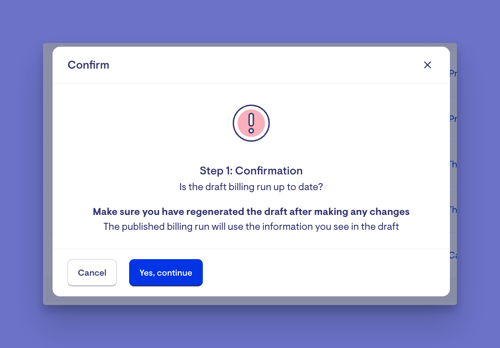
- Click Confirm and publish.
- At "Step 1: Confirmation", check that you've updated the draft since your last changes, then click Yes, continue.
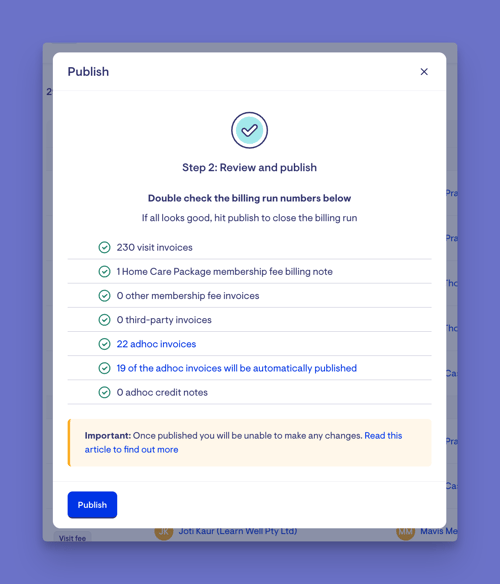
- At "Step 2: Review and publish", check the numbers:
- Visit invoices.
- Home Care Package membership fee billing notes.
- Other membership fee invoices.
- Third-party invoices.
- Adhoc invoices and adhoc credit notes, including how many will be published automatically.
- Click Publish.
Expected result: Lookout shows "Billing run is now publishing. We'll notify you when the process has completed. The billing run will then be ready to export and statements can then be emailed." The status changes to Publishing, then to Published.
Important: You can't make changes to a billing run once it's published. Any later changes are made as adjustments to a closed billing run period.
Warning: If errors are still showing, the items with errors won't be invoiced when you publish. You'll need to create them as adhoc invoices and include them in the next billing run.
Email Invoice summaries (Optional)
- Once the billing run shows Published, open it from the Recent tab on the Billing runs page.
- Click Email invoice summaries.
- Check how many emails will be sent in "Email account summaries", then click Confirm.
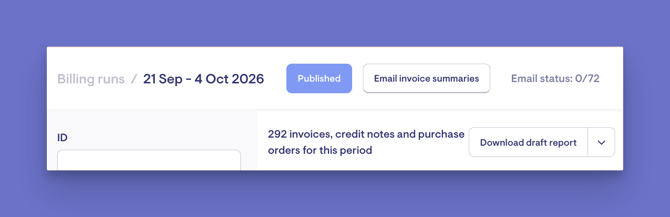
Email status: Shows the progress. On the Billing runs page, the billing run shows how many emails have been sent, for example, "120 emails of 120 sent".
Who receives the emails
- Members: Each billing recipient on the membership who has an email address and has statement emails turned on. If the Membership's funding account is open and has transactions, they get an account balance notification instead of the standard summary email.
- Helpers: The Helper, at the email address on their profile. Employees and Suppliers are not emailed. Clinicians are only emailed if the Supplier and Clinician setting is on.
Please note: As billing runs serve as a draft report, it is best practice to utilise the finance reports or data exporter as the final summary for Members to ensure accuracy with external billing and claiming.
What happens next?
- The published billing run moves from Open drafts to the Recent tab.
The Recent tab shows the last five billing runs. Past billing runs will then move to the History tab. - Visits completed after publishing are handled by the Visit invoicing setting in Finance settings.
- If automatic drafts are turned on, the next draft is created on the first day of the next period.
-> Navigate to Data Export to download finance reports to use with external softwares
What Staffers, Helpers and Members will see
Staffers
Staffers with the Billing runs permission can create, review, update and publish billing runs and send invoice summaries.
Helpers
Helpers receive an invoice summary email once a Staffer sends the summaries for a published billing run.
Members
Members receive an invoice summary email once a Staffer sends the summaries for a published billing run. Nothing is sent while the billing run is a draft.
Troubleshooting
Why can't I click Update draft or Confirm and publish?
The draft is still being created or updated, so these buttons are unavailable until it finishes.
Lookout says "The billing run is still being processed and cannot be published."
Wait for the draft to finish updating, then try again.
Lookout says there are invoices that cannot be published.
- Some adhoc invoices in this period can't be published.
- Click Finance > Invoices & credit notes, search for invoices with a status of "Not publishable", and fix them.
- Then try publishing again.
Why can't I select some dates for a custom draft?
Those dates are already included in a previous billing run.
Why can't I see Create new draft?
This button only shows when your billing run cycle is set to custom, so use Create a custom draft in the Upcoming billing runs panel instead.
An invoice is missing from the published billing run.
- It may have had an error when you published.
- Create it as an adhoc invoice and include it in the next billing run.
Still need help?
If you're still experiencing issues, please contact our Support Team and include:
- Screenshots (if possible)
- The user's name/email
- The exact steps taken
- Any error messages received