
This guide explains how to set up a VHC recipient's profile, funding scheme, service plans, Service Agreement, care plan and matching requirements. With these in place, Visits can be delivered, co-payments tracked and claims exported in line with VHC requirements.
Overview
Once your setup and configuration are complete, you can create Members and manage their VHC information. This article walks a Staffer through seven steps:
- Creating the Member and their Membership
- Adding the VHC funding scheme
- Adding the Member's VHC service plans
- Recording consent on a Service Agreement
- Recording Goals and Care Planning
- Adding matching requirements
- Offboarding a VHC Member
Important: VHC doesn't use Budgets in Lookout. Each Visit is matched to one of the Member's VHC service plans and claimed through the VHC claim export. That's why the Member's client file number and service plans need to be accurate from the start.
Please note: Some screens look different if your organisation has turned on Member contacts & dashboard enhancements from the Release Hub (released 1 October 2026). Where it makes a difference, both layouts are described.
Before you start
To complete this process, make sure:
- Access and setup: You have Staffer access, are logged in to the web app, and your VHC configuration is complete, including VHC Rates, Membership plans and your VHC funder profile (see VHC: Set up and configuration).
- Member information: You have the Member's VHC service plan from their assessment, including their DVA client file number, approved service types, frequency, hours and any co-payment details.
- Member management: A VHC Membership plan is available to assign to the Member, and you're familiar with Creating a profile and managing Member records.
- Dashboard layout: You know whether your organisation uses the Member contacts & dashboard enhancements. If you're unsure, check the Release Hub or ask your Admin.
Top tip: Keep the Member's VHC service plan open next to Lookout. Most of the details you need in Steps 1 and 3 are in it and can be copied straight across.
Step-by-step instructions
Step 1: Create the Member and their Membership
- Click Members from the Main menu navigation bar.
- Select + New membership.
If your organisation has turned on Member contacts & dashboard enhancements
The new Membership form is one page with several sections:
- Member: Enter the Member's personal and contact details, or search for an existing profile. Choose whether they receive statements and whether to send them an invitation to the app.
- Contacts: Add the people who support the Member, such as family, a carer or a representative, along with their roles and permissions.
- How is this membership funded?:
- Under Funding scheme, select VHC. Lookout automatically suggests the funder your organisation usually uses for VHC. Check it's your VHC funder profile, or search for the correct one.
- Tick Set up the funding scheme now to enter the VHC details straight away: Client file number, Given name and Family name (see the table in Step 2). If you don't have them yet, leave the box unticked and add them later in Step 2.
- Other settings:
- Select the Community (for example, VHC Members) and the VHC Membership plan. Both are required.
- Add the signed-up date, commencement date and next review date if needed.
- Add any cohorts and tickets.
- Under Matching requirements, select your VHC requisite.
- Click Save.
Top tip: If you tick Set up the funding scheme now and select the VHC requisite on this form, you can skip Step 2 and the "Add the VHC matching requirement to the Member" part of Step 6.
Without the enhancements
- Enter the Member's personal and contact details to create a new Member, or select an existing profile.
- Under Funder, select Other (including Services Australia, NDIS or a plan manager), then search for and select your organisation's VHC funder profile.
- Fill in the other mandatory fields marked with a red asterisk (*), such as Communities (for example, VHC Members) and public holiday preferences.
- Select the VHC Membership plan configured by your Admin.
- Click Save.
Unsure about Membership plans? Visit our articles Creating a profile and Creating and managing a Membership plans for an in-depth walk-through to learn more.
Step 2: Add the VHC funding scheme
A Member record holds the client's details, funding and everything needed to schedule and claim their services. For VHC clients, the funding scheme must be set to VHC, and the client's details must match the details DVA holds. Lookout uses them to build each line of your VHC claim export.
- From the Member's dashboard, open ⚙ Settings and click Funding scheme.
- Select Link funder, then search for your organisation's VHC funder profile and select it.
- Select Add funding scheme and choose VHC from Funding scheme.
- Complete the Further details section (see the table below).
- Click Save.
| Field | What to enter |
|---|---|
| Client file number | The Member's VHC client file number, as shown on their approval. It starts with a state letter (N, V, Q, S, W or T) followed by letters and numbers, for example NX123456. Lookout won't save a number in the wrong format. |
| Given name | The Member's given name exactly as DVA has it. Maximum 30 characters. |
| Family name | The Member's family name exactly as DVA has it. Maximum 30 characters. |
Important: Do not change or remove VHC funding without first consulting your Lookout representative. The VHC claim export references the Member's current funding scheme, including for historical service periods.
As a result:
- Removing VHC funding from a Member may exclude their previous VHC-funded Visits from future claim exports.
- Changing a Member's funding to VHC may cause historical non-VHC Visits to be included in VHC claim exports.
If a Member's funding arrangement changes, contact your Lookout representative before making any updates.
Once the funding record is saved, the VHC Service Plans card becomes available on the Member's dashboard.
Step 3: Add the Member's VHC service plans
A VHC service plan records what DVA has approved for the Member: the service type, how often, for how many hours, for which dates, and any co-payment. Add one service plan for each service type on the Member's VHC service plan.
- From the Member's dashboard, scroll to the VHC service plans card and click View all.
- Select Add service plan. If there are no existing plans, you can also select + New Service plan.
- Complete the fields (see the table below).
- Click Submit.
| Field | What to enter |
|---|---|
| Service type | The VHC service the Member has been approved for, such as VHC Domestic Assistance. |
| Service plan ID | The plan ID from the Member's VHC approval. It's printed on every claim line for this service. |
| Frequency | How often the service is approved: Weekly, Each fortnight, Each 4th Week or Each 13th Week. |
| Hours per frequency | The approved hours for each period, for example, 2.5. |
| Approval start date and Approval end date | The dates the service plan is approved for. |
| Co-payment amount | Optional: The hourly co-payment the Member pays for this service. Leave blank if no co-payment applies. |
| Weekly co-payment cap | Optional: The most the Member pays in co-payments for this service each week (Monday-Sunday). Leave blank if there is no cap. |
Each service plan shows a status of Current, Future or Past, based on its approval dates. The VHC service plans card on the Member's dashboard shows only current plans. Click View all to see the rest. Lookout matches each Visit to a service plan using the Visit's service type and date. If no current service plan matches, the Visit still appears in the VHC claim export, but without a service plan ID or service period code, and the claim may be rejected.
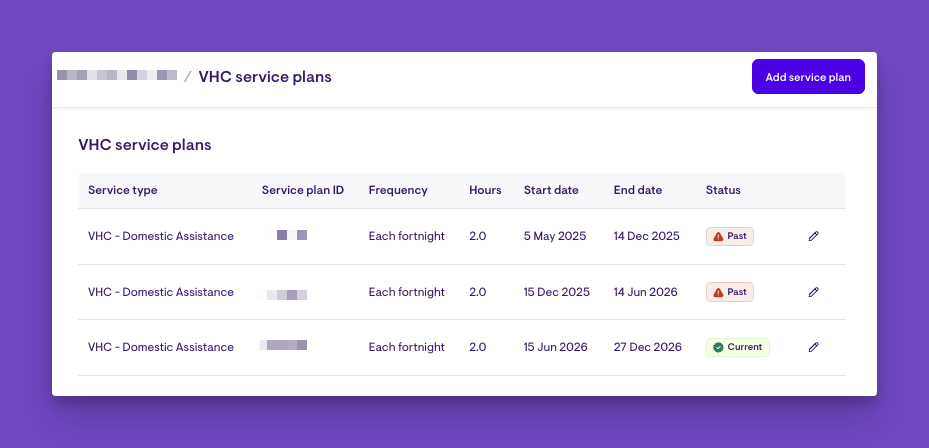
Important: A Member can only have one service plan for the same service type at a time. If you get an overlapping dates error, edit the end date of the existing plan before adding the new one. When a plan is renewed, add a new plan with the new dates rather than overwriting the old one. Keeping the old plan means past Visits still claim against the correct plan ID.
How co-payments are calculated: Lookout multiplies each Visit's hours by the hourly co-payment amount. If a weekly cap is set, Visits for that service are added up in date order across the week. Once the cap is reached, the remaining Visits that week have a $0 co-payment.
Example: A Member has VHC Domestic Assistance with a $5.00 hourly co-payment and a $10.00 weekly cap. They have two 1.5-hour Visits in the same week. The first Visit has a $7.50 co-payment. The second has a $2.50 co-payment, because the $10.00 cap has been reached.
Top tip: Run the VHC service plans report regularly to see which plans are ending soon, so they can be renewed before services are affected.
Please note: Service plans for the same service type can't have overlapping dates. When a Member's service plan is renewed, set the new plan's start date to the day after the old plan ends.
Step 4: Record consent on a Service Agreement
- View the Member's dashboard and scroll to the Agreement requests card.
- Select Create request to generate a new agreement ticket.
- Review the generated Agreement with the Member.
- Select Approve once all parties have given consent.
Important: Make sure the funding scheme and funder have been added to the Member's record. If they haven't, the Agreement requests card won't appear on the Member's dashboard.
A Service Agreement records the Member's consent to receive services. Create and review the agreement with the Member and, where applicable, their representative. Approve it once everyone has agreed. For VHC clients, make sure the agreement shows the services they've been approved for and explains how co-payments work, including any weekly cap. Create a new agreement whenever these change.
New to service agreements? This article covers the digital signing add-on. For the underlying service agreement (and the manual, non-digital process), see our Service agreements article. To set up the wording, please see our Agreement templates article.
Step 5: Record Goals and Care Planning
- Open the Member's Care plan tab from the Member's dashboard.
- Add entries to the relevant care plan categories.
Unfamiliar with Care plans? Visit the Care plans: an overview for detailed guidance on the Care plan and its functionality.
The Care Plan uses custom categories to capture important information about each Member. For VHC clients, the care plan can record the goals and supports from the Member's VHC assessment, along with the information Helpers need to deliver services safely and consistently.
Care plan considerations:
- Match the care plan to the Member's VHC service plan, so Helpers know which tasks are approved for each service type.
- Record risks, medications, health conditions and home safety details so services are delivered safely and you meet your duty of care.
- Review and update the care plan whenever the Member's circumstances, needs or VHC service plan change.
- Consider whether details about the Member's carer, family or ex-service organisation contacts belong in Key Contacts rather than in care plan categories that all Helpers can see.
Important: Every Helper contracted to provide services to the Member can see the care plan. Only record what a Helper needs to know to carry out their duty of care.
Step 6: Configure Member Requisites
Create the matching requirement in ⚙ Settings:
- From your home dashboard, open ⚙ Settings. Under Verifications, click Requisites.
- Select + New requisite.
- Enter a Title, such as VHC Verified Carer.
- Under Verification, select the verifications required, such as a National Police Check and First Aid/CPR.
- Click Save.
Add the VHC matching requirement to the Member:
- View the Member's dashboard and scroll to the Matching card.
- Next to Requisites, click Edit and select your VHC requisite, along with any other requirements the Member needs.
- Click Save.
Only Helpers who meet the assigned requirements will appear as eligible matches. Existing arrangements that no longer meet the requirements will be flagged.
Please note: If no Helpers hold the required verifications, no eligible matches will be returned.
Step 7: Offboarding a VHC Member (Optional)
When a Member stops receiving services, archive their Membership. Archiving hides them from searches and reports, but doesn't cancel their Visits, schedules or surveys, so clear those first.
- Open Archive Membership:
- With the Member contacts & dashboard enhancements turned on, go to ⚙ Settings → Account → Danger zone → Archive.
- Without the enhancements, go to Danger zone → Archive Membership at the bottom of the Member's dashboard.
- Enter the exit details. Enter the exit date and time, select an archive reason, and review any red warnings.
- Resolve any warnings:
- Recurring Visits: End schedules before the exit date.
- Future Visits: Cancel any Visits after the exit date.
- Group Activities: Remove the Member from future sessions.
- Surveys: Mark active or incomplete surveys as Inactive.
- Complete the archive: Return to Archive Membership, confirm the details, and select Save.
- Finalise the account: Make sure all Visits up to the exit date have been claimed through the VHC claim export, and collect any outstanding co-payments. Then, on the Finances tab, select Close Account.
- Optional: Add custom archive reasons via ⚙ Settings → Archive reasons.
Please note: The Member's VHC funding scheme should be retained after they exit your service, as it contains the client file number and claimant details required to claim historical Visits. Maintaining this record helps ensure the accuracy and integrity of claims submitted for services delivered in previous periods.
Important: Unarchiving a Member doesn't restore cancelled Visits, ended schedules or inactive surveys. These must be recreated manually.
Quality checklist
Before the Member's first visit, confirm that:
- The funding scheme is set to VHC and linked to your VHC funder profile.
- The client file number, given name and family name match DVA's records.
- There's a service plan for every approved service type, with the correct plan ID, frequency, hours, co-payment details and dates.
- A Service Agreement has been approved.
- The care plan and matching requirements are in place, and no Matching requirements setup prompt shows on the Member's dashboard.
- Rostered Visits use the right service types and fall within the approved dates and hours.
- Any other DVA-funded services are on a separate Membership.
Ongoing management considerations
Keep service plans current. Run the VHC service plans report each month to see which plans are ending soon, so renewals are added before the old plan ends.
Record renewals as new service plans. When DVA renews a service, add a new service plan with the new service plan ID and dates rather than editing the old one. This keeps past Visits matched to the plan that applied when they were delivered.
Keep rostering within approvals. Regularly compare rostered Visits with each service plan's approved hours and frequency.
Keep client details matching DVA's records. The client file number, given name and family name go straight into the claim export. Any mismatch with DVA's records may cause claims to be rejected.
Keep schemes separate. Make sure non-VHC services are never rostered on a VHC Membership.
Be careful with Remove funder. With the enhancements turned on, removing the funder also removes the VHC funding scheme. Talk to your Lookout representative before making any funding change.
Changes are tracked. Edits to the Member's funding details are logged under Changes in the Member's ⚙ Settings. Make corrections carefully, because they leave a lasting audit trail.
Be careful when archiving. You can't archive a Member who still has active recurring schedules or incomplete surveys, or set an exit date before their last Visit. Tidy up any loose ends first.
What happens next?
- The Member is fully onboarded and ready for compliant service delivery and claiming.
- Completed Visits for VHC Members are included in the VHC claim export. The export uses the Member's client file number and names, the matching service plan ID and service period code, the delivery date and the hours delivered. See VHC: Service delivery and claiming for more information.
- The VHC co-payment report lists completed Visits for Members with a co-payment, so your team can collect them in line with the Member's Service Agreement.
- The VHC service plans report lists service plans ending within a date range, to help you plan renewals.
- Co-payment amounts, weekly caps and capped co-payments for each Visit are also available through the data export function.
- Staffers with access to the Member can view their goals, supports and care plan as needed.
What Staffers, Members and Helpers will see
For Staffers
Staffers can use the Member's dashboard to view and update Funding, VHC service plans, Agreements, Goals and Care Plan information, and can run VHC reports from Reports.
For Members on the Lookout app
- Members can view their own Care Plan and Goals, along with recorded risks, conditions and other categories, where sharing is turned on.
- Members and their authorised representatives can also view statements, manage payment details, respond to surveys and request Visits.
For Helpers on the Lookout app
- Helpers can open each Member they support and view their Care Plan, including Goals, risks, conditions, medications, allergies and any custom categories you've set up.
- Helpers can view their scheduled Visits, the services to deliver, and shared check-out notes or care forms where these are turned on.
- Helpers can't see the Member's funding scheme, DVA client file number, service plans, co-payments or billing. Only Staffers can see these.
Troubleshooting
I can't see the VHC service plans card
- Check your Access role.
- Confirm the Member has an active Membership with a VHC funding scheme saved. The VHC service plans card only appears after VHC is saved.
- Try logging out and back in.
The funding scheme won't save
- Check that Client file number, Given name and Family name are all filled in.
- Check that the client file number starts with N, V, Q, S, W or T, uses capital letters and matches the format on the Member's DVA paperwork, for example NX123456.
The service plan won't save
- If you see "must not overlap with existing service plan for the same service type", another service plan for that service type already covers some of these dates. Adjust the dates so they don't overlap.
- If you see "must be after the start date", check that the Approval end date is later than the Approval start date.
A Visit is missing its service plan ID in the VHC claim export
- Check the Member has a service plan for the Visit's service type.
- Check the Visit's date falls between that plan's Approval start date and Approval end date.
I completed the steps, but nothing changed
- Make sure you clicked Save or Submit on each page.
- Check for any error messages on the page.
- Contact support if the issue continues.
Top tip: Make sure the Helpers delivering these services are compliant. See VHC: Worker compliance. Next in the series: VHC: Service delivery and claiming.
Still need help?
If you're still having issues, contact our support team and include:
- Screenshots, if possible
- The user's name and email
- The exact steps you took
- Any error messages you received