
A service request is a way to line up an externally delivered service with a supplier before you commit to a purchase order - think of it as a draft purchase order. You capture what the Member needs, send it to a supplier to accept, decline, or propose changes, and once it's accepted, you confirm the details and create the purchase order in one step, with everything carried across so you're not re-keying it. This article walks you, as a provider, through creating a request, tracking it, and handling the response.
Service requests
A service request lets you ask a supplier for a service before you commit to a purchase order. It's the step in between recognising a Member needs something and locking in a formal order - Lookout describes it as capturing "a service need before a purchase order is raised."
You can think of it as a draft purchase order. You set out what's needed and send it to a supplier. Once they accept, you choose Create purchase order, confirm the details, and the purchase order is created for you, carrying everything across so you're not re-keying it.
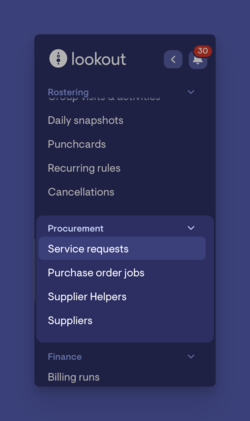
You'll find service requests under Procurement in the left-hand menu, alongside Purchase order jobs, Supplier Helpers and Suppliers. If you can't see it, check with your administrator that your role includes access to service requests.
New to purchase orders and supplier billing? Service requests feed into purchase orders and, later, supplier invoice matching. For those, see Provisional claim items and supplier invoice matching and our supplier-portal articles.
Please note: Some parts work better with Lookout Assist. Service requests work fully without Lookout Assist. Where it's enabled, some steps are smoother. For example, a handover summary built from the Member's care plan, Quote review, which reads a supplier's quote and proposes purchase order lines for you to check, and spotting change or cancellation requests suppliers raise in purchase order messages. Anywhere Lookout Assist changes what you see, we call it out. Without it, you'll still get all the same information, just presented more simply.
Reminder: Service requests don't appear on the roster. A service request is an in-between step, so it won't show up on a Member's roster or as a visit. It only becomes "real" scheduling once it's an accepted purchase order.
Service requests are useful because you don't need to have chosen a supplier yet (you can save a draft and add one later), you don't need a fixed price (you can request a quote instead of a rate), you can approach suppliers one at a time deliberately, and everything stays tracked in the service requests list, with a ticket added when it becomes a purchase order (or from the start, if you raised it from a ticket).
Before you start
Please note: Service requests and purchase orders have separate permissions, so your administrator can set up roles to suit how your team works. For example, coordinators can raise and manage service requests, while someone with purchase order access creates the purchase order once a supplier responds.
- You'll need permission to create, update and delete purchase orders (Read & write access to service requests).
- To create the purchase order from a supplier's response, you'll also need permission to create, update and delete purchase orders. If you don't have it, someone who does can create it for you.
- If your organisation uses community permissions, you also need access to the Member's community.
- Have a sense of what the Member needs and, if you know it, which supplier you want to approach (though you can start without one).
- If it's a quote-based piece of work, you don't need a price - you can request a quote.
You can start a service request in either of two ways:
- Click the + New service request from the Service requests list and choose the Member
- Open an existing ticket for the Member and click Create service request. If you start from the list, a ticket is created when you turn the request into a purchase order.
Navigating to service requests
From the main navigation menu, click Service requests under the Procurement section.
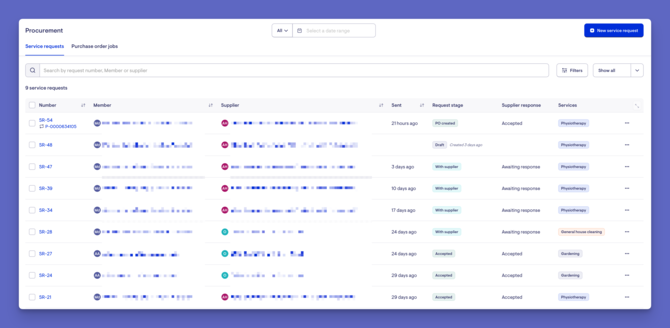
Here, you'll see all your service requests once created. Each row shows:
- Number: The request number, for example, SR-123. Once a purchase order has been created, its number appears underneath and links to its ticket.
- Member and Supplier: Who the request is for and who it was sent to. If no supplier has been chosen yet, it reads "Not assigned".
- Sent: How long ago the request was sent.
- Request stage: Where the request is up to. For example, Draft, With supplier, Needs review or PO created.
- Supplier response: What the supplier has done. For example, Awaiting response, Quote supplied, Changes requested, Accepted or Request declined. This is blank for drafts.
- Services: The services on the request, shown as labels, for example Gardening. If there are more than fit, you'll see a "+" count.
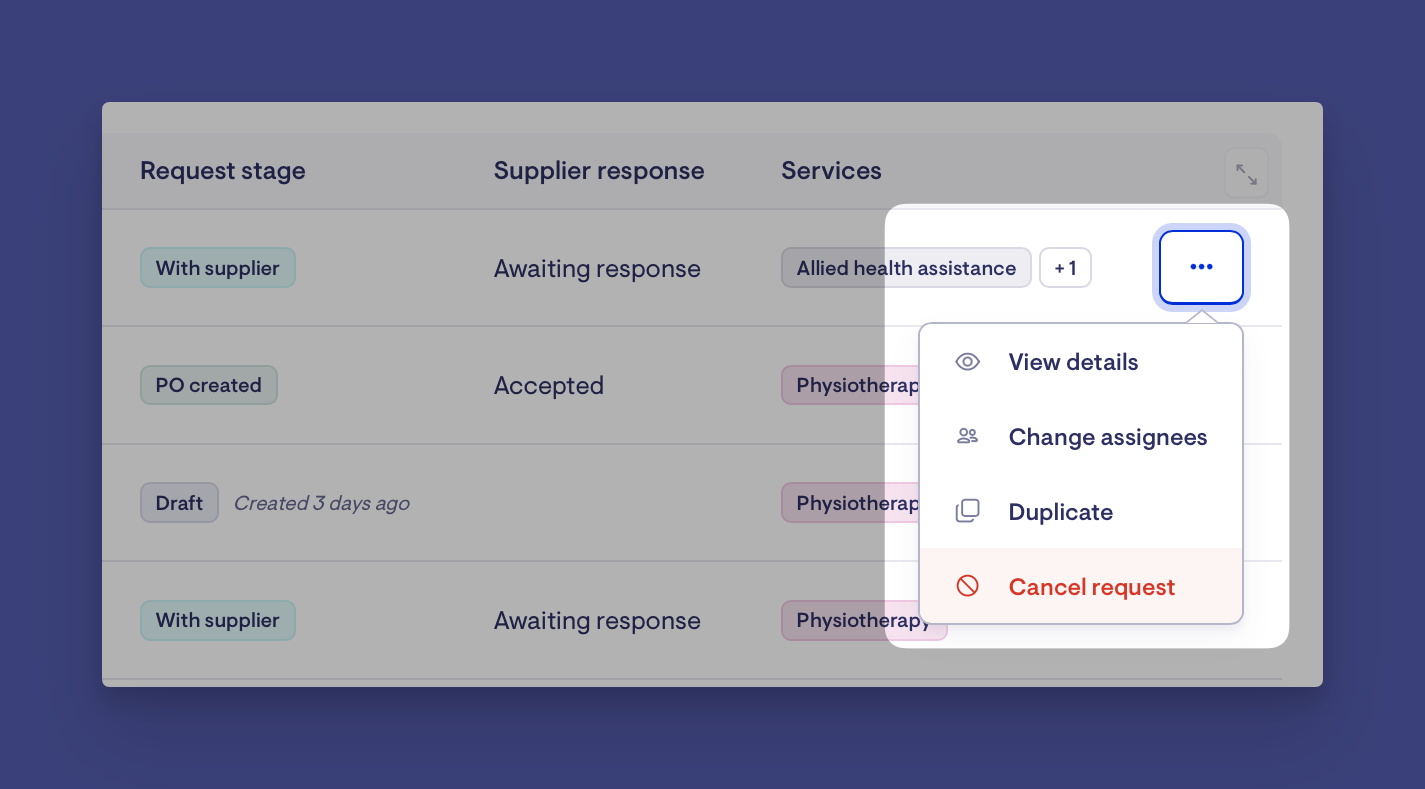
Any other actions for a request sit under the ellipsis (…) button at the end of its row.
- Click the ellipsis (…) button to open a short menu.
- Depending on the request's stage, you'll see:
- Review response (when a response needs your review)
- View details (drafts only)
- Edit (drafts only)
- Change assignees (drafts only)
- Duplicate (drafts only)
- Delete request (drafts only)
- Cancel request (while it's with the supplier)
- Create purchase order (once the supplier has accepted, sent a quote or requested changes)
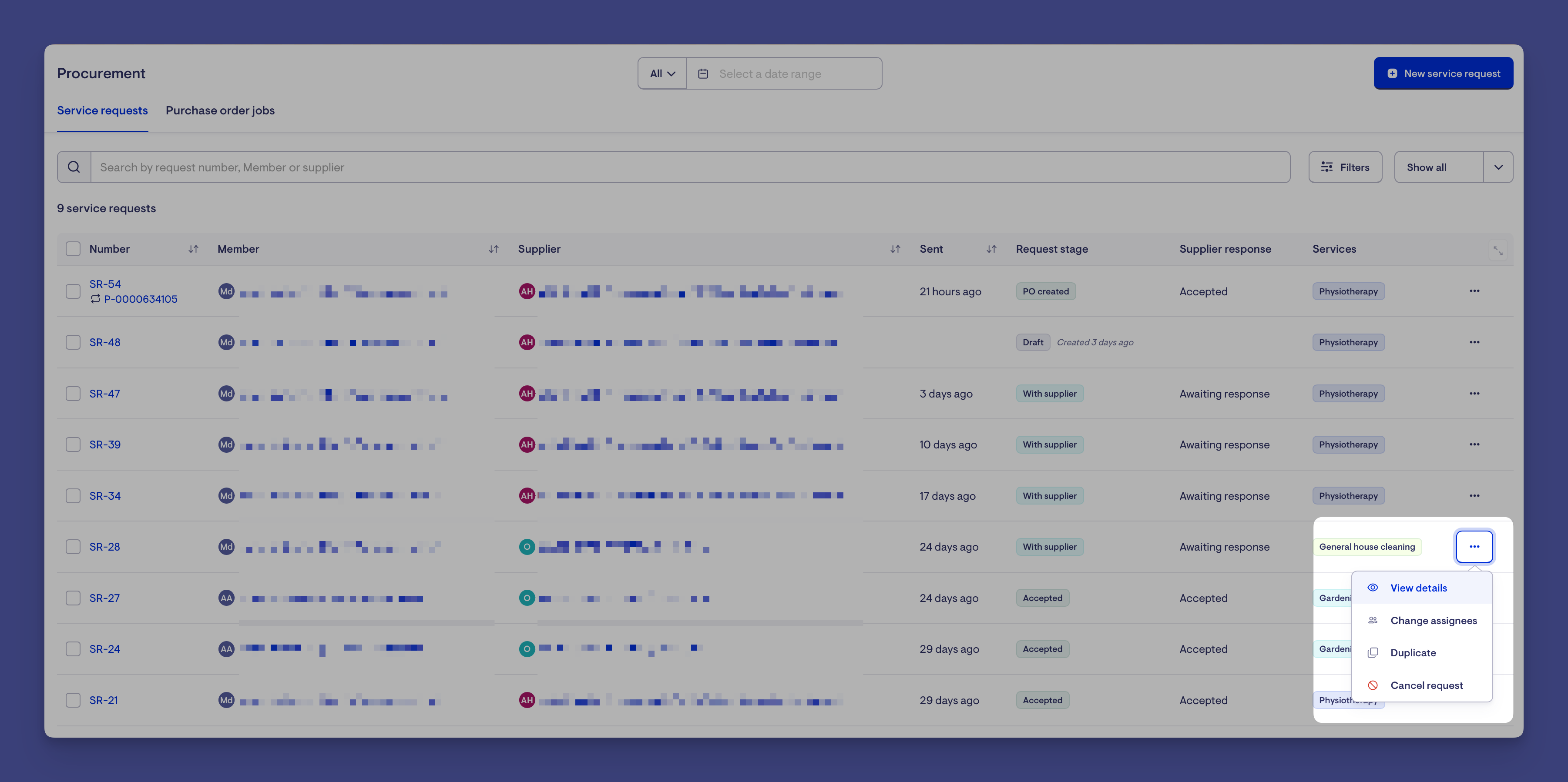
Please note: Create purchase order only appears if your role can also create purchase orders. Review response is marked with a flag, so you can spot requests waiting on you.
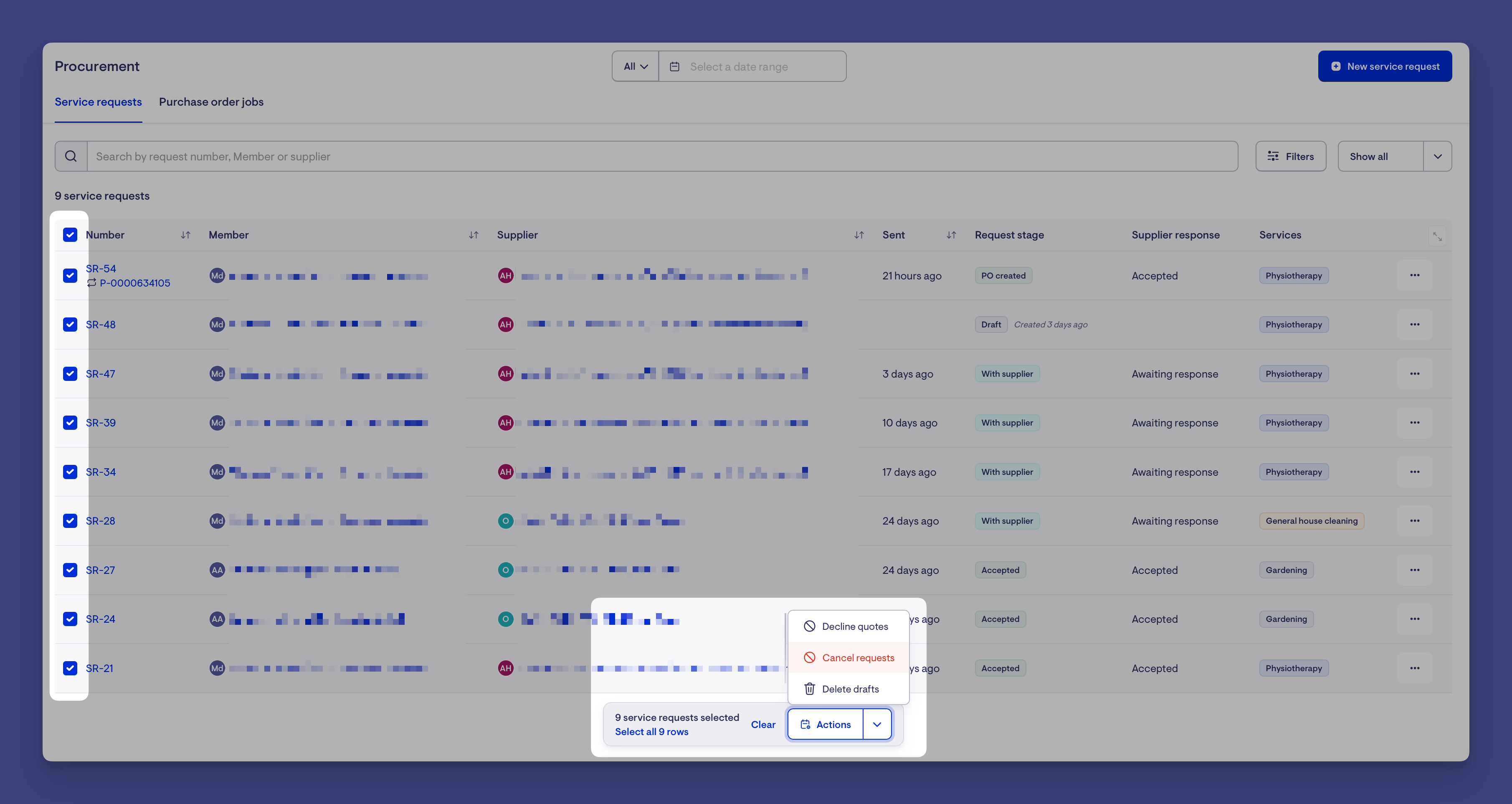
- To act on several requests at once, tick the checkboxes at the start of each row. A bar appears at the bottom of the screen with Accept quotes, Decline quotes and Delete drafts.
- At the top of the screen, you'll see tabs for Service requests and Purchase order jobs, so you can move easily between the two.
- Use the search bar to find a specific request. You can search by request number, Member or supplier. To narrow the list:
- Use the Show dropdown to see requests at a particular stage: Draft, With supplier, Needs review, Accepted (no purchase order), Accepted (with purchase order), Declined or Cancelled. For example, choose Needs review to quickly see what's waiting for you.
- Use Filters to narrow by Services, Membership plans, Communities, Funding scheme or Assignees.
- Use the date range at the top to show requests created in a particular period.
Please note: The first time you open the Service requests tab, it is empty. Over time, it becomes the running list of everything you've requested, so it's the place to come back to and check where things stand.
Creating a service request
You can start a service request in either of two ways:
- From the Service requests list. Click the + New service request button in the top-right corner, and choose the Member. A ticket isn't created until you're ready to turn the request into a purchase order.
- From a ticket. Open a ticket for the Member and click Create service request. The ticket needs to use a ticket template with the purchase order add-on, otherwise, the Create service request and Create purchase order buttons won't show. Each ticket can have one service request.
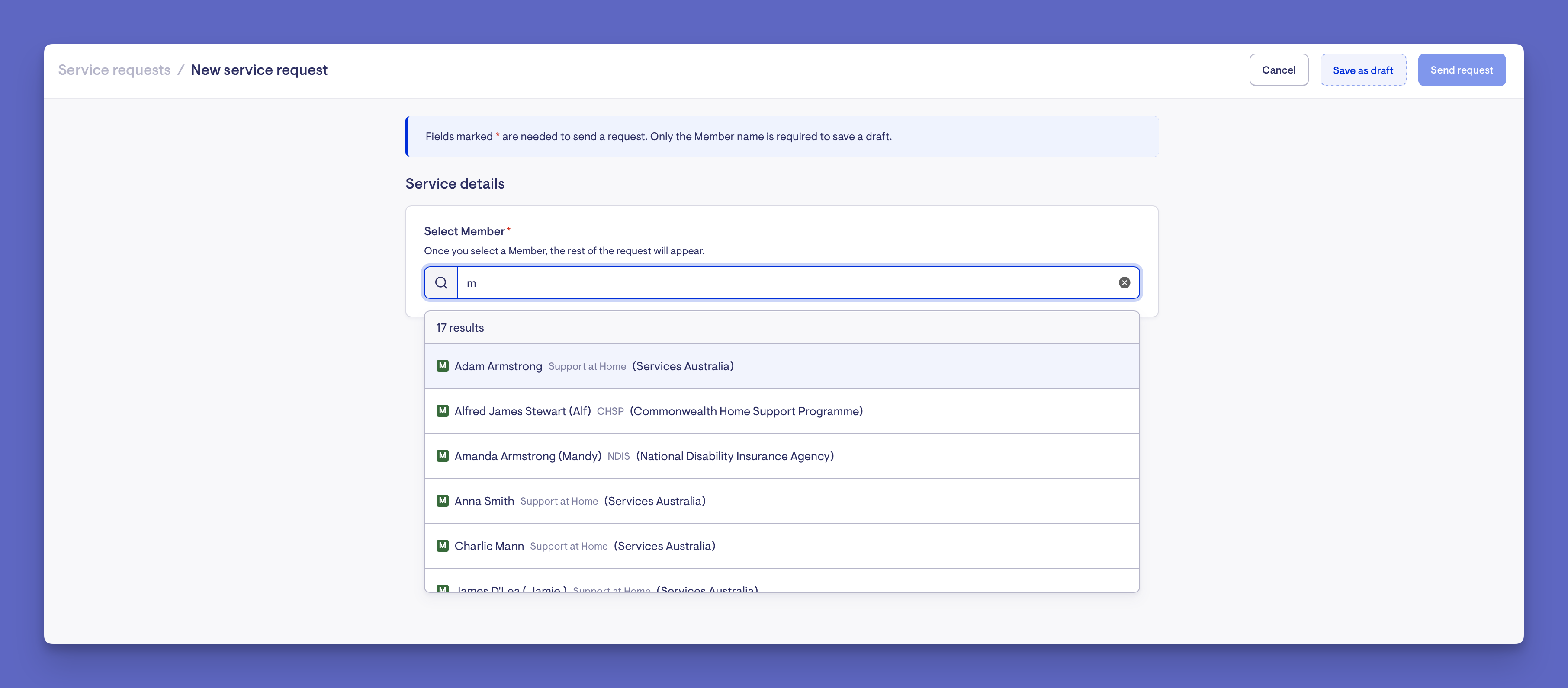
Step 1: Service details
Please note: Fields marked with an * are needed to send a request. Only the Member is needed to save a draft.
- Select Member: Start typing the Member's name to narrow the results, then click their name to select them. Once you select a Member, the rest of the request will appear. If you started from a ticket, the Member is already filled in.
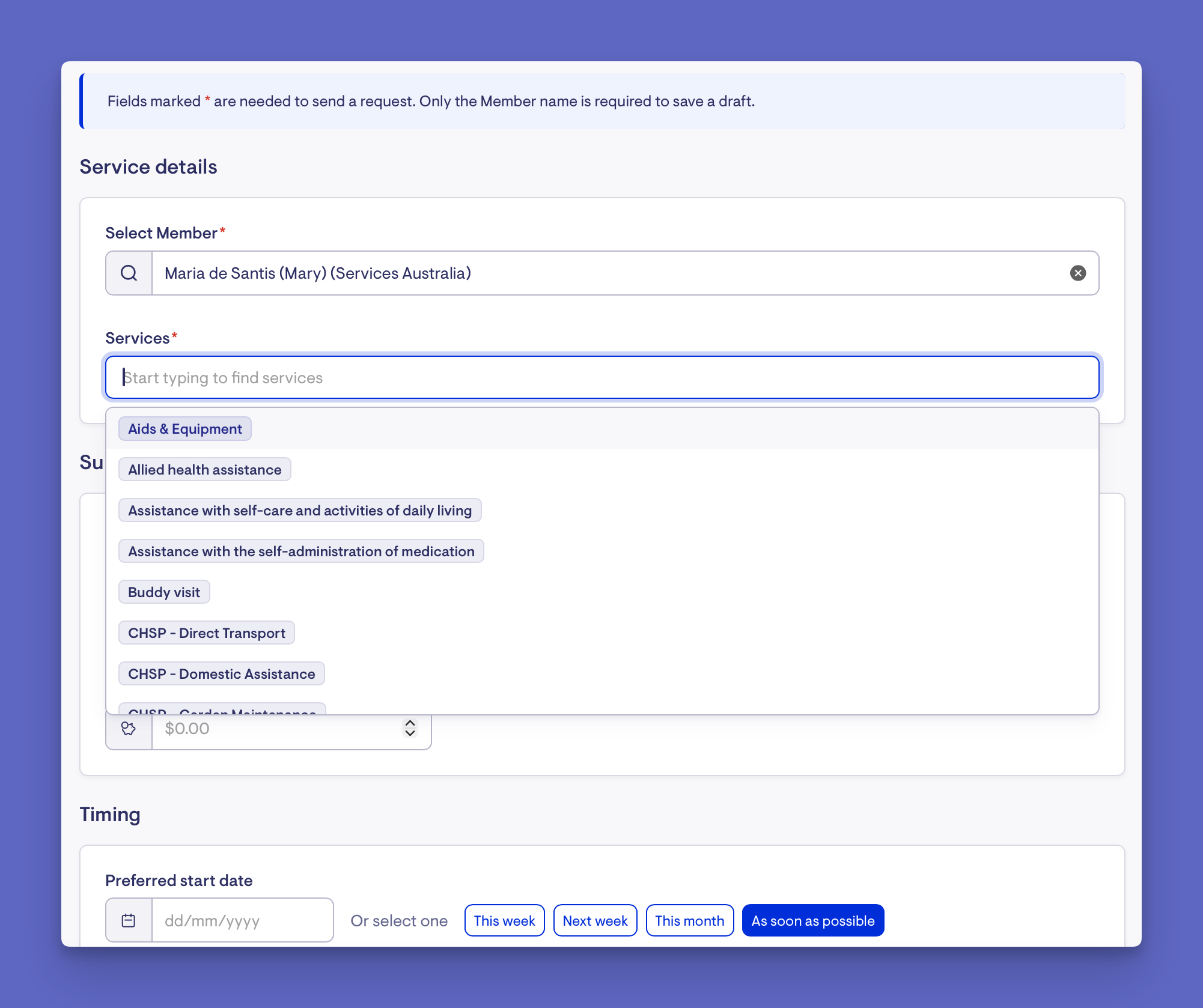
- Services: Start typing to find the service(s) the Member needs, then click to add them. If the Member or the supplier is limited to certain services, anything outside those is greyed out.
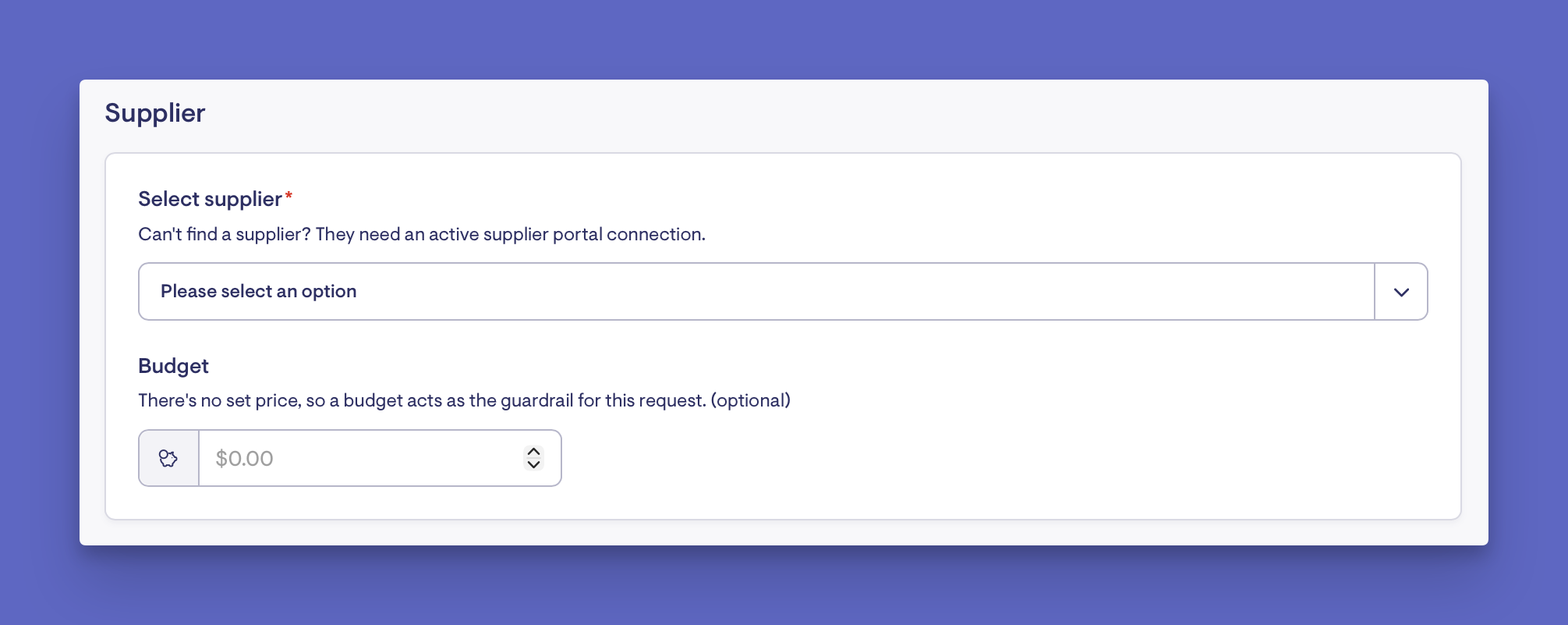
Step 2: Supplier
- Select supplier: Choose the supplier from the list. If there are more than six, a search box appears so you can type to narrow the results. Only suppliers with an active supplier portal connection are listed. You need a supplier to send the request, but you can save a draft without one and add the supplier later.
- Rate: Pick a rate from the supplier's price list, or leave it on Request a quote when there's no set price.
- If you pick a rate charged by the hour or by the item, answer How many hours? or How many items?. A line underneath shows what the request will cost. If the rate is a fixed total cost, you'll just see the total.
- If you leave it on Request a quote, you can add a Budget (optional). As the form puts it, "There's no set price, so a budget acts as the guardrail for this request."
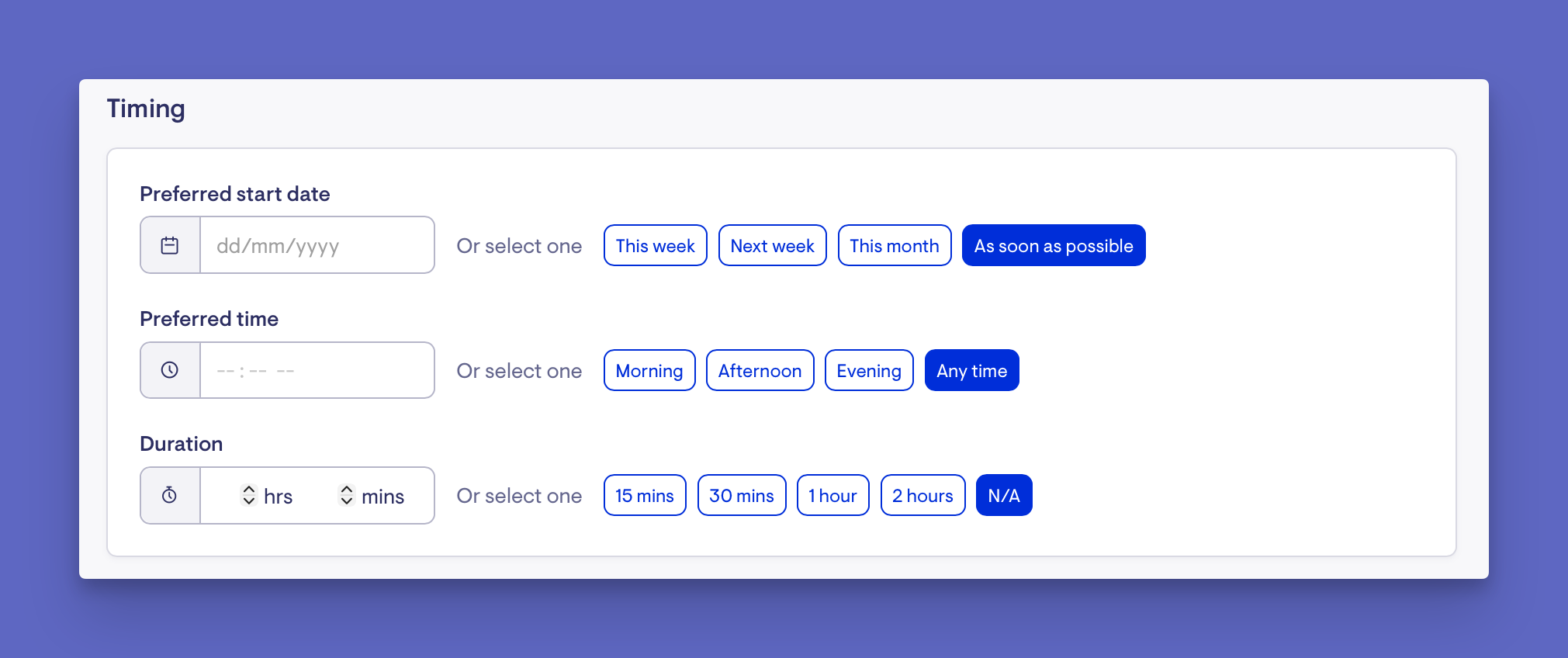
Step 3: Timing
- Preferred start date: Choose a specific date, or select one of This week, Next week, This month or As soon as possible. If you don't choose, it's set to As soon as possible.
- Preferred time: Choose a specific time, or select one of Morning, Afternoon, Evening or Any time. If you don't choose, it's set to Any time. These let you show how flexible you are. When the supplier responds, they can give a delivery date for each line.
- Duration (quote requests only): If you're requesting a quote, you can set how long the service will take. Enter the hours and minutes, or select 15 mins, 30 mins, 1 hour, 2 hours or N/A. If you've picked a rate in Step 2, you won't see Duration. You'll have already said how many hours or items you need.
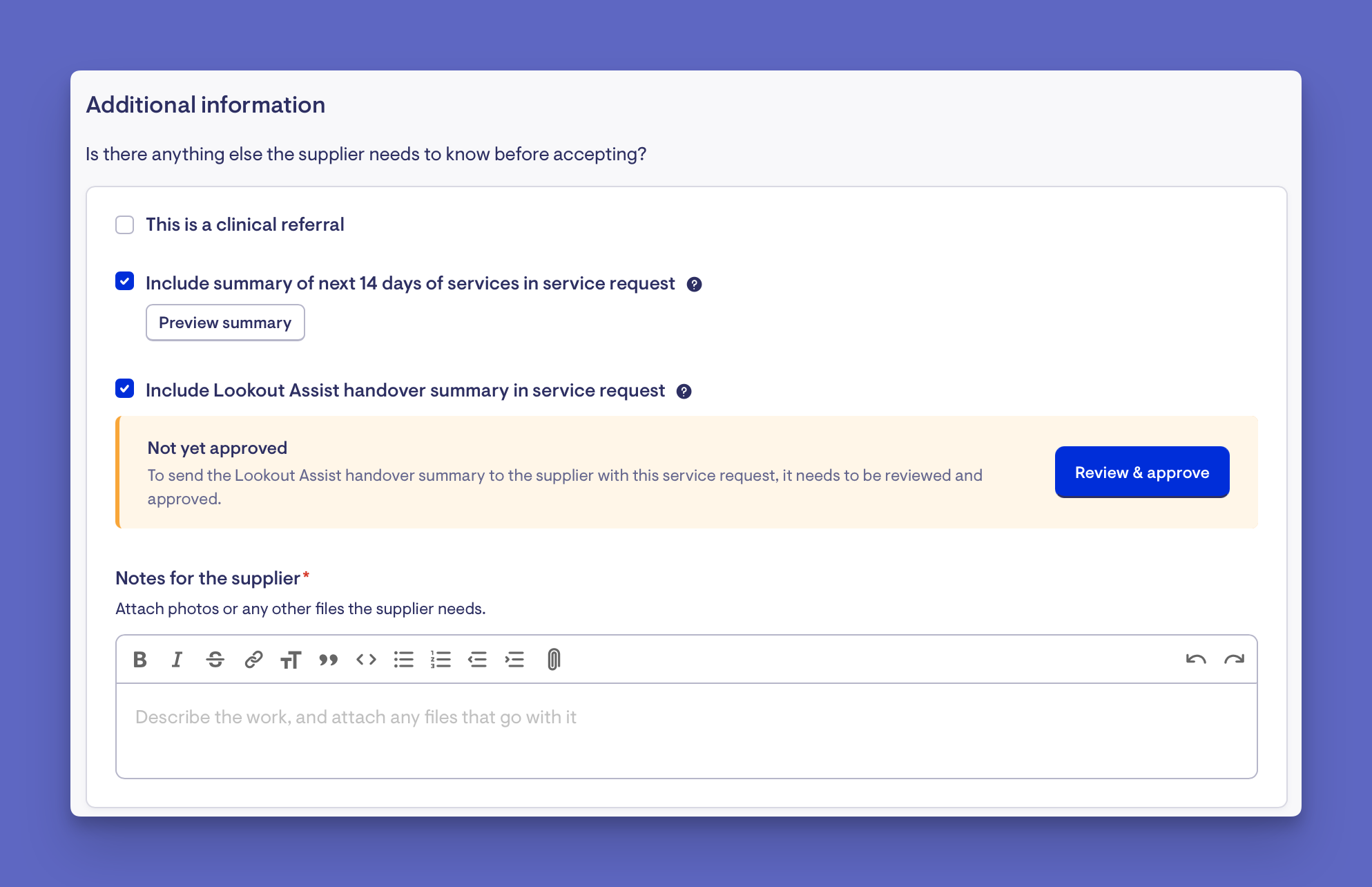
Step 4: Additional information
Use this section to tell the supplier anything else they need to know before accepting.
- This is a clinical referral: Tick this if it applies, then use Add a clinical contact to nominate the person who'll receive clinical enquiries and any assessments or reports. The clinical contact is also added as an assignee to the ticket.
- Include summary of next 14 days of services in service request: Tick this to let the supplier see the Member's upcoming services before accepting. Click Preview summary to check what they'll see.
- Include Lookout Assist handover summary in service request: Tick this, then click Review & approve. The summary shows as Not yet approved until you do, and it's only sent to the supplier once it's approved. You'll see this option when Lookout Assist handover summaries are set up, the Member has a care plan, and you have permission to update it. You can also add the handover summary later, on the purchase order.
- Notes for the supplier (required to send): Describe the work and anything the supplier should know. To attach an occupational therapist's report, photos of the space or any other files, use the paperclip icon in the notes box.
Step 5: Tickets and purchase order setup (optional)
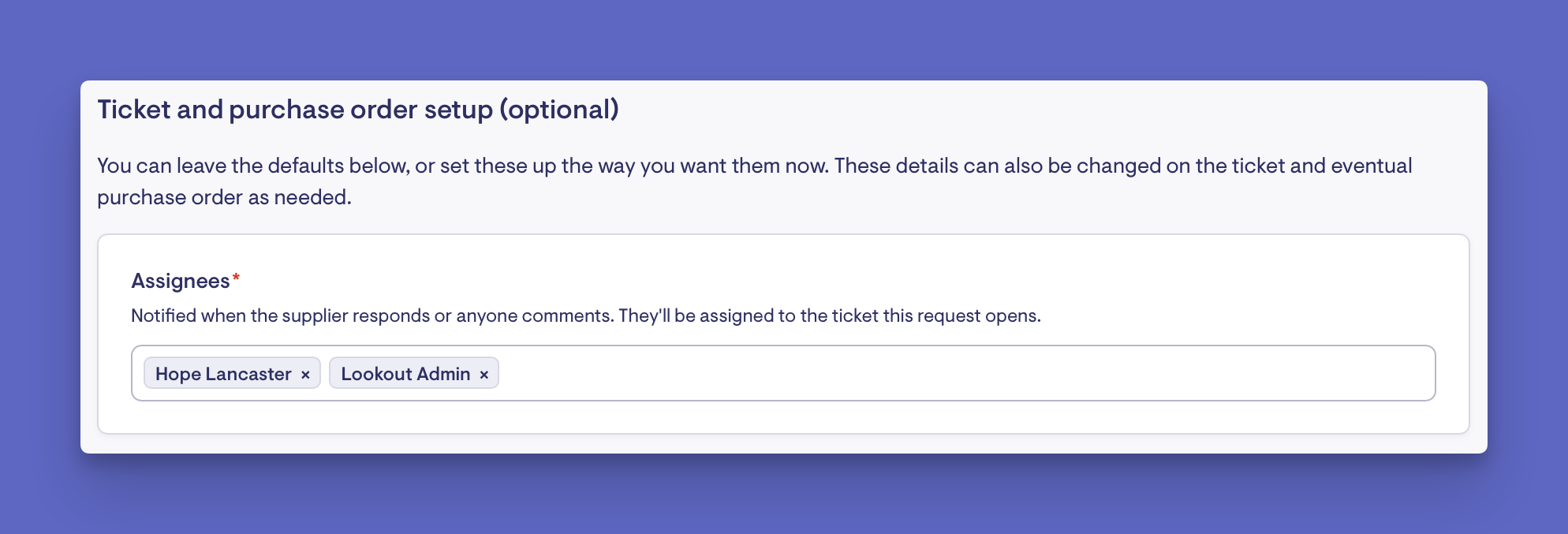
You can leave the defaults or set these up now. Everything here can also be changed later on the ticket and purchase order.
- Assignees (required to send): These people are notified when the supplier responds or anyone comments, and they're assigned to the ticket. If you started from a ticket, this shows the ticket's assignees. Otherwise, it shows the Member's care team, or you if they don't have one.
- CHSP claiming (CHSP Members only): Choose the CHSP service type ID and CHSP outlet. These are optional here, but if you fill in one, you'll need the other. If there's only one option, it's filled in for you. Anything missing is asked for when you create the purchase order.
Step 6: Send the request
- Click the Send request button in the top-right corner, or Save as draft to finish later. Send request is greyed out until you've selected a Member.
- Once sent, you'll see "Service request SR-123 sent" (with your request's number) and return to the Service requests list, or to the ticket if you started from one. A draft shows "Draft SR-123 saved" instead.
- After sending, the request is published to the supplier's portal. Once they respond, choose Create purchase order to confirm the details and raise the purchase order, along with a ticket if the request doesn't already have one.
Top tip: You can edit or delete a draft at any time before it's sent. Once sent, a request can't be edited or deleted, but you can still change its assignees or duplicate it. While it's still with the supplier, you can also cancel it. Choose Cancel request from the ellipsis (…) button menu, and the supplier is told they no longer need to respond.
What happens next?
Sending publishes the request to the supplier, and you can track it from the service requests list, where it shows as With supplier while you wait for their response. There's only a ticket at this point if you started the request from one. The request's assignees are notified when the supplier responds.
Changed your mind? While the request is still with the supplier, click the ellipsis (…) button and choose Cancel request. The supplier is told they no longer need to respond, and the request shows as Cancelled.
What the supplier can do depends on the type of request.
If you picked a rate
The supplier can:
-
Accept it. The Request stage shows Accepted. Click the ellipsis (…) button and choose Create purchase order to confirm the details (see Creating the purchase order below).
-
Request changes, for example a different date or price. The Request stage shows Needs review and the Supplier response shows Changes requested. Click the ellipsis (…) button and choose Review response to see what they've changed. Click Create purchase order to accept their changes and raise the purchase order in one go. To turn down their changes, choose Decline from the More menu.
-
Decline it (see If the supplier declines below).
If you requested a quote
The supplier can:
1. Send a quote.
-
The Request stage shows Needs review and the Supplier response shows Quote supplied.
-
Click the ellipsis (…) button and choose Review response to see the quote and any notes.
-
Click Create purchase order to accept the quote and raise the purchase order in one go or choose Decline from the More menu.
- If the quote isn't right, use Message supplier to ask them for a replacement quote. You can't send changes back to them yourself.
2. Decline it (see If the supplier declines below).
3. If the supplier sends their quote as a document rather than itemised lines, Lookout Assist's Quote review can read it and propose purchase order lines for you to check before accepting. Without Lookout Assist, you'll enter the lines on the purchase order yourself.
Creating the purchase order
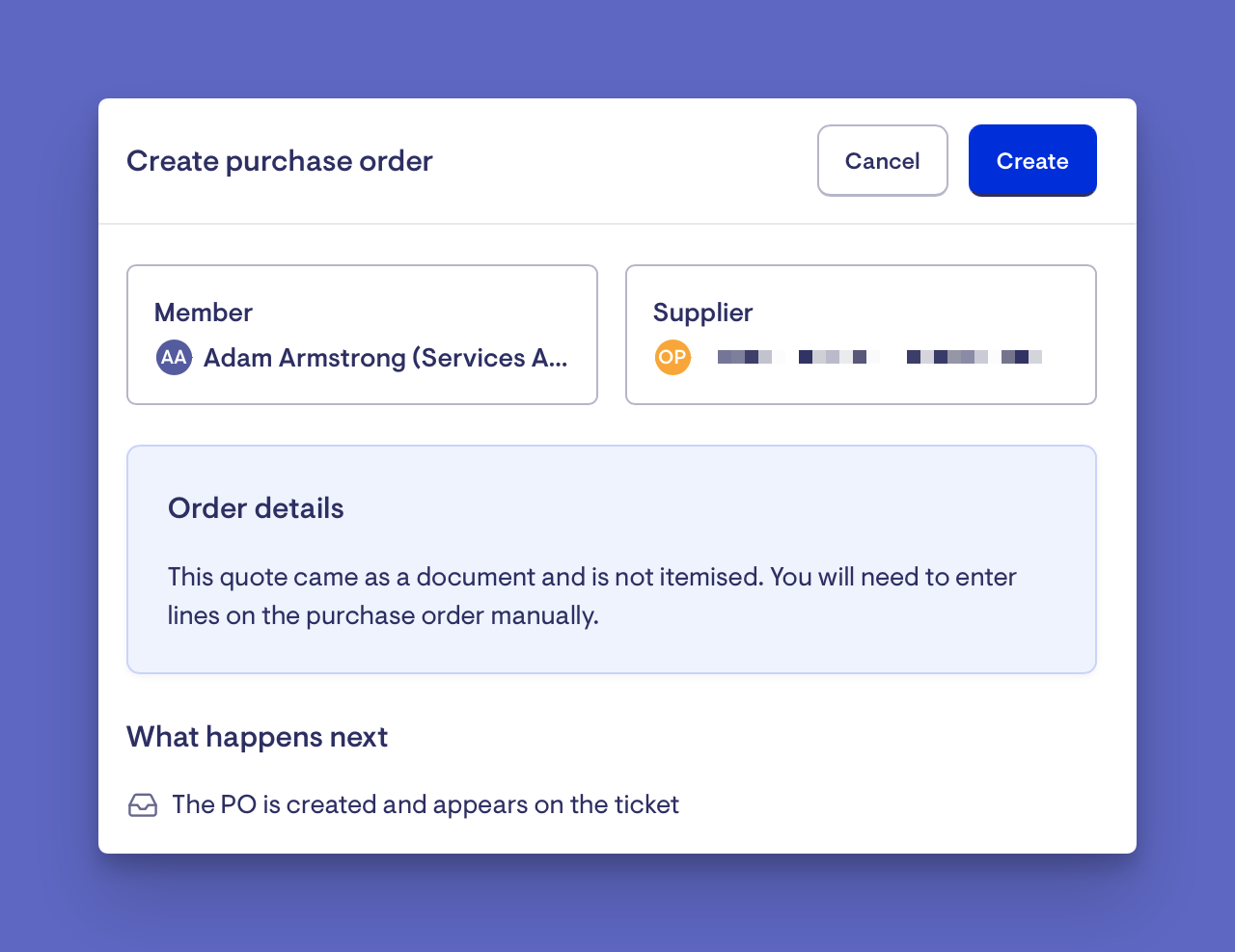
When you choose Create purchase order, a pop-up opens so you can check the job and add anything that's missing:
- Choose a ticket template: Only if the request doesn't already have a ticket.
- CHSP claiming: For CHSP Members, if it wasn't filled in on the request.
- Order details:For each line, an Estimated delivery date if the supplier didn't give one, and for Support at Home Members, a Claiming code (required). If you picked a rate and a claiming code has been added to it, it will be filled in for you. Otherwise, choose one from the list. If your request had a start date that hasn't passed, it's used as the Estimated delivery date, so check it's still right.
Click Create, and:
- The purchase order is created on the request's ticket, or on a new ticket from the template you chose.
- Each line from the supplier's response becomes its own purchase order line.
- The job becomes confirmed on the supplier's portal.
The Request stage then shows PO created, and the purchase order number appears under the request number in the Service requests list.
If the supplier asks to change or cancel a confirmed job
Once a purchase order exists, the supplier can ask to change or cancel a job. When they do, the purchase order on the ticket shows a Changes requested banner, for example "1 line has changes requiring your review."
- Click Review changes to show only the affected lines.
- Each one has a Change request or Cancellation request link that opens the review, where you can see the requested change and any Note from supplier.
- For a change, click Approve change, which updates the line and lets the supplier know, or Keep job as booked.
- Before you keep a job as booked, use Message supplier or View discussion to check they can still do it. Lookout lets the supplier know the job is still booked with them.
- For a cancellation, click Approve cancellation to cancel the job, or Keep job to leave it booked as it is.
- You can also use Message supplier or View discussion from the review.
To handle several lines at once, select them and use Accept supplier requests or Keep jobs as booked.
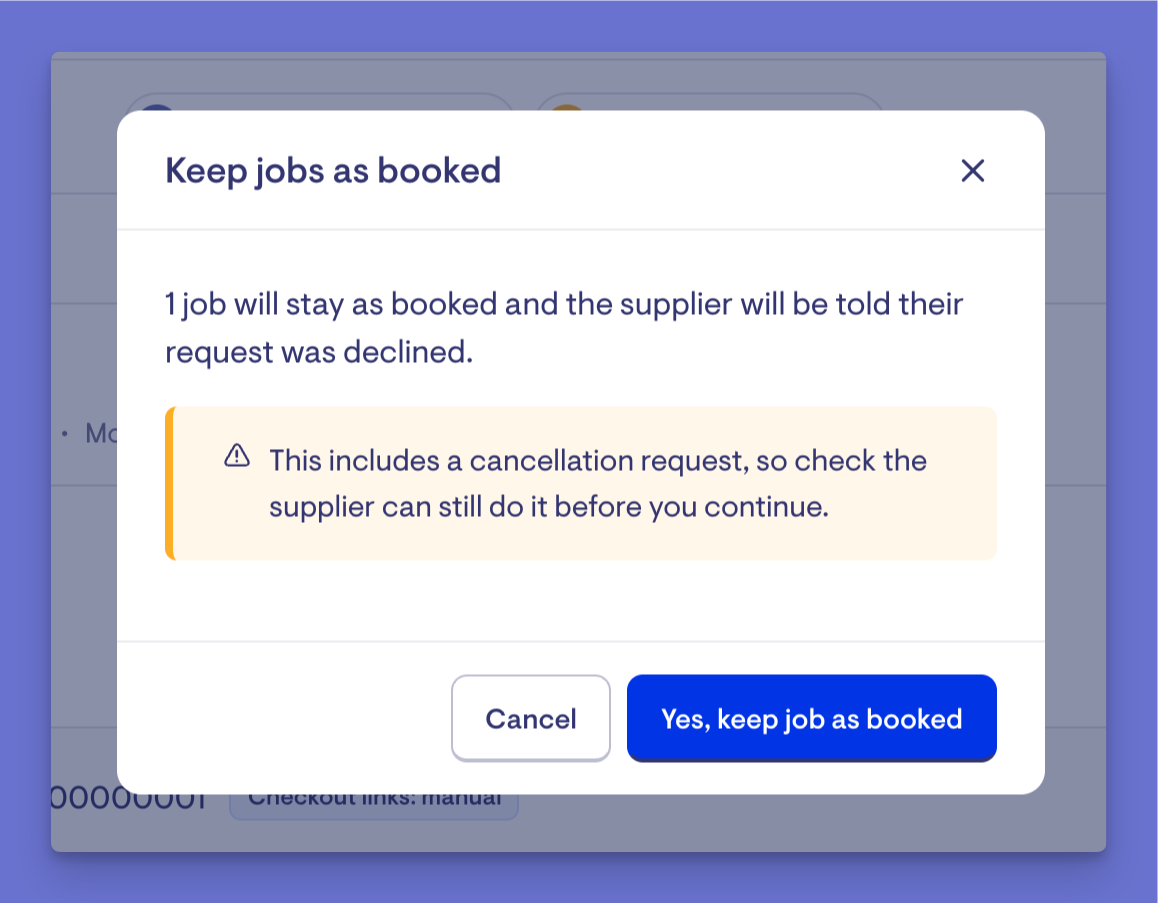
Top tip: When Lookout Assist is enabled, it reads the supplier's messages on the purchase order and raises change or cancellation requests from them for you to review. These show as "Requested by [name] via Lookout Assist". Check the change against the supplier's message before approving.
If the supplier declines
Suppliers aren't asked for a reason when they decline a service request. The request is tagged Declined by supplier under Request stage, and Request declined under Supplier response.
- Click the request's ellipsis (…) button and choose View details.
- You'll see "Declined by [supplier] on [date]" and a Send to another supplier button, which also appears on the ticket if there is one. You can also choose Duplicate from the ellipsis menu.
- Either way, this opens a copy as a new draft with the supplier and rate cleared, so you can search for and choose the new supplier before sending.
- The declined request stays as it is. Once the new request becomes a purchase order, its ticket shows a link back to the original ("Reassigned request • Original request SR-…").
Top tip: Message the supplier from the service request using Message supplier, not from the ticket. Suppliers can't see tickets, so everything in a ticket's discussion stays internal. Messaging becomes available once the supplier has accepted their invitation to the supplier portal.
Once the purchase order is created, its ticket works like any other Lookout ticket: discussion, internal notes, assignees and completion. The purchase order shows a note that "Purchase order lines in this ticket were automatically generated by the service request" and that "The Member charge information may need to be checked and adjusted." Check the Member charge information on the generated lines. For how tickets work in general, see our Tickets: Day-to-day use article.
What suppliers will see
When you send a request, the supplier Owner and admins sees it in their portal under Service requests, in the Needs response tab. It shows the service details, your notes, and whether you've picked a rate or requested a quote.
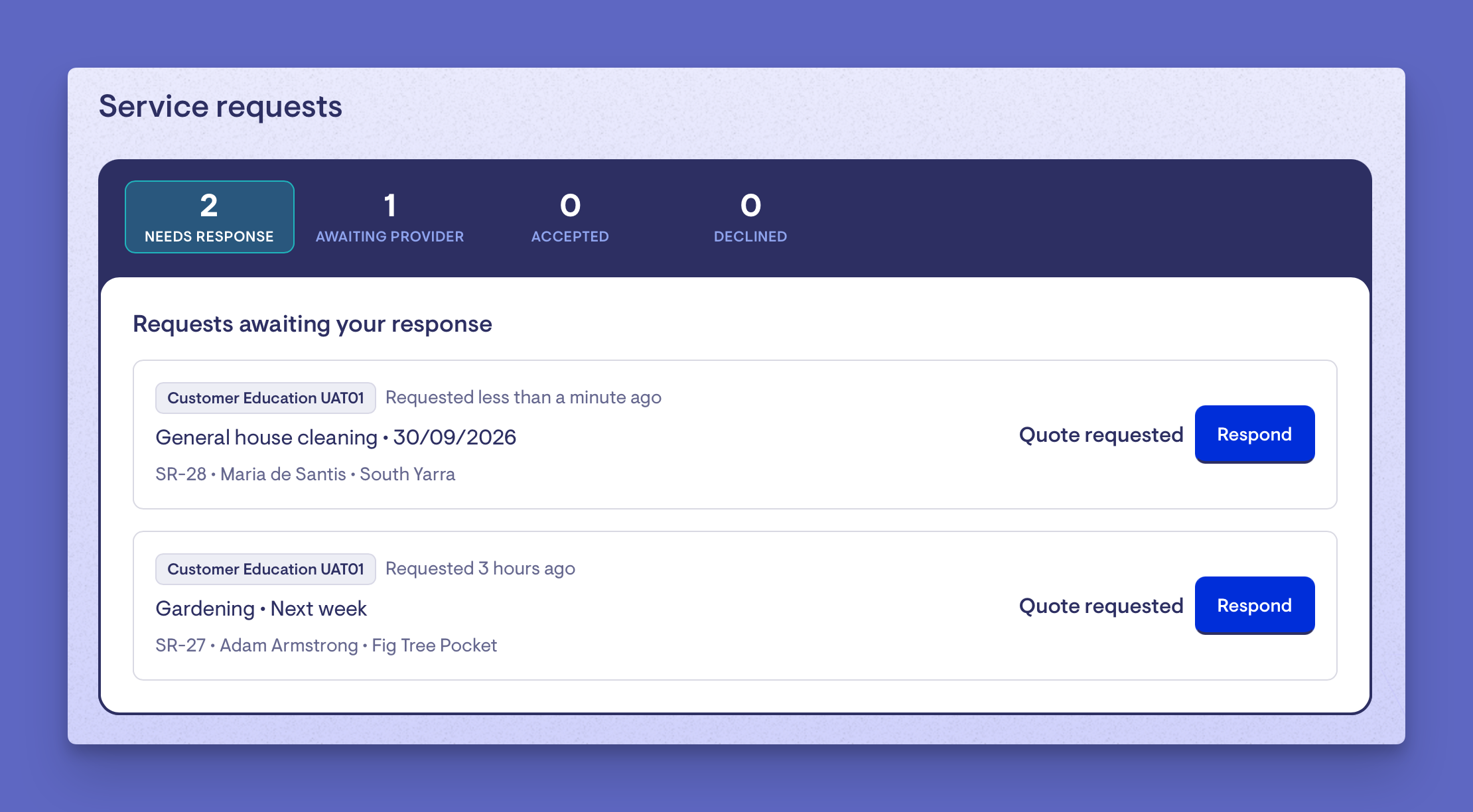
How they can respond depends on the type of request:
- If you picked a rate, they can choose Accept job, Decline or Request changes.
- If you requested a quote, they can choose Send a quote or Decline. Once they've sent a quote, they can also send a replacement with Replace quote.
They can also use "Start a discussion" under Discussion with the care team to message your team about the request. Once they've responded, the request moves to the matching tab: Awaiting provider, Accepted or Declined.
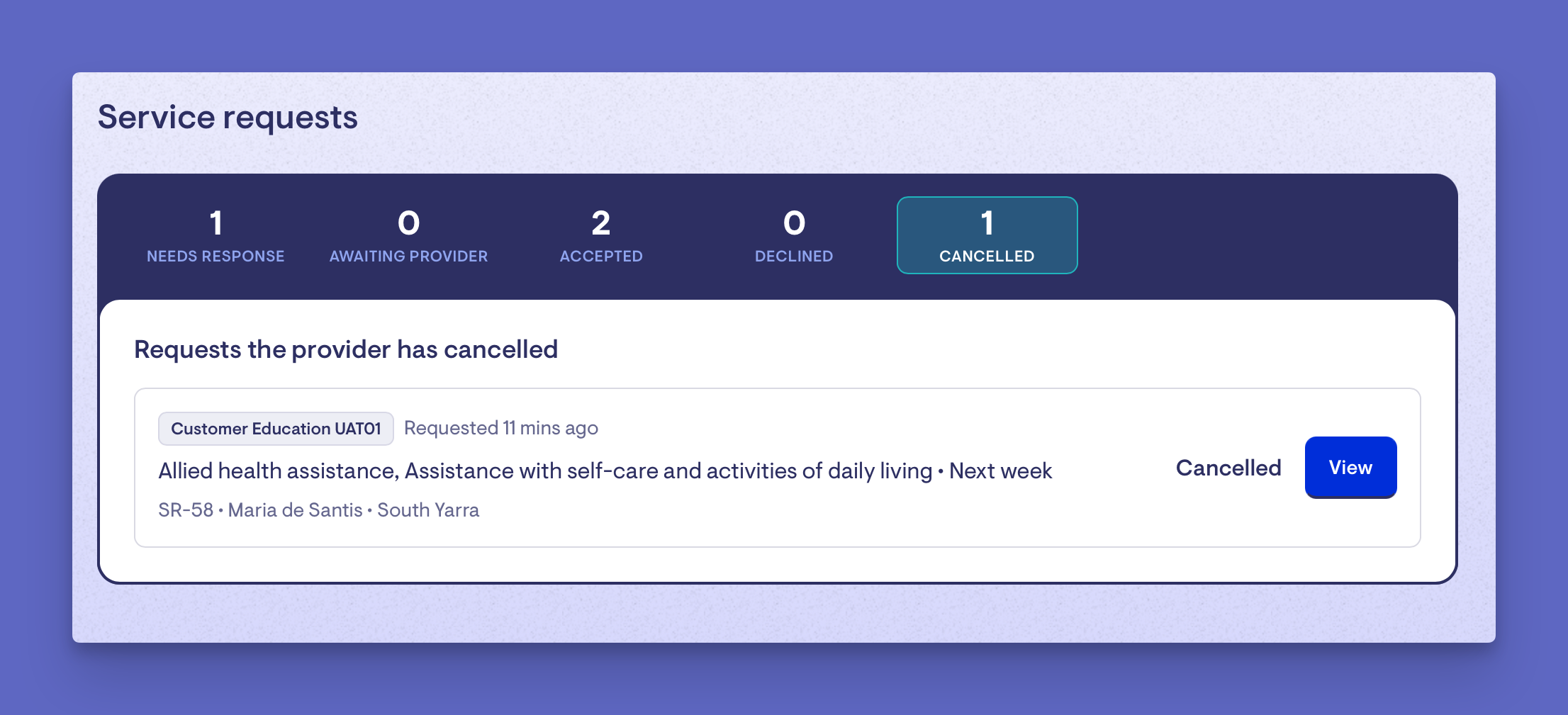
If your team cancels a request while it's still in their Needs response tab (before they've responded), it moves to Cancelled. They're told they no longer need to respond, the conversation closes, and the Member's address is no longer shown.
Once your team creates the purchase order, the job appears in their Jobs list as Scheduled. From there, they can view it, choose Request a change (to reschedule, for example) or choose Request cancellation. The deeper supplier-side mechanics are covered in our supplier-portal articles.
Making the most of service requests
Save as draft when you're not ready. Capture the need now, add the supplier or details later.
Use "request a quote" for open-ended work rather than guessing a price or raising a zero-dollar order.
Add a budget as a guardrail on quote requests so there's a clear ceiling.
Attach what the supplier needs to decide. Reports, photos, a handover summary - up front, so they can accept without back-and-forth.
Message the supplier from the service request, then from the purchase order. Use Message supplier on the service request while you're agreeing the job. Once the purchase order is created, it has its own supplier discussion for anything about the booked work. The ticket's discussion is internal, so suppliers can't see it.
Troubleshooting
I can't see Service requests in the menu, or can’t do something with a request
What you can do depends on your role's permissions:
- To see Service requests in the menu and view requests: View service requests.
- To create, edit, send or cancel requests, or decline a supplier's response: Create, update and delete service requests.
- To accept a supplier's response by creating the purchase order: Create, update and delete purchase orders. If you don't have it, you'll see "To accept this quote, someone with permission to create purchase orders needs to create one from this response."
If your organisation uses community permissions, you also need access to the Member's community. Check with your administrator.
"Raising a service request requires a ticket associated with a membership"
If you start from a ticket, it must be linked to a Member. You can also start from the Service requests list with + New service request button and choose the Member there, so you don't need a ticket at all.
"Member is archived. A membership must be active to add new service requests"
- Service requests can only be raised for active Members.
- Check the Member's status.
"I can't find the supplier I want. The form reads "Can't find a supplier? They need an active supplier portal connection."
- Only suppliers with an active connection to your organisation are listed.
- If you're not ready to choose, save the request as a draft and add the supplier later.
There's no price for this service
Leave the rate set to Request a quote, and the supplier will be asked to quote. If the supplier has no rates set up, you'll see "No rates are set up for this supplier, so they'll need to provide a quote instead."
You can also enter a Budget to indicate how much the Member can spend. The supplier will see it when they quote, but it doesn't stop them from quoting more.
"I can't edit or delete a request. "This service request has already been sent and can no longer be edited."
- You can only edit or delete a draft.
- Once a request is sent, you can still change its assignees or duplicate it.
- If it's still with the supplier and you need to change course, choose Cancel request from the ellipsis (…) button menu.
- The supplier is told they no longer need to respond.
- Then duplicate the request to send a corrected version.
- If the supplier has sent a quote or requested changes, click Review response, then Decline. Once it's declined, choose Send to another supplier to create a corrected copy.
- If the supplier has accepted, you can't decline or cancel the request. To send a corrected version, choose Duplicate from the request's ellipsis (…) menu on the Service requests list. Otherwise, continue with Create purchase order.
- If you try to delete a sent request, you'll see "…can no longer be deleted."
"Messaging unavailable"
Hovering always shows "Available once the supplier accepts their invitation to the portal", but messaging isn't available when:
- The supplier hasn't accepted their portal invitation yet
- The supplier isn't connected to your organisation. If their connection has been revoked, you'll see Connection revoked next to their name on the Service requests list.
- The request has been cancelled
- Your role doesn't include Create, update and delete service requests, or (if your organisation uses community permissions) you don't have access to the Member's community.
If the supplier hasn't accepted yet, ask them to accept the invitation, or contact them another way in the meantime. For the connection or your permissions, check with your administrator.
The request shows "Declined by supplier"
- Suppliers aren't asked for a reason when they decline.
- Click the request's ellipsis (…) button and choose View details, then Send to another supplier (or choose Duplicate from the menu).
- This opens a copy as a new draft with the supplier and rate cleared, so you can choose a new supplier before sending.
- The declined request stays as it is.
This service request is no longer ready to become a purchase order."
- Something changed after you opened Create purchase order. For example, someone else may have already created the purchase order, or the supplier may no longer be active.
- Refresh the Service requests list and check the Request stage.
"Changes requested" on a purchase order
- The supplier has asked to change or cancel a job.
- This only happens once the request has become a purchase order.
- Click Review changes, open each Change request or Cancellation request, and choose Approve change or Reject change.
- For a cancellation, choose Approve cancellation or Keep job.
- You can message the supplier from there, too.
Still need help?
If something isn't working as described, contact the Lookout team and include:
- Screenshots of the service request and its ticket
- The Member's name and the request number
- The exact steps you took
- Any error messages you saw