
This guide explains what a Member is, why Lookout chooses that word, and how to navigate to and search for Members within the system.
What is a Member?
A Member is an individual receiving care or services. In other systems, you might see this person referred to as a client, customer, care recipient, or participant.
When we designed Lookout, we spent time listening to the people who use home care services. One thing we heard clearly was that traditional, clinical language can feel impersonal. So we chose words that feel more human, more supportive, and easier to connect with - and "Member" is one of them. It reflects that each person is part of a community you're supporting, rather than just a case or a file.
Everything in Lookout - from care planning and scheduling to budgets and communication - centres around the Member and the support they receive.
Before you start
To view and search Members, make sure:
- You have access to the communities the Members belong to. You'll only see Members within communities you have access to (unless you have full access across all communities).
Navigating to Members
- From the main navigation menu, click Members to open the full list of Members.
- This is your central view of everyone you support.
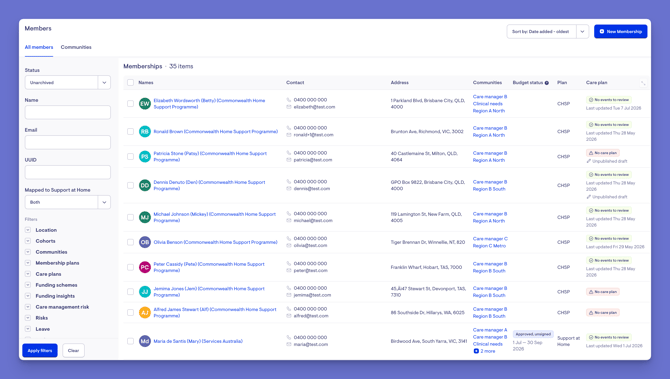
For each Member in the list, you'll see:
- The Member's name and the program they're in
- Contact details - telephone number and email address
- Address details
- The communities they belong to
- Their budget status
- The plan they're on
- How complete their care plan is
Search and filter
You can quickly narrow the list to find the right person:
- Search by name - first name, last name, or preferred name
- Search by email address or unique ID (UUID)
- Filter by status to focus on active or archived Members
- Use the additional filters and custom attributes to refine further
Top tip: Custom attributes are extra fields your organisation has set up, so the filters available may be tailored to your team. To learn more, please review our Custom attributes article.
Open a Member's profile
- From the main navigation menu, click Members to open the full list of Members.
- Find the Member you're after - use the search box to type their name, or narrow the list using the filters.
- Click the Member's name to open their profile. This will load their Member dashboard.
For a full breakdown of the Member dashboard, see our dedicated article: The Member dashboard.
What different Users / Staff will see
For staff with access to the community
- Can view and search the Members within that community, and open their profiles.
For staff with restricted or no access to a community
- Won't see Members outside the communities they've been given access to.
For Members and Helpers
- This is an internal, staff-only view. Members and Helpers don't see the admin Members list.
Onboarding a new Member
Ready to bring someone new on board? Onboarding a Member happens in two steps - first creating their profile, then creating their membership. Please see our dedicated articles below for more information:
- Creating a Profile - how to set up the basic record for a person (this is the same for Members, Helpers, and Staffers).
- Onboarding a Member - how to turn a profile into a Member by creating their membership, funding, plan, and more.
Troubleshooting
I can't find a Member I'm looking for
- Check your status filter - the Member may be archived, or filtered out by another active filter.
- Try searching by preferred name or email, in case their listed name differs from what you expect.
- Confirm you have access to the community that Member belongs to.
I can't see any Members at all
- You may not yet have access to any communities. Ask an administrator to review your community access.
Still Need Help?
If you're still experiencing issues, please contact our Support Team and include:
- Screenshots (if possible)
- The user's name/email
- The exact steps taken
- Any error messages received