
This guide explains what key contacts are, the difference between a contact's role (who they are) and their permissions (what they can do), and how to add and manage the people around a Member - all from one place on the membership.
New to memberships? For the wider picture of a Member's profile, see The Member Dashboard article. To bring a new Member on board, see our Onboarding a Member article.
Key contacts
Key contacts are the people around a Member - the Member themselves, their family, representatives, and anyone else involved in their care. In Lookout, all of these people live together in one Key contacts area on the membership, so you can see everyone at a glance and understand exactly what each person is and what they can do.
Lookout separates two things about every contact:
- Roles - who a contact is to the Member. Roles are for record-keeping and don't grant any access in the app.
- Permissions - what a contact can do in Lookout, including what they can see in the Care app.
A contact can hold any combination of roles and permissions, but must have at least one. Each contact shows badges so you can tell at a glance what roles they hold and what access they've been given.
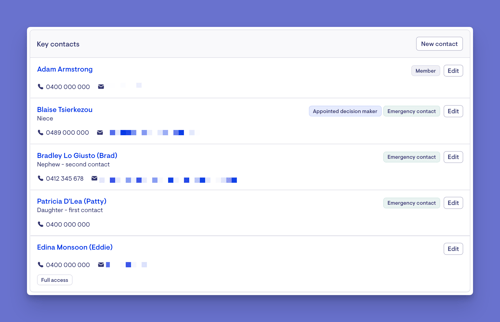
Good to know: The Member is always a contact and can't be removed. Funders aren't contacts - they're managed separately.
Roles and permissions explained
Roles (who a contact is)
Roles are for record-keeping and grant no access on their own:
Registered supporter
A person formally recognised as supporting the Member. Supports the Member in making and communicating their own decisions. Does not make decisions on the Member's behalf. This role aligns with the Aged Care Act.
You can record a conflict of interest status (active, pending, suspended, or cancelled); if there's a conflict, a warning symbol appears.
Appointed decision maker
A person who holds legal authority (e.g. guardianship or enduring power of attorney) to make certain decisions on the Member's behalf, within the scope of their appointment.
You can record their scope of legal authority (a free-text field), attach supporting documents (new or existing files), and set an expiry date on that authority.
Emergency contact
The person your team contacts if something happens to the Member. Add as many as you need.
Permissions (what a contact can do)
Permissions control what a contact can access:
- Full access: The contact can manage services and receive notifications on the Member's behalf — including viewing and signing agreements, viewing and managing visits, and viewing billing summaries and statements. This is the highest level of access.
- Receives statements: The contact receives and can view the Member's billing summaries and statements.
- Can view visits: The contact can view the Member's schedule and visits. (This covers visits only - to also give them statements, add Receives statements as well.)
Top tip: Full access and Can view visits can't both be selected - choosing one disables the other, as Full access already includes what Can view visits provides.
Please note: Care app visibility comes only from being the Member, having Full access, or having Can view visits. The Registered supporter and Appointed decision maker roles are for record-keeping and don't grant Care app access on their own. Full access and Can view visits behave exactly as the old Authorised Representative and Sharer did - this release renames and consolidates them, it doesn't change what they grant.
Before you start
- You are logged into Lookout as a staff member.
- You have access to the Member's membership. There's no separate permission for contacts - anyone who can update the membership can manage its contacts.
- If you're adding a contact who needs their own record, have their details ready (you can select an existing profile or create a new one as you go).
Navigating to a Members key contacts
- From the main navigation menu, click Members to open the full list of Members.
- Find the Member you're after - use the search box to type their name, or narrow the list using the filters.
- Click the Member's name to open their profile. This will load their Member dashboard.
- You'll see the Member's Key contacts panel on the top left side of their dashboard.
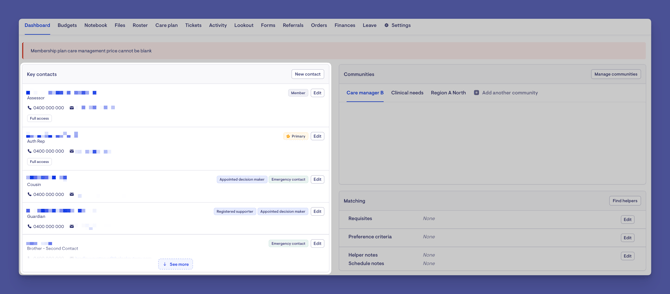
Adding a contact
You'll see the Member's Key contacts panel on the top left side of their dashboard.
Step 1: Start a new contact
-
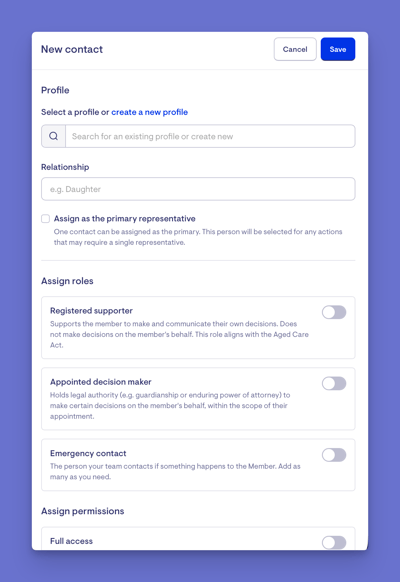
Click the New contact button.
-
In the side window that opens, either select an existing profile or create a new one. To learn more about creating a profile, please view our dedicated article.
-
Set their relationship to the Member. Choose from the drop-down list of options, or type a new relationship type into the free-text field here.
-
Choose whether they're a primary representative. Only one contact can be assigned as the primary representative. Ticking this option means this person will be selected for any actions that may require a single representative.
Step 2: Assign their roles
-
Select one or more roles for this contact - Registered Supporter, Appointed Decision Maker, or Emergency Contact.
- Fill in the details for each role you chose. When you assign a role, Lookout displays an additional set of fields for that role. You'll only see the fields for the role(s) you selected, so skip any that don't apply.
For a Registered supporter:
- Set their registration status: Active, Pending, Suspended or cancelled.
- Use the tick box option to declare a conflict of interest. You'll also need to provide details of the conflict of interest. Describe any real, potential or perceived conflicts of interest that may impact their role as a registered supporter. If a conflict is recorded, a warning symbol appears on the contact, making it easy to spot.
- Optionally, input their registration identifier and registration date.
- Attach any documents, such as registration confirmation documents. You can upload or select an existing file already uploaded onto the Membership.
For an appointed decision maker:
-
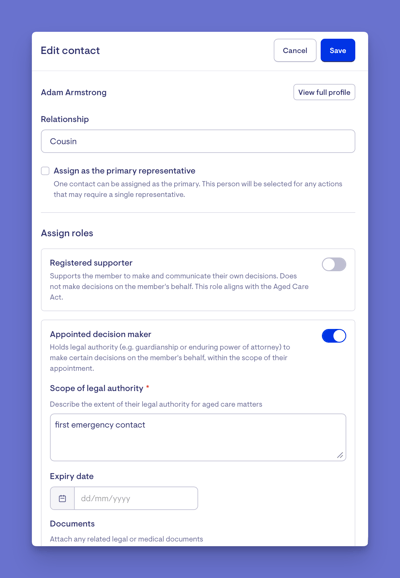
Input their scope of legal authority. This is a required field, as the extent of their legal authority for aged care matters is needed. For example, the Member has the right to make decisions if the Member is hospitalised.
- You can set an expiration date on their legal authority. Leave the date blank if you want to set indefinitely.
- Attach any documents, such as any related legal or medical documents. You can upload or select an existing file already uploaded onto the Membership.
Top tip: If an Appointed decision maker's appointment has expired, a warning symbol appears on the contact, and a Registered supporter also shows a warning if their registration isn't active - hover over any warning for the details.
For an emergency contact:
No extra details are needed beyond adding the role.You can select multiple contacts to be an emergency contact. An emergency contact cannot be saved unless the profile has a phone number attached.
Step 3: Assign their permissions
This controls what the contact can do in Lookout, including what they can see in the Care app:
- Full access: The contact can manage services and receive notifications on the Member's behalf - including viewing and signing agreements, viewing and managing visits, and viewing billing summaries and statements. This is the highest level of access.
- Receives statements: The contact receives and can view the Member's billing summaries and statements.
- Can view visits: The contact can view the Member's schedule and visits. (This covers visits only - to also give them statements, add Receives statements as well.)
Top tip: Full access and Can view visits can't both be selected - choosing one disables the other, as Full access already includes what Can view visits provides.
- Permissions and email: Permissions rely on the contact being invited to the Lookout app, which needs an email address. If you turn on a permission for a profile with no email, you'll be prompted to add one (you can do this right here in the contact window).
- Once a profile has an email and a permission, Lookout offers to invite them as a user - if you choose Not now, it'll prompt again each time you save until a user is created.
- A contact with Full access but no email can still be saved - this keeps existing representatives valid.
Step 4: Save
When ready, click the blue Save button in the top-right corner. A green banner will appear confirming your actions.
Remember: A contact must have at least one role or permission before you can save them. They can hold any combination - for example, an Emergency contact who also has Can view visits, or a Registered supporter with Full access.
Editing a contact
When you open a contact, their profile details, such as phone number and email, can be edited right there in the window, too. This is handy for fixing a missing email before assigning a permission or sending an invite.-
Navigate to the contact you wish to edit and click its Edit button.
-
A side window will open, where you can quickly update their details, email, phone number, roles, or permissions.
You may need to edit a Registered supporter contact if a conflict of interest presents itself.
- Use the tick box option to declare a conflict of interest and update their registration status.
- You'll also need to provide details of the conflict of interest. Describe any real, potential or perceived conflicts of interest that may impact their role as a registered supporter. If a conflict is recorded, a warning symbol appears on the contact, making it easy to spot.
- Remember to click the Save button to apply any changes you have made to any contacts.
Top tip: You can add as many contacts as you need, and a contact can hold any mix of roles and permissions - so there's no limit of one representative or one emergency contact per Member.
Deleting a contact
- Select Edit on the contact you want to remove.
- In the side panel, scroll to the bottom.
- Select the red Remove this contact button and confirm.
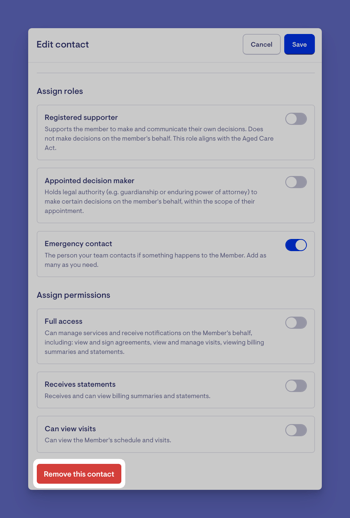
Please note: The Member is always a contact and can't be deleted. Deleting another contact removes them from the membership - if they had access (such as Full access or Can view visits), that access is removed too.
Removing the primary contact
If the contact you remove is the primary representative, or you untick the primary option, Lookout asks you to choose a replacement first, so the membership always has a primary. If there's only one other contact, you'll confirm; if there are several, you'll pick from a list. If there's no one to hand over to, the primary option remains disabled until another contact exists.
Contact documents and the Files tab
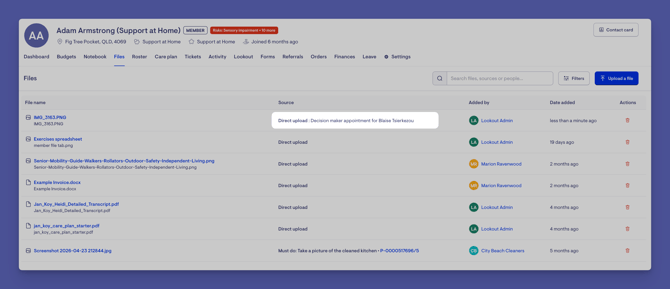
If you attach a file to a contact - for example, documents supporting an Appointed decision maker's scope of legal authority - that file also appears in the Member's Files tab. It's labelled as a direct upload and shows which contact it came from, so it's easy to trace. These are kept as snapshot copies, so the contact's document stays intact and downloadable even if the original is later deleted or replaced in the Files tab.
What happens next?
Once you've added or updated a contact:
- They appear in the Key contacts panel with badges showing their roles and access.
- If they have Full access or Can view visits, they can see the relevant information in the Care app.
- If they receive statements, they'll be sent the Member's statements.
- Any documents attached to them also appear in the Member's Files tab.
How existing access carries over
If your organisation previously used the older contact labels, here's how they carry across - existing contacts keep their access automatically:
- Authorised Representative → Full access permission (same access as before).
- Billing Recipient → Receives statements permission.
- Sharer → Can view visits permission.
The Registered supporter and Appointed decision maker roles are separate and optional - they're added deliberately when you want to record someone in that capacity, and aren't applied automatically.
Troubleshooting
I can't save a contact
Every contact needs at least one role or permission. Make sure you've assigned at least one before saving.
A contact can't see anything in the Care app
Care app access comes from being the Member, having Full access, or having Can view visits. A Registered supporter or Appointed decision maker role alone doesn't grant access - add the relevant permission if they need to see the Care app.
I can't remove the Member as a contact
The Member is always a contact and can't be removed.
There's a warning symbol on a Registered supporter
This indicates a recorded conflict of interest. Open the contact to review the conflict of interest information.
Where did a contact's document go?
Files attached to a contact also appear in the Member's Files tab, labelled as a direct upload showing which contact they came from.
A contact can only see visits, not statements
Can view visits covers the schedule and visits only. To let them see statements too, also turn on Receives statements, or give them Full access.
It won't let me save a permission / it's asking for an email
Permissions need an email so the contact can be invited to the app. Add an email to their profile (you can do it in the contact window), then save. A Full access contact with no email is the one exception.
Still need help?
If you're still experiencing issues, please contact our Support Team and include:
- Screenshots (if possible)
- The Member's name
- The exact steps taken
- Any error messages received