
This guide explains how to generate a new care plan using Lookout Assist - selecting a template, uploading supporting documents, adding extra context, and reviewing the draft before publishing. Lookout Assist creates the draft; a staff member always reviews and publishes it.
New to Lookout Assist and care plans? For the bigger picture, start with Care plans with Lookout Assist. This article covers generating a new care plan; to update an existing one, see Updating and maintaining care plans with Lookout Assist.
About generating a care plan
When a Member doesn't yet have a care plan, Lookout Assist can create a draft for you. It reads the documents you upload - such as an assessment or clinical notes - along with any extra context you provide, and produces a structured draft organised into your chosen template's categories.
The draft is a starting point, not a finished plan. You review it, edit anything that needs adjusting, and only then publish it to make it the Member's active care plan.
Before you start
Before generating a care plan with Lookout Assist, make sure:
- The Care plans (Clinical care) feature is enabled for your organisation.
- Lookout Assist is enabled, and the Care Plan and assessments agent is turned on in your Lookout Assist settings.
- You have workflow or care management permissions to create and publish care plans.
- You have the supporting documents ready (such as an assessment, intake form, or clinical notes).
Generate a care plan
Step 1: Start Lookout Assist generation
- From the main navigation menu, click Members to open the full list of Members.
- Find the Member you're after - use the search box to type their name, or narrow the list using the filters.
- Click the Member's name to open their profile. This will load their Member dashboard.
- From the horizontal menu, select the Care plan tab.
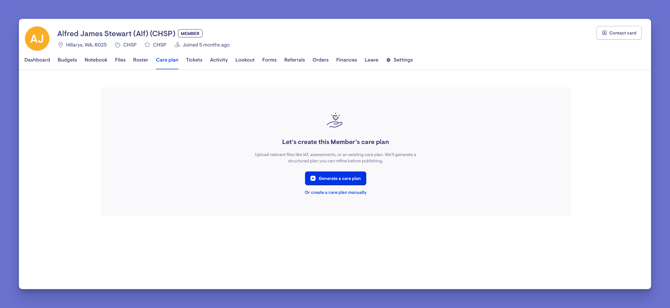
- If no care plan exists yet, you'll see a prompt: "Let's create this Member's care plan."
- Click the Generate a care plan button.
Step 2: Configure the generation
- Select a care plan template - This tells Lookout Assist which structure and categories to use. Your organisation may have several templates, depending on the type of care, service, funding scheme, or Member need.
- Upload or attach documents for Lookout Assist to read. You can choose files already stored on the Member's profile, or upload new ones with Choose file. Supported types include PDFs, Word documents, and images.
- Add any extra Member information as free text (optional).
- Click the Next button in the top-right corner to begin.
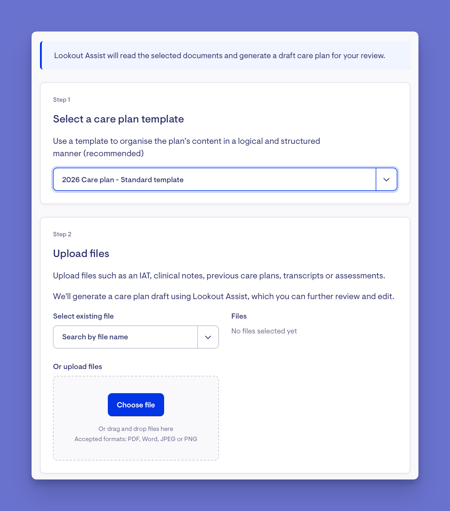
Top tip: Helpful documents include the Integrated Assessment Tool (IAT), intake forms, assessments, clinical notes or summaries, or an existing care plan. You can upload multiple documents - use the bin icon to remove one before continuing. The free-text field is a good place to add recent changes in needs, key preferences, goals discussed, or additional risks and concerns, which can improve the quality of the draft.
Step 3: Wait for the draft
Lookout Assist will process the documents and information - you'll see a message that the care plan is being generated. This usually takes around one to two minutes, depending on the number and size of the documents.
You can return to the care plan to view the generated plan later. Click the View draft care plan button to review.
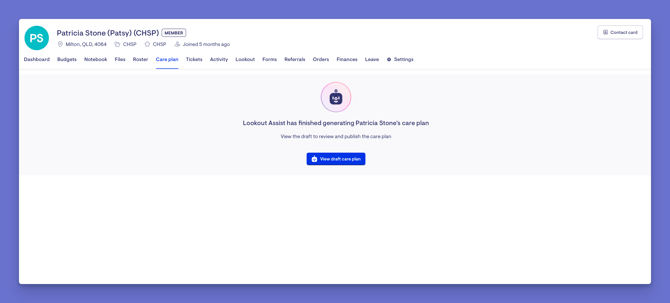
The draft will appear organised into the categories from your selected template. If risk detection applies, risks aligned to the Strengthened Aged Care standards may also be identified.
Step 4: Review the draft carefully
The draft is fully editable, and you should review every part before publishing:
- Review each category and its items.
- Review any risks that were generated, including their levels and mitigations.
- Edit any section that needs adjusting - update wording, add missing information, or remove anything that isn't relevant.
Use the View sources button to see which documents and information the draft was based on. It will also flag any issues that may affect the draft, such as conflicting or missing information, so you can review or regenerate before publishing.
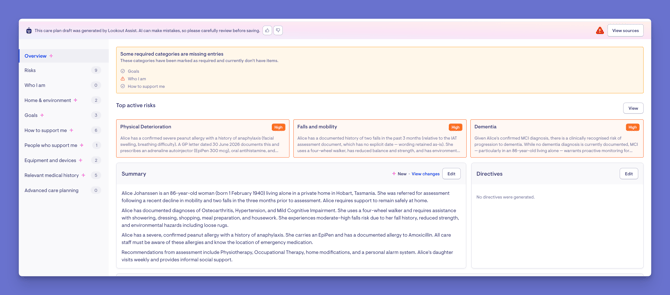
Important: A notice reminds you that the draft was generated by Lookout Assist, that AI can make mistakes, and that you should carefully review it before saving.
If the draft isn't right
Before publishing, you're always in control:
- Regenerate the draft: From the Options menu, re-run the generation if the result wasn't quite right.
- Retry: If a generation failed, retry it.
- Delete the draft: For a new care plan, if you don't want to use the proposal, you can delete it entirely.

Step 5: Publish the care plan
When you're satisfied the care plan is accurate and complete, select Save and publish.
This applies the plan to the membership, makes it the active care plan, and makes it visible in the app to the Member, their loved ones with access, and their current Helpers.
What happens next?
After you publish:
- The draft becomes the Member's active care plan.
- It's immediately visible in the app to the Member, their loved ones with access, and their current Helpers.
- The plan can continue to evolve - Lookout Assist can propose updates over time as new information arrives (see the updating article below), and you can edit it manually at any point.
Keeping the plan current: Once a plan exists, Lookout Assist can propose updates based on new care events. See our Updating and maintaining care plans with Lookout Assist article to learn more.
Making the most of Lookout Assist generation
Give it good source material.
The more relevant the documents (assessments, IAT, clinical notes), the stronger the draft.
Add context in the free-text field.
Recent changes, preferences, goals, and known risks all help Lookout Assist produce a more relevant draft.
Always review before publishing.
Treat the draft as a first pass - check every section and every risk, and edit anything that isn't quite right.
Use View sources.
It shows what the draft was based on and flags issues worth checking before you publish.
Troubleshooting
I don't see the option to generate a care plan with Lookout Assist
Lookout Assist must be enabled, and the Care Plan and assessments agent must be turned on in your Lookout Assist settings. You'll also need workflow or care management permissions.
The care plan generation failed
You'll see a message asking you to retry. Select Retry to re-run the generation. If it keeps failing, check that the uploaded documents are readable and try uploading different files.
My document won't upload
Check the file type - supported types are PDFs, Word documents, and images. Try uploading one file at a time and removing anything unsupported.
The draft didn't identify any risks
Risk detection is only supported for certain funding schemes (HCP transition, Support at Home, and CHSP). For others — such as NDIS, DVA, VHC, and Private - a banner may indicate that risks aligned to those standards won't be shown.
The draft has mistakes or missing details
This is expected - a draft is a starting point. Review and edit every section, and only publish when you're satisfied. AI can make mistakes.
Still have a question? Please take a look at our Care plans: FAQs, where we answer the most common questions about care plans in one place.