
This guide explains how Lookout Assist helps keep an existing care plan up to date - what triggers an update, how to review proposed changes, and how to edit and publish them. Lookout Assist proposes that a staff member always reviews and publishes.
New to Lookout Assist and care plans? For the bigger picture, start with our Care plans with Lookout Assist article. This article covers updating an existing plan; to create a new one, see Generating a care plan with Lookout Assist.
About updating a care plan with Lookout Assist
Once a Member has a care plan, it shouldn't stand still - needs, risks, goals, and preferences change over time. Lookout Assist helps keep the plan current by proposing updates when new information arrives, so you don't have to manually rework the plan each time something changes.
Lookout Assist drafts the proposed changes, clearly shows you what's different, and leaves the decision to publish with you.
A human is always in the loop. Lookout Assist never publishes an update on its own. Every proposed change must be reviewed, edited if needed, and published by a staff member.
What triggers a care plan update?
Lookout Assist proposes updates when new care plan events occur. These include:
- Submitted form responses - such as completed assessments.
- Incident actions that have been sent to the care plan.
- Observation investigations that have been sent to the care plan.
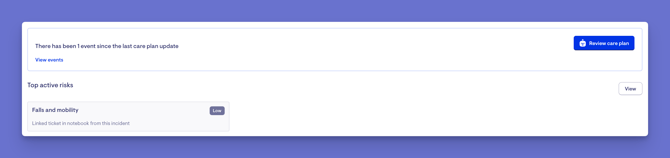
When there's new information to consider, the Member's care plan page shows a banner indicating updates to review, along with a View events link to see what prompted the review.
How does an incident get sent to the care plan? An incident is sent to the care plan from its corrective actions stage. When completing the corrective actions on an incident ticket, tick the Update care plan checkbox and set the date — this sends the incident action to the Member's care plan as an event, ready for review. For more on incidents, see our Incident Management article.
Before you start
Before updating a care plan with Lookout Assist, make sure:
- The Care plans (Clinical care) feature is enabled for your organisation.
- Lookout Assist is enabled, and the Care Plan and assessments agent is turned on in your Lookout Assist settings.
- You have workflow or care management permissions to edit and publish care plans.
- The Member already has a care plan in place.
Updating a care plan
Step 1: View the events
- From the main navigation menu, click Members to open the full list of Members.
- Find the Member you're after - use the search box to type their name, or narrow the list using the filters.
- Click the Member's name to open their profile. This will load their Member dashboard.
- From the horizontal menu, click the Care plan tab.
- If there's new information to consider, you'll see a banner at the top of the care plan overview with a View events link showing recent events (such as completed forms or assessments) relevant to the care plan.
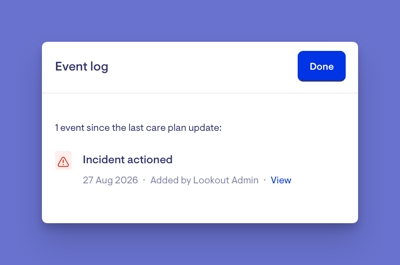
- Clicking View events will open the event log as a side screen. From there, you can select View on any event to see the details of that form, incident, or investigation.
Top tip: You can use the care plan status column on the Membership list to spot Members with unpublished updates or pending events, where available.
Step 2: Choose what Lookout Assist should consider
- Click the Review care plan button to start the update.
- From here you can:
- Select or deselect events: Choose which recent events Lookout Assist should take into account.
- Attach documents: Upload or select existing files for Lookout Assist to review.
- Add additional Member information: Free-text context or instructions (for example, "Falls risk has increased, suggest new mitigations").
- Click Next to submit.

Step 3: Review the proposed updates
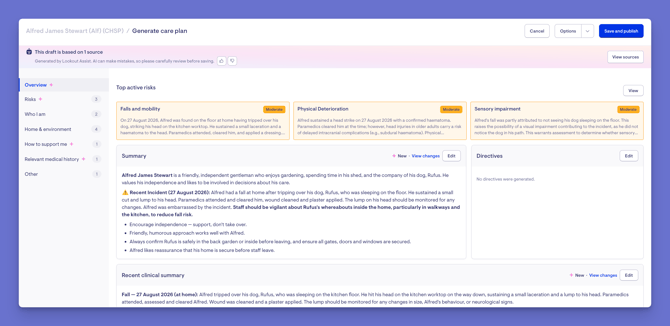
Lookout Assist will generate the proposed updates. You can move between categories to see what's changed:
- A sparkle icon appears next to any category that has been updated.
- Select View changes on a section to see a side-by-side comparison of the current version against the proposed version.
- You can still manually edit any section, edit the template, or regenerate the draft if needed.
Important: As with any Lookout Assist draft, review the proposed changes carefully. AI can make mistakes, so check each update before publishing.
Step 4: Publish the update
When you're satisfied with the changes, click Save and publish.
The updated plan becomes the live care plan, and is immediately visible in the app to the Member, their loved ones with access, and their current Helpers, according to their permissions.
Reviewing an unpublished draft when new events occur
Sometimes a draft has already been generated but not yet published, and new events happen in the meantime. Lookout can help you fold those new events in before you publish.
Step 1: Find and open the unpublished draft
- Use the care plan status column on the Membership list to find Members with unpublished updates or pending events, where available.
- Open the Member's profile and select the Care plan tab.
- Look for the banner: "There are unpublished updates — View the draft to review the updates."
- Select View care plan draft.

Step 2: Review the draft
- Note the reminder that the draft was generated by Lookout Assist and should be carefully checked before saving.
- Click View sources to see the documents and events it used.
- Review the category entries and any proposed risk changes, flagged with the sparkle icon.
- Select Edit next to any section that needs adjusting.
Step 3: Add new events to the draft (where needed)
If new observations, incidents, or completed assessments or forms occur after the draft was generated, a warning appears that there have been new events since the draft was created.
- Click View events to see the new events.
- Select Add new events to confirm.
- Click Next to regenerate the draft.
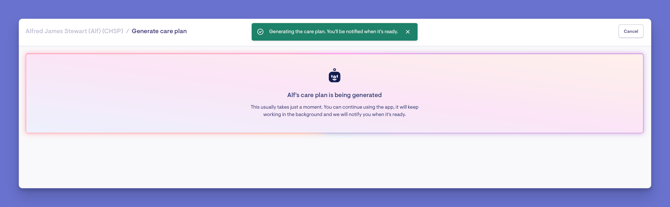
- Wait for Lookout Assist to process the updated draft, then return to review it when notified.
Important: Adding new events regenerates the draft, which means any manual edits you've already made to the current draft will be overwritten. Only proceed when you're comfortable losing those edits.
Step 4: Publish the updated care plan
Once you've reviewed the updated draft, click Save and publish. A green banner will appear affirming your actions. The draft becomes the live care plan, visible to Helpers and Members with the appropriate permissions.
Approving, regenerating, or deleting a proposal
When a proposed update is ready for review, you have full control:
- Save and publish: Applies the update and makes it live. Only staff can do this; Lookout Assist never publishes automatically.
- Regenerate draft: From the Options menu, re-run the generation if the result wasn't satisfactory.
- Retry: If a proposal failed, retry it.
What happens next?
After you publish an update:
- The updated plan becomes the live care plan for the Member.
- It's immediately visible in the app to the Member, their loved ones with access, and their current Helpers, according to their permissions.
- The care plan continues to evolve - Lookout Assist will keep proposing updates as new events arise.
Making the most of care plan updates
Act on the prompts.
When Lookout Assist flags new events, reviewing them promptly keeps the plan current and accurate.
Use View changes.
The side-by-side comparison is the quickest way to see exactly what's being proposed before you accept it.
Add context.
The free-text field lets you steer the update, for example, noting an increased risk and asking for new mitigations.
Publish before making manual edits to a pending draft.
If new events arrive, adding them regenerates the draft and overwrites manual edits - so decide which to do first.
Troubleshooting
I don't see any proposed updates or a "View events" link
Lookout Assist proposes updates based on new care events (form responses, incident actions, and observation investigations sent to the care plan). If there are no new events, there's nothing to propose. Check that Lookout Assist and the Care Plan and assessments agent are enabled.
My manual edits disappeared after adding new events
Adding new events regenerates the draft and overwrites any manual edits made to it. If you want to keep manual edits, publish them before adding new events.
I can't tell what Lookout Assist changed
Look for the sparkle icon next to updated categories, and use View changes to see a side-by-side comparison of the current and proposed versions.
A proposal failed to generate
Click Retry to re-run it. If it keeps failing, check that any attached documents are readable.
Lookout Assist updated the plan without me - is that possible?
No. Lookout Assist only ever proposes updates. Nothing becomes live until a staff member reviews and publishes it.
Still have a question? Please take a look at our Care plans: FAQs, where we answer the most common questions about care plans in one place.