
This guide explains what care plan templates are, why they matter, and how to create and manage them - including adding categories and items, marking categories as required, and archiving templates you no longer need.
New to care plan terms? You may find it helpful to review our Care plans: Glossary of terms article alongside this guide. For the bigger picture of how care plans work, start with the Care plans: an overview article.
Care plan templates
A care plan template is a reusable starting point that defines the structure of a care plan - its categories, the items within them, and the prompts that guide staff when completing them.
Rather than building every care plan from scratch, templates give your team a consistent framework to work from. When a care manager creates a care plan, they choose a template, and it sets out the categories and prompts they'll fill in.
Templates are made up of two building blocks:
- Categories: The main sections of a care plan (for example, "Who I am," "Goals," or "How to support me").
- Items: The prompts or structured entries within each category that guide staff on what to capture.
Why they matter
Well-built templates are what make care planning consistent, efficient, and aligned to best practice across your organisation. They:
- Standardise care planning: Every care plan follows the same structure, so nothing important is missed and your team works to one agreed framework.
- Save time: Staff start from a structured, prompted template rather than a blank page, reducing administrative effort.
- Support best practice: The prompts and guidance you build help staff capture the right information in the right place.
- Fit your organisation: Categories and items are fully customisable, so your templates reflect your own care planning needs rather than a fixed default.
- Stay flexible: You can create, edit, and archive templates as your needs evolve, while preserving historical data.
Before you start
Before reviewing this article, please ensure you meet these prerequisites:
- You are logged into Lookout as a staff member.
- The Care plans (Clinical care) feature is enabled for your organisation. The default Lookout template is available to all customers, but creating custom templates requires this feature.
- You have administrator access to configure care plan templates. If you can't see the Care plans area in Settings, ask an administrator to review your access.
Creating a template
Step 1: Open care plan settings
- From your home dashboard, navigate to the overflow menu by clicking the ellipsis (...) next to your name in the bottom left-hand corner.
- The overflow menu will open - click Settings.
- In the main settings, navigate to the Care section, then click Care plans.
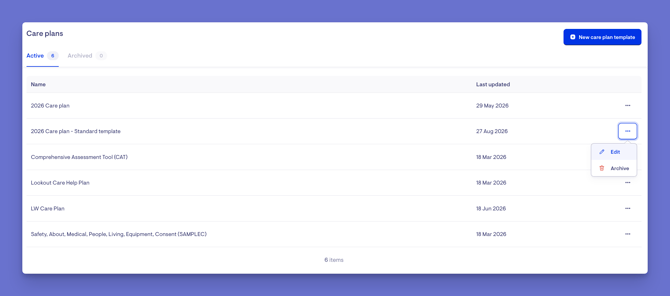
- You'll see all active templates (and any archived ones under the Archived tab), showing the template name and when it was last updated.
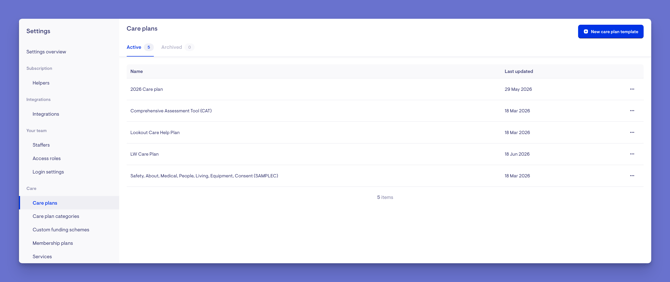
Step 2: Create a new template
- Select the blue + New care plan template button in the top-right corner.
- Enter a clear, meaningful name.
- Enter a unique key (an identifier) using lowercase letters, numbers, and hyphens only.
- Select Save.
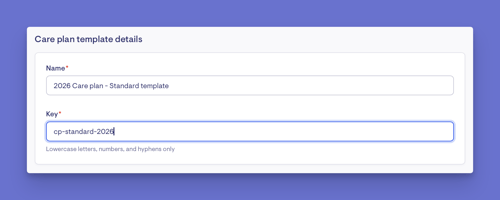
Please note: The unique key can't be changed later, so choose it carefully. You'll then be taken to the template editor to build the structure.
Step 3: Add categories
Categories are the main sections of the care plan.
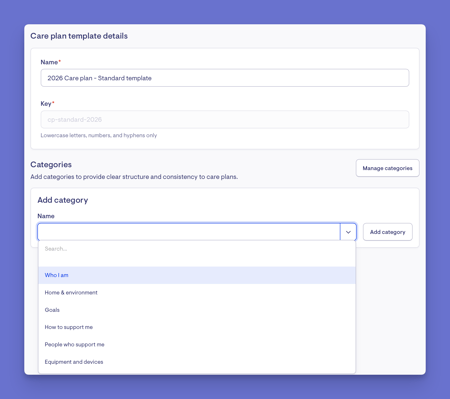
- Select an existing category from the available list, or create a new one by typing a name in the Add category section and selecting Add category.
- Edit the title and description of any category directly on this page.
- Arrange categories in the order you want them to appear.
- Mark categories as required or optional, where this option is available.
Step 4: Add items within each category
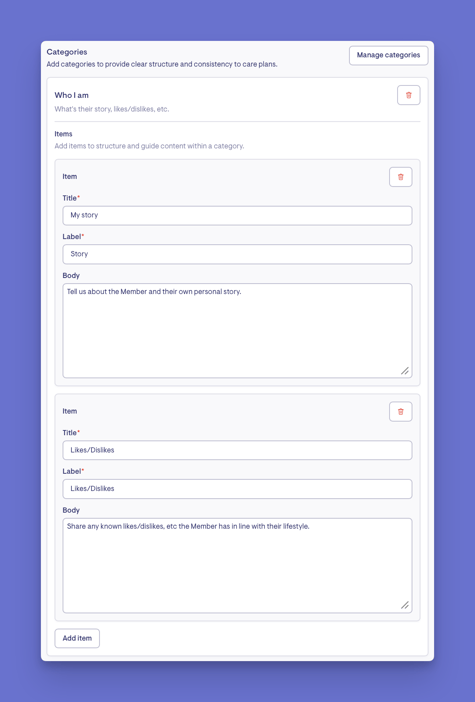
Items are the prompts or structured entries that guide staff when completing a care plan. For each item, set:
- A title - the heading staff will see.
- A label - a short reference identifier.
- Body text - the pre-written prompt or starter text that guides staff.
Click the Add item button to add more items within a category, or the tree trashcan icon to delete one. Repeat for each item you want within that category.
Step 5: Save your template
-
When you are ready, click the blue Save button to save all your changes.
-
A green banner will appear confirming your new care plan template has been created successfully, and the template is active and available to use for a Member.
Important: Plan your order carefully as you build. Once a template's categories and items are in use, their order is fixed - items appear as cards and can't be dragged to reorder, and the ability to manage your categories will disappear when editing a template.
What happens next?
Once a template is saved and active:
- It becomes available to select when creating a care plan for a Member - either manually or with Lookout Assist.
- Its categories and items define the structure staff will work through.
- You can continue to edit it at any time, and changes will apply to future care plans built from it.
Create a care plan: With your template ready, learn how to create and manage a Member's care plan in our Manually creating and managing care plans article.
Prefer to let Lookout Assist help? If your organisation has Lookout Assist enabled, it can generate a care plan draft from documents. See our Generating a care plan with Lookout Assist article to learn more.
Managing categories
You can also manage categories directly, separately from any one template.
- From your home dashboard, navigate to the overflow menu by clicking the ellipsis (...) next to your name in the bottom left-hand corner.
- The overflow menu will open - click Settings.
- In the main settings, navigate to the Care section, then click Care plan categories.
- From here, you can create new categories, rename existing ones, and archive those that should no longer be used.
- Click the blue + New category button in the top-right corner to make a new category.
- Enter its details - a key, title, subtitle and tick if it's a required field when used within a care plan template. Click the blue Save button when ready to save your new category.
- Before archiving a category, review how a category is being used - especially if it's attached to existing templates or care plans.
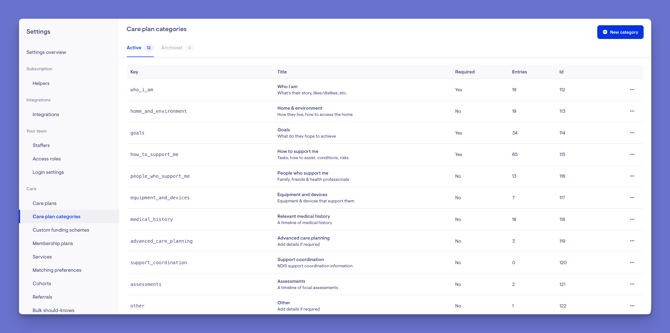
Please note: Category changes should be approached carefully, as they shape care plans across your organisation. Archiving a category removes it from active use but preserves historical data. It's worth reviewing category changes as part of your care governance.
Editing and archiving templates
- Edit a template: Return to Settings > Care plans at any time to update a template's name, add or edit categories, adjust wording, or remove items. Changes apply to new care plans created from that template going forward.
- Archive a template: Select the ellipsis (...) button next to the template and choose Archive, then confirm. Archiving removes it from active use for new care plans, but existing care plans built from it remain unchanged and historical data is preserved.
- Unarchive a template: Open the Archived tab and select the restore option to make it active again.
Troubleshooting
I can't see the Care plans section in Settings
Check the Care plans (Clinical care) feature is enabled for your organisation, and that you have administrator-level or care management permissions.
I can't change a template's unique key
The unique key can't be edited once the template is created. You can update the name, but the key is fixed.
I can't reorder categories or items after creating them
Once in use, the order is fixed and items appear as cards, so they can't be dragged to reorder. To adjust order, delete the item and re-add it, new items are placed at the bottom of the section. It's worth noting, that you can reorder the sections within a category, but the categories themselves can't be reordered - that order is set in the template. So it's worth making sure the template's category order is right from the start.
I archived a category or template but the data seems to be gone
Nothing is deleted. Archiving removes it from active use for new care plans but preserves all historical data. Existing care plans built from it are unchanged.
A category I want isn't available when building a template
It may have been archived. Check the Archived tab under Settings > Care > Care plan categories and restore it if needed.
Still have a question? If this hasn't answered it, take a look at our Care plans: FAQs, where we answer the most common questions about care plans in one place.