
The Funding Analyser is the newest agent in the growing Lookout Assist suite. It reviews a Member's budget and live tracking position on demand, explains what it finds in plain language and suggests actions for you to consider. As with all Lookout Assist agents, it will never change anything on its own. There always needs to be a human in the loop.
This article walks you through what it does, where to find it, how to use it, and what happens next.
Overview
Understanding why a Member's budget isn't tracking as expected can mean reviewing multiple service lines, price changes, schedules and funding sources to piece together what's changed. This investigation can take hours to complete manually.
The Funding Analyser does this work for you. It looks across the Member's services to identify what may be affecting their funding and projected position, including changes to service prices or schedules and whether services are using the appropriate funding source. It brings together what it finds, explains what's happening in plain language and suggests follow-up actions for you to consider.
The Funding Analyser appears as Lookout Assist within the budget. You won't see a separate "Funding Analyser" label or button on screen.
New to the budget uplift? This article assumes you already know your way around the refreshed budgets - the three tabs, live balance tracking, and budget planning. If that's new to you, start with our What's changing in budgets and why article and Adopting the budget uplift: a rollout guide, then come back here.
Lookout Assist required. The Funding Analyser is only available if your organisation has Lookout Assist switched on, and it specifically requires the new master services agreement (MSA). If you don't see the option to review a budget with Lookout Assist, your account either doesn't have Lookout Assist enabled or isn't on the required agreement. Speak to your Lookout contact to enable it.
Why this matters
A Member's funding position may change throughout a period as their needs change and evolve. Services may be added, schedules adjusted, funding updated or prices changed. Understanding how these factors affect the Member's funding can help you identifypotential over or under-utilisation earlier and make informed decisions about their services and funding.
The Funding Analyser brings this information together and explains the factors contributing to the Member's current and projected position. Importantly, it also explains the reasoning behind its findings and suggested actions, so you can review the information and decide what, if anything, needs to happen next.
Before you start
- Your organisation needs Lookout Assist enabled, on the required agreement (MSA). Without it, the option to review a budget won't appear.
- You need permission to view the Member's finances - the same access that lets you open their live budget tracking. That's enough to generate a review and read its suggestions.
- To apply a suggested change, you need the additional permission to use the budget's bulk-action tools. If you can view but not apply, you'll still get the full review and its suggestions. You can raise a ticket to have an appropriate team member review and action the suggestions where required.
- If you want to generate a review and read its suggestions, you need View finance account transactions and balances, the same access you use to open a Member's live budget tracking.
- If you want to share a review to a ticket, you need the same view permission as above.
- If you want to apply a suggested change, you need the view permission above plus Budgets bulk actions.
Step-by-step instructions
Step 1: Open the Live & projected balance tracking tab
- From the main navigation menu, click Members to open the full list of Members.
- Find the Member you're after - use the search box to type their name, or narrow the list using the filters.
- Click the Member's name to open their profile. This will load their Member dashboard.
- Click their Budgets tab.
- Their budget screen will load. It may load onto the Live & projected balance tracking tab by default. If not, please click the Live & Projected balance tracking tab on the right-hand side of the screen to open.
- This is the tab that shows the live and projected balance and in their separate funding sources.
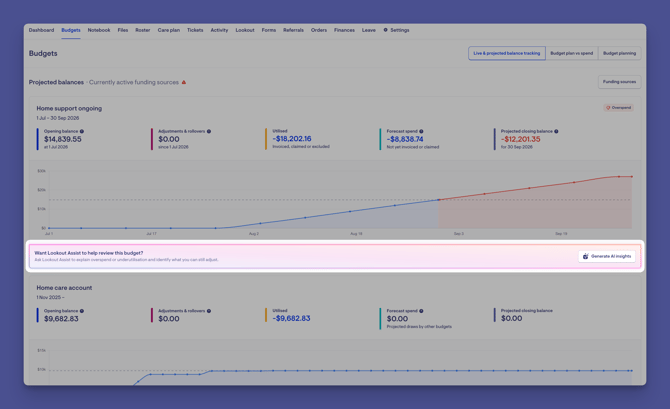
- Find the Lookout Assist prompt. For each relevant funding source, you'll see a Lookout Assist panel where you can generate a review of the Member’s funding position.
Step 2: Review the budget with Lookout Assist
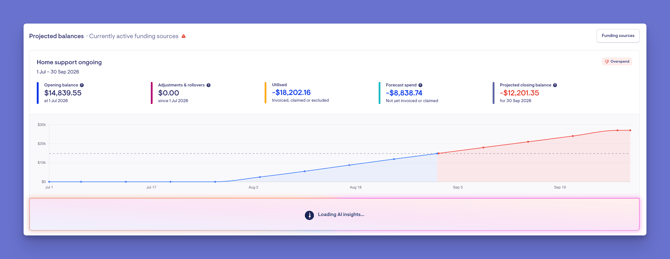
- Click Generate AI insights. The agent only runs when prompted. Not every budget will need further investigation, so you can choose when to generate a review and avoid unnecessary analysis. Lookout Assist shows a brief loading state while it works.
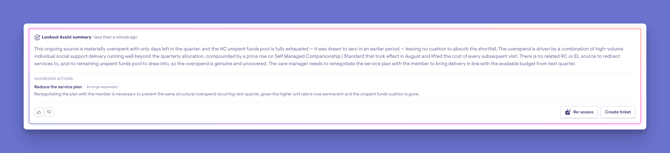
- Read the summary. You'll get a plain-language summary of what's contributing to the current position for that funding source. For example, it may identify the impact of a mid-period price change, a change to scheduled services, or services using a different funding source than expected. It explains the why, not just the what.
- Review the suggested actions. Below the summary is a list of suggested actions, each with a short label and its reasoning. Some can be reviewed and applied in Lookout, while others may need to be considered or arranged separately. See Understanding the suggested actions below for more information.
- Give feedback (optional). Each review has a thumbs-up or thumbs-down control, which helps the Lookout team improve future reviews.
Understanding the suggested actions
A review can suggest up to three actions. If there's more than one, use the arrows to move between them. Each suggestion has a short label and an explanation of why it's being suggested.
Suggestions fall into two groups:
- Actions you can review and apply directly: These suggestions show how many services the change covers and their total amount, along with a Review and apply button. Selecting it opens the Member's tracked expenses with the affected services already selected and the matching bulk action open, pre-filled where possible. Check the details and confirm. Nothing changes until you do. You need the Budgets bulk actions permission to see this button. Without it, you'll still see the suggestion and its reasoning. Use Create ticket to pass it to someone who can apply it.
- Actions to consider separately: These suggestions are tagged Arrange separately. Lookout Assist can't set them up for you. They may need action in another part of Lookout, such as adjusting the service plan or a purchase order, or a step outside Lookout, such as talking to the Member, applying for a supplement or flagging them for reassessment. Use the explanation to decide what, if anything, needs to happen.
A suggestion can also show as:
- Resolved: the Member's records now match what the suggestion recommended, whether the change was made through Review and apply or another way. If only some services have been updated, the suggestion stays open and the count shows only those still outstanding.
- Out of date: the services the suggestion covered have changed since the review was generated, so it can no longer be applied. Select Re-assess to get an updated review.
What happens next?
- Nothing changes automatically: The Funding Analyser only makes suggestions. Any change to services or funding sources occurs only after you review and confirm the change.
- You can re-assess at any time: The Re-assess button runs the review again, which can be useful after you've made changes and want an updated assessment.
- Suggestions stay aligned with the current budget: If the services referred to in a suggestion change, it will be marked Out of date. Suggestions you’ve applied will show as Resolved.
- Past reviews are kept: At most, the previous five assessments are available below the panel, where you can show or hide them to review how the Member's funding position and previous assessments have changed over time.
Turning a review into a tracked follow-up (Tickets)
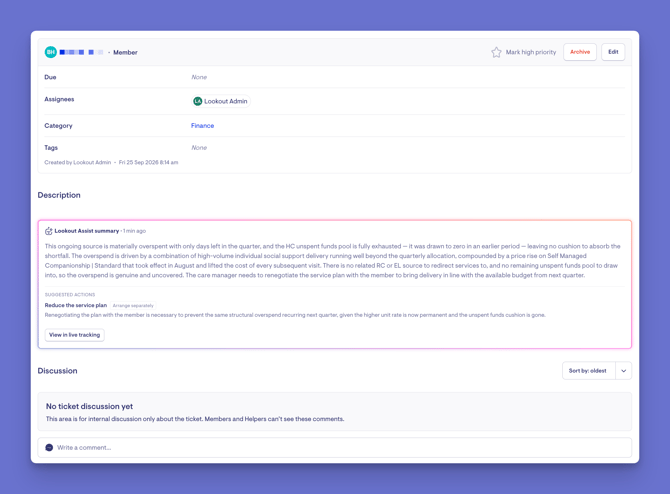
A Funding Analyser review may identify areas that need further follow-up, such as a conversation with the Member, a decision to record, or a task to assign to someone else. You can turn the review into a ticket to keep these actions visible and tracked. From the review, select Create ticket. This opens a funding analyser ticket that carries the review's summary and any suggested actions across, giving the person reviewing the ticket the relevant context.
- Once a ticket exists, the button becomes Go to ticket, taking you straight there.
- The review summary is copied into the ticket and remains available with the budget.
Best practice: Where a review identifies something that requires further consideration or follow-up, raise a ticket to keep a record of the review and any actions taken. This keeps the follow-up visible, provides clear ownership and creates an audit trail of the decisions and actions taken.
New to tickets? For more information on creating and managing tickets, assigning follow-up, and using ticket templates to support your workflows, see Tickets: Day-to-day use and Understanding ticket templates and workflow add-ons.
Making the most of the Funding Analyser
Review each funding source separately.
Because a prompt appears per source, you can review each funding position independently and focus on the areas that need your attention.
Re-assess after you act.
After making a change, re-run the review to see how it has affected the Member's funding and projected position and whether anything else needs your attention.
Use it as a starting point, not the last word.
The Funding Analyser can identify likely contributing factors and suggest actions, but you know the Member and their circumstances. Use the information it provides alongside your own knowledge and judgement when deciding what, if anything, needs to happen next.
Lean on the history.
Previous assessments provide a record of how the Member's funding position has evolved and what was identified at each review.
Troubleshooting
There’s no option to review a budget with Lookout Assist
Lookout Assist isn't enabled for your organisation, or the accountisn't on the required agreement. Check with your Lookout contact that Lookout Assist is switched on and the account is on the required agreement.
The review couldn't be completed
The review occasionally fails to finish. Use Try again to re-run it.
A suggestion is marked "Out of date."
The services it referred to changed since the review was generated. Re-run the review using Re-assess for an updated assessment.
"Review and apply" isn't offered on a suggestion
This suggestion can't be applied directly in Lookout and may require further consideration or action outside the Funding Analyser. If follow-up is required, raise a ticket to keep a record and track any actions.
I can see the review, but can't apply a suggestion
You have permission to view the review but not to use the budget's bulk-action tools. If you've reviewed the suggestion and want to apply the change, ask someone with the required permission or raise a ticket to assign the follow-up.
The summary doesn't look right.
The review reflects the data available in the budget at the time it was generated. Check the underlying services and funding sources and, if anything has changed, re-assess for an updated review.
Still have a question? Take a look at our Budgets: FAQs, where we answer the most common questions in one place.
If you're still experiencing issues or have questions about the changes, please contact our Support Team and include:
- The specific area or change you have a question about
- Screenshots (if possible)
- Any error messages received