
This guide explains how to find a Helper's dashboard and what information is shown on it. It gives you a complete picture of where to find everything about a Helper, and points you to dedicated guides for each of the tabs within their profile.
New to Helper terminology? You may find it helpful to review our Helpers: Glossary of terms alongside this guide.
Or looking to add a new Helper? This article covers viewing an existing Helper's dashboard. To bring a new Helper into Lookout, see our Onboarding a Helper article.
Before you start
Before reviewing this article, please ensure you meet these prerequisites:
- You are logged into Lookout as a staff member.
- You have access to view Helpers. This is controlled by your access role - if your role doesn't include it, you may not see the Helpers option under Rostering.
- To view a specific Helper, they need to belong to a community you have access to (unless your access reach is set to Full - access to every community).
- To edit a Helper's details, services, communities, or settings, you need edit access rather than view-only access. If editing options are greyed out or missing, ask an administrator to review your access.
The Helper dashboard
A Helper is a person providing care or support to Members - including support workers, care workers, clinicians, and third-party providers. The Helper dashboard is the home page for an individual Helper, bringing together everything about them in one place: their details, communities, services, pricing, contracts, schedule, and more.
Key details
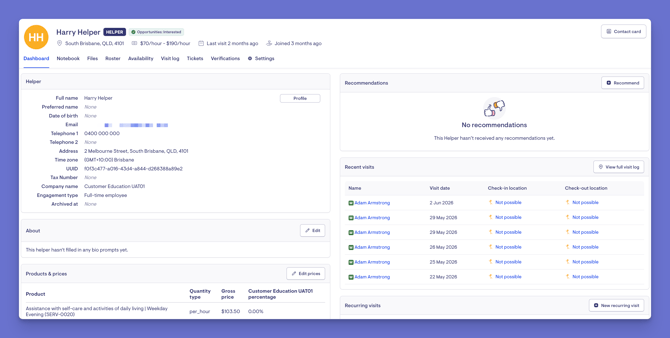
At the top of the dashboard, you'll see the Helper's key details at a glance:
- Their avatar - a photo if uploaded, otherwise their initials.
- Their full name and preferred name.
- A role badge confirming their role, plus any status tags.
- Quick details such as their address (hover to see the full address), age, pricing, when their last visit with a Member was, and when they joined the company.
- A contact card on the right, giving you their quick contact details.

The profile tabs
Running across the top of the profile is the Helper's horizontal menu, giving you access to different areas of their profile - such as their notebook, files, roster, availability, visit log, tickets, verifications, and settings.
Note that some tabs only appear depending on your organisation's setup, so you may not see all of them.
Each tab has its own dedicated article that explains what it is, why it matters, and how to make the most of it — along with troubleshooting tips. To learn more about any of them, please explore the Helpers section within our Help Centre.
Information panels
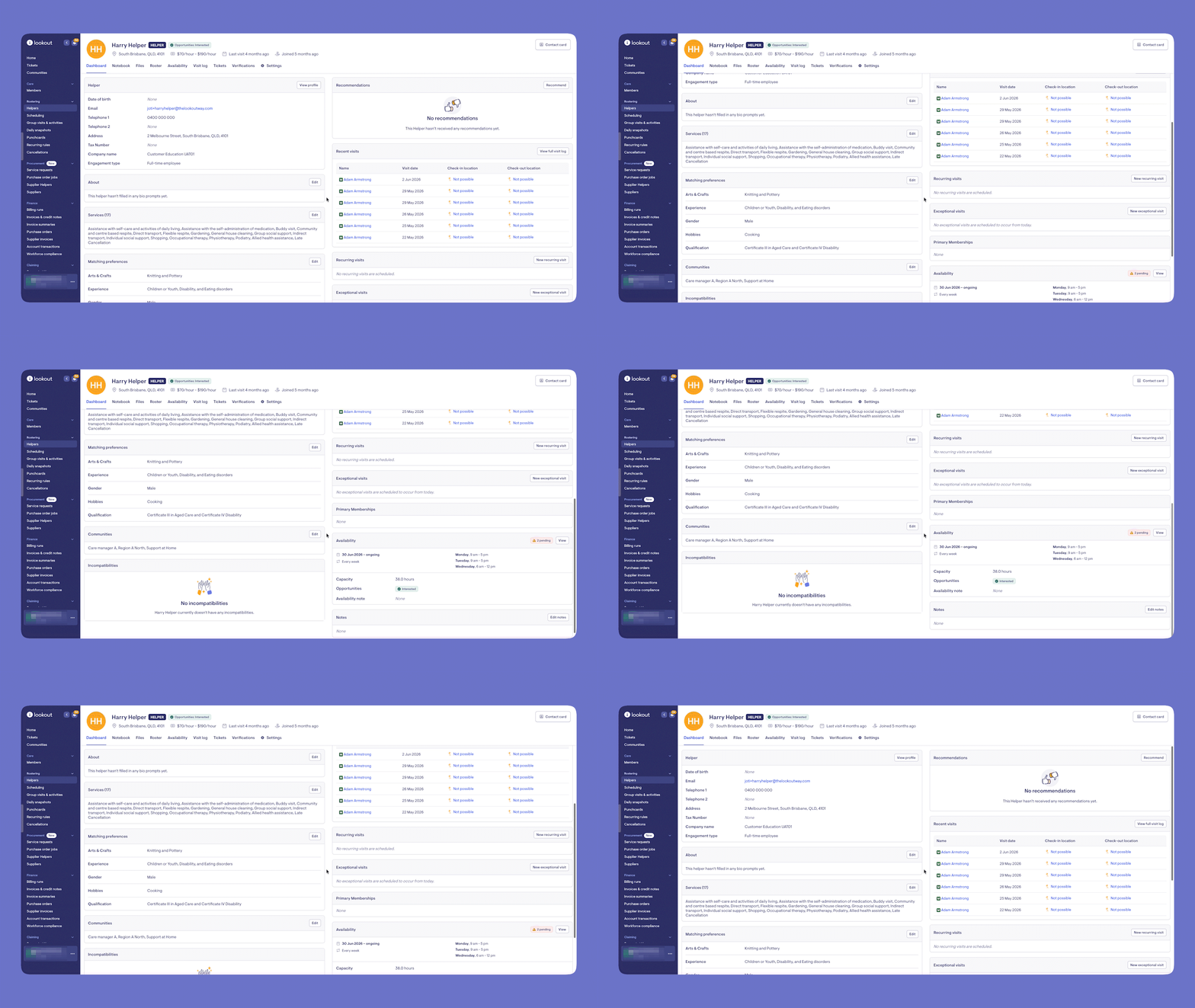
The dashboard is split into two columns, containing information panels. To keep the dashboard clean and easy to scan, some panels show a see more option to expand and reveal their full contents.
Left-hand column
- Helper details: The Helper's core information, including tax number, company name, and engagement type. The View profile button takes you to edit their details or view their login management.
- Custom attributes: Any extra fields your organisation uses, with a quick edit option.
- About / Bio: A section the Helper completes from the Care App to introduce themselves. You can view and make changes if needed.
- Products and Prices: This panel is now only visible if viewing a supplier or contractor Helper dashboard. It’s a table of the products associated with the Helper and their pricing, quantity type, and any independent contractor pricing. Editable here via the Edit prices button.
- Contracts: This panel is now only visible if viewing a supplier or contractor Helper dashboard. The active contracts linking this Helper to specific Members. The number is summarised within the title of this panel; you’ll see a number within brackets. These are created automatically when a Helper is assigned a service with a Member.
- Services: The services this Helper provides. The number is summarised within the title of this panel; you’ll see a number within brackets. You can edit via its available Edit button.
- Matching Preferences: Soft matches between Helpers and Members (for example, arts and crafts, environment, or experience). These help pair suitable people together.
- Communities: The communities this Helper belongs to, which you can manage.
- Brokerage Agreement: This will only appear for supplier or contractor Helpers - their contract agreement, viewable here if applicable.
- Incompatibilities: A list of any Members the Helper has been marked as incompatible with, and the reason. These are a hard stop - an incompatibility will prevent you rostering this Helper with that Member. They're added from the Member's dashboard, not here.
Please note: Contract and pricing panels (such as Products and Prices, Contracts, and Brokerage Agreement) only appear for Helpers with an engagement type of supplier or contractor. For Helpers who aren't contractors, these panels don't show, as they don't apply.
Right-hand column
- Third-Party Provider Rates: This panel is now only visible if viewing a supplier or contractor Helper dashboard. The rates set for this provider, shown where applicable.
- Recommendations: Recommendations staff have left for this Helper.
- Recent Visits: A log of the visits this Helper has attended. Select Full Log to jump to the Visit Log tab. (Appears if location services are enabled.)
- Recurring Visits: The Helper's repeating visits with Members. You can create, edit, or delete recurring visits from here.
- Exceptional Visits: Upcoming one-off visits that sit outside a regular schedule, with their stage shown (for example, completed or scheduled). You can create new ones here.
- Primary Memberships: The Members this Helper is the primary Helper for (configured from the Member dashboard).
- Role: The Helper's role(s) in the system - Helper, supplier, or clinician. A Helper can hold more than one role.
- Availability: The days they work, their weekly capacity, whether they're interested in opportunities, and any notes. Clicking the View button will take you to the Availability tab to see everything in full. You will also see badges in this panel when applicable, for example, any pending availability requests.
- Note: A free-text admin note about the Helper.
Accessing a Helper dashboard
- From the main navigation menu, click Helpers to open the full list of Helpers.
- Find the Helper you're after - use the search box to type their name, or narrow the list using the filters.
- Click the Helper's name to open their profile. This will load their Helper dashboard.
Making the most of the Helper dashboard
The Helper dashboard is most useful when the information in it is kept accurate and up to date. Here's how to get the most out of it:
Keep verifications current
A Helper's Verifications are central to safe, compliant care. Keep an eye out for the "missing verifications" flag and update qualifications and clearances before they expire, so the Helper can keep being scheduled without interruption.
Make matching work in your favour
Fill in a Helper's services and matching preferences thoughtfully. The more accurate these are, the better Lookout can pair the right Helper with the right Member - and the fewer mismatches you'll need to sort out later.
Use incompatibilities to protect Members
If a Helper shouldn't work with a particular Member, make sure the incompatibility is recorded (from the Member's dashboard). Because incompatibilities are a hard stop, this prevents accidental rostering and keeps Members comfortable and safe.
Keep communities accurate
A Helper only appears for scheduling in the communities they belong to. If a Helper isn't showing up where you expect, their community setup is usually the first thing to check.
Encourage Helpers to complete their bio
The About / Bio section helps Members feel more comfortable and connected with their Helper. Encourage Helpers to complete it from the Care App, as it adds a personal, human touch to the care relationship.
Review availability regularly
Keeping a Helper's availability and weekly capacity current means rostering reflects reality - so you're not offering visits a Helper can't take, or missing ones they could.
Leave notes for continuity
Use the admin note and recommendations to capture useful context about a Helper. This helps the whole team stay informed and supports smooth handovers.
Top tip: Treat the dashboard as a living record, not a one-time setup. The more current it is, the more it works for you and the Members in your care.
Troubleshooting
I can't see a tab that's mentioned in this article
Several tabs only appear in certain setups - for example, the Visit Log only shows if location services are enabled, and Orders appears for third-party providers. If you don't see a tab, it may not apply to your organisation or that Helper.
I can't find the Danger Zone / option to archive a Helper
Account actions (archive, unarchive, deactivate) have moved from the dashboard into the Helper's Settings, under the Administrator group. See our Helper Settings article or Offboarding a Helper article to learn more.
I see a notification that a Helper's verifications are missing
Open the Helper's Verifications tab to see which qualifications, certifications, or compliance documents need to be added or updated.
I can't see the Products and Prices or Contracts panels
These panels only appear for Helpers with an engagement type of supplier or contractor. If the Helper isn't a contractor, these panels don't apply and won't show.
I can't roster a Helper with a particular Member
Check the Incompatibilities tile. If the Helper has been marked incompatible with that Member, this is a hard stop and will prevent rostering. Incompatibilities are managed from the Member's dashboard.
The Helper's bio or "about" section is empty
This section is completed by the Helper from the Care App. Until they fill it in, it will remain blank, though you can view and edit it.
I can view a Helper but can't edit their details
Editing requires edit access rather than view-only access. Ask an administrator to review your access level.
Still need help?
If you're still experiencing issues, please contact our Support Team and include:
- Screenshots (if possible)
- The user's name/email
- The exact steps taken
- Any error messages received