
This article explains what a survey is, its use cases, and its benefits. It expands on the three layers of a survey: the reusable template created in Settings, the survey assignment that schedules it to a Member, and the responses stored against the Member's record. It also covers the five available question types and the permission required to view and manage survey templates.
What is a survey?
Surveys in Lookout are structured questionnaires you can send to the people connected to a Member's care - the Member themselves, their authorised representatives and primary contact, and your Staffers. They give you a repeatable, organised way to collect feedback, track well-being, and monitor progress over time.
Unsure of a term? If you're feeling unfamiliar with any of the language used in this article, please visit our Surveys: Glossary of terms article.
Use cases
Surveys are designed to gather structured input from the different people involved in a Member's care.
Common ways they're used include:
- Wellbeing and satisfaction check-ins: Regularly asking a Member how they're feeling or how satisfied they are with the support they're receiving.
- Authorised representative and primary contact feedback: Collecting input from a Member's Authorised Representative or nominated Primary contact.
- Staffer observations: Having Staffers answer questions about a Member's condition or progress.
- Ongoing monitoring: Because surveys can repeat on a schedule, they're well-suited to tracking change over time for a Member (for example, monthly or quarterly reviews).
- Flagging concerns automatically: Certain answers can be marked as "exceptional," meaning a response falls outside an acceptable range and deserves attention. This helps surface issues with a Member early.
- Bulk assignment: You can send the same survey to many Members at once, which is useful for organisation-wide reviews or periodic assessments.
The key benefits
Consistency.
Everyone answers the same questions in the same way, so responses across Members are comparable.
Repeatability.
A survey can be set to recur automatically, removing the need to manually re-send it to a Member each time.
Early warning.
Answers that fall outside expected ranges can be automatically flagged, helping your team respond quickly.
Right person, right question.
You control who receives a survey and who is allowed to answer it, so the right people around a Member are asked the right things.
Proxy responses.
If a Member can't answer themselves, another party acting on their behalf can complete it for them, with a clear note that they're doing so.
A clear record.
Completed surveys and their answers are stored against the Member and can be reviewed and reported on later.
Survey access permissions
To view or manage the survey templates area, your account needs the "Configure survey templates and bulk-assign surveys to Members" permission enabled. Make sure this is in place before working through the rest of this guide or any other survey-related articles.
This permission can be granted either through an access role (applies to everyone in that role) or as an individual override for a single Staffer. Only an Administrator can make this change.
If you don't have access: Ask an Administrator in your organisation to enable the "Configure survey templates and bulk-assign surveys to Members" permission for you or your role.
If you're an Administrator setting this up: You'll find this permission under Lookout settings & templates → Templates when editing a role or a Staffer's individual permissions.
For full instructions, see our dedicated Role-based access controls (RBAC) in Lookout article. It covers step-by-step guidance on creating and editing access roles, assigning permissions, and applying individual overrides to a single Staffer.
Survey components
It helps to think of surveys in three layers:
-
Survey template (the survey definition)
-
Survey assignment (scheduling and delivery)
-
Survey responses (collected results)
1. Survey template (The survey definition)
The name Survey Templates reflects its purpose and location. Like ticket templates and agreement templates, surveys are configured once in Settings and reused across your organisation. This area is for managing the master definitions, not the surveys that are actively being completed.
The surveys Members receive, along with their responses, are linked to the relevant Member record. As a result, Survey Templates contains the reusable survey definitions, while the assigned surveys and their results are managed elsewhere.
Visit our article on Managing surveys and responses to learn more about the records of survey responses.
A survey template is a reusable survey framework that you create once and use many times. It is managed from Survey templates in Settings. Because a survey template is designed for reuse, it serves as the master definition for all future survey assignments.
When creating a survey template, you define:
- The survey details - including its name and the instructions displayed to respondents.
- The survey questions - which can include free text, numeric, date, sliding scale, single-choice, or multiple-choice responses.
- Eligible respondents - such as Staffers, Members, or Authorised Representatives.
- Recipients - including the Member and/or their Primary Contact.
- Delivery settings - including recurrence frequency and the number of times the survey should be sent.
To learn more about creating a survey template, please take a look at its dedicated article.
2. Survey assignment (scheduling and delivery)
-
Once a survey template has been created, it can be assigned to a specific Member.
-
During assignment, you select the Member, optionally choose a start date, and configure any recurrence settings. This converts the reusable survey template into a scheduled survey activity linked to that Member's Membership.
-
When the survey is due, the system automatically generates a request to complete it.
3. Survey responses (collected results)
Survey responses are not stored in this settings area alongside the templates. Instead, once a survey is assigned to a Member and answered, the completed answers are saved against that individual Member's record. This keeps each Member's responses directly tied to the person they belong to, so your team can review them. So while you build and manage the survey definitions in settings, the actual answers always live with the Members who provided them.
Collection process:
-
When a recipient opens a survey request, they complete the questions and submit their answers.
-
Each submitted answer is recorded as a survey response. Once all questions have been completed, the survey request is marked as complete.
-
These responses provide the information your organisation reviews, reports on, and uses to identify any exceptional results that may require follow-up.
In summary, a survey template defines what will be asked, a survey assignment determines who receives it and when, and survey responses capture the answers that are submitted.
Please visit our article on Managing surveys and responses to learn more.
[*add a screenshot here please of a survey]
Default templates
Unlike Clinical forms, Surveys start empty - Lookout provides no default surveys, so you build every one yourself, and they're designed to be sent out and answered by the Member or people around them, often on a repeating schedule.This means the wording, question types, recurrence settings, and audience for each survey are entirely defined by you. There are no starter templates, sample questionnaires, or industry-standard surveys bundled with the system, so the initial setup is fully in your hands.
The only exception is demonstration accounts. If you are working in a demo environment set up to showcase how Lookout works, you may see a sample survey already present as example data. This is purely for illustration and does not appear in a real, live account, where you always begin with a blank slate.
Please visit our article on Creating survey templates to learn more.
The five survey question types
Survey question types determine how respondents provide their answers and how those responses can be used within Lookout. Choosing the right question type helps ensure you collect information consistently and meaningfully, whether you're gathering feedback, measuring well-being, recording dates, or identifying concerns that may require follow-up. Some question types can also be configured to automatically create observations when specific responses are received, helping organisations monitor and respond to important information more efficiently.
Free Text
The recipient answers by typing their response in their own words. No additional configuration is required beyond the question wording and instructions. This question type is ideal for comments, explanations, and feedback that cannot be captured through predefined options. Free text responses do not automatically create observations or follow-up flags.
Example: "Is there anything else you'd like your care team to know about how you've been feeling this week?"
Visual Analog Scale
People answer by selecting a point along a sliding numeric scale between two labelled endpoints. The scale runs between a whole-number minimum and maximum, and the answer is captured as a value along that range. This question type is useful for measuring feelings, intensity, satisfaction, or other subjective experiences.
Configure:
- Name e.g. "How supported do you feel by your care team?"
- A minimum value and maximum value e.g. 0 – 100
- A label for the low end of the scale e.g. Not supported at all
- A label for the high end of the scale e.g. Completely supported
- An optional trigger threshold that creates an observation when a response falls at or below the specified value e.g. Responses below 40
If no trigger threshold is configured, responses will not create observations.
Multiple Choice
People select one or more answers from a predefined list. This question type is useful when you need consistent and easy-to-report responses.
Configure:
- The available answer options
- Whether respondents can select one option or multiple options
- Optional observation triggers for specific answer choices
If a respondent selects an answer marked as a trigger, an observation is automatically created for follow-up.
Example: "Which of the following symptoms have you experienced this week? (select all that apply)"
Date
People answer by selecting a date. This question type is useful when collecting information about events, appointments, milestones, or other date-based information. No additional configuration is required beyond the standard question settings. Date responses do not create observations.
Example: "When was your most recent appointment with your doctor?"
Number
People answer by entering a numeric value. This question type is useful for ratings, quantities, counts, and measurements.
Optionally configure:
- A minimum allowed value
- A maximum allowed value
Number responses do not create observations.
Example: "How many times did you visit your doctor in the past month?"
Viewing Survey templates
All of your survey templates are stored in the survey library, within the Settings area of Lookout.
-
From your home dashboard, navigate to the overflow menu by clicking the ellipsis (...) next to your name in the bottom left-hand corner.
-
The overflow menu will open - click ⚙ Settings.
-
Navigate to the Templates and configurations section, then click Survey templates.
When you open the survey templates, the surveys are grouped into two tabs: Active, for surveys currently in use, and Archived, for surveys that have been set aside but retained for reference. Each tab displays a running count so you can quickly see how many surveys belong to each group.
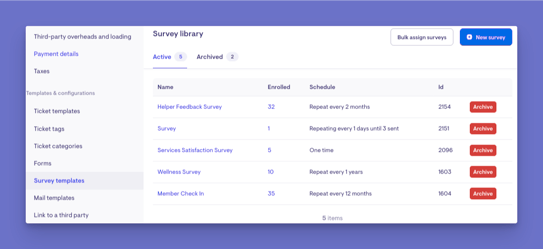
The list presents each survey in a table, showing its name, the number of people enrolled, and its schedule (how often it is sent). From here, you can edit a survey or archive a survey you no longer need.
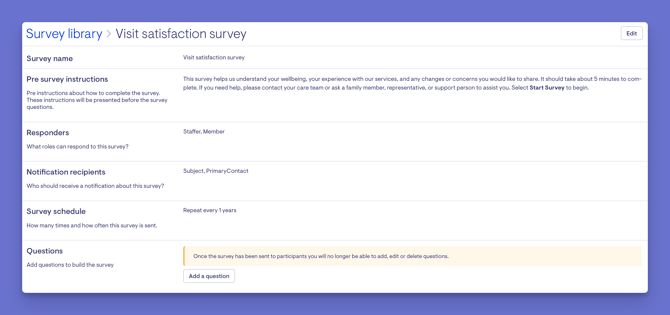
To view a survey in full, click its name from the list. This opens the survey's detail view, which displays:
- Its name and any introductory instructions are shown to respondents before they complete the survey.
- Who the survey is assigned to and who is expected to respond.
- The recurring schedule that determines how often the survey is sent.
- The complete list of questions in the order respondents will see them.
Within the detail view, individual questions can be reordered, edited, removed, or added, but only before the survey has started. Once a survey begins collecting responses, its questions are locked to protect the integrity of the data being gathered.
To learn more about editing a survey template, view our Creating survey templates article.
What Admins / Staffers / Members will See
For Admins
- Can create, edit, archive, and restore survey templates, and grant the permission that controls access to the Survey templates area (through a role or an individual override).
- Can build a template's details, questions, eligible respondents, recipients, and recurrence settings.
- Can assign surveys to individual Members or bulk-assign them across many Members at once.
For Staffers
- With the "Configure survey templates and bulk-assign surveys to Members" permission, can view, create, edit, and bulk-assign surveys; without it, the Survey templates option won't appear in their settings menu.
- Can be set as eligible respondents and complete surveys about a Member's condition or progress, including answering on a Member's behalf where allowed.
For Members (and their Authorised Representatives / Primary Contact)
- Can receive a survey request when one is assigned to them and complete it by answering each question according to its type.
- If a Member can't answer themselves, an authorised party can complete it on their behalf, with a clear note that they're doing so.
Troubleshooting
I can't see the Survey templates option
- Check your access role - viewing and managing surveys requires the "Configure survey templates and bulk-assign surveys to Members" permission.
- If you have no access role applied, note that the permission list will be empty and any override must be added manually.
- Try logging out and back in.
The survey list is completely empty
This is expected. Lookout does not include any default or pre-built templates, so every survey must be built from scratch using the New survey option. (Sample surveys only appear in demonstration accounts.)
I can't edit, add, or remove questions on a survey
Check whether the survey has already started collecting responses - once it's in progress, its questions are locked to protect the integrity of the collected data.
I updated a permission, but the Staffer still can't access surveys
- Confirm you selected the correct setting (Always Allow, Always Deny, or No override) and that the change saved - a green confirmation banner appears when it's successful.
- Remember that "No override" won't appear as an option for a Staffer who has no access role applied.
- If access is granted through a role, make sure the right Staffers are actually assigned to that role.
Still need help?
If you're still experiencing issues, please contact our Support Team and include:
- Screenshots (if possible)
- The user's name/email
- The exact steps taken
- Any error messages received