
This guide explains how to create, lock, and issue your monthly Support at Home statements in Lookout - the permissions and setup you need beforehand, what clients and staff will see, and what to do if something isn't working.
This guide follows on from completing your claim. If you haven't yet finalised your claim, please refer to our Reconciling your Support at Home claim article first.
Support at Home statements
The Support at Home program is designed to support each Member's ability to make informed choices about how best to use their quarterly budget, so they can receive the services and items they need to remain and live well at home.
To support this, providers are required to provide Members with a monthly statement showing how their Support at Home funding is being used - including their quarterly budget and any other funding buckets, such as Assistive Technology (AT), Home Modifications (HM), Restorative Care (RC), and End of Life (EoL), which aren't quarterly.
Statements should be issued each month, detailing all services and charges from the previous month.
Please note: You do not need to produce a statement after every claim. Members should receive one statement per month, covering all services delivered during the period. Click here to view a PDF example of a statement.
How Support at Home statements work
Since Support at Home launch in November, we have made some changes to how statements behave in Lookout worth understanding:
Statements are fixed documents.
When you lock a statement period, Lookout generates and stores a fixed version of each Member's statement - and that exact version is what gets emailed, downloaded, and viewed by everyone from then on. The figures don't shift after a statement is issued.
A "Preview" watermark before locking.
While a period is unlocked, statements are stamped "Preview" and their figures update automatically. Locking removes the watermark and freezes the figures.
A new client contribution summary.
Where enabled, statements now include a dedicated summary showing the Member's contribution balance, any overspend, and the government-assessed contribution rates that applied.
Locked periods can be corrected.
A locked period can be unlocked and re-locked if you need to rework the figures (with the right permission).
Claims and statements stay decoupled.
You claim for services as you go, when you're ready. Statements are issued separately, based on the care actually received and charged. The two no longer need to happen at the same time - you might submit several claims in a month, and once you've finished claiming for that month, you generate your monthly statement.
Before you start
To continue with this guide and generate statements, make sure:
- The feature is switched on via Release Hub. The locked/fixed statements capability must be enabled for your company before any of the steps below take effect. Turning it on triggers a short, automatic, one-time background rebuild that prepares stored statements for existing Members. Please allow time for this.
-
You've finished claiming for the month. Claims and statements are decoupled - you claim as you go and issue statements separately. If you still have open claims, see our Reconciling your Support at Home claim article first.
Please also ensure you have the correct access permissions for what you need to do:
- To view, create, and lock statement periods, and to generate and send statements (by email or download/postal) - you need the Claiming permission (Support at Home).
- To change the client contribution summary setting (and other finance settings), you need the Configure finance settings permission.
- To unlock a previously locked statement period , you need the Rollback statements and claims permission(Support at Home). This is a separate, higher-trust permission that isn't included in any default access role, so it must be granted deliberately.
Unsure on how to manage permissions? Please take a look at our dedicated Role-based access controls article to learn more.
Generating a statement
Step 1: Navigate to Statements
This article follows on from completing your claim. If you haven't yet finalised your claim, please refer to our Reconciling your Support at Home claim article first.
- From the main navigation menu, click Support at Home under the Claiming section. If all sections are expanded, you may need to scroll to find it.
- Click the Statements tab.
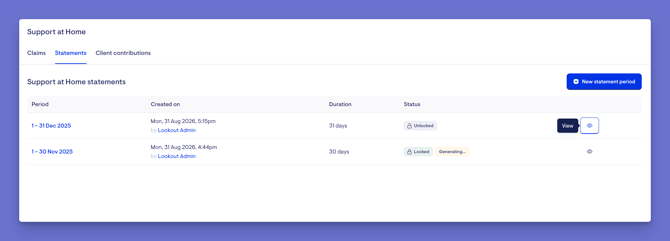
Top tip: The first time you open it, the Statements tab is blank. Over time, it becomes a list of your previous statement periods, each of which you can open to preview and check its status.
Step 2: Create a statement period
- Click the blue + New statement period button in the top-right corner.
- A pop-up window will appear. Set the Month and Year for the period you want.
- Click Save.
- A green banner will appear confirming your statement was successfully created, and you will see the period listed on the Statements tab screen.
Top tip: If you try to create a period you've already made, or one in the future, Lookout shows an error explaining why it can't be created. You can't select a month earlier than your organisation's Support at Home start date.
Step 3: Preview each Member's statement
- To open the period you’ve created, click the date range text or its eye icon button on the right-hand side to view. A new screen will load listing all your Members.
- Depending on how many Members surface, you can use the available search bar to locate a specific Member by name.
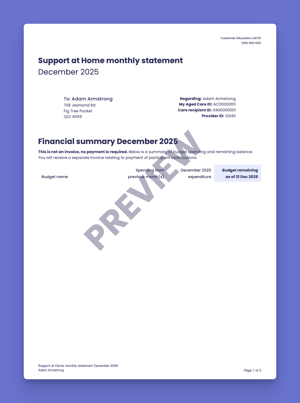
- When you have found the Member you are after, click their Preview statement link on the right-hand side to open their statement as a PDF in a new tab.
While the period is unlocked:
- Every statement carries a visible "Preview" watermark.
- The figures update automatically as invoices, items, or funding data change - right up until you lock.
Step 4: Lock the period to finalise
- Once you've confirmed that the statement previews are accurate and include all the claimed services and client contributions for the relevant period, navigate back into Lookout and click the blue Lock period button in the top-right corner.
- Review the confirmation pop-up - it tells you how many open claims you have (if any) and explains they won't be included and will roll into a future period.
- Enter today's date to proceed.
- Click Yes, lock statements.
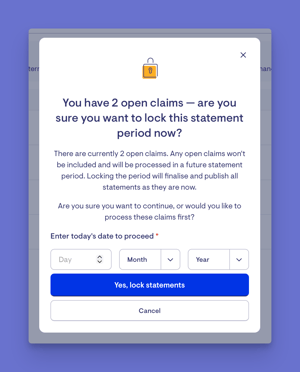
Please note: You can't lock a period while a claim is being finalised. If you try, Lookout shows the message "A claim is currently being finalised. Please wait for it to complete before locking the period." Wait for the claim to finish finalising, then try again.
Step 5: Send or download the statements
Once the statements have finished generating, two buttons appear in the top-right corner:
- Download PDFs: Emails you a batch of all the PDF statements for the period (useful for postal delivery).
- Email statements: Sends the stored statements by email to each Member, and each billing recipient, who has an email address and has Send via email selected for how they receive statements. You'll be asked to confirm first.
After clicking one of the options, a green banner appears confirming your chosen action has been successful.
Top tip: After emailing once, the button changes to Email statements again, and the screen shows when they were last sent, how many were delivered successfully, and a link to view any that failed.
How to read your statement
We've created a "How to Read Your New Support at Home Statement" guide to help you and your Members understand each section of the statement. It breaks down what each part means and how to read it. The guide is available online and can also be shared with Members and staff as an email attachment or printed for easy reference - a handy resource to refer back to whenever needed.
Unlock a statement period
If you discover an issue after locking, for example, you need to finalise outstanding claims or make a change that should be included in that month, you can unlock the period, make your changes, and lock it again.
Reminder: Unlocking requires the separate Rollback statements and claims permission (Support at Home). If you can create and lock statements but don't see an Unlock option, you haven't been granted this permission. Ask an administrator within your organisation to make any required changes.
- From the main navigation menu, click Support at Home under the Claiming section. If all sections are expanded, you may need to scroll to find it.
- Click the Statements tab.
- Locate the locked period you want to reopen. Click the date range text or its eye icon button on the right-hand side to view.
- Click Unlock period button in the top-right corner.
- Read the confirmation pop-up. It explains that unlocking lets you rework the figures, and that transactions already recorded will not be reversed.
- Enter today's date to proceed.
- Click the Yes, unlock statements button.
- A green banner will appear confirming the period is unlocked, and the status tag changes to Unlocked.
- Statements revert to preview mode (with the "Preview" watermark) and update automatically as invoices, items, or funding data change.
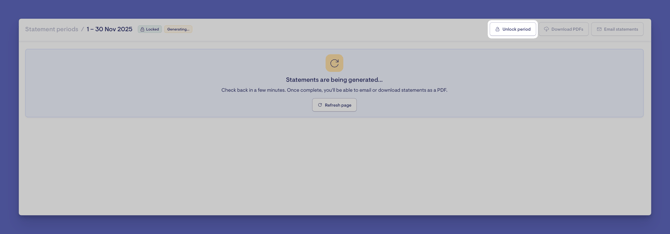
Please note: You can only unlock a period if there are no later periods still locked. If a later period is locked, the Unlock button is greyed out with a tooltip explaining this - unlock the most recent period first, working backwards.
- Make your changes, then re-lock.
- Finalise any outstanding claims or make the changes you need.
- When you're ready, follow Step 4: Lock the period to finalise in the above step-by-step instructions for generating a statement again.
- Re-locking regenerates the fixed statements, and this newest version becomes the one clients receive and staff retrieve.
Important: Nothing is resent automatically. Once the statements have finished generating, click Email statements again to send the updated versions. If you send statements by post, click Download PDFs again too.
Unlocking on its own doesn't change what clients have. The updated statements become final only after you re-lock the period, and Members receive them only after you email or post them again.
Making the most of statements
A few tips to help you get the best out of the new statements experience and avoid common issues:
Preview before you lock.
Because locking freezes the figures, use the preview (with its "Preview" watermark) to check everything looks right first. Remember previews keep updating as invoices and funding data change, so it's worth a final look just before locking.
Finish your claims first.
Any open claims won't be included in the statement period you're locking - they'll roll into a future one. The lock confirmation tells you how many open claims you have, so you can decide whether to process them first.
Lock in order.
Periods lock oldest-first. If the Lock button is greyed out, an earlier period still needs locking.
Use unlock sparingly.
If you spot a problem after locking, a period can be unlocked and re-locked — but only by someone with the Rollback permission, and only if no later period is still locked. Unlocking lets figures update again but doesn't reverse anything already recorded.
Decide on the contribution summary early.
Whether it appears is controlled in finance settings, and changes only apply to statements generated from that point onward. Set it the way you want before locking a period.
Keep mailing preferences up to date.
A statement is only emailed or posted to the Member, or a billing recipient, if they've chosen how they want to receive statements (Send via email or Export a PDF to send via post). Anyone emailed also needs an email address on file. Otherwise, the statement is still available to them in the app.
What happens next?
After you lock a period:
- Statements become fixed documents. The exact same version is stored, emailed, downloaded, and viewed - the figures no longer shift.
- The "Preview" watermark is removed, and the statements are final.
- Emails are sent when you choose Email statements to each Member and billing recipient who has an email address and has chosen to receive statements by email.
- Delivery is tracked. You can see how many statement emails were delivered and follow up on any that failed.
- Statements remain available in the app to the Member, billing recipient, or authorised representative once finalised.
What different users/ Staff/ Members will see
For Admins / Finance Staff
- Can create, preview, lock, download, and email statement periods (with the Claiming permission).
- Before locking: previews with a "Preview" watermark and live-updating figures.
- After locking: the final stored statements, plus email delivery counts and any failures.
- Can turn the client contribution summary on or off in finance settings (with the Configure finance settings permission).
- Can unlock a locked period only if they also hold the separate Rollback permission.
For Members (and their billing recipients)
- Receive the identical fixed statement that finance staff sent - by email and/or paper mail, depending on their mailing preference.
- Can view their finalised statement within the app.
- Where enabled, see a client contribution summary at the end of their statement, which includes:
- An account summary (previous balance, payments received, amounts waived, closing balance).
- An overspend line - costs not covered by their funding, itemised and totalled.
- The government-assessed contribution rates and effective dates that applied.
- A clear notice that it's a statement of account balance, not an invoice, and that a separate invoice follows for any overspend.
Please note: The contribution summary appears only for clients with a client-contribution account and only when the setting is switched on. Changing the setting only affects statements generated from that point onward. To update an already-locked period, you'd need to unlock and re-lock it.
For Helpers
Helpers do not see Support at Home statements. Statements are financial documents about a Member's budget, contributions, and any overspend - they're only sent to the Member and their billing recipients (or authorised representative) and viewed internally by finance staff.
Troubleshooting
I can't see the Statements tab or the New statement period button
- Check your access role - you need the Claiming permission.
- Confirm the fixed statements feature has been enabled for your company.
- Try logging out and back in.
The Download PDFs / Email statements buttons are greyed out
The statements are still being generated immediately after locking. Wait a moment and click Refresh page - the buttons become available once the generation finishes.
The Lock button is greyed out
An earlier statement period hasn't been locked yet. Periods must be locked in order — lock the earlier one first.
I get an error saying a claim is currently being finalised when I try to lock
A claim is still being finalised in the background. Wait for it to complete, then try locking the period again.
I locked the wrong period, or locked too early
- A locked period can be reopened using the Unlock period workflow, then locked again once corrected.
- Unlocking requires the separate Rollback statements and claims permission - if you don't have it, ask an administrator within your organisation.
- Remember you can only unlock a period if there are no later periods still locked; unlock the most recent one first, working backwards.
I turned the client contribution summary on/off but a statement didn't change
- The setting only applies to statements generated from that point onward. To update an already-locked period, unlock and re-lock it to regenerate the statements.
- Remember the summary only ever appears for clients who have a client-contribution account.
The figures on a statement changed since I last previewed it
- This is expected before the period is locked. While a period is unlocked, statements are in preview mode and update automatically as invoices, items, or funding data change - that's why they carry a "Preview" watermark.
- The figures are frozen the moment you lock the period. Once locked, the statement won't change unless you unlock and re-lock it.
- If figures are still changing on a period you've already locked, refresh the page to confirm the status shows locked - if it doesn't, the lock may not have completed.
A Member says a service is missing or their statement is wrong
- The most common cause is an open (unfinalised) claim at the time the period was locked. Any claims that weren't finalised aren't included and roll into a future statement period instead.
- Check whether the service was actually claimed and finalised for that period.
- If it should have been included, you can unlock the period, finalise the outstanding claim, and re-lock to regenerate the statement (this requires the Rollback permission).
Only some Members received a paper or emailed statement
- A statement is only emailed or posted to the Member, or a billing recipient, if they've chosen how they want to receive statements (Send via email or Export a PDF to send via post). Anyone emailed also needs an email address on file.
- Check the billing recipient setup and mailing preference for any Member who didn't receive one.
- For emailed statements, use the delivery count and View errors link on the period to check whether a particular email failed to send.
A Member doesn't have a client contribution summary, but another Member does
- The contribution summary only appears for Members who actually have a client-contribution account. Members without one won't see this section - this is expected, not a fault.
- Also, confirm the "Include a client contribution summary on statements?" setting is switched on in finance settings, and remember it only applies to statements generated from that point onward.
Still need help?
If you're still experiencing issues, please contact our Support Team and include:
- Screenshots (if possible)
- The Member's name/email and the statement period affected
- The exact steps taken
- Any error messages received