
Creating a claim
As a quick reminder, to complete a claim, a billing run must happen first. For guidance on completing a billing run, please take a look at this support article.
Please note: Services Australia will not accept claims where services are not billed in increments of 0.25 hours for services charged on an hourly basis. We have updated the claiming process to identify non-0.25 values earlier during the billing run, allowing invoices to be corrected before publication. Any invoice containing values that are not in increments of 0.25 will now trigger a billing run error and cannot be published until corrected.
Editing values directly in the CSV is supported only for invoices that had already reached the claiming stage prior to 11 December, when this update was made. Moving forward, hourly services should be billed in 0.25-hour increments.
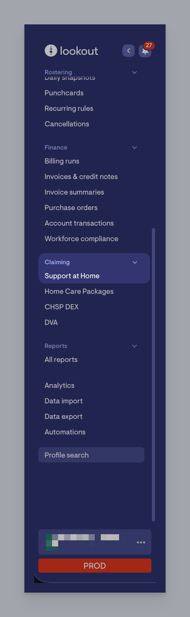
Navigate to the Claiming section in the main side menu and click Support at Home.
This will load a new screen. For your first claim, this screen may be empty; however, you will see there is a section where, in future, you can view previous claims, check their status, and see amounts claimed.
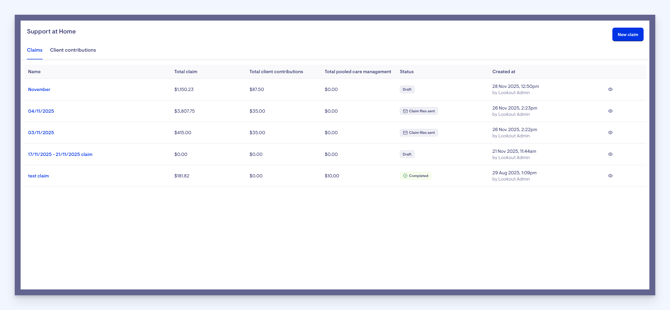
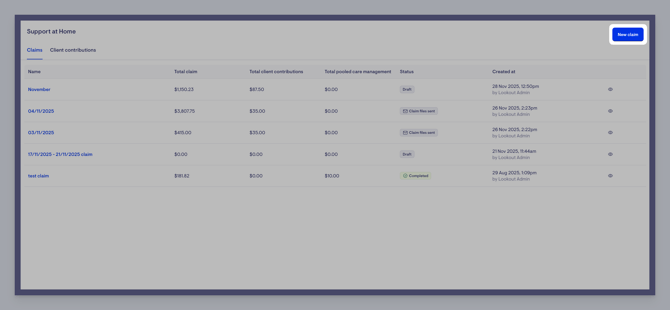
To create a new claim, click the blue New claim button in the top-right corner.
A small pop-up box will appear. Let’s start by giving our new claim a name. Claims can be submitted at any cadence - weekly, monthly, or otherwise, and don’t need to include all services from a full month.
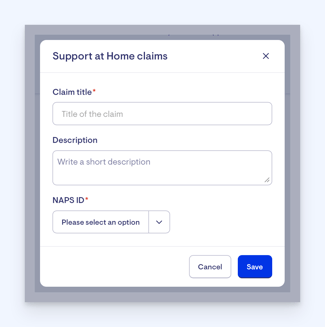
If your company has multiple NAPS IDs, you’ll be prompted to choose one, as each claim and export is tied to a single NAPS ID.
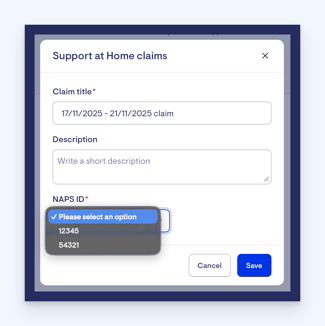
Click the blue Save button when you are happy with the details you’ve entered. Doing so will load the claim-building screen. You’ll see we have laid out the four steps at the top to help you with the claiming process:
- Generate a CSV for claiming
- Upload payment determination
- Resolve variances
- Finalise claim
As shown, we have to start with step one: generate a CSV for claiming. This button will be inactive when first loading into the claim-building screen, as we need to add invoices to our claim to activate it. Underneath the 3 steps, you’ll see all unclaimed invoice lines delivered since November 1 for Supported Home members.
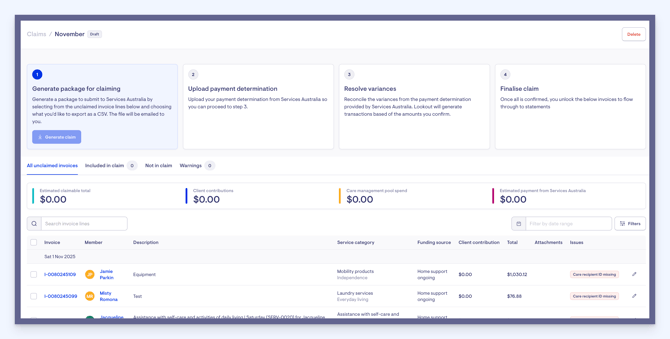
You’ll see some tabs on the claim building screen: All unclaimed invoices, included in the claim, Not in claim and Warnings. Either way, all our invoices will be listed under ‘All unclaimed invoices’ for now, but as we build our claim, the different tabs will be updated accordingly.
You can filter claimed or unclaimed invoices by date, community, visit type (such as care management), or search within invoice descriptions to quickly find specific items.

To build a claim, select the invoice lines you want by using our bulk selection feature, whether a few from a specific date or all lines that match your current filters. Once you start selecting invoices, a pop-up actions bar will appear with a few options.
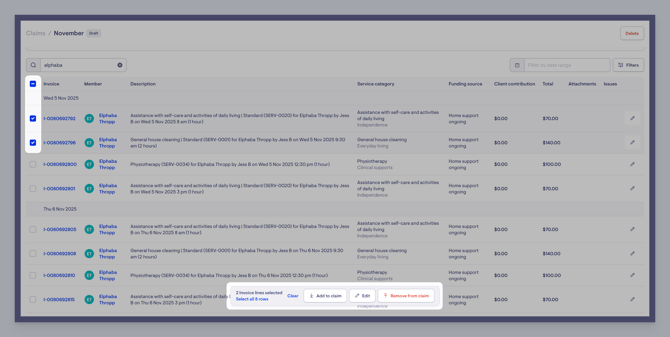
You’ll see a button labelled ‘Add to claim’. This is what you’ll press to move these selected invoices to your claim. You’ll also see our 'Select All' feature, as well as an 'Edit' button, to edit these invoices. Clicking edit will bring up a side window to edit information in the selected invoices. You’ll also see a button labelled ‘Remove from claim’. This action does exactly as it’s labelled.
When you’re ready and have selected your required invoices, click ‘Add to claim’. You’ll now see that the invoices we selected have been moved to the 'Included in Claim' tab, as indicated by the number of invoices next to the tab. A green pop-up window will appear confirming they have been added to the claim, also.
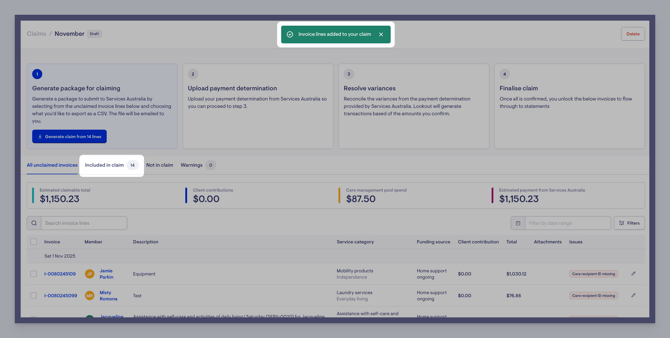
You’ll also see that now we have added invoices to the claim, the system then displays the estimated claim total, how much is expected to come from the shared care management pool, and the estimated payment from Services Australia.

Client contribution percentages are still being populated, so those amounts currently show as zero but will update once data flows in.
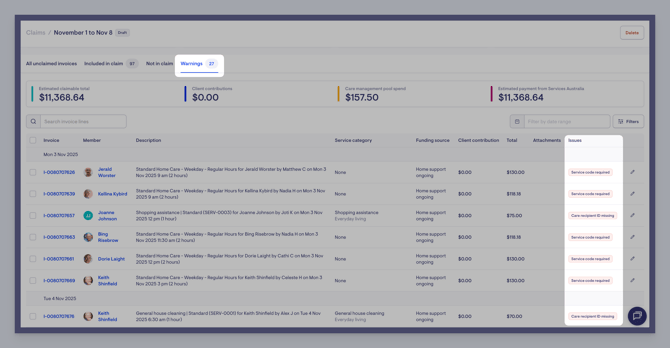
Sometimes, you add invoices to the claim, but they require action before a claim can be submitted. You’ll see the warnings tab update with a number to show you how many invoices you’ve added to the claim that currently require attention.
Below, you will see we have clicked into the Warnings tab and can now review what issues these calims may have. You will see in the Issues column what needs to be sorted. Here, you'll see that quite a few invoices are missing service codes. By opening the warning, you can identify the issue and assign the correct service code. Once updated, the warning disappears, and the invoice line is ready to claim.
After reviewing and confirming the invoice lines need no further action, you can proceed to generate the CSV for the claim by pressing the blue ‘Generate CSV from X lines’ button in step one of our claim-building screen.
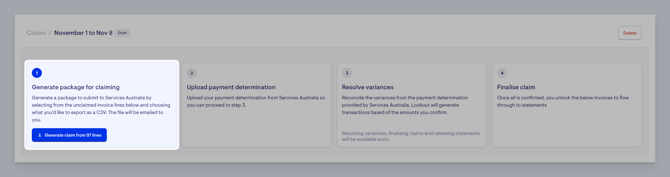
Pressing this button moves the claim to the next stage and automatically sends you an email with a ZIP file containing the CSV of all claimed invoices along with any required supporting attachments, such as documents for assistive technology. They will be named according to Services Australia’s specifications so they upload correctly.
Please note: The Aged Care Provider Portal has a limit of 10,000 row items. If your claim exceeds this you will receive multiple CSV files in the zip folder. These are all considered part of the same claim.
Reminder: Manually editing the CSV file — after export from Lookout or before re-upload — is not a supported workflow and will break reconciliation. This causes variances against the government-issued payment determination file and account balance discrepancies between Services Australia and Lookout. Before uploading, ensure every claimed invoice item has a corresponding Lookout invoice captured in the relevant Support at Home claim.
Uploading to the Aged Care Provider Portal
Once you have received your zip file you are ready to upload the CSV files and any supporting attachments, to the Aged Care Provider Portal.
Log in to the Aged Care Provider Portal (ACPP). If you have multiple services, go to the Service ID bar to make sure you’re in the correct service.
Navigate to ‘create invoice’ to start a new claim. This is accessible via either the Quick Links or the hamburger menus.
Once a new invoice has been created, select ‘import CSV’ and select the CSV files provided by Lookout. Upload processing time may vary based on the amount of data included in your claim. Once successful, you will receive a pop-up message informing you that the upload was successful.
If you’re required to upload support documentation, follow the steps outlined here.
You may encounter errors that you need to resolve. Refer to our FAQs below for the most common error messages.
Tip: The date format must be YYYY-MM-DD. If you open the file before uploading directly to the portal, Excel may default to the date format DD/MM/YYYY, which will result in an error when uploading. To rectify, reformat the date (column D) to be YYYY-MM-DD, save, and then upload into the Services Australia portal.
Before submitting, confirm the total invoiced in Aged Care Provider Portal matches the total in Lookout.
For any further troubleshooting and to see the status of your claim, follow the details in the guide here.
FAQs
Where do claims get uploaded in the Aged Care Provider Portal?
Under ‘create invoice’ via the quick links of the hamburger menu.
How is the financial hardship fee reduction handled during claiming?
When a financial hardship application is approved, Services Australia still calculates the client contribution using the normal percentage, but then applies a fee reduction that offsets it. The amount that Lookout receives and processes is the final net result, after the reduction is applied.
- The invoice amount and payment amount stay the same
- The client contribution stored and claimed in Lookout already includes the hardship reduction
- If hardship fully covers the contribution, the final client contribution will be $0
- an original client contribution, and
- a matching fee reduction,
Common claiming errors
Unable to claim for quantities that aren’t in increments of 0.25 hours for services charged hourly.
Error message: the quantity must be an increment of 0.25hours
Services Australia will not accept claims where services are not billed in increments of 0.25 hours for services charged on an hourly basis. We are seeing several cases where charges of 0.17 hours (10mins) are being billed, particularly when submitting invoices from third parties.
Lookout does not currently restrict the unit quantity. Therefore, this requires you to resolve the unit quantity before publishing a billing run.
Date format needs to be YYYY-MM-DD.
Error message: Delivery Date is either missing or in wrong format YYYY-MM-DD
If you download the file and upload it directly into the Services Australia portal, you won’t have any issues.
However, If you open the file before uploading directly to the portal, Excel may default to the date format DD/MM/YYYY which will result in an error when uploading.
To rectify, reformat the date (column D) to be YYYY-MM-DD, save, and then upload into the Services Australia portal.
Please note that the format must be in dashes (-) and not slashes (/).
Care recipient billed for services after cessation date
Error message: care recipient ID XX is not in the care of service provider
If a care recipient has received an invoice for a service after the cessation date, this cannot currently be claimed via the Services Australia portal.
If you have outstanding invoices that need to be claimed and the portal is throwing an error, it is best to contact My Aged Care Services directly to resolve the matter.
First AT-HM payment item indicator must be either true or false
Error message: First payment item indicator must be either true or false
Services Australia expects a ‘T’ or ‘F’ to be included in invoice line items to indicate whether the item represents the first payment for an AT-HM service. Currently, Lookout does not produce this and include it in the invoice line items. We are currently seeking further instruction from Services Australia before updating Lookout to capture this correctly.
If you encounter this error, the easiest way to resolve it until we have a solution in place is to either add 'T' or 'F' to the line item with the error to indicate whether it is the first payment being made under that service.