
Keeping a close eye on how each Member's funding is being used helps you catch problems early. It's the difference between making a small adjustment mid-quarter and dealing with an overspend, or unused funds, once the quarter has closed.
This guide covers where to spot utilisation risks in Lookout, what each alert is telling you, and practical steps to take when a Member's spending drifts off track.
For an explanation of the budget screens themselves, see Budgets: An overview.
What utilisation means
Utilisation is how much of a Member's available funding is being used, compared with what's available for the period. Lookout tracks it for each funding source separately (ongoing, restorative care, end-of-life, Assistive Technology and Home Modifications), so you can see exactly where spending is running high or low.
Lookout looks at both sides:
- Overspend: A Member is on track to spend more than a funding source makes available this quarter.
- Underspend: A Member is projected to use less than 80% of a funding source's funds this quarter.
Both matter. Overspending can leave costs that can't be claimed. Underspending can mean a Member isn't receiving the support their funding allows.
Where to spot utilisation risks
On your home page
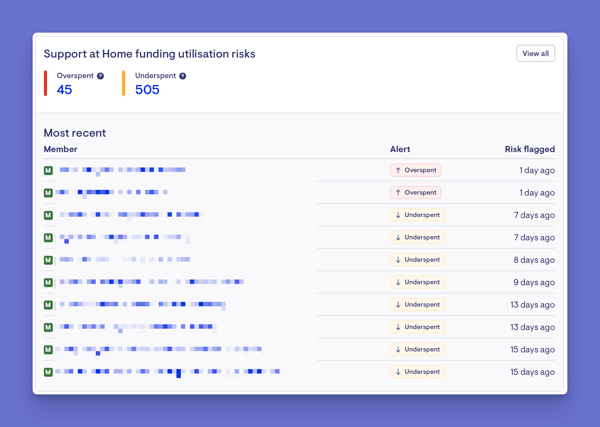
The Funding and budget risks panel gives you a quick view of how many Members need attention, grouped into:
- Overspent: Members projected to exceed their available funding
- Underspent: Members projected to use less than 80% of their available funding
- No funding source: Members with services this quarter under a funding source that holds no funds
- Budget plan: Members whose budget plan has no services, or allocates more or less than their available funds
You can switch between Most recent and Highest risk, and open any Member's live tracking straight from the list.
In the Members list
To work through a caseload, filter the Members list by:
- Funding insights: Overspent, Underspent or No funding source.
- Funding insight severity: High, medium or low.
- Funding source category: For example, restorative care only.
- Budget plan insights: empty, over-allocated or under-allocated plans.
Sorting by Highest funding risk puts the Members who need the most attention at the top.
On a Member's budget
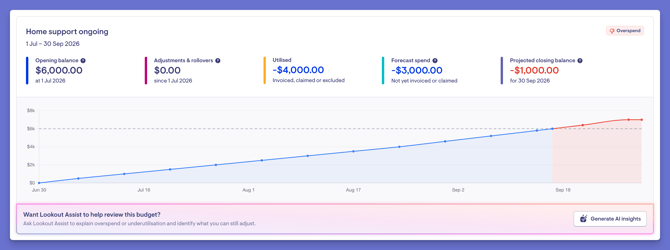
On the Live & projected balance tracking tab, you'll see:
- Each funding source's balance
- What's been used
- Forecast spend
- The projected balance for the period
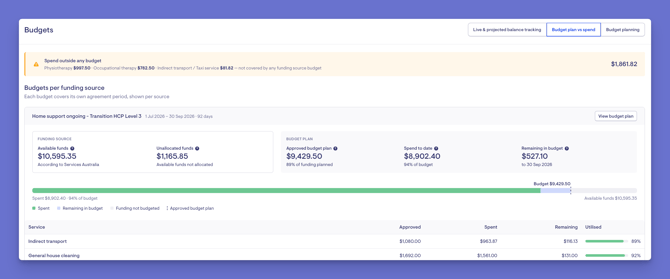
On the Budget plan vs spend tab, you'll see how actual spending compares with the approved plan, service by service.
Understanding the alerts
Alerts are graded high, medium or low depending on how far a Member's projected spending is from their available funds. The thresholds are the same for every organisation. For the exact figures, see Budgets: FAQs.
A few things to keep in mind:
- Alerts are based on projections. They look at what has been spent plus what's forecast, so you can act before the money is actually spent.
- Alerts are quarterly. If you dismiss an alert, it stays dismissed for the current quarter only.
- Assistive Technology and Home Modifications aren't flagged for underspend. These funds are usually spent in larger amounts over longer periods, so slow spending isn't a concern.
What to do when a Member is overspending
- Check where the spend is coming from. On the Live & projected balance tracking tab, look at which services are driving the forecast. Use the filters and the Forecast spend tab to focus on what's still to come.
- Look for services on the wrong funding source. If a service is drawing from the wrong funding source, use Switch funding source to move it.
- Check for price changes. A rate rise part-way through the period can push spending over without any change in services.
- Check whether unspent funds will cover it. If the Member has unspent funds, the balance header shows how much of the overspend is expected to be covered by them.
- Adjust upcoming services together with the Member. If the overspend is real, review the Member's upcoming services with them. If the Member chooses to pay privately for some services, Switch funder can move those visits to their private arrangement.
- Follow up with a ticket. Create a ticket from the alert so the next steps are tracked.
What to do when a Member is underspending
- Check that delivered services have been recorded. Services that have happened but haven't been rostered, invoiced or claimed can make spending look lower than it really is.
- Review the budget plan. On the Budget plan vs spend tab, check whether the plan allocates enough of the Member's funding. An under-allocated plan often leads to underspending.
- Talk with the Member. Underspending can be a sign that the Member's needs have changed, services have been cancelled, or they aren't getting the support their funding allows. A conversation with them or their care manager will often explain why.
- Consider adding or adjusting services. Where appropriate, plan extra services so the Member makes better use of their funding.
- Dismiss the alert if the underspend is intentional. For example, a Member may be deliberately keeping funds aside. Dismissing clears the alert for the rest of the quarter.
What to do about "No funding source"
This means a Member has services this quarter under a funding source that holds no funds, for example one that has ended or was never allocated. Live tracking counts this as an overspend.
- Check the Member's funding sources with Services Australia.
- Check that the ACER has been activated in the Aged Care Provider Portal. It must be activated before the funding appears in Lookout.
- Remember that funding for a future period may not have come through from Services Australia yet.
- If the services belong under another funding source, move them with Switch funding source.
Keep budget plans up to date
A budget plan is a snapshot at a point in time, and it doesn't update itself. Keeping plans current makes utilisation much easier to manage:
- Review a plan when a Member's services change, not just at the start of the period.
- Act on budget plan warnings. An empty, over-allocated or under-allocated plan is an early sign that utilisation may drift.
- Use bulk generation for the next period. It lets you generate budgets ahead of time and review any flagged issues before they go live.
Get a second opinion with the Funding analyser
If you have Lookout Assist, the Funding Analyser can review a funding source for you. It explains why spending is running over or under and suggests actions for you to review. Click Generate AI insights on the Live & projected balance tracking tab.
It's especially useful when the cause isn't obvious. It can also create a funding assessment ticket so the follow-up is tracked. See Budgets with Lookout Assist: Funding analyser.
Build a regular routine
A simple routine helps nothing slip through:
- Weekly: Check the Funding and budget risks panel on your home page and act on any high alerts.
- Monthly: Filter the Members list by funding insights and work through medium and low alerts.
- Before each quarter ends: Review underspending Members while there's still time to act, and make sure budget plans for the next period are ready.
Still need help?
You can also visit Budgets: FAQs for answers to common questions about the budget enhancements.
If you can't find the answer there or in the troubleshooting section of the related article, please contact our Support Team or your account contact.