
Webinar recordings and slide decks
Recordings and slide decks from the three sessions are available below.
- Session 1 – 13 May 2026: End-to-end claim walkthrough
- Session 2 – 20 May 2026: Q&A — billing runs, claim generation and submission, amending unclaimed invoices
- Session 3 – 27 May 2026: Q&A — amendments and adjustments for claimed invoices
How Support at Home claiming works (in brief)
The claiming lifecycle at a glance — each step links to its full guide if you need the detail.
- Billing runs gather a period’s financial activity into final, published invoices and lock them. They don’t need to align with your claiming cadence. See Billing Runs.
- Ad hoc invoices and credit notes cover anything outside the normal PO or visit flow — one-off charges, corrections and reversals. In Lookout, some credit notes are ad hoc, but others are generated automatically by the system. See Invoices and Credit Notes and Excluding from Claiming.
- Creating a claim starts in Preparing status; you set a Claim title, optional Description and NAPS ID (these lock after saving). There’s no period on SAH claims, so you can submit multiple per month. See Generating your first Support at Home Claim.
- Preparing the claim uses five tabs (All unclaimed, Included in claim, Not in claim, Warnings, Excluded from claiming) and filters; you fix line-item issues flagged under Warnings (service codes, funding source, attachments) before export.
- Submitting and reconciling: export generates a CSV you upload to the ACPP via PRODA; once Services Australia processes it, you upload the payment determination CSV back into Lookout to match payments to charges. See Reconciling your Support at Home Claim.
- Resolving variances and finalising: finalising posts confirmed transactions, including client contributions, to member accounts and statements. See Client Contributions and Support at Home and Support at Home Statements.
1. Claim dates, periods & what lands in a claim
Why does an invoice dated in May appear in my open April claim?
Claiming periods aren’t locked to a calendar month — what invoices appear are all published and unclaimed invoices. This is driven further by the filters you apply. Apply a date filter, or mark the invoice Excluded from claiming, to prevent invoice appearing for all claims unless flag is toggled.
Tip: Filters can reset when you navigate away from the claim screen and back — re-check them before confirming invoices to be included in claim file.
How do late or backdated invoices get into a claim, and what about the 60-day cut-off?
The claim is based on each invoice’s service delivery date, not its issued/created date. Set the service delivery date correctly and publish; the line then appears in the claim screen organised by that date. Mind the 60-day funding-quarter deadline — past it you can’t claim unless you have already lodged a form with Services Australia notifying them of the late submission.
I published an invoice with a future date by mistake — how do I fix it?
Reverse the published invoice and create a new one with the correct date. Mark both the original and the credit note Excluded from claiming and Previously paid in your finance system so neither flows to Services Australia (which won’t accept future dates) or your external finance system from Data Exporter.
How do I stop old or unwanted invoices appearing in my claim?
Mark them Excluded from claiming so they no longer pull into the claim screen. See Excluding from Claiming.
When should a discharged member be archived, and what drives an invoice into the claim screen?
Archiving doesn’t prevent invoices (care management, ad hoc or PO-matched) from being processed, and service delivery dates can extend beyond the archive date — but visits can’t occur beyond it and must be cancelled during archiving. Claim eligibility is unchanged: it’s based on published status, claim flags, and the 60-day window, not the issued-on or transaction date.
Tip: Services Australia may block the claim file upload for a discharged member unless a form has previously been submitted to make further claims after the exit date as recorded in Services Australia portal.
2. Filtering, organising & large claims
How do I filter and organise a large claim — and can I filter by funding source?
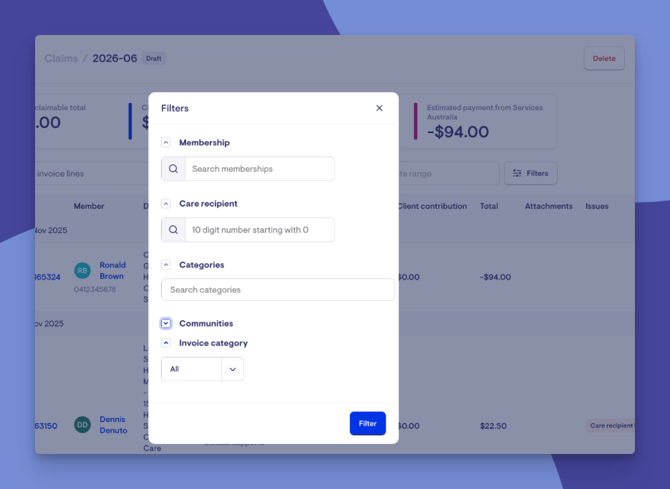
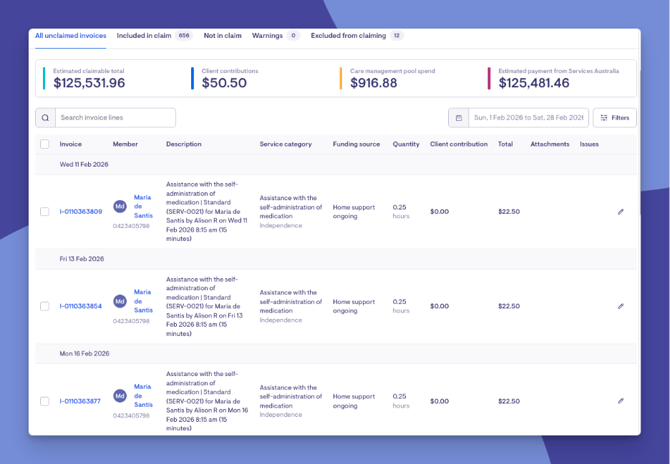
Use the claim-screen filters to break a large volume into smaller, targeted submissions: Membership, Categories, Communities, Invoice Category, and keyword search, plus date range, invoice description and invoice ID.
There is no funding-source filter yet; it’s being looked at alongside upcoming API claiming. Add or upvote it via the Lookout Roadmap and Feedback page.
My claim file is too large to upload to PRODA — what can I do?
Split it into smaller categorised claims using the filters above. There’s no period restriction, so you can submit multiple claims. A built-in file-size cap is a noted feature request, with the current Services Australia portal limit being 10,000 line items.
How can I tell apart members with the same name in the claim screen?
This was a question raised during the webinar series to identify members of the same name but distinctly two clients. A request for a Care recipient number column as a way to distinguish — there is now a care recipient DHS ID beneath the member’s name in the claim screen, and a filter to search for just one care recipient ID number. 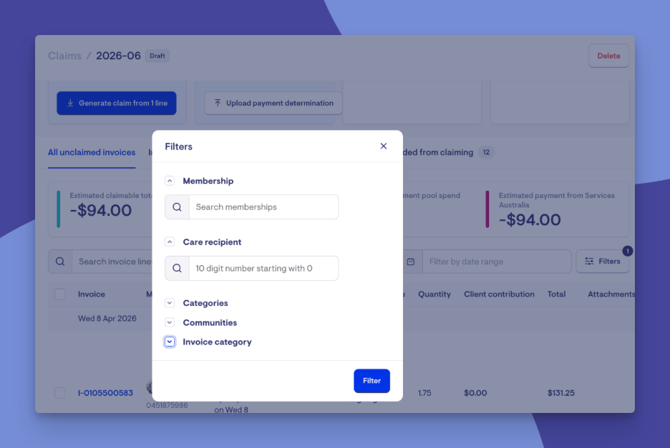
When does the funding-source prompt appear for a member with both ongoing and Restorative Care funding?
Lookout sorts charges by service type into Home Support (the catch-all, where ongoing, Restorative Care and End-of-Life sit), Assistive Technology, and Home Modifications. Within Home Support, End-of-Life is used first if available; if only one of ongoing/Restorative Care exists it’s used automatically; if both exist, you’re asked to choose.
That choice is requested at two points:
- Time tracking — for members with both budgets, the prompt appears when recording time tracking for care management invoices.
- Claim preparation (Step 1) — for members with both budgets the funding source is cleared and a warning will appear for the invoice line; this is to prompt users to review the correct funding source and assign before proceeding with the claim.
3. Errors when submitting to Services Australia
I’m getting classification, approval, or entry-event errors when claiming — how do I fix them?
These errors mean the member's record in Services Australia / MAC doesn't currently support the service being claimed — typically a wrong classification, a missing approval, or a missing entry event.
The quickest way to keep your claim moving is to return to Lookout and undo Step 1 of the Support at Home claim. This lets you remove the affected lines so the rest of your claim can proceed without delay.
To resolve the errors themselves, locate the affected line items (or the care recipient ID) and review that member's entries in Services Australia:
- If the assigned budget hasn't been registered as an entry, follow the government's support articles to accept and approve the entry, then proceed with your claim. Register Support at Home events.
- If the funding has ceased and the service delivery dates fall after the exit date, submitting after an exit date is a business decision that requires lodging a form with Services Australia. As this can be a lengthy process, it's often best to return to Lookout and remove the affected line items from this claim so the unaffected lines can be submitted now
An AT/HM invoice was rejected because its date was before the funding was assigned — what do I do?
Because Services Australia rejected the payment but acknowledged the invoice, a client contribution transaction is created automatically, charging the member for the full invoice amount.
If you've reviewed the member's approved budgets and believe the invoice can be re-claimed with an updated service delivery date, handle it in two stages:
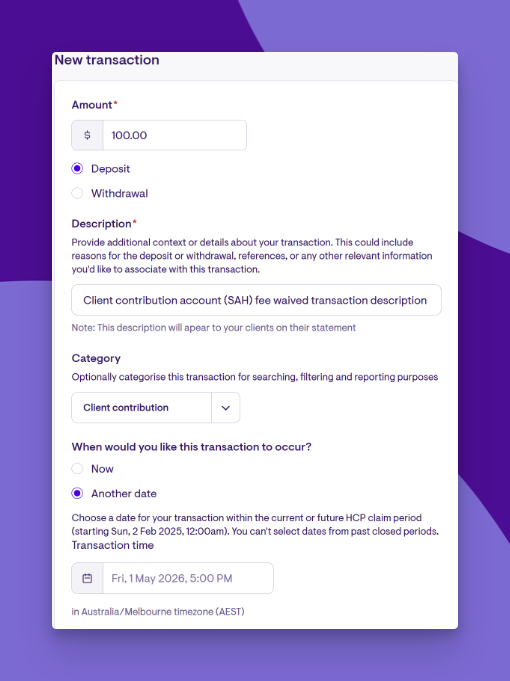
- First, zero out the client contribution transaction in Lookout by entering a manual account transaction deposit into the Client Contribution account (SAH).
- Then re-create the charge via the PO or an ad hoc invoice, publish it, and proceed through your normal claim steps to submit the amount to Services Australia with updated invoice details that align with the approved budget entries.
An invoice wasn’t fully paid in a claim — what happens, and how do I re-claim it?
When Services Australia doesn’t acknowledge full payment (a $0 or partial payment determination), the unpaid amount is automatically created as a client contribution transaction — it does not stay in the claim screen as unclaimed. If you believe the total invoice amount should have been paid, proceed to creating an adjustment within the Services Australia portal for further consideration by the government. Alternatively, if you are not raising an adjustment you will need to come to a business decision as to member liability for client contribution payment. Care Management overdraw is the exception — it isn’t turned into a client contribution transaction, as the 10% pool is a cap, not an amount to bill.
Tip: Overspend client-contribution transactions are tagged overspend_contribution in the transaction_category dimension — useful for filtering in Data Exporter (see Section 7).
4. Adjusting & reversing invoices
Which pathway do I follow when an invoice needs to be corrected?
It depends on whether the invoice is published, whether it’s been claimed, and — if you export to an external finance system — whether it’s been exported for accounts payable (AP).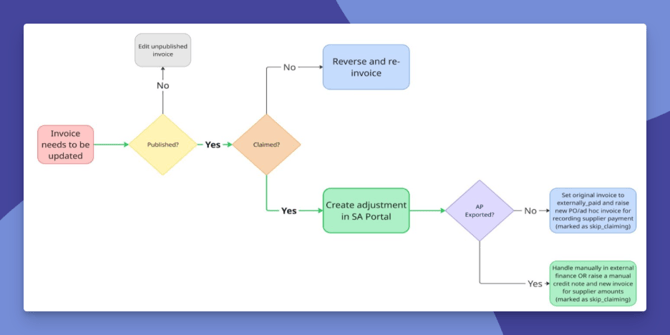
-
Not yet published. Edit the details before publishing. No Services Australia adjustment required.
-
Published, not yet claimed. Reverse the original and re-issue (ad hoc invoice, or repeat the PO/visit workflow). No portal adjustment is needed, because Services Australia has no record of these invoices yet.
-
Published and claimed. Don’t act further in Lookout until an adjustment (amendment) has been created in the Services Australia portal. It reconciles either via a future claim’s payment determination, or via an adjustment-only payment determination — for which you create a new claim, add no invoices, upload at Step 2 to reconcile, then finalise.
Always consider AP. If you export invoices to an external finance system, two flags govern a correction:
Excluded from claiming (skip_claiming) — keeps it out of Services Australia claims.
Already paid in finance system (externally_paid) — keeps it out of your AP export, so the supplier isn’t paid twice.
-
- Published but unclaimed: set both flags on the original invoice and credit note to prevent incorrect invoice amount from proceeding. The newly raised invoice is the single document flowing through for claiming and AP. If the invoice has already been exported for AP, leave the externally_paid flag unset for the original invoice, the reversal credit note and the new corrected invoice.
- Published and claimed, not yet AP-exported: same approach (both flags on the original); the adjustment-generated invoices have both flags by default, so edit them to be exported.
- Published and claimed, already AP-exported: either adjust manually in your finance system, or use the adjustment documents (a credit note reversing the original in full plus a new adjustment invoice). Removing externally_paid from both exports the credit note too, reversing the original in your finance system.
A published, unclaimed third-party invoice was wrong (undercharged) — how do I fix it before claiming?
Because it isn’t claimed yet, reverse the original via a credit note, then raise the correct total as an ad hoc invoice or by updating the PO line items to match. Exclude both the original and the credit note from the claim, and check whether the invoice was already exported for AP supplier payment.
A published visit had the wrong checkout time — how do I correct it before claiming?
Same approach: reverse the original via a credit note, then raise an ad hoc invoice or roster a new visit at the corrected time. Exclude both from the claim, and check whether the shift was already exported for payroll.
A supplier issued a credit note on an invoice we already claimed — what’s the process?
For overcharges (including complete credit notes and partial credits) and undercharges on already-claimed invoices: locate the invoice in Lookout to get the Invoice ID and original claim; submit a manual amendment in the ACPP (reduce for an overcharge, increase for an undercharge); then upload the resulting payment determination into Lookout to reconcile and update the statement and client contribution.
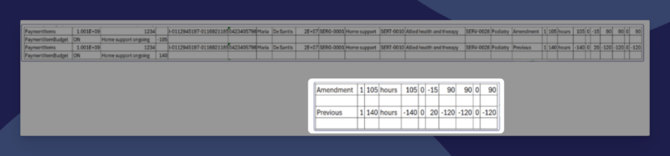
Note: The CSV above is a sample from a payment determination issued by Services Australia.
The two screenshots are for unrelated invoice lines.
A claimed visit was undercharged (an extra 30 minutes) — how do I charge the member correctly?
Option A: amend the original visit line in the portal to add the 30 minutes; Services Australia processes a reversal plus an amendment, and uploading the payment determination reconciles it automatically.
Option B: raise a new visit invoice for just the missing 30 minutes and claim it normally — but this creates two entries on the portal and in the statement/contribution account, and may need documentation explaining two charges for one visit. You may prefer Option A such that all workflows remain consistent.
We claimed an invoice under the wrong funding source — how do we correct it?
The service code determines the funding bucket (AT-HM uses a separate service list; clinical services draw from ongoing/RC/EoL), ensuring where possible to set the correct code before claiming. Before submitting you can edit the service code and funding source in the claim screen.
If already claimed, complete a post-claim adjustment in the ACPP; this will reconcile in the next Services Australia payment determination issued. Proceed with normal claim workflow if current claim invoices are included in the payment determination file, if the adjustment lines are issued ad hoc, bypass step 1 of a new claim and upload the payment determination file in step 2. If unsure how to reconcile with the government, please contact Services Australia.
Can credit notes go on a purchase order, or can I use a negative line to reverse one?
No — credit notes can’t be processed directly on a PO. For an unpublished PO line, document the change in the discussion notes and either delete the line or set the supplier and member unit prices to be $0 if you wish to retain the line-item information (a negative line isn’t recognised as a credit note). For a published invoice, raise a credit note via Invoices and Credit Notes and note/link the document URL it in the PO discussion.
Can published invoices be reversed in bulk?
No — not currently a feature (noted as a request). Reverse via the single-line reverse button on a published invoice, or by entering an ad hoc credit note.
Please note: The reverse button auto-excludes the original invoice from claiming but does not always automatically exclude the credit note — Lookout will copy any flags set for the original invoice on the reversal credit note. If not automatically excluded you will need to edit the new credit note and mark it Excluded from claiming.
5. Credit notes, exclusions & reconciliation
What’s the point of raising a credit note if I’m excluding it from the claim?
It’s a formal reversal invoice that keeps your Lookout records and supplier/AP reconciliation balanced against the original charge. It posts nothing to the member’s accounts unless created through a Services Australia payment determination reconciliation. The document is useful for an audit log acknowledging the incorrect charge was picked up and corrected.
When I export the claim report, how can I tell which invoices have a credit note applied?
There’s no dedicated flag. The reverse button marks the original as Excluded from claiming (but leaves the credit note unflagged, see above for further callout), and credit notes left in a claim can be filtered at claim time with the Invoice category filter. Mark credit notes as Excluded from claiming before exporting.
Do credit notes show on member statements, and how do portal amendments flow back?
A credit note shows on a statement only if it has payment-determination lines from Services Australia (i.e. created via an amendment, not raised manually). For a claimed invoice, you amend in the ACPP; uploading the payment determination matches it back, creates the credit note, reconciles, and — on finalisation — posts to the member’s account and statement.
How do I tell which credit notes need PRODA processing versus those just offsetting an excluded invoice?
There’s no identifier in Lookout. Unclaimed invoices need no Services Australia interaction — reverse in Lookout via credit notes. Claimed invoices need a PRODA adjustment, where the credit note and adjusted invoice are created automatically through the claim process. When you use reverse, any flags on the original carry to the credit note (none set means none applied). A good workflow may be to create a ticket to document the incorrect invoice and any actions taken to amend; either Lookout credit note if unclaimed, or Services Australia adjustment for claimed items. To give yourself a reminder you can set the due date of the ticket aligned to your next Support at Home claim.
If a credit note’s contribution is permanently excluded from the claim, does it still create a transaction?
No. Credit notes raised in Lookout never flow to account transactions, and anything excluded from claiming never goes through the claim flow — and finalising the claim is the only step that writes transactions to member accounts. To report a change to the government, use the ACPP amendment workflow. For a provider reduced fee or waiver, use account transactions (Section 7).
What’s the difference between account transactions and credit notes, and why can’t I use account transactions for variances?
Under Support at Home, account transactions no longer meet the required detail (claims need service codes, invoice-claim numbers, etc.), so Lookout restricts them to the Client Contribution account (SAH) for recording member payments. Credit notes are formal reversal invoices.
6. Payment determinations, finalising & claim management
I found a variance during reconciliation — how do I fix it before finalising?
By Step 3 the payment determination is already issued, so it can’t be changed. Document the variance; potentially in a ticket workflow, raise an adjustment in the Services Australia portal, complete Step 3 to align Lookout with the determination, then finalise at Step 4 to post transactions and update statements.
Services Australia sent an adjustment-only payment determination — do I just upload it?
Yes, Services Australia may create a payment determination file with only adjustments (no provider invoices — e.g. the Nov–Dec 2025 unspent-funds error, or hardship adjustments). This is recorded in Lookout by creating a new Support at Home claim, skipping to Step 2 to upload without adding invoices, then reviewing, and finalising.
What were the Nov–Dec 2025 adjustments and what do I do?
Services Australia found some Nov-Dec 2025 claim items were paid from members Home Care Account and Commonwealth Unspent funds instead of Support at Home ongoing, and issued adjusted payment determination CSVs on the ACPP. Bring each payment determination file into Lookout via a new claim: skip to Step 2, upload without adding invoices, review, and finalise.
Tip: Support at Home claims within Lookout are a 1:1 ratio for payment determinations that can be uploaded. If you have three payment determination files and only one claim submitted from Lookout, you will need to raise additional blank claims to process the adjustment CSVs and post transactions for members.
Can I rename a claim after it’s created or lodged?
No — claim details lock once saved; to change them you need to delete the claim and recreate.
Noting that a claim can only be deleted if no steps are completed, or you have undone all steps. Once a claim is finalised, you cannot delete this record. A re-title option after lodgement has been suggested to the product team.
I selected only some invoices but they all moved between the tabs — is that expected?
No — only the invoices you select should move between Included in claim and Excluded from claiming. If all move, submit a support ticket with steps and a screen recording so the team can reproduce it.
I claimed manually in PRODA instead of via Lookout — what now?
Please note: Manual claiming is not a supported workflow
We strongly recommend the supported workflow from our support article, and avoiding manual claiming — including manipulating Lookout-generated claim files before submission, or editing payment determination files before reconciling.
Please note: For a once-off recovery only, create the invoice in Lookout, include it in a Support at Home claim, then upload the payment determination for the manual claim to reconcile as normal. A manual claim payment determination file returns a blank invoice reference, so without this Lookout can’t match it. Raise a support ticket with detail provided (see end of article for instructions), so that if our Customer Support team decides to provide assistance they have the required information.
7. Client contributions & reporting
After finalising, how should I report and bill client contributions?
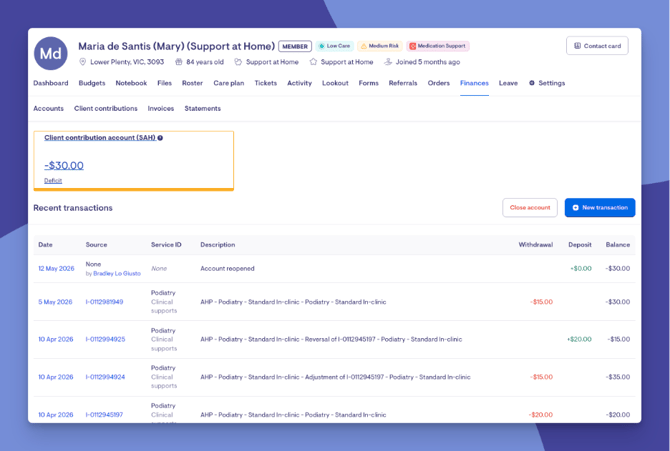
Providers can build client contribution billing reports from two Data Exporter categories — Transactions and Account Charges — to export values to your finance system. Bring member payments back into Lookout via account transactions (or bulk journals) using the Client Contribution account (SAH). See Client Contributions and Support at Home.
How do I separate required contributions from overspend amounts?
There is a newly released tag in Data Exporter where overspend amounts are posted as client contribution transactions. Tagged with overspend_contribution in the transaction_category dimension, so you can filter them in Data Exporter to manually separate them from genuine required contributions. The transaction label field also distinguishes invoice from withdrawal lines.
Can I use account transactions to reduce or waive a client’s contribution?
Yes — this is a valid account transaction for Support at Home members. The process is the same as recording a member payment.
First navigate to the members profile and their accounts, then create a new transaction within the Client Contribution (SAH) account. Add a description, which appears on the member statement, enter the amount and deposit or withdrawal behaviour, with the last options to provide a category for reporting and a transaction date if you wish for the transaction to apply on a date other than the time of recording.
Providers can also upload client contribution transactions in bulk via an Account transaction journal. Importing Account Transactions as CSV.
A member’s AT contribution looks too high — does Lookout apply the $500 cap?
Services Australia applies the cap when it processes the claim, and the capped amount comes back on the payment determination to reconcile in Lookout.
Our variances are tiny GST rounding differences — can these be aligned?
These variances can stem from two places: Services Australia's rounding method, or supplier invoices rounding to three decimal places where Lookout captures only two.
For the supplier-rounding case, when processing the invoice against the PO, edit the paid supplier amount so the invoice GST matches Lookout's auto-calculated GST. GST doesn't draw from the member's funding (it's claimed via the ATO), so this is about reconciliation tidiness rather than funding consumed.
For the Services Australia case, their method rounds to the nearest even number, which differs from the more widely known rounding behaviour. Lookout applies this same logic when producing claim item amounts; if they still misalign, resolving variances at Step 3 will bring the invoice amounts into line before transactions are created.
8. Other questions
Can you give step-by-step PRODA credit note instructions for already-claimed invoices?
The steps inside the Services Australia (ACPP/PRODA) portal are Services Australia’s process, not documented by Lookout. Lookout’s side — uploading the payment determination so the credit note and adjustment reconcile — is covered above and in the related articles. For the portal steps, refer to Services Australia, and contact Support if you need help with the Lookout side.
Adjustments I made last quarter aren’t showing on the older statements — what’s happening?
Adjustments reach member statements through one pathway: the payment determination file is uploaded as part of a Support at Home claim in Lookout and taken through to Step 4, where finalising creates the account transactions.
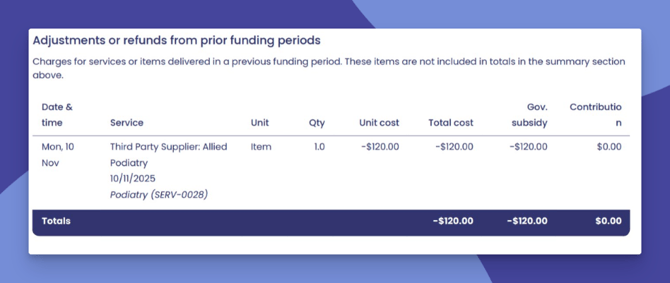
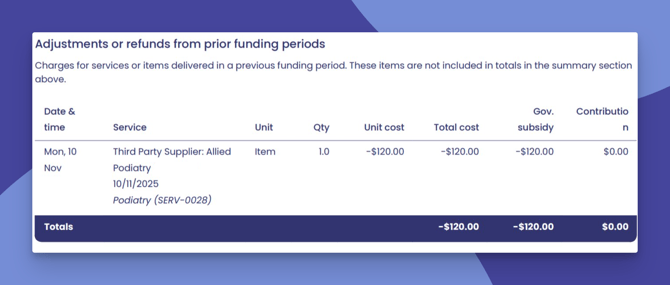
If an adjustment relates to a prior period whose statement is already locked, it won't reopen that older statement. Instead, it appears on the next available unlocked statement period, under the Adjustments or refunds from past calendar months section.
Member-specific — contact Support: If you’ve completed your own investigation and still can’t locate the adjustments, contact the Lookout Support Team with the member’s details, the months involved, and screenshots.
Related articles & resources
- Billing Runs
- Generating your first Support at Home Claim
- Reconciling your Support at Home Claim
- Client Contributions and Support at Home
- Support at Home Statements
- Excluding from Claiming
- Support at Home Credit notes and invoice amendments
- Lookout Foundations: Invoices, Credit Notes and Billing Runs
- Lookout Foundations: Support at Home Claiming
Related videos
- Lookout Foundations: Invoices, Credit Notes and Billing Runs
- Lookout Foundations: Support at Home Claiming
Still need help?
If you’re still stuck after reviewing this article, or your question involves member-specific details, contact the Lookout Support Team. To help us investigate, include:
- Screenshots of the issue (where possible)
- The member name or ID
- A description of the exact steps taken
- Any error messages received
- The date and time the issue occurred