
This guide explains how to offboard a Helper in Lookout when they leave your organisation - reviewing their visits, reassigning any open tickets, archiving their profile, and removing their access. It also covers reinstating a Helper if they return.
Best practice: Use a ticket template when offboarding a Helper, so all the required steps are completed consistently every time. See our Tickets: Building blocks article for how to set one up.
Before you start
To offboard a Helper, make sure:
- You are logged into Lookout as a staff member with permission to archive Helpers.
- You have access to the Helper and the communities their visits sit in.
- To disable a Helper's Lookout access, you'll need the login management access role.
Important: Archiving a Helper hides them from searches and reports, but it does not automatically cancel their future visits. Always review their roster before completing the offboarding process.
The offboarding process at a glance
- Review their scheduled visits: Remove the Helper from assigned, recurring, and exceptional visits after their offboarding date.
- Reassign any open tickets: Make sure work assigned to them isn't left stuck.
- Archive the Helper's profile.
- Disable their Lookout access: Removing them from the Lookout Care app.
- Reinstate later if needed: Their profile can be restored and updated if they return.
Step-by-step instructions
Step 1: Review and update recurring visits
- From the main navigation menu, click Helpers to open the full list of Helpers.
- Find the Helper you're after - use the search box to type their name, or narrow the list using the filters.
- Click the Helper's name to open their profile. This will load their Helper dashboard.
- On the Helper dashboard, scroll and find the Recurring visits panel.
- For each recurring visit, decide whether the visit should end entirely or continue for the Member with a different Helper.
If the recurring visits should end with the Helper
- Click the ellipsis (...) button for the rule, then from the small drop-down options menu, click Delete.
- Confirm your action. The recurring rule is removed from both the Helper's and the Member's roster.
If the visits should continue for the Member, but without this Helper
- On a visit or rule, click the Member's name to open the Member's roster.
- Click their dashboard tab and find the recurring visit panel.
- On the rule, select the ellipsis (...) and Edit from the short drop-down options menu.
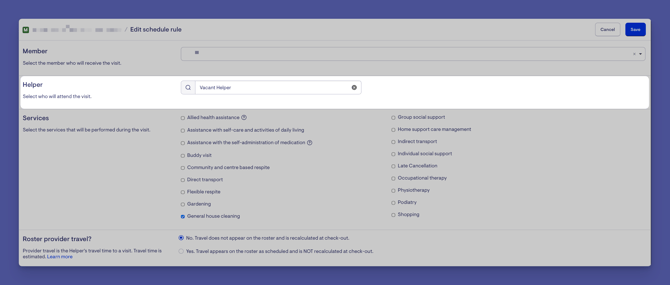
- The edit schedule rule page will load. Navigate to the Helper section.
- Assign a new Helper - or, if a replacement isn't known yet, click the cross to make the visit vacant so it can be filled later (including through opportunities).
- Under the Date changes apply from section, set the date so the change takes effect after the current Helper leaves.
- When ready, click the blue Save button in the top-right corner.
- Repeat for each recurring visit the Helper is on.
Step 2: Review and update exceptional visits
- From the main navigation menu, click Helpers to open the full list of Helpers.
- Find the Helper you're after - use the search box to type their name, or narrow the list using the filters.
- Click the Helper's name to open their profile. This will load their Helper dashboard.
- Click the Helper's Roster tab and switch to list view.
- Select a date range for visits scheduled after their departure, and search.
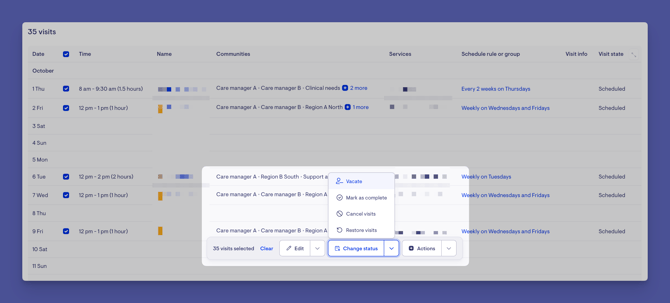
- Tick the checkbox to select the visits - the bulk actions appear at the bottom.
- Use the bulk actions to change status and vacate the visits, leaving them vacant to be filled later.
- Confirm to vacate the visits scheduled after the Helper is offboarded.
Once done, there should be no future visits still assigned to the Helper.
Step 3: Archive the Helper's profile
- Open the Helper's profile and select the Settings tab.
- In the sidebar, under the Administrator group, select Account.
- Select Archive.
- Choose a reason, then select Save.
If the Helper has open tickets
When you archive a Helper who still has open tickets assigned to them, Lookout flags this so nothing is left unresolved.
- A warning appears listing the Helper's open tickets before you continue.
- From here, you can bulk reassign those tickets to another staff member (they'll be notified), or bulk unassign them, before proceeding with archiving.
Top tip: If a Helper was archived before their tickets were reassigned, you can still reassign them - see our Tickets: FAQs article for how (switch the assignee search to "All profiles" to find archived staff, then bulk assign). For more on ticket assignment, see Tickets: Day-to-day use.
Once archived, the Helper is hidden from searches and reports, and a banner shows the reason and when it was actioned.
Please note: Account actions (archive, unarchive, deactivate) live in the Helper's Settings, under Administrator → Account. See our Helper Settings article to learn more.
Step 4: Disable the Helper's Lookout access
Archiving hides the Helper, but doesn't remove their app access. To do that:
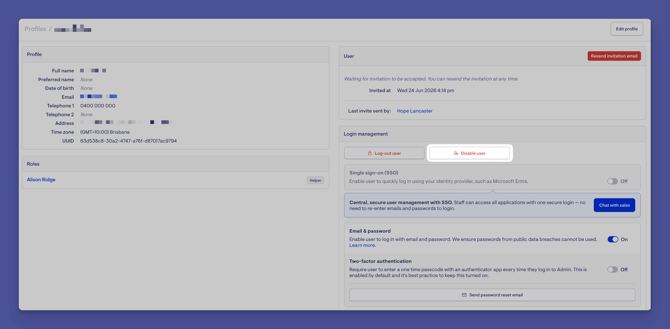
- From the navigation menu, open Profile Search and locate the Helper.
- In Login management, select Disable User.
- Select Confirm.
The Helper can no longer access Lookout or the Care app.
Please note: You'll need the login management access role to disable a user.
Reinstating a Helper
If a previously archived Helper returns:
- From the Helpers menu, open the filters and select Archived, then apply.
- Locate the applicable Helper and open their profile.
- In Settings → Administrator → Account, select Unarchive.
- Update any details as needed.
The Helper is now reinstated.
Top tip: If their Lookout access was disabled, you'll also need to re-enable their user in Login management.
What happens next?
After offboarding a Helper:
- They're hidden from searches and reports, but their record is kept and can be restored.
- Their future recurring and exceptional visits are vacant (or reassigned) as you set them, ready to be filled.
- Any open tickets have been reassigned or unassigned, so no work is left stuck with them.
- With their access disabled, they can no longer log in to Lookout or the Care app.
Troubleshooting
I archived the Helper but their future visits are still assigned to them
Archiving doesn't cancel visits. Review the Helper's recurring and exceptional visits and vacate or reassign them (Steps 1 and 2) before or after archiving.
I can't find the archive option on the dashboard
Account actions have moved into the Helper's Settings, under Administrator → Account.
A warning says the Helper has open tickets
This is expected. Reassign those tickets to someone else, or unassign them, before continuing - you can do this in bulk from the warning.
The Helper was archived before I reassigned their tickets
You can still reassign them. Switch the assignee search to "All profiles" to find archived staff, then use bulk assign. See our Tickets: FAQs article to learn more.
I can't disable the Helper's access
Disabling a user requires the login management access role. Ask an administrator to review your access.
Still need help?
If you're still experiencing issues, please contact our Support Team and include:
-
Screenshots (if possible)
-
The Helper's name
-
The exact steps taken
-
Any error messages received