
Billing run errors show items that Lookout couldn't invoice, such as an incomplete visit or a Membership without a Funder. This article covers what each error means, how to find and filter errors and how to fix them. It also covers bulk actions and how to check your fixes have worked.
Top tip: If you're new to billing runs, read our article What are billing runs before proceeding.
Overview
When Lookout creates a draft billing run, it checks each item before invoicing. If an item can't be invoiced, Lookout records an error instead of an invoice.
Errors matter because:
- No invoice is created for the item the error relates to.
- The item is left out of billing run reports.
- If you publish without fixing it, you'll need to invoice the item yourself as an adhoc invoice in the next billing run.
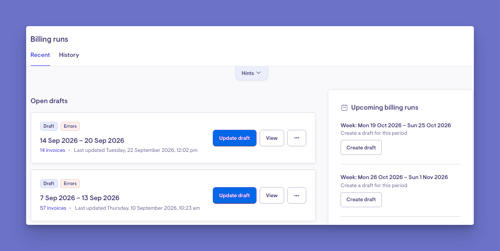
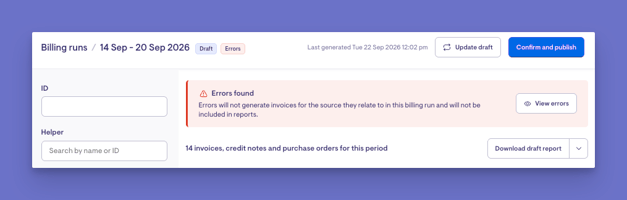
When a draft has errors, it shows an "Errors found" banner, and the billing run is labelled Errors on the Billing runs page.
Error types
| Error type | What it means | How to fix it |
|---|---|---|
| Incomplete visit | The visit hasn't been completed. | Check out the visit or cancel it. |
| Vacant visit | The visit has no Helper assigned. | Assign a Helper to the visit, or cancel it. |
| Missing contract | The Member and Helper don't have a contract price for the visit. | Add a contract between the Member and Helper. |
| Missing funder | The Member's membership has no funder. | Add a funder to the membership. |
| Group visit has not been invoiced | A group visit hasn't been checked out. | Check out the group visit. |
| Missing platform fee tax | A platform fee on the visit has no tax set up. | Check the platform fee tax on the rate, and your taxes in Settings > Taxes. |
| Support at Home rounding | The visit's quantity isn't valid for its Support at Home service. | Correct the visit's times or quantity so they meet the service's rules. |
| Skip claim unsupported | The visit's rate has Exclude visits using this rate from claiming turned on, but the Member's funding scheme doesn't support it. | Turn the setting off on the rate, or use a different rate. |
| Other | Any other problem. | Read the Error reason for details. |
Please note: Some errors only apply to certain funding schemes or settings. For example, Support at Home rounding only affects Support at Home Members.
Error statuses
- Error: The error hasn't been dealt with yet.
- Resolved: A Staffer has marked the error as dealt with.
Marking an error as resolved only changes its status, so your team can track what's been handled. It doesn't create an invoice.
Before you start
-
You need the Billing runs permission. On the access role screen, it's listed under Financial access and described as "Confirm and finalise transactions in order to send invoice summaries and make claims".
- You're logged in to the Lookout web app.
- You have a draft billing run. Visit How to complete a billing run in Lookout.
- To fix the cause of an error, you may also need permission to edit Visits, Memberships or rates.
Step-by-step instructions
Step 1: Open the errors list
- Click Finance and then Billing runs from the main navigation bar.
- Under Open drafts, click View next to the draft.
- In the "Errors found" banner, click View errors.
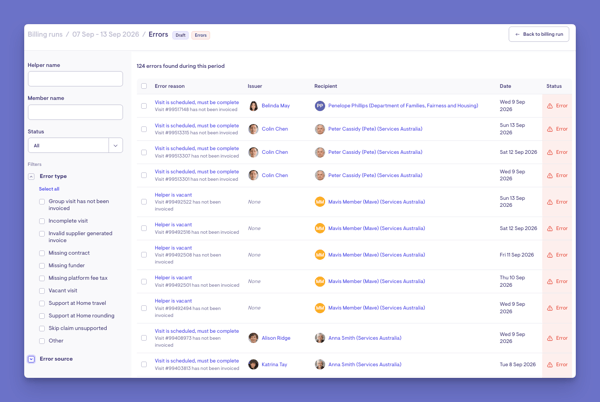
Expected result: The Errors page opens and displays the number of errors found for the period.
Each error shows:
- Error reason: What went wrong. If the error relates to an invoice, the reason links to the visit or record it came from.
- Issuer: The Helper the error relates to.
- Recipient: The Member or membership the error relates to.
- Date: The date of the visit.
- Status: Error or Resolved.
Step 2: Filter the errors
- Use the filters on the left:
- Helper name or Member name: Find errors for a person.
- Status: Show All, Error or Resolved.
- Hide future visits: Hide errors for visits that haven't happened yet. This only shows when the billing run period hasn't ended.
- Error type: Show one or more types of error.
- Error source: Show errors from a particular source, such as visits or memberships.
- Click Apply filters.
- Expected result: The list only shows matching errors. Click Clear filters to see them all again.
Top tip: For a draft created before the period ends, tick Hide future visits. Visits that haven't happened yet show as incomplete, and they'll clear once they're completed.
Step 3: Fix each error
- Click the Error reason to open the visit or record it relates to.
- Fix the problem using the table under "Error types".
- Go back to the Errors page and repeat for each error.
Expected result: The problem is fixed in the visit, membership or rate.
Please note: The list of errors errors list doesn't update straight away. Your fixes only show once you've updated the draft (Step 5).
Step 4: Use bulk actions
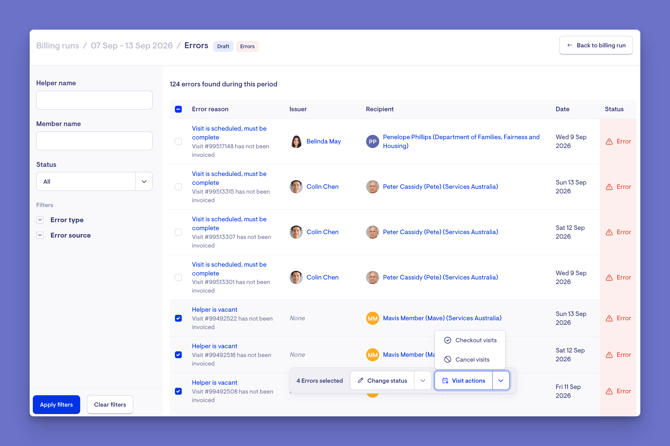
You can act on several errors at once by ticking multiple at once using the checkboxes.
It only works while the billing run is a draft. Once it's published, the errors list is read-only and the selection boxes disappear.
- Tick the box next to each error, or tick the box at the top of the list to select them all.
- Choose an action from the bar at the bottom of the page:
- Change status > Mark as resolved: Marks the errors as dealt with.
- Change status > Mark as error: Changes resolved errors back to Error.
- Visit actions > Checkout visits: Checks out the selected visits.
- Visit actions > Cancel visits: Cancels the selected visits.
- Follow the prompts, then click Confirm.
Expected result: For a status change, Lookout shows "Successfully marked errors as resolved" or "Successfully marked as error".
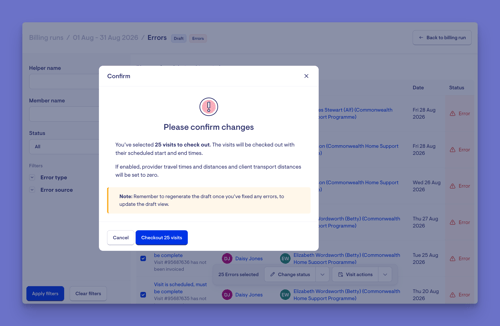
Important: Checkout visits uses each visit's scheduled start and end times. Provider travel times and distances and client transport distances are set to zero. If those visits had travel, check them out individually instead.
Please note: Visit actions only work on errors linked to a visit. If you select errors that aren't linked to a visit, Lookout shows "No visits selected".
Visit actions > Checkout visits explained
Selecting errors on the billing run error page and choosing Visit actions > Checkout visits marks those visits as complete. This is what happens next:
What happens to the visits
- You see a confirmation box first. Each selected visit is checked out using its scheduled start and end times, not the actual times worked.
- If travel and transport are turned on, provider travel time, provider travel distance and client transport distance are set to zero. One small exception: if a visit has a client transport rate but no distance entered, the distance is recorded as zero.
- The check-outs run in the background, and you'll see a message that completion of the visits has been scheduled. Large selections can take a moment.
- Each visit's history records who checked it out and what changed.
What happens to the billing run
- The "incomplete visit" errors for those visits are marked as Resolved straight away.
- The draft billing run does not update on its own. You need to select Update draft to add the completed visits to the draft. The confirmation box reminds you of this. If automatic drafts are turned on, the next morning's automatic update also picks them up.
If the visit belongs to a billing run that has already been published
- This only applies when Visit invoicing in Finance settings is set to "Automatically generate invoices on visits that have missed billing when a staffer marks them as complete". In that case, Lookout automatically creates the missed invoices for those visits.
- If it's set to "Manually handle visits that have missed billing", no invoices are created and your team handles those visits manually.
Other effects of completing a visit
- Helpers who are employees: their shifts for that day are created or updated and their pay is recalculated, unless your company manages shifts manually. If you use a connected rostering or payroll system, the day is also sent to that system.
- Group events: invoices for the event are generated.
Important: Bulk check-outs use the scheduled visit times and assume zero travel. If the actual visit duration differed from the schedule, or travel occurred, check out the visit directly from the visit record instead. This ensures invoice times, travel, and billed amounts are accurate.
Step 5: Update the draft
- Click Back to billing run.
- Click Update draft, then click Confirm.
- You will be returned to the Billing runs dashboard.
The tile will update and show a Resetting status. - A green banner will appear to notify you that you will receive an email once completed.
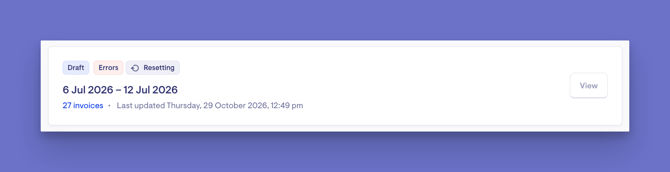
Expected result: Once there are no errors, Lookout regenerates the draft and lets you know when it's done. When there are no errors left, the Errors page shows "Hooray! Your billing run has no errors".
What happens next?
- Fixed items are recorded in the updated draft.
- Any errors left when you publish aren't recorded as invoiceable items. You'll need to create them as ad hoc invoices and include them in the next billing run.
- Once a billing run is published, its errors list becomes read-only and you can't select errors.
What Staffers, Helpers and Members will see
Staffers
Staffers with the Billing runs permission can view, filter and act on errors.
Helpers
Helpers don't see billing run errors. Visits with errors aren't included in their invoice summaries.
Members
Members don't see billing run errors. Items with errors aren't invoiced or included in their invoice summaries.
Troubleshooting
I fixed an error, but it's still showing.
Click Update draft, because the errors list only refreshes once the draft is regenerated.
Why are there errors for visits that haven't happened yet?
- The draft was created before the end of the period, so future visits aren't complete yet.
- Tick Hide future visits to hide them. They'll clear once the visits are completed and the draft is updated.
Lookout says "No visits selected" when I use Visit actions.
The errors you selected aren't linked to a visit, so fix them from the record named in the Error reason instead.
Why can't I select errors?
The billing run has been published, and you can only act on errors in a draft.
My filters show "No matching errors found".
Click Clear filters to see all errors again.
Still need help?
If you're still experiencing issues, please contact our Support Team and include:
- Screenshots (if possible)
- The user's name/email
- The exact steps taken
- Any error messages received