
This guide explains what the Helper Settings area is, why it matters, and how to navigate and use it. It covers the different settings grouped across the page - from personal details and services to business information, pricing, and administrative actions.
Helper ⚙ Settings
The settings area is where you manage the underlying setup and record for an individual Helper. You'll find it on the Helper's profile, accessed from the Settings tab.
It brings together their personal details, the services they provide, their communities and travel settings, matching, business information, pricing configuration, contracts, and administrative actions such as managing their account. It's grouped into sections - Settings, Business, Advanced pricing configuration, and Administrator - so related options sit together. Most day-to-day Helper setup and record-keeping happens here.
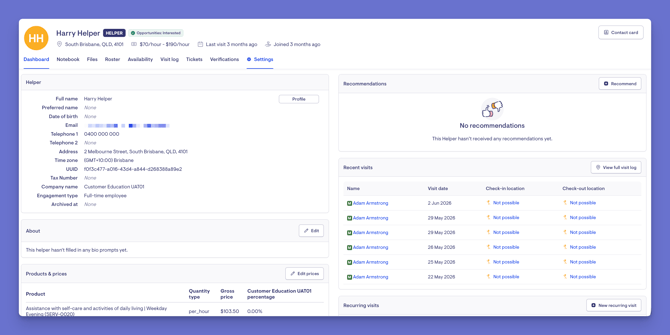
Want to learn more about Helpers? The Settings tab is just one part of a Helper's profile. For dedicated articles on the Helper dashboard and each of the other tabs within a Helper's profile, please explore the Helpers section within our Help Centre, where you'll find a dedicated article for each.
Why it matters
Keeping a Helper's settings accurate and up to date is what allows Lookout to match, schedule, and pay them correctly. Well-maintained settings:
- Keep matching and scheduling accurate: A Helper's services, communities, and availability determine the work they can be offered.
- Keep pricing right: Products, prices, and travel settings feed into how their work is charged.
- Keep records complete: Personal and business details remain up to date for compliance and communication.
- Keep everything in one place: All of a Helper's setup lives together, easy to find and adjust.
Before you start
To use this area, make sure:
- You have access to view the Helper, which means access to a community they belong to (unless your access reach is set to Full).
- To make changes, you need edit access. Some settings - such as pricing, profile status, and account actions may require specific permissions. If an option is missing or greyed out, ask an administrator to review your access.
Navigate to Helper Settings
- From the main navigation menu, click Helpers to open the full list of Helpers.
- Find the Helper you're after - narrow down the list using the filters.
- Click the Helper's name to open their profile. This will load their Helper dashboard.
- At the top of the Helper's profile, select the ⚙ Settings tab. It opens on the personal details section by default.
- Once inside, you'll see a menu on the left side of the screen. This lets you move between the different sections within the settings, grouped under Settings, Business, and Advanced pricing configuration.
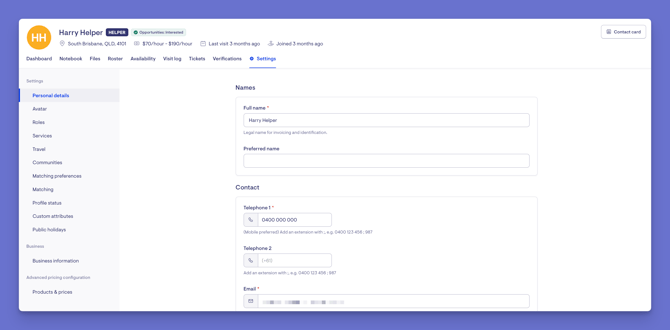
The Settings sections
The ⚙ Settings menu is grouped into sections. Some options may only appear depending on your organisation's setup, the Helper's type, and your permissions.
Settings
- Personal details: The Helper's core contact and personal information.
- Avatar: Their profile photo.
- Roles: The roles the Helper holds (such as Helper, supplier, or clinician), where applicable.
- Services: The services this Helper is set up to provide, which determine what work they can be scheduled for.
- Travel: Whether and how travel and transport can be charged for this Helper.
- Communities: The communities the Helper belongs to, which determine where they can be scheduled and who has access to them.
- Matching preferences: The soft matches (such as shared interests or experience) used to help pair the Helper with suitable Members.
- Matching: Settings for matching and opportunities.
- Profile status: The Helper's status (available to those with the relevant permission).
- Custom attributes: Any extra fields your organisation uses to capture additional details.
- Public holidays: The Helper's public holiday settings.
Please note: Helper availability is now managed within its dedicated tab or the Availability panel on the Helper dashboard.
Business
- Business information: The Helper's business details.
- Third-party provider rates: This only appears for suppliers and clinicians; the rates are set for this provider (where applicable).
Advanced pricing configuration
- Products and prices: The products the Helper offers and their pricing.
- Contracts: The Helper's contracts.
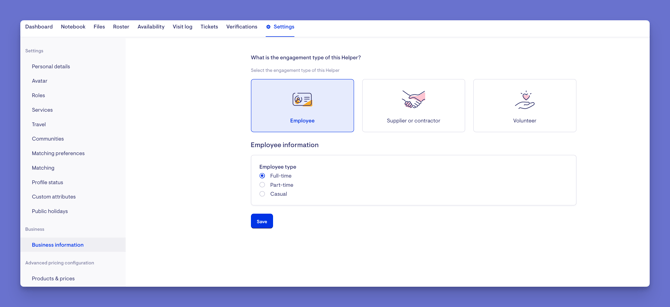
Administrator
- Account: the sensitive actions for the Helper, including archiving, unarchiving, and deactivating them. (Available to those with the relevant permission.)
Please note: These account actions used to sit in the "danger zone" on the Helper dashboard - they now live here, under Administrator.
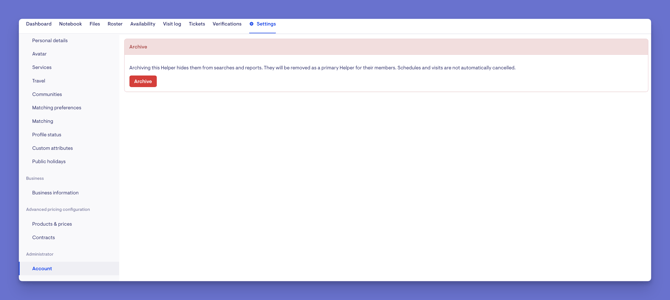
Examples and use cases
Here are some common situations and which ⚙ Settings section handles them:
A Helper's contact or personal details need updating:
-
Use Personal details to update their contact and personal information.
A Helper's photo needs adding or updating so Members and staff can recognise them:
-
Use Avatar to upload or remove the picture.
A Helper should only be offered certain types of work:
-
Use Services to set the specific services this Helper provides. This determines what work they can be matched and scheduled for.
-
Rather than a Helper being open to every service your organisation offers, you attach the specific services they're set up to deliver. For example, a Helper approved for personal care but not for transport can have personal care attached, but not driving trips.
A Helper needs to be able to work in a new area or team:
-
Use Communities to add or change the communities the Helper belongs to - this controls where they can be scheduled and who has access to them.
A Helper should (or shouldn't) be charged for travel or transport:
-
Use Travel to set whether travel time, distance, or client transport can be charged for this Helper.
You want to improve how a Helper is matched with Members:
-
Use Matching preferences to record soft matches - such as shared interests, environment, or experience - that help pair this Helper with suitable Members.
You need to capture extra information your organisation tracks about a Helper:
-
Use Custom attributes to fill in any additional fields your organisation has set up.
A Helper's public holiday arrangements need setting:
-
Use Public holidays to manage their public holiday settings.
A Helper's pricing needs setting or adjusting:
-
Use Products and prices to manage the products this Helper offers and what they charge.
-
Each Helper can either keep the default price for a rate or have it customised to them. For example, if a Helper charges a different rate for personal care than your standard default, you can adjust their price here while leaving other Helpers on the default.
A Helper has left and their record should be archived or deactivated:
Use Account, under the Administrator group, to archive, unarchive, or deactivate the Helper. If the Helper still has open tickets assigned to them, a warning appears before you continue you can bulk reassign those tickets to someone else, or bulk unassign them, before archiving. For more information, see our Offboarding a Helper article.
What happens next?
After you make a change in ⚙ Settings:
- The updated information is reflected across the Helper's profile and anywhere else it is used, such as their services, communities, matching, and pricing.
- Changes are recorded in the Helper's change history for auditing.
- Updating a Helper's services or communities changes the work they can be matched and scheduled for — so they may start (or stop) appearing as an option for certain visits.
- Adjusting matching preferences changes how the Helper is paired with Members, helping suggest more suitable matches.
- Changing travel settings affects whether travel or transport can be charged on this Helper's visits going forward.
- Archiving or deactivating a Helper removes them from active lists while keeping their record; any existing contracts continue until they're renewed.
Making the most of Helper settings
Keep services and communities current.
These directly control the work a Helper can be matched and scheduled for - if a Helper isn't appearing where expected, these are the first things to check.
Review availability regularly.
Accurate availability and capacity mean rostering reflects reality.
Set matching preferences thoughtfully.
The more accurate these are, the better Lookout can pair the right Helper with the right Member.
Keep business and pricing details up to date. Accurate rates, products, and travel settings ensure charging is correct.
Use the right section.
Related settings are grouped together - if you can't find something, check whether it sits under Business, Advanced pricing configuration, or Administrator rather than the main Settings section.
What different Users/Staff will see
For Staffers
What you can see and edit depends on your access. Everyday settings (personal details, services, communities, matching, travel) are available to staff with edit access to the Helper, while pricing, profile status, and account actions require specific permissions.
For Helpers
Helpers don't see the Settings area itself - it's a staff-only part of Lookout. However, several of these settings shape what the Helper experiences in their own app: for example, their services and communities affect the work they're offered, and their availability affects the visits they can be scheduled for. In other words, staff manage the settings here, and the Helper simply sees the result in their app.
For Members
Members don't see a Helper's settings. They may indirectly experience the outcome - for example, being matched with a Helper based on their services and matching preferences - but none of the settings themselves are visible to them.Troubleshooting
I can't see the Settings tab
Confirm you have access to view the Helper. If you still can't see it, ask an administrator within your organisation to review your access.
A setting I expect isn't showing
Some options only appear depending on the Helper's type (for example, third-party provider rates only show for suppliers and clinicians) and your organisation's setup. If it doesn't apply, it won't appear.
I can't find the danger zone/archive option on the Helper dashboard
These account actions (archive, unarchive, deactivate) now live in Settings, under the Administrator group, in the Account section.
An option is greyed out, or I can't edit it
Certain settings - such as profile status, custom attributes, pricing, and account actions - require specific permissions. Ask an administrator to review your access.
I changed a setting, but it hasn't taken effect as expected
Make sure you saved the change. For matching and scheduling, remember that services, communities, and availability all work together - check each is set correctly.
Still need help?
If you're still experiencing issues, please contact our Support Team and include:
- Screenshots (if possible)
- The Helper's name
- The exact steps taken
- Any error messages received