
This guide covers the day-to-day of working with care providers in the Lookout supplier portal: responding to the service requests they send you, then managing the jobs those requests become. Checking in, completing Must-dos, checking out, and requesting changes or cancellations.
Managing jobs on the supplier portal
Once a care provider sends you work, the supplier portal is where you respond to it and see it through.
Work usually starts as a service request: A provider asking whether you can take something on. Once you accept, it becomes a job you deliver and complete. Some providers skip the request and send you a job directly, so it may show up in your jobs without a request first.
New to the portal? To accept your invitation, log in, set up your team, and list your services and service areas, please see our For suppliers: The Lookout supplier portal article.
Service requests vs jobs - what's the difference?
A service request is a care provider asking whether you can take on a piece of work. Nothing is committed yet. There are two kinds:
- Job requests: The provider has already set the service, timing and price. You can accept the job, request changes, or decline. These show as Awaiting your response in your list.
- Quote requests: The provider wants you to price the work. You can send a quote or decline. These show as Quote requested until you respond.
A job is confirmed work. A service request becomes a job once it's agreed (you accept a job request, or the provider accepts your quote) and the provider books it in.
Before you start
-
You can log in to the supplier portal.
-
You have a device with a web browser. The portal works on phones, tablets and computers.
-
You have the right role for what you need to do:
-
Owners and Admins can respond to service requests, message care teams, assign jobs, and request changes or cancellations, as well as complete jobs.
-
Workers can see and complete all of the team's jobs once a checkout link has been sent.
-
Workers (limited access) can see and complete jobs assigned to them, and jobs they unlock by scanning a client's QR code.
-
See Roles in our For suppliers: The Lookout supplier portal article for more details.
Please note: Sections marked (Owners and Admins only) won't apply if you're a Worker. Workers can skip straight to Managing jobs.
Responding to a service request (Owners and Admins only)
-
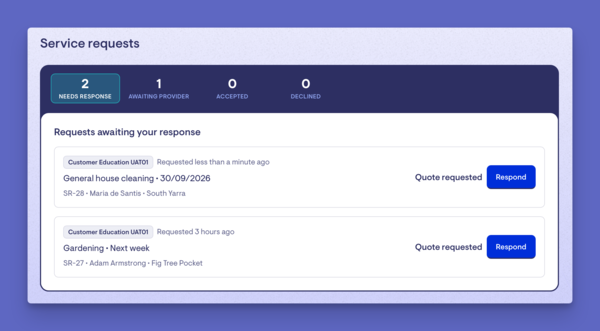
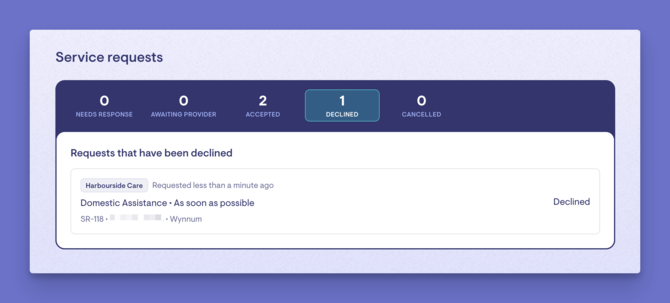
Open Service requests from the left-hand menu. Requests are grouped so you can see where each stands:
-
Needs response (awaiting your reply)
-
Awaiting provider (you've responded, it's back with them)
-
Accepted
-
Declined
- Cancelled (The provider has cancelled the request)
-
-
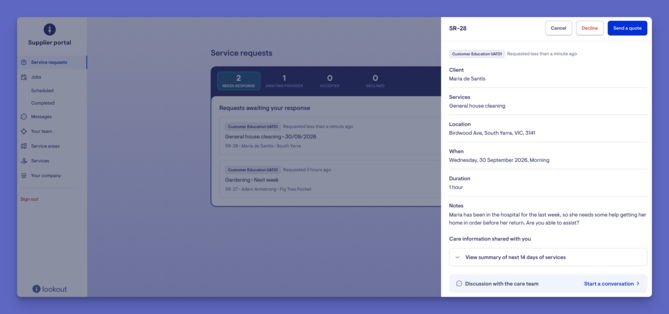
Click the blue Respond button on a request to open its full details in a side window.
-
You'll see the Client, Services, Location, Timing, Duration (if set), Notes, Budget (if the provider gave one), and a Clinical contact if relevant.
-
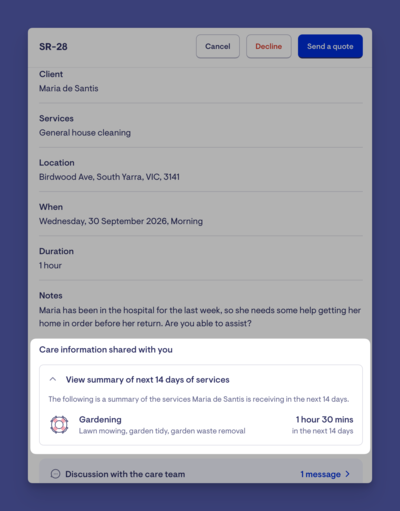
You'll also see any care information shared with you. See Using the handover information a provider shares below.
-
How you respond depends on whether it's a job request with a proposed price or a quote request.
Responding to a job request
The provider has already set the details and price. These are shown in a card at the top of the request.
-
Click View proposal details to see each line.
-
Open the Options menu and choose one of these:
-
Accept job: You can take the work on as described. Confirm when asked. The care provider will then review and book it in.
-
Request changes: You can do the work, but something needs adjusting. See Requesting changes to a job request below.
-
Decline: You can't take it on. Confirm when asked, and the request moves to your Declined list.
-
Requesting changes to a job request
- Open the Options menu and choose Request changes.
-
Change the details to what you would accept. You can edit each line's Description, Quantity, Unit, Price per unit, Tax and Estimated delivery date, or add and remove lines.
-
Add any Notes for the care team explaining why you're asking for the changes.
-
When ready, click Send request.
Please note: At least one detail must change before you can send your request.
Responding to a quote request
The provider wants you to price the work. Click Send a quote, or Decline if you can't take it on.
Sending a quote
- Click Send a quote.
- Choose how to provide your pricing:
- Upload your quote document, then enter the total amount in Quote total.
- Use Itemise lines (optional) to set up each line instead, and leave Quote total empty.
- Add any Notes for the care team.
- When ready, click Send quote.
- A green banner will confirm "Your quote has been sent", and the request moves to Awaiting provider.
Please note: You can upload a document or itemise lines, but not both. If you upload a quote document, the care team reviews them before accepting.
Need to correct a quote you've sent?
-
Open the request, then Options, then Replace quote.
-
Send your corrected quote in full.
-
It replaces the one you sent, and the care team will only see the replacement.
Top tip: To ask the care team a question about any request, use Discussion with the care team on the request. See Messaging the care team.
Using the handover information a provider shares (Owners and Admins only)
When a care provider sends you a request, they can include background about the client to help you decide and to prepare for the work. Depending on what the provider has shared, a request can include:
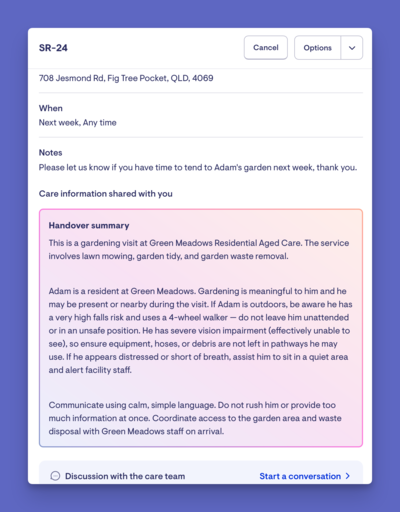
- Handover summary: A plain-language snapshot of the client and how to support them, generated with Lookout Assist. It's there so you understand the person and the context before you accept, not just the task.
- Care information shared with you: Click View summary of next 14 days of services for a sense of the care already scheduled around the work you're being asked to do.
- Notes: The provider's notes about the work, including any files they've attached, such as an occupational therapist's report or photos of the space the work relates to.
Please note: Each of these only appears if the provider has included it.
How this helps you
It means you can size up a job properly before accepting - whether it's a good fit, what to prepare, and anything you need to be aware of on arrival, without having to go back and forth with the provider first.
Once you accept and the work becomes a job, the Handover summary and Instructions carry across to the job itself, alongside the service details and any Must-dos.
Please note: A job's handover summary (if the provider included one), notes, and Must-dos only appear during its checkout window.
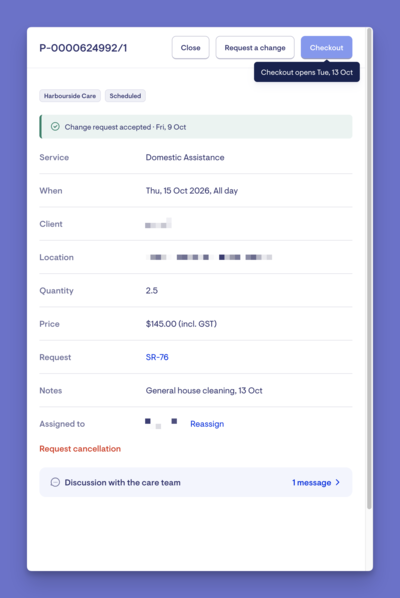
By default, that's 2 days on either side of the scheduled day, but your care provider can set it and choose a wider window. Outside the window, the job still shows in your list, but you can't open it to check in or out.
Handover summaries and Lookout Assist
A handover summary is optional. Providers who include one generate it with Lookout Assist and approve it before it's shared with you. It summarises what you need to know to prepare for the work.
What happens after you respond (Owners and Admin only)
-
If you accept a job request: The request moves to Accepted, and the care provider is notified. They then review and book it, and it appears under Jobs, ready to deliver.
-
If you send a quote or request changes: The request moves to Awaiting provider. The care provider reviews it and either accepts or declines. If they accept, they book the work, and it appears under Jobs. If they decline, the request moves to Declined.
-
If you decline: Confirm when asked, and the request moves to Declined. You won't be asked for a reason, and nothing else changes, because there's no job yet.
Messaging the care team (Owners and Admin only)
You can talk to the provider's care partner without leaving the portal.
-
On a request: Open it and click Discussion with the care team. You can start a conversation before you've accepted anything.
-
On a job: Open the job and click Send a message, or choose View discussion from the job's menu in your jobs list.
-
All your conversations: These are under Messages in the left-hand menu. If you work with more than one provider, you can filter by provider.
Please note: A request and its job have separate conversations. Once you accept a request and the job is booked, start a new conversation on the job for anything related to delivery.
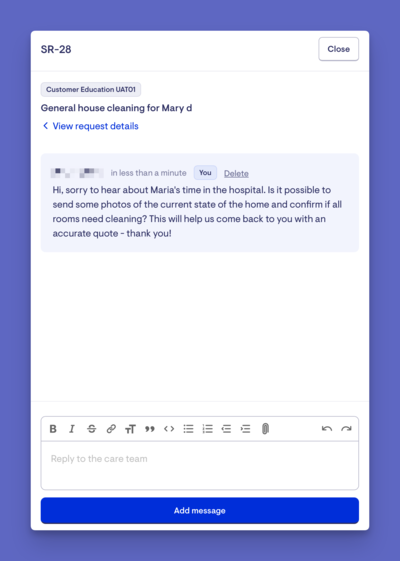
Please note: A job's conversation closes once all the work on it is complete or cancelled, and a request's conversation closes if the provider cancels the request. If a conversation is closed, message the care team on another active job for that client.
Managing jobs
Finding and viewing your jobs
Open Jobs from the left-hand menu. What you see depends on your role:
- Workers see one list grouped into Today, Overdue (from the last 30 days) and Upcoming.
- Owners and Admins see Scheduled jobs, with Scheduled, Overdue and Cancelled tabs, and a separate Completed jobs page. You can choose to view a week, 2 weeks or a month.
For each job, you'll see the client's name, the service, which care provider it relates to (helpful if you work with more than one), the scheduled time, and the suburb and state.
A job shows as Overdue once its end time has passed and it hasn't been checked out, even if someone has checked in.
Please note: A job's handover summary (if the provider included one), notes and Must-dos only appear during its checkout window.
By default, that's 2 days either side of the scheduled day, but your care provider sets it and can choose a wider window. Outside the window, the job still shows in your list, but you can't open it to check in or out. On the job card in your list, you'll see "Checkout is not open yet" or "Checkout window closed". In the job details, the Checkout button is greyed out. Hover over it to see when checkout opens, or when it closed.
Checking in to a job (when required)
Your care provider decides whether a job needs a check-in, so you'll only see this step on some jobs.
- Open the job from your jobs list, from the checkout link email, or by scanning the client's QR code (which shows a list of that client's jobs).
- Tap Check-in.
- If asked, tap Allow access to record your location, or Not now to continue without it.
- Review the handover summary (if the provider included one) and the job description under Service details.
- You'll see "Check-in successfully recorded." You can tap Undo check-in if you checked in by mistake, as long as you haven't checked out.
Please note: Check-in is only available within the checkout window set by the care provider (typically 2 days before and after the scheduled day).
Completing Must-dos
If the care provider has added Must-dos to the job, you'll see a list of tasks to complete. If the job needs a check-in, Must-dos open after you check in.
-
Respond to each Must-do as required:
-
Automatic Must-dos: Select Done or Not done, and add a comment.
-
Other Must-dos: Add a comment, or a comment or file if the Must-do asks for a file.
-
Forms: If a Must-do includes a form, click Complete this form.
-
- Click Save when you're done. You'll need to answer all Must-dos before you can check out.
Checking out and confirming delivery
Your care provider sets the checkout requirements, so they may differ between jobs.
- Tap Checkout.
- Answer any Must-dos, then tap Next: finalise.
- On the Finalise and checkout screen, add a checkout note answering "Did you notice anything concerning today regarding [client]'s health or wellbeing?"
- If shown, check or update the Confirm delivery date.
- If asked, tap Allow access to record your location.
- Tap Confirm completion of job.
The job is now marked as Completed, and the care provider can see your checkout note and Must-do responses.
Please note: The checkout note is required unless your care provider has made it optional.
Requesting a change to a confirmed job (Owner and Admin only)
If something needs to change after a job is confirmed, such as the price, date, time or quantity, you can request a change.
- Click Request a change on the job page, in the job's menu in your jobs list, or in View details.
- Adjust any field (Price, Date, Start time, End time, Quantity), add a note, or both. Each field shows what it was before, so the change is clear.
- Click Send change request.
- You'll see "You have a pending change request. You'll be notified once it's been reviewed." The care team reviews it before anything changes.
Please note: You can only have one pending request on a job at a time, whether it's a change or a cancellation. Wait for the care team to review it before sending another.
Requesting a cancellation (Owners and Admin only)
-
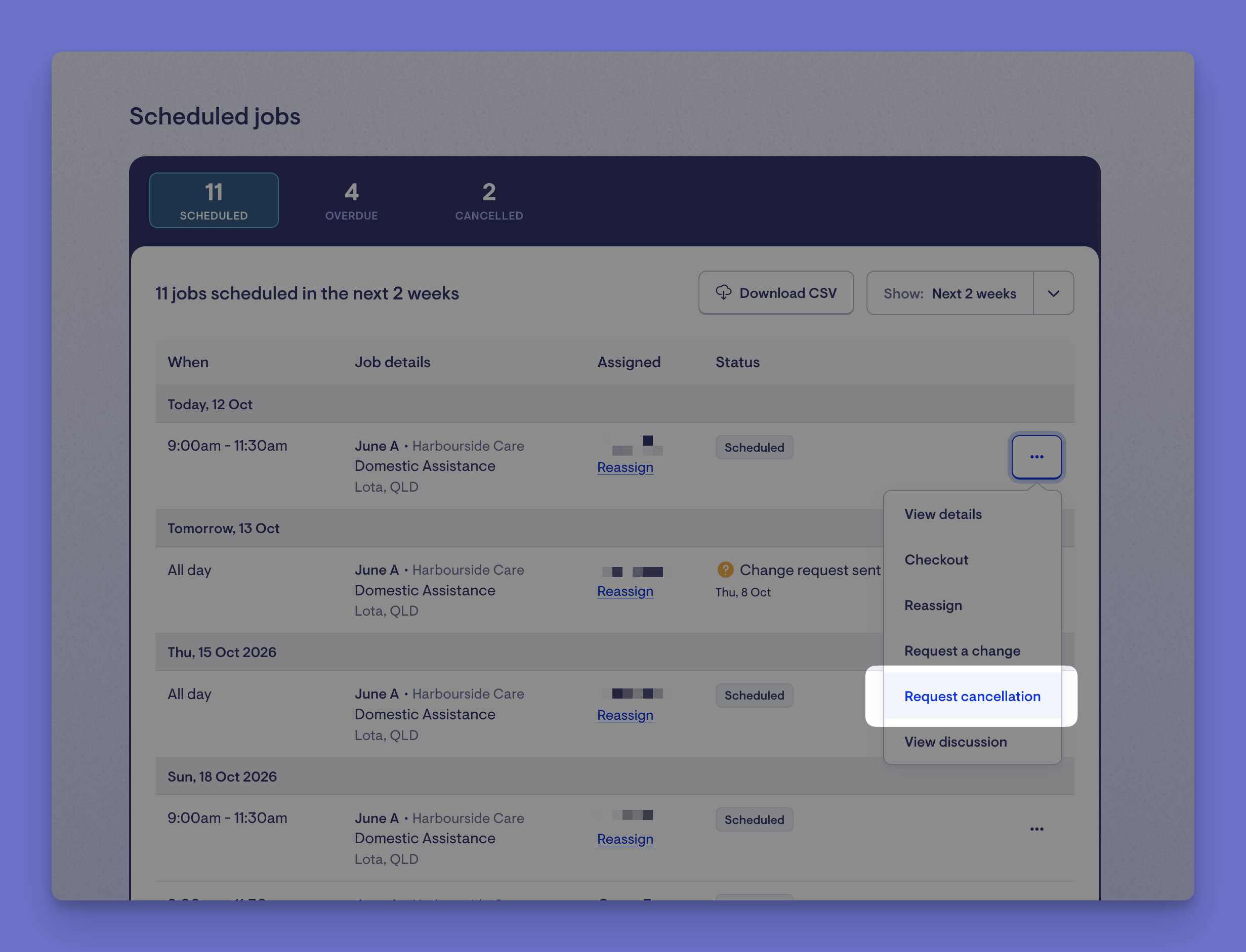
Click Request cancellation on the job page, in the job's menu in your jobs list, or in View details.
-
On the Confirm cancellation screen, choose a reason under Give a reason for cancelling, and add a note. Both are required.
-
Click Request cancellation.
Reminder: You can message the care team on a job or request at any time, for example, to discuss a change or before requesting a cancellation. See Messaging the care team.
Making the most of job management
Clear your "Needs response" list promptly. Providers are waiting on you, and quick responses keep the work flowing.
Propose a change rather than declining when you can still help but need an adjustment.
Give a clear reason and note when requesting a cancellation - it helps the provider find cover and reduces back-and-forth.
Keep questions in Messages so everything about a job stays in one place, and remember the conversation closes once the job is complete.
Check-in within the window. You can only check-in during the checkout window around the scheduled day.
Troubleshooting
The check-in or checkout button isn't visible
-
If the job reads "Checkout is not open yet" or "Checkout window closed", you're outside the job's checkout window.
-
By default, that's 2 days either side of the scheduled day, but your care provider sets it. Check the date with your care provider.
-
If you can see Checkout but not Check-in, your care provider hasn't asked for check-in on that job. You can go straight to checkout.
I can't see any jobs
-
Check you're looking at the right list.
-
Workers see Today, Overdue and Upcoming.
-
On the Scheduled page, Owners and Admins can filter by Scheduled, Overdue or Cancelled, and choose a week, 2 weeks or a month. Completed jobs are on their own page (Jobs > Completed).
-
If you're a Worker, jobs only appear once the care provider has sent a checkout link.
-
If you're a Worker (limited access), you'll see jobs assigned to you, plus a client's jobs for 24 hours after scanning their QR code. After that, scan the QR code again.
A job is showing as overdue
-
A job shows as Overdue once its end time has passed and it hasn't been checked out, even if someone checked in.
-
You can still check out until the checkout window closes. After that, contact your care provider, who will need to mark the job as complete.
I requested a change (or a cancellation), but nothing's happened
-
Go back to the care provider to review and confirm. They aren't applied automatically.
-
You'll see "You have a pending change request. You'll be notified once it's been reviewed." until they respond. If it's urgent, message the care team.
I can't request a change or cancellation
-
Only Owners and Admins can request changes and cancellations.
-
You can only have one pending request on a job at a time. Wait for the care provider to review it first.
-
If Request cancellation doesn't appear, your care provider may not have set up cancellation reasons. Message the care team instead.
-
I can't send a message on a job
-
If you see "This conversation is closed", the work is complete or the request was cancelled.
-
To ask about a change or other work, message the care team on an active job for that client.
-
Only Owners and Admins can message care teams.
A request disappeared from "Needs response"
-
Once you respond, the request moves to the matching list.
-
It goes to Accepted if you accepted it, Awaiting provider if you sent a quote or requested changes, or Declined if you declined it.
-
Requests the provider declines also move to Declined, and requests the provider cancels move to Cancelled.
-
Check those tabs.
Still need help?
If you're still experiencing issues, please contact our Support Team and include:
- Screenshots (if possible)
- The client's name
- The exact steps you took
- Any error messages you saw