
This guide explains how to create a purchase order for a third-party supplier and configure Connected Care delivery confirmation options.
New to Connected Care? Start with our Connected Care features in Lookout article.
Before you start
- You have permissions to create purchase orders
- Your supplier is connected via the supplier portal, with their rates and services configured
- If using Lookout Assist, the feature has been enabled with the Handover summaries agent
Step-by-step instructions
Step 1: Create a purchase order ticket
- Navigate to the Member's profile.
- Go to Orders, or create the purchase order through the relevant ticket workflow.
- Click New purchase order.
- Enter the ticket title, assignee, priority, due date, description and tags as needed.
- Create the ticket.
For further information on how to create a purchase order ticket, take a look at our dedicated article here.
Step 2: Add the Purchase order details
- Click Add purchase order.
- Select the third party supplier.
- Select the service. If the supplier is configured correctly, only applicable services should be available for selection.
- Confirm the service details and delivery address.
Step 3: Configure delivery options on the Purchase Order
When setting up or editing a purchase order, you can configure delivery-related options:
-
Delivery address: Where the service will be delivered.
-
Delivery instructions: Any special instructions for the supplier.
-
Checkout window: Set how many days before and after the estimated delivery date where a third-party worker can check in or out of the service. Select between plus/minus 2 days, plus/minus 7 days or plus/minus 30 days.
-
Send checkout links automatically: Enable this to automatically publish checkout links to the supplier a set number of days before the delivery date (configurable from 0 to 30 days). If unchecked, links can be sent manually for each line item. You can change this option later, if needed.
-
Require supplier workers to check-in on arrival: Turn this on if you want the third-party worker to check in (record their arrival) before checking out. Check-in is optional, but check-out is always required.
-
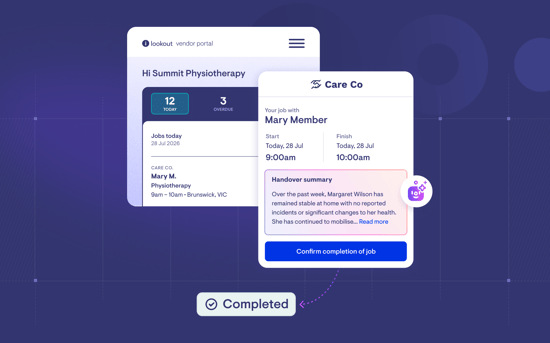
Generate handover summary (Lookout Assist enabled): Optionally toggle this on if you want to add a generated summary of the Member’s care plan. The summary must be reviewed and approved before it will be visible to external workers.

When generating a handover summary:
- Ensure this option is ticked to utilise this feature.
- Lookout Assist will generate a service-specific care plan summary for the third-party workers.
Step 4: Add must-dos, worker information and forms
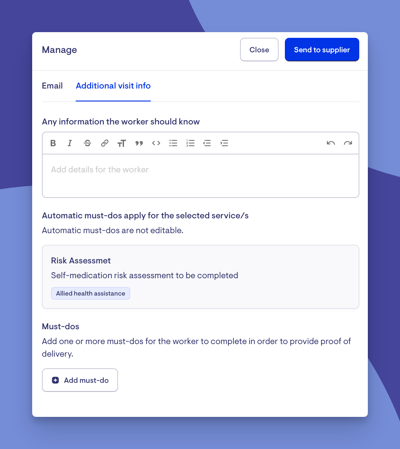
On each purchase order line item, through Manage Checkout, you can now add:
- Must-do: Tasks the supplier worker must complete and respond to during checkout (including form responses).
- Worker information: Key context the worker should know before arriving, added in the "Any information the worker should know" box.
- Supports attachments: Third-party workers will have the option to upload documents relevant to the must-dos.
- Automatic must-dos: If you've configured service-level must-dos, these will be automatically applied to the line item based on the selected services.
These work in a similar way to must-dos and should-knows on visits.
On the purchase order line item, click the ellipsis, Manage checkout and open the Additional visit info tab to add these details.
Step 5: Send the checkout link
- On the purchase order line item, click the ellipsis and Manage checkout.
- Enter or confirm the supplier's email address.
- The supplier will receive an email with a secure link to check out.
The line item's status will change to Checkout available.
Step 6: Save the purchase order
- Click Save.
- Review the purchase order number, helper/supplier information, delivery address, checkout window and checkout link status.
- If needed, use Options > Edit to update the purchase order settings.

Step 7: Review and approve the Lookout Assist summary (if enabled)
Review the generated Lookout Assist summary before it is shared with the supplier worker
- Select Review now if a summary was generated.
- Check the summary only includes relevant care plan information for the service.
- Edit if required.
- Select Approve and apply.
Suppliers won't see the handover summary until it's approved.
For more information on handover summaries and how they work, please review the dedicated article.

Connected Care currently publishes confirmed jobs. It does not currently support sending a draft purchase order to the supplier for accept/reject within the portal.
Step 8: Track the delivery status
Each purchase order line item now shows a clear delivery status:
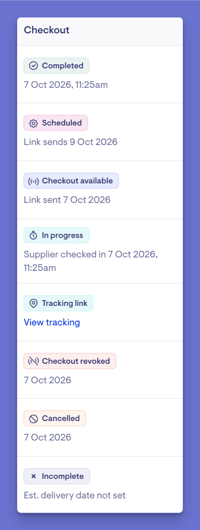
| Status | Meaning |
|---|---|
| Incomplete | The line doesn't have an estimated delivery date yet. Without one, it can't be scheduled in the supplier portal and no checkout link can be sent. |
| Scheduled | The service has been scheduled. If checkout links are sent automatically, the date the link will be sent is shown under the status. Otherwise, send the link manually from the ellipsis menu by selecting Manage checkout. |
| Checkout available | The job is visible in the supplier portal and the supplier can checkout (and check-in, if required). The date the link was sent is shown under the status. |
| In progress | The supplier worker has checked in and is working on the service. The check-in time is shown under the status. This only applies when check-in is required. |
| Tracking link | A courier tracking link has been added. Select View tracking to open it. |
| Completed | The service has been delivered, either because the supplier checked out or because a team member marked it as complete. The date and time are shown under the status. |
| Checkout revoked | Access to the checkout link has been removed, so the supplier can no longer check in or out. To restore access, select Resend checkout link from the ellipsis menu. |
| Cancelled | The service has been cancelled. Hover over the status to see the reason. |
| Failed to send checkout | The checkout email couldn't be delivered. Select the status to review the mail delivery details. |
| Supplier not notified | Shown under the status when the delivery date was too far in the past for the checkout link to be sent automatically. To notify the supplier, send the link from the ellipsis menu by selecting Manage checkout. |
What happens next?
- You can add purchase order line items for the supplier to complete.
- If automatic publishing is enabled, eligible purchase order line items will be sent to the Supplier Portal based on the configured timing.
- If automatic sending is turned off, you'll need to send the checkout link for each line item when ready.
- Once a supplier has completed checkout, a confirmation of delivery is received.
To learn more about confirmation of delivery, please view its dedicated article.
Troubleshooting
The service I need is greyed out
- Check the services configured on the supplier record
- Confirm the supplier rate is linked to the correct service
The checkout link is manual, but I expected it to be automatic
- Open Options > Edit on the purchase order
- Enable automatic publishing and choose the publishing timing
- Save the purchase order
Purchase order line items
Before you start
- A connected care purchase order has been created.
- Supplier rates are available on the supplier record.
- You know the estimated delivery date, quantity and pricing approach for the service or product.
- If using must-dos or Clinical Forms, the required tasks/forms are ready to select.
Important: For recurring services, duplicate the relevant line item. If a service occurs on multiple days each week, create separate line items for each day before duplicating.
Step-by-step instructions
Step 1: Add a purchase order line item
- Open the purchase order.
- Click New line.
- Select the supplier rate.
- Review the auto-filled rate, tax treatment, description, service and claiming code.
- Enter the required extended description.
- Enter the quantity.
- Choose how the Member is charged: Dynamic unit price, Fixed unit price, Custom unit price or Passthrough (charges the Member the supplier's unit price).
- Enter the estimated delivery date and optional delivery time.
- Click Save.
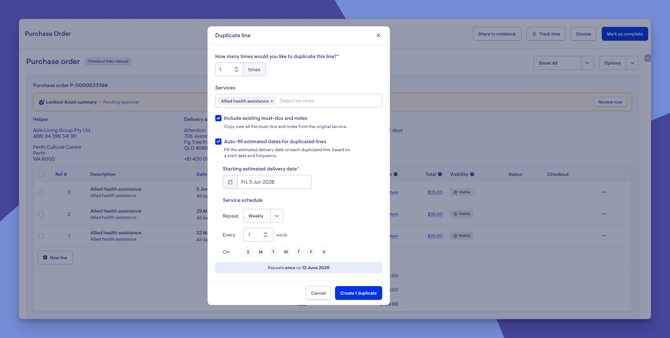
Step 2: Duplicate a line item for recurring services
- Open the ellipsis menu on the line item.
- Select Duplicate line.
- Enter how many duplicates to create.
- Choose whether to include existing must-dos and notes.
- Choose whether to auto-fill estimated delivery dates.
- Select the start date, repeat pattern and weekday.
- Create the duplicate lines.
Step 3: Add worker information, must-dos or forms
- Open the ellipsis (...) menu on the line item.
- Select Manage checkout, then open the Additional visit info tab.
- Add any information the worker should know before arriving.
- Add must-dos for tasks the worker must complete during checkout.
- Enable attachments if the worker needs to upload a photo or document to support checkout.
- Attach a Clinical Form if required and select who should be notified when the must-do response is submitted.
- You can add multiple must-do items if required.
Step 4: Publish or manage checkout access
- Open the ellipsis menu on the line item.
- Select Manage checkout.
- Click Send to supplier to send the checkout link now, instead of waiting for it to be sent automatically.
- Suppliers can forward the tokenised link to an individual worker for confirmation of service delivery.
- Use Revoke checkout link access if access should be removed.
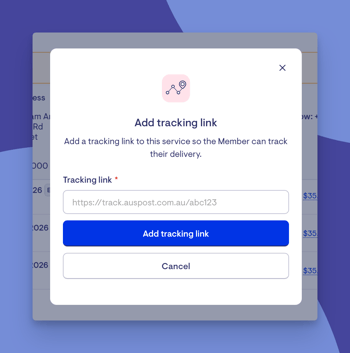
Step 5: Add a tracking link for product deliveries
-
Open the ellipsis actions menu on the purchase order line item.
-
Select Add delivery tracking link.
-
Enter the tracking URL.
-
Save the link.
-
The tracking link can be visible to the Member in the Care App.
Step 6: Cancel a service
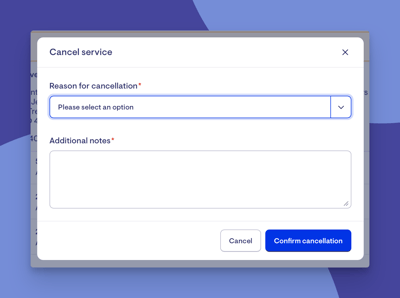
- Open the ellipsis actions menu on the line item.
- Select Cancel service.
- Choose the cancellation reason.
- Add additional notes.
- Confirm the cancellation.
- For same-day or late cancellations, contact the supplier directly and document the communication in the ticket discussion.
Step 7: Mark a service as complete (if required)
- Open the ellipsis actions menu on the line item.
- Select Mark as complete.
- Use this when the supplier confirms completion outside the checkout window and can no longer complete check out themselves.
- Review the completed line item and any provisional claim item created.
Important: If a supplier service is cancelled at short notice, contact the supplier directly and document the communication in the ticket discussion. Do not rely only on the portal status for urgent changes.
Cancel purchase order line items when adding Member leave
- Open the Membership and navigate to the Leave tab.
- Create or edit the Member leave period.
- Enter the start date, end date, leave type and reason.
- Review any purchase order conflicts that appear.
- Select the purchase order lines to cancel or manage according to your business policy.
- Choose the cancellation reason and additional note.
- Confirm the cancellation.
Top tip: Cancelled services will appear as Cancelled on the Supplier portal.
Review purchase orders on the roster
- Open the Member's roster.
- Review all-day purchase order items in the top all-day section.
- Review timed purchase order items in the roster schedule.
- Use the colour/status indicators to identify scheduled, cancelled and completed services.
- Open the purchase order item to view details or manage the related ticket.
Use bulk actions from Purchase orders
-
From the main navigation menu, click Purchase order jobs under the Procurement section.
-
Select the relevant purchase order lines.
-
Select Actions from the pop-up menu.
-
Use bulk actions such as Change status (add or remove tracking links, mark as complete, cancel services, resend or revoke checkout links) and Edit (update dates and times, service instructions, prices, or add and remove must-dos).
-
Review selected items carefully before applying bulk changes.
What happens next?
- Published jobs appear in the Supplier Portal according to the checkout window and publishing settings.
- Completed jobs can create provisional claim items where third party invoicing is enabled.
- Cancelled jobs remain auditable and visible with cancellation status and reason.
- Completed services are reflected on the roster and in purchase order status.
- Teams can manage high-volume updates more efficiently using bulk actions.
Troubleshooting
The supplier cannot action an upcoming job
- Check whether the job is outside the checkout window.
- Publish the job manually if it needs to be visible earlier.
- Confirm whether the job requires check-in or check-out only.
The worker cannot upload a photo for a must-do
- Edit the must-do and ensure attachments are enabled.
- Save the changes. The supplier will see the update automatically, so you don't need to resend the link.
The supplier needs to accept or reject the purchase order
-
Purchase orders are sent to suppliers as confirmed jobs.
-
If the supplier needs to accept or quote first, send a service request instead.
-
The supplier can accept, decline, send a quote or request changes, and you then create the purchase order from their response. See our Service requests article.
A product delivery is appearing on the roster
- Purchase order items with an estimated delivery date can appear as all-day items on the roster.
- Other visits can still be scheduled around all-day purchase order items.
I need to hide a purchase order from the Member roster
-
Open the line item menu.
-
Select Hide on Member's roster.
-
Confirm whether the item should remain hidden from the Care App.
Want to learn more about Connected Care and its new features? Read our article.
Still need help?
If you're still experiencing issues, please contact our Support Team and include:
- Screenshots (if possible)
- The Member's name
- The exact steps taken
- Any error messages received