
Care plan handover summaries help share the right care information with third‑party workers, without exposing the full care plan.
Using Lookout Assist, care teams can generate a tailored summary of a member’s care plan that is shared with suppliers through the Supplier Portal or job checkout flows. The summary is focused on the specific services being delivered, helping workers understand relevant risks, preferences and instructions before they arrive.
This overview explains what care plan handover summaries are, how they support safer and more informed service delivery, what information is included, and how teams can review, edit and control what is shared with third‑party workers as part of Connected Care workflows.
Before you start
To use Lookout Assist handover summaries on purchase orders, make sure:
- You have purchase order write access permissions
- You have access to update care plans for the relevant member
- Both the Lookout Assist feature and the Connected Care - Confirmation of delivery feature have been enabled for your organisation
- The Third-party handover summaries agent has been enabled in Lookout Assist settings
- The member must have a help plan with at least some entries (goals, tasks, etc.)
Step-by-step instructions
Step 1: Navigate to the purchase order
- Open the relevant ticket or Member profile.
- Navigate to the purchase order you'd like to add a handover summary to.
Please note: The Lookout Assist summary option will only appear if the purchase order has been saved (not a new, unsaved order) and the member has an existing care plan with content.
Step 2: Enable the handover summary
When creating or editing a purchase order, you'll see a Lookout Assist section with a "Generate handover summary" checkbox:
- The Generate handover summary checkbox on the purchase order will be ticked automatically. You can uncheck if you don’t want to see the summary.
- Save the purchase order.
Once enabled and saved, you'll see a summary section appear on the ticket view for this purchase order, showing "Lookout Assist summary" with a "Pending approval" status.

Step 3: Generate and review the summary
From the ticket view, within the Lookout Assist summary section:
- Click Review now to begin generating the summary.
- You'll see a "Generating handover summary..." message while Lookout Assist works.
- Lookout Assist analyses the following information to create a tailored summary:
-
- The member's care plan entries - their goals, tasks, and care needs
- Any active risk assessments - risk levels, reasoning, and mitigations
- The specific services on this purchase order - so the summary is focused on what's being delivered
- The service details and line item descriptions on the purchase order
- The summary is generated in real time and will appear automatically once ready - no need to refresh the page.
Step 4: Approve, edit, or regenerate
Once the summary is generated:
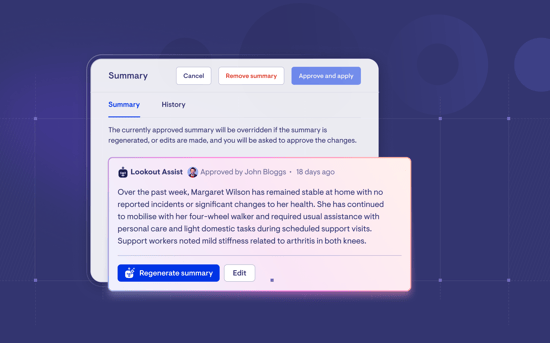
- Review the content to make sure it's accurate and appropriate for the supplier.
- Edit the summary text directly if you need to add, remove, or adjust any details.
- Click Approve and apply to save the summary to the purchase order. This is what makes it visible to supplier workers.
- Alternatively, click Skip for now if you're not ready to approve yet - you can come back later.

If you'd like a updated version (for example, if the care plan has been updated), click Regenerate summary to create a new one based on the latest information.
If Lookout Assist cannot generate a meaningful summary (for example, if the help plan lacks sufficient detail), you'll see a message saying the summary isn't available, and the Approve and apply button will be greyed out.
Important: The summary will not be shared with supplier workers until you explicitly approve it. A human must always review and approve before anything is shared.
Step 5: Managing an approved summary
Once a summary has been approved, the ticket view will update to show:
- Lookout Assist summary in use - confirming the summary is active
- Approved by [Name] - showing who last approved it
- A View link - to see the current summary, review its history, or make changes
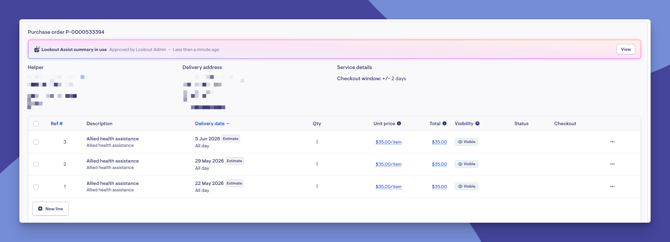
From the View screen, you can:
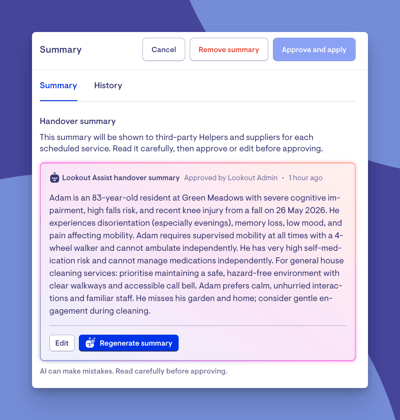
- See the full summary text
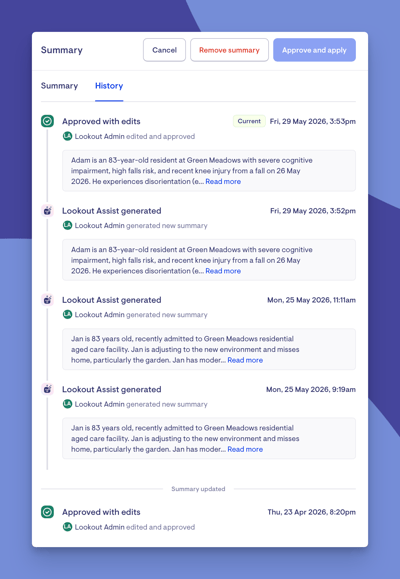
- View the History tab to see past changes
- Click Remove summary if you no longer want it included on this purchase order (you'll be asked to confirm)
The system tracks:
- Who last approved or edited the summary
- When it was last updated
- Whether the help plan has changed since the summary was generated - if changes are detected, you'll see a notification like "3 care plan updates have been made since the last approval", so you know whether to regenerate
Step 6: Disabling the summary
- View the summary and click Remove summary.
- If you untick the Generate handover summary checkbox on the purchase order form and save, the summary will be cleared automatically and disabled handover summaries on the purchase order completely.
What happens next?
After the summary is approved on the purchase order:
- Supplier workers with full portal access (Owner, Admin, or Worker roles) can see the care plan summary when they view the job in the Supplier Portal.
- Workers accessing the job via email checkout links (external access) can also see the summary.
- Limited Workers accessing via QR code scan see the care plan summary - this is by design for security, as they have more restricted access.
Important: The care plan summary is only visible while the checkout window is open (i.e. +/- 2, 7, or 30 days depending on configuration). Once a job has been completed or cancelled, the summary is automatically hidden from all supplier workers and external users. This ensures member information isn't accessible beyond when it's needed for service delivery.
What different users will see
For Admins and Care managers:
- Can enable/disable the handover summary per purchase order
- Can generate, review, edit, approve, regenerate, and remove the summary
- Can see who last approved the summary and when
- Will see a notification if the member's help plan has changed since the summary was last generated
- Have access to the summary's change history
For supplier workers (in the Supplier Portal):
- Workers with Owner, Admin, or Worker roles will see the summary text when viewing their job details
- The summary is labelled "Care plan summary" and provides relevant context tailored to the specific services they're delivering - not the full help plan
- The summary disappears once the job is completed or cancelled
For external workers (via email checkout links):
- Can see the care plan summary when viewing the job
- The summary disappears once the job is completed or cancelled
Troubleshooting
I don't see the Lookout Assist section on the purchase order
- Make sure the Lookout Assist feature is enabled for your organisation
- Make sure the Connected Care feature is also enabled
- Make sure the Third-party handover summaries agent is enabled in Lookout Assist settings
- The purchase order must be saved (not a new, unsaved order) for the summary option to appear
- The member must have a help plan with at least some content
- You need purchase order write access and help plan update access
The summary didn't generate
- Check that the member's help plan has entries (goals, tasks, etc.) - if it's empty, there's nothing for Lookout Assist to summarise
- Wait a moment - generation happens in the background and the result appears automatically
- If it still doesn't appear, try refreshing the page
The "Approve and apply" button is greyed out
- This happens when Lookout Assist couldn't generate a meaningful summary from the available information
- Check that the member's care plan has substantive content (detailed goals, tasks, or care needs)
- If the help plan only contains very brief or generic information, there may not be enough to produce a useful summary
The summary seems outdated
- Check the notification area below the summary - if the member's help plan has been updated since the summary was generated, you'll see a message indicating how many changes have been made since the last approval
- Click "Regenerate summary" to create a fresh summary based on the latest help plan
Want to learn more about Connect Care and its new features? Read our article.