
Availability management is Lookout’s new way to manage Helper availability, capacity and leave in one place.
Helpers can update their weekly availability using the Lookout app - either with help from Lookout Assist (if enabled) or manually. Admins can review, approve, or decline those requests, and the roster updates from the effective date once availability is approved.
Please note: From June 1, when Availability is enabled, the old regular hours of work workflow is replaced by the Availability tab on the Helper profile. Leave also moves into the Availability tab, alongside Capacity.
Availability management is designed to support growing workforce complexity while helping providers respond faster to change and maintain continuity of care.
Before you continue
- Please ensure the Availability management feature is enabled for your organisation.
- If you plan to use the conversational availability chat feature, ensure Lookout Assist is enabled, and the ‘Availability Assistant’ agent is enabled.
- Your Access roles include the required permissions for viewing Helpers, managing availability, managing leave requests and updating capacity where applicable.
- Your Availability schedule request ticket template has staffers assigned if your team wants approval requests to create and route tickets.
What’s changing?
Previously, regular hours of work were managed by admins from the Helper profile settings. The workflow focused on availability rules, recurring weeks, days and times, and Helpers with an employee engagement type could not add or edit their own hours through the Lookout app. Leave was handled separately through its own dedicated tab.
With the new availability features:
-
-
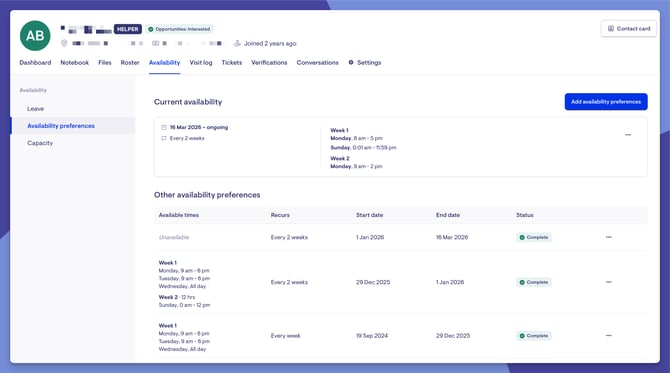
Leave, availability preferences and capacity are all managed from the new Availability tab on the Helper profile
-
Helpers can submit their own availability through the Helper App
-
Admins can still create, edit and delete availability schedules on behalf of Helpers
-
Availability requests can be pending, approved, declined or cancelled
-
Admins can see and action conflicts before approving changes
-
Availability decisions are tracked with an audit trail
-
Requests that need approval can create tickets for tracking
- Helpers are automatically notified when actions are taken on their requests, improving communication and reducing manual follow-up
-
Key features
Approval workflow
When a Helper submits a new availability schedule, it can either be auto-approved or sent to an Admin for review, depending on the worker type and your organisation's settings. Contractors are always auto approved. Employees and volunteers can be configured for auto-approval or manual review.
Conflict detection
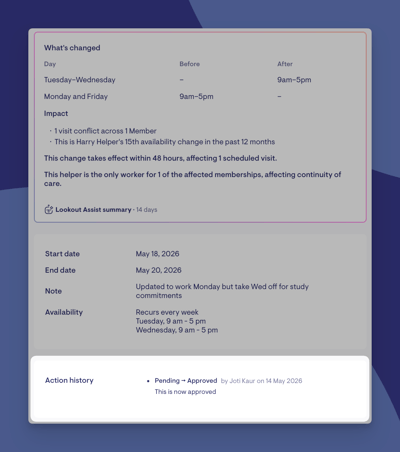
When an Admin reviews a pending availability request, the system automatically highlights how many existing scheduled visits would fall outside the proposed new hours. It also flags requests that affect visits within the next 24 to 48 hours, so urgent changes get the attention they need.
Real-time roster updates
Once an availability change is approved, the roster updates automatically from the effective start date. Days and times the Helper is no longer available appear greyed out, making it easy for schedulers to see at a glance who's free and when.
Notifications & automatic ticket creation
Helpers are notified when their request is approved or declined, complete with any notes the Admin included. Every request that requires approval automatically generates a support ticket, which flows into your team's existing workflow. Helpers are automatically notified when actions are taken on their requests, improving communication and reducing manual follow-up.
Flexible scheduling options
Admins and Helpers can set up detailed weekly patterns, including:
-
-
Multiple time slots per day (e.g. mornings and afternoons)
-
All-day availability for full days
-
Multi-week rotations (e.g. alternating fortnightly patterns)
-
Start and end dates, or leave open-ended for ongoing schedules
-
Optional notes to explain the reason for changes
-
Full audit trail
Every action - whether it's an approval, a decline, or a cancellation - is recorded with who did it, when, and any notes they left. This gives your organisation a complete history of all availability decisions for compliance and reference.
Leave and availability side by side
Leave management and availability preferences now sit together under a single Availability tab on the Helper's profile in the admin portal, making it easy to see the full picture of a Helper's schedule in one place.
Organisation-level auto-approval settings
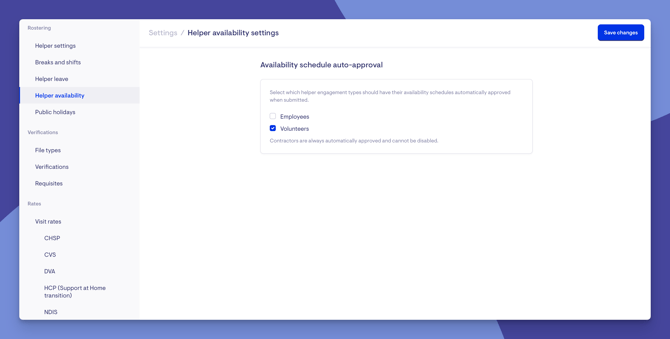
Admins can configure which worker types receive automatic approval for availability changes at the organisation level. This is found in the Helper Availability Settings, where you can toggle auto-approval for Employees and Volunteers independently (contractors are always auto-approved).
Lookout Assist chat (AI-powered scheduling)
Helpers can update their availability through a simple, conversational chat experience instead of filling out a form. Just tell Lookout Assist when you're available in plain language - it understands things like "I can't work Saturdays anymore" or "I'm free Monday to Friday, 9 to 5" - and it takes care of the rest. A manual form is also available as a fallback. The Lookout Assist chat can capture availability in multiple languages and respond in the same language. Once submitted, the structured availability details are recorded in Lookout in English for admin review.
Supported languages include:
-
-
English
-
Spanish
-
Portuguese (Brazil)
-
Italian
-
French
-
Indonesian
-
German
-
Arabic
-
Chinese (Simplified)
-
Korean
-
Japanese
-
Hindi
-
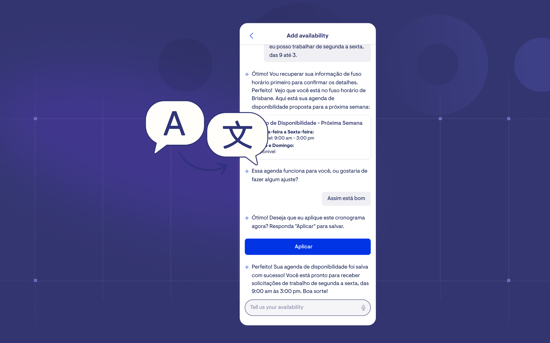
Please note: Language support is available in the Lookout Assist chat only. It is not available in the admin interface (any added notes will be auto translated to English in admin view).
Permissions and settings
Before enabling Availability, review the following permissions and settings.
Recommended permissions to review
-
Access to Helpers - Read: required to view the worker profile where the Availability tab appears.
-
Access to Helpers - Read & Write: required for updating worker profile settings, such as weekly capacity.
-
Helper availability and regular hours of work: allows staff to view pending, current and past availability schedules, create schedules on behalf of a worker, edit pending schedules or delete them.
-
Helper Leave Requests: allows staff to view, create and edit leave periods within the new Availability section.
Configure auto-approval rules
Your organisation can configure auto-approval by worker type if required.
-
Contractors are always auto-approved.
-
Employees can be configured to auto-approve or require manual approval.
-
Volunteers can be configured to auto-approve or require manual approval.
To configure this:
-
Go to Settings, then navigate to Helper availability under the Rostering section.
-
Review the auto-approval toggles for each worker type and enable as required
Review the availability request ticket template
When a worker submits an availability request that requires approval, Lookout will automatically create a ticket under the Availability Requests ticket category. The ticket template is linked to the availability schedule request workflow.
- Go to Settings, Templates & configurations section and click Ticket templates.
- Open the Availability schedule request template.
- Assign the staffers or team responsible for reviewing availability requests.
- Confirm your team knows they can approve or decline requests from the ticket or from the worker Availability tab, where available

Enable Lookout Assist availability agent (if applicable)
Lookout Assist is separate from the base availability feature. If enabled, workers can describe availability changes in plain language through a chat experience. The manual form is always available as a fallback.
- Go to Lookout Assist from the main navigation menu.
- Enable the Availability Assistance agent.
- Confirm the feature is available to workers in the App.
Please refer to our dedicated Helper and Admin articles, which provide step-by-step instructions for using availability management from both perspectives:
Availability management: Step-by-step instructions for Helpers
Availability management: Step-by-step instructions for Admin
Audit trail and request tracking
Helper availability includes multiple layers of tracking so teams can understand what changed and why.
- The action history on each schedule records status changes, who actioned them, when they occurred, and any notes.
- Availability request tickets provide a traceable workflow when approval is required.
- System-level audit logs record availability schedule status changes for compliance review.
- Helpers can see their own request history, including pending, current, upcoming, expired, declined and cancelled schedules.
What happens next?
- Approved availability updates apply from the effective start date.
- The roster updates and unavailable time appears greyed out.
- Conflicting visits are highlighted so schedulers can review and resolve them.
- Workers receive notifications when requests are approved or declined, depending on notification preferences.
What Admins / Helpers will see
For Admins / Schedulers
- Can view and manage each Helper's availability under the Availability tab on their profile.
- See pending requests with conflict summaries.
- Can approve or deny requests, with optional notes.
- Can create, edit, or delete schedules on behalf of Helpers.
- Can view the impact on the roster when scrolling to the effective date.
- Can manage leave alongside availability in the same section.
For Helpers (UI or Helper App)
- Can view their current, upcoming, pending, and past/declined availability schedules.
- Can submit new availability via Assist chat or the manual form.
- Receive notifications when requests are approved or declined.
- Can add an optional note explaining their availability (e.g. "School holidays", "Study commitments").
- Can see both Capacity (weekly hours) and Preferences (schedule) under the Availability section.
Troubleshooting
I can't see the Availability tab or preferences
-
Confirm the Availability feature is enabled for your organisation via Release Hub
-
Check that you have the correct access permissions (Admins need the appropriate role)
I submitted my availability, but it wasn't applied immediately
-
Your request may be pending approval. Check under "Pending requests" in your Availability Preferences screen
-
Contractors are auto approved, but Employees and Volunteers may need admin approval depending on your organisation's settings
-
You'll receive a notification once your request has been reviewed
The Lookout Assist chat isn't available
-
Check that the Lookout Assist (AI agent) feature is enabled for your organisation. This is a separate setting from Availability & the availability agent is enabled.
-
Navigate to Lookout Assist from navigation pane
-
If it's not available, view in Release Hub and request access (Admins need the appropriate role)
The ticket wasn't created when a request was submitted
-
The ticket creation is linked to the availability schedule ticket template - ensure the template exists under your ticket template settings and has assigned roles or staffers assigned
-
A ticket is only created when a helper submits an availability update, admin updates are automatically approved and won't create a ticket
I declined a request, but the Helper didn't get notified
-
Confirm the Helper has notifications enabled for "Availability schedule actioned" in their notification preferences