
Helpers can use the Lookout app to view and update their availability preferences, helping their organisation understand when they are available to work.
Depending on your organisation’s settings, you can submit availability changes manually or with help from Lookout Assist, if enabled. Your request may be approved automatically or sent to an Admin for review.
This article explains how Helpers can add or update availability, submit changes, view pending and approved schedules, and understand what happens after a request is submitted.
New to availability management? This guide walks you through the steps for managing Helper availability. For an overview of this new functionality and what's changed, please see our Availability Management article.
Updating availability
Step 1: Open Availability in the Lookout App
- Log in to the Helper App.
- Go to your Profile → Availability, or use the schedule view where the +Add availability option is available.
- Open Availability Preferences.
- Review your current, pending, upcoming, past, declined or cancelled availability schedules.
- Tap Update availability or +Add availability (if selecting from schedule view).
Top Tip: From here, you can see your current availability, any pending requests, upcoming approved changes, and past or declined schedules.
Once either option is selected, you will be presented with a:
- A manual availability submission form; or
- Lookout Assist chat (if availability assistant agent is enabled for your organisation)
Step 2: Manual form submission
To continue manually adding availability yourself, input:
- Start date: Choose when this new schedule should take effect (cannot be in the past).
- End date (optional): Leave blank for an ongoing schedule, or set a date if it's temporary.
- Note (optional): Add context, e.g. "School holidays", "Study commitments", or "Personal and family reasons".
- Weekly availability - for each day of the week:
- Check the box to mark yourself as available on that day
- Set your start time and end time for each day
- You can add multiple time slots per day (e.g. morning and afternoon blocks)
- Or tick All day for full-day availability
Top tip: When you add a second time slot to a day, the system will automatically suggest the best available window based on your existing slots.
Step 3: Submit the availability
Any conflicts with your new availability request will display here when submitting. Click submit availability. You should then see:
-
-
A confirmation message (either "Availability updated" or "Request submitted")
-
Your new schedule listed under Current, Upcoming, or Pending requests depending on its status
-
After submission, the helper will see either:
- Availability updated - if the request was auto-approved.
- Request submitted - if the request needs admin approval.

Lookout Assist chat
If Lookout Assist is enabled, a chat experience will open. Helpers can explain the change in plain language, for example: “Starting April 1, I can no longer work Saturdays” or “I’m available Monday to Friday, 9am to 5pm” or in one of their native supported languages.
Step 1: Describe your availability in plain or supported native language
The helper simply types their availability in their own words. For example:
-
-
"Monday to Friday, 9am to 3pm"
-
"Weekdays 9 to 5, starting next week"
-
"All day on weekends, for the next 3 months"
-
"I'm available Tuesdays and Thursdays from 8am to 2pm"
-
They can also mention a start date (e.g. "starting next Monday") or an end date (e.g. "until June"). If they don't mention a start date, it defaults to today.
Helpers can submit availability using free text in English or in their native language. Lookout Assist supports the following languages:
-
-
English
-
Spanish
-
Portuguese (Brazil)
-
Italian
-
French
-
Indonesian
-
German
-
Arabic
-
Chinese (Simplified)
-
Korean
-
Japanese
-
Hindi
-
You can chat with Lookout Assist in any of these supported languages, and it will respond in the same language.
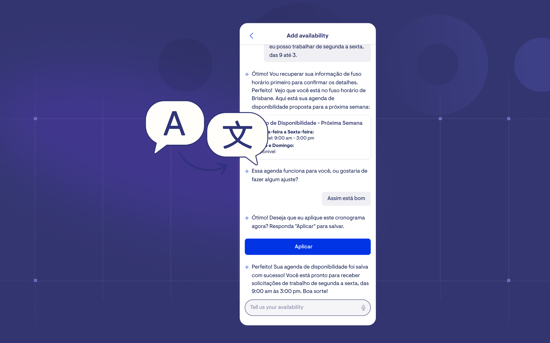
Please note: Alternate languages are only supported in the Lookout Assist availability chat interface and are not available in other areas of the app.
Step 2: Add Context
The assistant may ask: "Is there anything you'd like to add as context, for example, school holidays or study commitments?"
The Helper can type a reason or simply skip this if they've already mentioned one or don't want to add anything.
Step 3: Review the summary
The assistant presents a plain-text summary of the proposed schedule — showing the days, times, start date, and any end date or notes. It will also mention if any existing pending requests would be withdrawn.
The message ends with: "You can now submit this for approval, or keep describing any changes."
A "Submit this availability" button appears alongside the summary.
Step 4: Make changes (if needed)
If something doesn't look right, the helper can simply describe the changes in the chat (e.g. "Actually, make it 8am to 4pm on Fridays"). The assistant will show an updated summary with the button again.
Step 5: Submit availability
When the helper is happy with the summary, they tap the "Submit this availability" button. (Important: they must use this button — just typing "submit" or "yes" won't trigger the submission.)
Step 6: Confirmation
After submitting, the helper will see one of two messages:
-
If auto-approved: "Your availability has been updated. Any impacted visits will be reviewed." A "View my availability" link appears.
-
If it needs approval: "Your availability has been submitted for approval. You'll be notified once someone has reviewed your request." A "View my availability" link appears.

Tips for using Lookout Assist chat
To help Lookout Assist understand your request, include:
-
-
The day or date
-
The start time
-
The end time
-
Whether the change is for one day, multiple days, or an ongoing schedule
-
Good example: I’m available every Friday from 8 AM to 12 PM starting this week until end of July.
Less clear example: I’m free Friday morning.
Troubleshooting
My availability did not update
Try the following:
-
Refresh the app.
-
Check that you confirmed the update.
-
Reopen the Availability screen.
-
Try entering the update again.
-
If the issue continues, contact support.
Lookout Assist misunderstood my availability
Send a clearer correction in the chat. For example: Please change that. I’m available Tuesday from 12 PM to 5 PM, not 10 AM to 4 PM.
I entered the wrong availability
You can update it again using either:
-
The manual availability form
-
Lookout Assist chat
The latest saved availability should be used by the app.
For a more detailed overview of our new availability features, please refer to our availability management article.
Still need help?
If you're still experiencing issues, please contact our support team and include:
- Screenshots if possible
- The Member's name
- The exact steps you took
- Any error messages you received