
This guide explains how to deliver Veterans' Home Care (VHC) services and claim them through the VHC Provider Portal in Lookout. It covers what you need before you start, how co-payments work, and what to do if something isn't working.
Overview
To support VHC claiming in Lookout, first configure the Member's VHC funding scheme and VHC service plans, then roster and deliver Visits. After the Helper has completed the Visit and checked out, the VHC claim export can be used to create a bulk claim file for upload to the VHC Provider Portal.
VHC Members don't use Budgets in Lookout. What keeps your claim accurate is each Visit's Rate, its check-in and check-out times, and the Member's VHC service plan for that service type.
Before you start
To complete this process, make sure:
- You're signed in to the web app.
- You have permission to roster Visits and run Billing runs.
- Your access role includes the Financial reporting permission. You need it to open the VHC reports under All reports > Financial reports.
- Each VHC Rate has its VHC service type code in the External ID field, under the External identifiers section of the Rate. This code appears as the Service type on your claim.
- Your organisation's VHC provider reference is set up in Lookout. Lookout Support adds it for you. If the Provider reference column in your claim file is blank, contact Support.
- Each Member's VHC service plans are current for the claim period, with the correct Service type, Approval start date, Approval end date, Co-payment amount and Weekly co-payment cap.
Top tip: Run the VHC service plans report before each claim period. It lists every service plan ending within the dates you choose, so you can renew plans before you claim.
Step-by-step instructions
Step 1: Roster the Visit
- From the Member's dashboard, select New recurring visit for a regular service, or New exceptional visit for a one-off.
- Choose the Helper, the date and time, and the Rate being delivered. Use the same Rate as the Service type on the Member's VHC service plan.
- Check that the Visit's date falls within the plan's approved dates
- Save the Visit to place it on the roster.
Important: Lookout links a Visit to a VHC service plan when the Visit's Rate matches the plan's Service type and the Visit's date falls between the plan's Approval start date and Approval end date. If either doesn't match, the Service plan ID and Service period code will be blank on your claim.
New from 1 October 2026: If your organisation has turned on Member contacts & dashboard enhancements, the Member's dashboard has a tidier layout. The VHC service plans panel and the New recurring visit and New exceptional visit buttons are still on the dashboard and work the same way. The Funder panel has a new look, but you still view and edit the Member's VHC funding scheme there.
→ Learn more in-depth details about scheduling visits here: See our Managing Visits (Rostering) guide.
Step 2: Deliver and check out the Visit
- The Helper delivers the service and checks out of the Visit in the Lookout app.
- To review or correct check-in and check-out times, Navigate to Rostering and select Punchcards.
On your claim, Lookout uses the Visit's check-in date as the Delivery date and the time from check-in to check-out as the Hours. Accurate check-ins and check-outs mean accurate claims.
Please note: Only completed (checked-out) Visits are included in the VHC claim export. Scheduled, in-progress and cancelled Visits aren't included.
→ Visit our article on the Helper Visit Log tab to learn more about its features and functionality.
Step 3: Run your billing run
- From the main navigation bar, go to Finance and select Billing runs.
- Open the draft for the period, or select Create a custom draft to create one and choose the period.
- Review the invoices and select View errors to fix anything flagged.
- Select Update draft after making changes.
- When you're satisfied, select Confirm and publish.
Publish your billing run for the claim period before you claim, so your invoicable items and your VHC claim cover the same Visits.
→ Need help with billing runs? See our Overview: Billing and Finance guide.
Please note: Lookout isn't accounting software. A billing run works out what to charge for the Visits in a period and creates invoices for it. Payments, reconciliation, debtor management and your financial reporting should still be handled in your own accounting system, such as Xero or MYOB. The VHC claim export is also separate from your billing run. It builds your claim directly from checked-out Visits, ready to upload to the VHC Provider Portal.
Step 4: Generate the VHC claim export
- From the main navigation bar, go to Reports and select All reports.
- Under Financial reports, select VHC claim export.
- Under Report period, choose the Start date and End date. Both dates are included. Unless you change them, they're set to the 1st of the current month through today.
- Select Generate.
You should now see:
- The message "Your report will be sent to your email.".
- An email to your account with the claim file, ready to upload to the VHC Provider Portal.
The claim file contains one row per completed Visit, with these columns:
| Column | Where it comes from |
|---|---|
| Client file no | Client file number on the Member's VHC funding scheme |
| Client family name | Family name on the Member's VHC funding scheme |
| Client given name | Given name on the Member's VHC funding scheme |
| Service plan ID | The matching VHC service plan |
| Service type | The Rate's External ID |
| Service period code | The matching VHC service plan's Frequency |
| Delivery date | The Visit's check-in date |
| Hours | The Visit's checked-in to checked-out time |
| Provider reference | Your organisation's VHC provider reference |
| Reason code and Reason description text | Left blank. The VHC claims team fills these in. |
The last line of the file is a summary row showing the file type (VHC PP Bulk claim file), the Total detail record count and the File creation timestamp. The VHC Provider Portal needs this row, so don't remove it.
Important: Review the file before you upload it.
-
Every row should have a Service plan ID and Service period code. If any are blank, fix the Member's VHC service plan (see Step 2) and generate a new VHC claim export.
- The Provider reference should be your organisation's correct VHC provider reference. If it's blank or wrong, contact Lookout.
- Each row should match a service the Member is approved for in their VHC service plans.
Save a copy of each claim file for the claim period it covers. You'll need it for reconciliation and audit.
Please note: Upload the file exactly as Lookout sent it. Opening and re-saving it in a spreadsheet program can change the dates and the summary row.
Step 5: Upload the claim to the VHC Provider Portal
- Sign in to the VHC Provider Portal.
- Go to the Claim Items page.
- Select Upload Bulk claim file.
- Upload the file generated by Lookout.
Lookout doesn't keep a record of which VHC claim exports you've uploaded. Keep a note of the periods you've claimed, and choose a period that doesn't overlap one you've already submitted, so you don't claim the same Visit twice.
→ Explore our Data Export article to understand the available export options and reporting capabilities.
VHC co-payment report
Co-payments are set for each VHC service plan as a per-hour Co-payment amount, with an optional Weekly co-payment cap. Billing runs don't add co-payments to invoices. Use the reports below to work out what each Member owes.
-
Go to Reports and select All reports.
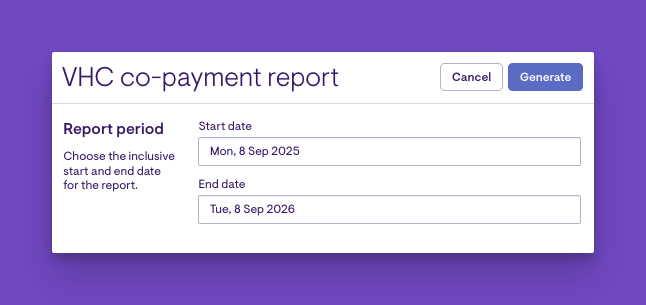
- Under Financial reports, select VHC co-payment report.
- Enter the Start date and End date and select Generate.
The report lists each completed Visit for Members with a co-payment, showing Visit Start, Visit End, Service Type, Service Plan ID and Co-payment amount.
Check that the co-payment amounts are correct for the period. If anything looks wrong, update the Member's VHC service plan before you claim.
Please note: The Co-payment amount in this report is the hourly rate from the service plan, shown in whole dollars. It doesn't apply the Weekly co-payment cap. To see each Visit's co-payment with the cap applied, use Data export and add the Visit field VHC co-payment amount, including the weekly cap.
VHC service plans report
- Go to Reports and select All reports.
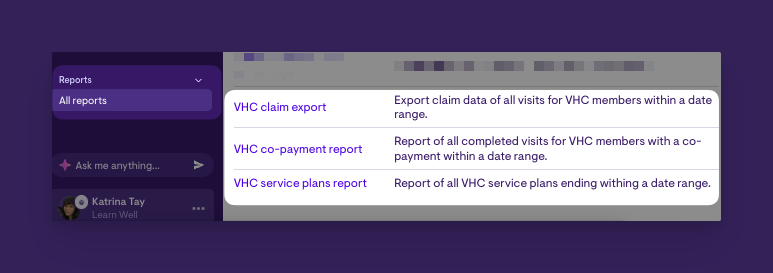
- Under Financial reports, select VHC service plans report.
- Enter the Start date and End date and select Generate.
The report lists every VHC service plan with an End Date in that range, showing the Service Plan ID, Membership Name, Service Type, Frequency, Hours, Start Date, End Date, Co-payment amount, Weekly co-payment cap and Status.
What happens next?
- Completed Visits flow into a billing run, and publishing it finalises the invoices.
- Plan Statuses update automatically from their dates: Future before the Approval start date, Current during the approved dates and Past after the Approval end date.
- You generate the VHC claim export when you need it. Lookout doesn't create it automatically.
- Keep checking service plan dates and co-payment details over time. The VHC service plans report helps you spot plans that are due to end.
-
Expired service plans stay on the Member's record with a Status of Past. Select Add service plan when a referral is renewed.
What Staffers, Helpers and Members will see
For Staffers and Admins
- Can manage the Member's VHC funding scheme and VHC service plans, roster Visits and run billing.
- With the Financial reporting permission, can generate the VHC claim export, VHC co-payment report and VHC service plans report.
For Helpers (Lookout app)
Can see their rostered Visits and check out to confirm delivery.For Members (Lookout app)
Can see their funding listed as Veterans' Home Care, billed to their funder.Troubleshooting
I can't see the VHC service plans panel
Check the Member's Funding scheme is set to VHC. The panel only appears for VHC Members.
I see "must not overlap with existing service plan for the same service type"
The Member already has a plan for that Service type covering some of the same dates. Check the dates under View all, then edit the old plan's Approval end date or change the new plan's Approval start date.
I need to delete a service plan I created by mistake
Service plans can't be deleted. To stop the plan from being used, edit it and set its Approval start date and Approval end date to past dates. Choose dates when the Member has no Visits for that service type, and that don't overlap with another plan for the same service type.
I need to see which service plans are expiring
Run the VHC service plans report for the dates you're about to claim. Check that every Member in your VHC claim export has a plan covering their Visits, and renew any plans that are ending.
The Service type column is blank
Check the Rate's External ID contains the VHC service type code.
The Provider reference column is blank
Contact Lookout Support to add your organisation's VHC provider reference.
I can't see the VHC service plans panel
With Member contacts & dashboard enhancements turned on, some less-used panels move from the Member's dashboard to their Settings. The VHC service plans panel isn't one of them and still appears on the dashboard for VHC Members. However, the options to Remove funder and Remove funding scheme (the Danger zone) are now in the Member's Settings under Funding scheme.
I can't see the VHC reports
- Check that your access role includes the Financial reporting permission.
- Try logging out and back in.
A Visit is missing from my claim
- Make sure the Visit was checked out. Scheduled, in-progress and cancelled Visits aren't included.
- Make sure the Visit's check-in date falls within the Start date and End date you chose.
- Confirm the Member's Funding scheme is VHC and its details are complete.
Still need help?
If you're still having issues, please contact our Support Team and include:
- Screenshots, if possible.
- The Member's name.
- The exact steps you took.
- Any error messages you received.