
This guide explains how to create a referral for a Member, what you need before starting, what happens after you send it, and what to do if something is not working.
Overview
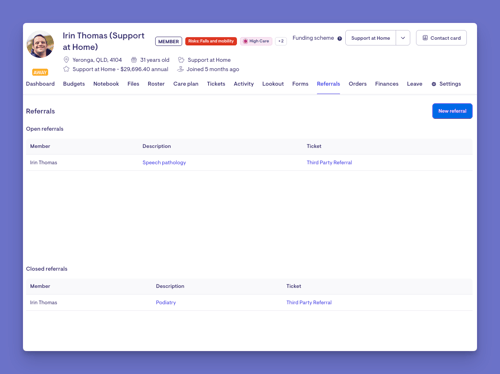
Referrals live on their own tab within each Membership, found in the row of tabs across the top of the Member's dashboard. The Referrals tab is where you can see a history of both open and past referrals.
The Referrals tab is where sourcing an external service for a Member begins and ends. It is designed to make that process secure, well-documented, and easy to manage, while ensuring the right providers receive the right information and that the client's care is properly recorded throughout.
Before you start
To create a referral, make sure:
- You have permission to edit the Member's record (Staffer access with edit rights on the Membership).
- The service you want to refer to already exists in your settings. The referral type list is pulled from your pre-configured services.
- If you want to invite a provider who is already in the system, that provider must be set up as a Helper with the Clinician role. Without the Clinician role, they will not appear in the provider search.
New to referrals? Familiarise yourself with the terms used within Referrals and visit our article Referrals: Glossary of terms for a breakdown of terms used.
Navigating to the Referrals tab
- From the main navigation menu, click Members to open the full list of Members.
- Find the Member you're after - use the search box to type their name, or narrow the list using the filters.
- Click the Member's name to open their profile. This will load their Member dashboard.
- Click the Referrals tab.
You should now see:
- The Member's referral history - split into Open referrals and Closed referrals. Each row shows who the referral is for, the type of service requested, and a link to the related work ticket.
- The option to create a New referral.
Please note: Referrals can only be raised from within a Member's membership, so there is no separate referrals menu elsewhere in the system. This keeps every referral tied to the correct Member from the moment it is created.
For detailed guidance on configuring referrals, the referral process, including provider invitations and referral tracking, see our Creating and managing Referrals article.
Inside the Referrals tab
The tab shows a history of that client's referrals, split between those still open and those closed.
From here, you can move in two directions:
- Selecting a referral's description or service name opens the referral preview, which is the view a provider would see.
- Selecting the related ticket opens the ticket view, where the day-to-day work, purchase order, and internal discussion are managed.
You can move freely between the preview and the ticket, so the tab acts as a hub that ties together the Member-facing request and the internal work behind it.
Please note: If you do not see the option to create a referral, confirm that a member has been set up on the record, since a referral cannot be created until a Member exists.
Referrals tab purpose
At its core, the Referrals tab exists to do three things:
- Captures the referral
Records the service needed, referral details, budget, contacts, and location. Relevant member information is automatically included to give providers the context they need. - Shares information securely
Invites providers through secure, passcode-protected links, giving you control over who can access the referral. - Manages provider responses
Let's you send, resend, or revoke invitations, track provider activity, and see who accepts. Once a provider accepts, all other invitations are automatically closed.
Why it matters
The Referrals tab matters because it turns what is often a scattered, manual process into a single, controlled, and auditable workflow.
Protects sensitive information
Client details are shared via secure, expiring links with one-time passcodes rather than email. Access can be revoked at any time.
Keeps everything connected
Referrals, clients, tickets, and purchase orders stay linked in one place for easy tracking and auditing.
Provides accurate information
Care plan details update automatically, ensuring providers always receive the latest information.
Creates accountability
You can track invitations, views, and acceptances, with a clear change log showing who did what and when.
Reduces duplication and confusion
Multiple provider invitations can be managed in one place, with unused invitations automatically closed once a provider accepts.
What Users / Staff / Members will see
For Staffers/Admins
- Can view all open and closed referrals for Memberships they can access.
- Can create, edit, close, and manage referrals if they have Membership edit permissions.
- Can view the provider preview, invitation status, expiry date, and activity history.
- Can access the referral audit trail, including invitation changes.
- Organisation-wide referral settings require a separate configuration permission.
For Providers and Clinicians
- Access referrals through a secure email link with one-time passcode verification.
- Can view referral details, relevant Member information, budget and funding details, contacts, and next steps.
- Can only access referrals to which they have been invited.
- Cannot access other referrals, Members, or internal tickets.
- See a notification if access has expired, been revoked, or the referral is closed.
Visit Viewing and accepting referrals as a Provider for detailed guidance, designed for providers and clinicians.
For Members
- Referrals are not visible in the Member app.
- Referral details, invitations, and linked tickets are available only to staff and invited providers.
Troubleshooting
I can't find the Referrals tab on a Member's dashboard. Where is it?
- The Referrals tab is located within the Member's dashboard alongside other Membership tabs. It is not available from the main navigation.
- Open the Member's record first, then select Referrals from the tab list.
- If the tab is missing, check that you have access to the Membership. If your permissions were recently updated, log out, then log back in, and try again.
I can't see the Referrals tab or the New Referral button
- Ensure you have edit access to the Membership. Read-only users can view referrals but cannot create them.
- Check that a Member has been added to the Membership.
- If your access has recently changed, log out and back in to refresh permissions.
I can see the Referrals tab, but there's no New Referral button. Why?
- A Member must be set up before referrals can be created. Until then, you'll see a prompt to add a Member instead of the referral list.
- Creating referrals requires edit access to the Membership. Users with read-only access can view referrals but cannot create them.
- If you believe you should have edit access, refresh your permissions by logging out and back in, or contact an administrator to confirm your access level.
Still need help?
If you're still experiencing issues, please contact our Support Team and include:
- Screenshots (if possible), including the invitation list if the issue involves provider access
- The Member's name and the Membership involved
- The provider's name and email address, if the issue relates to an invitation
- The exact steps taken
- Any error messages or validation warnings received