
This guide explains how a Staffer can use the orders tab on a Member's profile, what access you need before starting, how to view and manage a Member's orders, and what to do if something isn't working.
Overview
Every Member has an orders tab on their profile. This is where all purchase orders raised for that Member are kept. A purchase order records an order placed on the Member's behalf from a provider, such as a service or supply, along with the provider, a reference number, the total cost, the tax portion, and the current progress.
From this tab, a Staffer can see the full list of a Member's orders, search and filter them, open an individual order to see more details, and start a new order.
Before you start
To use this tab, make sure:
- Your access role allows you to view orders. Viewing, creating, updating, and deleting orders are separate permissions, so what you can do depends on the access you have been given
- The Member you want to work with already has a profile set up
The Orders Tab
Every Member has an Orders tab on their profile.
The Orders tab is a section within an individual Member's profile. It brings together every purchase order raised for that Member in one place. A purchase order is a formal request to a provider to deliver goods or services on the Member's behalf.
Think of it as the Member's order history - a running record of what's been ordered for them, from whom, at what cost, and where each order currently stands.
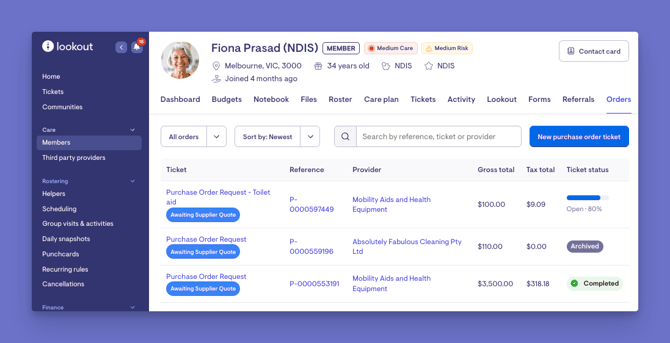
The Orders tab presents each of the Member's orders as a row in a list. For every order, you can see:
-
Ticket - the title of the work request the order is linked to, along with any labels attached to it.
If no request has been created yet, leave this blank.
-
Reference - the order's unique reference number, which you can click to open the order.
-
Provider - the provider (helper) fulfilling the order, linked to their profile.
-
Gross total - the total cost of the order, including tax.
-
Tax total - the portion of the total that is tax.
-
Status - where the order currently stands (explained below).
Statuses in the Members Orders Tab
The Orders tab (which lists a Member's purchase orders) has two different places where status appears:
1. The filter at the top of the list
You can filter the orders you're viewing by:
- All - shows every order regardless of state
- Open - orders whose associated request is still in progress
- Closed - orders whose associated request has been completed
2. The status shown for each individual order
Each order in the list displays a status based on the attached work request (ticket).
These are:
- Open - the order is active and still being worked on
- Completed - all the work for the order has been finished (shown with a green tick)
- Snoozed - the order has been temporarily set aside until a chosen date (shown with a sleeping icon)
- Archived - the order's request has been filed away/closed out
- A progress bar with a percentage - if the order's request has a checklist of tasks, instead of a single word, it shows how far along those tasks are (e.g. "60% complete")
Filtering, sorting and searching
To help you find what you're after, the tab lets you:
- Filter by status: View All orders, only Open ones, or only Closed (completed) ones.
- Sort the list: By newest first, oldest first, or most recently updated.
- Search: By reference number, request title, or provider name.
- Adjust how many orders appear per page: In batches of 50, 100 or 200.
If your filters return nothing, the tab tells you so and offers a one-click way to clear them.
Why it matters
The Orders tab is the single source of truth for all orders placed on a Member's behalf. It matters because it lets you:
- See the full picture at a glance: What's been ordered, from whom, and what it costs, without hunting through separate records.
- Track progress: Instantly tell which orders are still open, which are finished, and which are on hold.
- Keep spending visible: The gross and tax totals give a clear view of what's being committed on the Member's behalf.
- Stay coordinated: Because each order links back to its work request and provider, everyone involved can see the same up-to-date status.
What's possible:
- Open any order to see its full details by clicking its reference or request title.
- Start a new order using the button provided. This begins by creating the associated work request.
- Create a request for any order that doesn't yet have one, directly from its row.
View and manage orders
Step 1: Navigating to the Orders tab
- From the main navigation menu, click Members to open the full list of Members.
- Find the Member you're after - use the search box to type their name, or narrow the list using the filters.
- Click the Member's name to open their profile. This will load their Member dashboard.
- Click the Orders tab.
Note: The Orders tab only appears if your access role allows you to view orders. If you cannot see it, that is usually a permissions matter.
Step 2: Find the Order you need
Once you are on the tab, you will see a list of the Member's orders. Each row shows the linked ticket, the reference number, the provider, the gross total, the tax total, and the order's progress.
You can narrow the list in three ways:
- Filter by status, choosing between all orders, open orders, or closed orders
- Sort the list by newest first, oldest first, or most recently updated
- Search using the search box, which matches on the reference number, the ticket, the provider name, or the Member's name
If your search or filter returns no results, you will see a prompt to clear the filters and start again.
Step 3: Open an order
- To view an order's details, click its ticket title or reference. This takes you through to the Ticket of the purchase order. Purchase orders live within tickets, streamlining order management.
- The order you opened, with its full details (ticket details, description, checklist, purchase order details, supplier-generated invoices, ticket discussion, contacts, recent tickets, cohorts, matching and Membership details).
- A confirmation message when you save changes to an order
Top tip: To learn how to create a purchase order, visit our Connected Care and Purchase Orders article.
What happens next?
After you work on an order:
- Saving changes to an order updates it straight away and shows a success message
- A new order can be linked to a ticket so its progress can be tracked
- The order appears in the Member's list with its provider, totals, and current status
- Filtering, sorting, and searching only change what you see on screen and do not alter the orders themselves
What Staffers and Members will see
For Staffers with view access
- Can open the Orders tab and see the full list, including provider, reference, totals, and status
For Staffers with create or update access
- Can start a new order and edit details on existing orders, such as delivery information
For Members
- The orders tab is a staff-facing view of the Member's profile and is used by your team to manage what has been ordered for the Member
Making the most of the Orders tab
- Attach a request to every order. Orders without a linked request show no status and sit in limbo. Creating the request straight away keeps the order trackable and visible to the whole team.
- Use the status filter to stay on top of open work. Filtering to Open quickly surfaces everything that still needs attention.
- Sort by most recently updated when you want to see where activity has happened since you last looked.
- Use search rather than scrolling on Members with a long order history, opt to search by provider or reference for more instant results.
- Snooze rather than leave things open when an order genuinely needs to wait, so your open list reflects only what's truly active.
- Review completed and archived orders periodically to confirm nothing has been closed out prematurely and that totals look right.
Troubleshooting
I can't see the orders tab
- Check your access role, as viewing orders is a specific permission
- Try logging out and back in
I can't create or edit an order
- Creating, updating, and deleting orders each need their own permission, separate from simply viewing
- Confirm with an admin that your role includes the right level of access
I saved an order, but nothing changed
- Make sure you clicked save or confirm
- Check that all required fields were completed and there were no errors flagged on the form
- Contact support if the issue continues
My search or filter shows no results
- Clear the filters using the option provided and try again
- Double-check the reference, provider name, or Member name you searched for
Still need help?
If you're still experiencing issues, please contact our support team and include:
- Screenshots if possible
- The Member's name
- The exact steps you took
- Any error messages you received