
This guide explains how to open and read the Lookout tab in a Member's profile, what you need before starting, and what to do if something is not working.
Overview
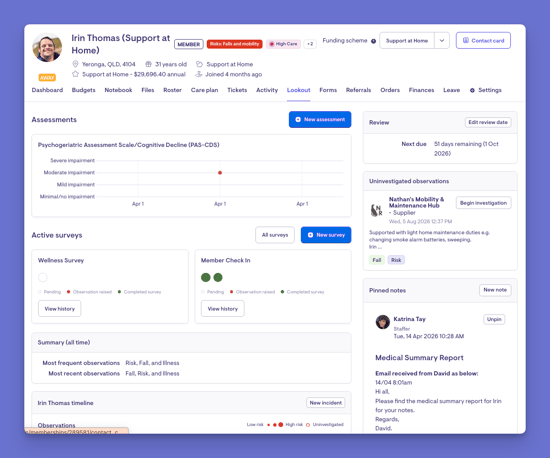
The Lookout tab provides an overview of health and observations for a single Member. It brings together, in one place, what is happening with that Member's wellbeing over time: things Helpers have noticed during visits, readings from any connected devices, visit history and ratings, medication follow-through, incidents, assessments, active surveys, pinned notes, and the next review date. It is designed to give a Staffer a quick read on how a Member is tracking and where attention may be needed.
Before you start
Before you take any action in the Lookout tab, make sure the following are in place:
- You are logged in as a Staffer. The Lookout tab and its actions are only available to Staffers using the Lookout admin desktop. Helpers cannot start assessments, add notes, log incidents, or change review dates from this tab.
- You have editing access to the Member. Viewing a Member's information is not the same as being able to change it. To take any action here, you need editing access to that specific Member. If your organisation uses community-based access, this means the Member must belong to a community you have been given a full-access role in. If your organisation does not use community-based access, any Staffer can edit any Member.
- The Member's profile is already set up. You need an existing Member with a profile before you can record anything against them in the Lookout tab.
A few points worth knowing before you begin:
- There is no separate permission to switch on for each individual action. Starting a new assessment, adding a note, logging an incident, and changing the review date are all controlled by the same two things: being a Staffer, and having editing access to that Member. If you can do one of these actions, you can generally do them all.
- If you find you cannot take an action, it is almost always because you do not have editing access to that particular Member, rather than a missing setting on the action itself. In that case, speak to your Admin about the communities or Member access assigned to your account.
- One action behaves slightly differently. An assessment result can only be edited while it is still uninvestigated. Once it has been investigated or finalised, it can no longer be changed, even by a Staffer with full access.
Step-by-step instructions
Step 1: Navigate to the Member's Finances tab
- From the main navigation menu, click Members to open the full list of Members.
- Find the Member you're after - use the search box to type their name, or narrow the list using the filters.
- Click the Member's name to open their profile. This will load their Member dashboard.
- Click their Finances tab.
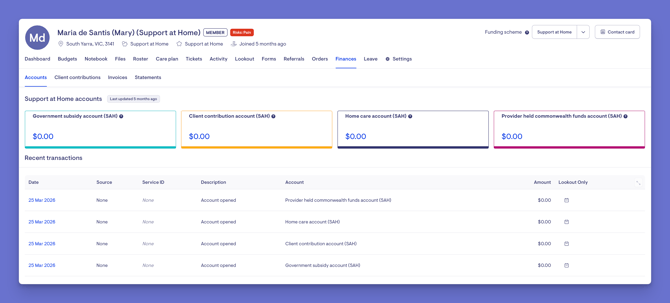
Top Tip: The Lookout tab sits alongside the Member's other tabs, such as their dashboard, care plan, and activity.
Step 2: Read the timeline
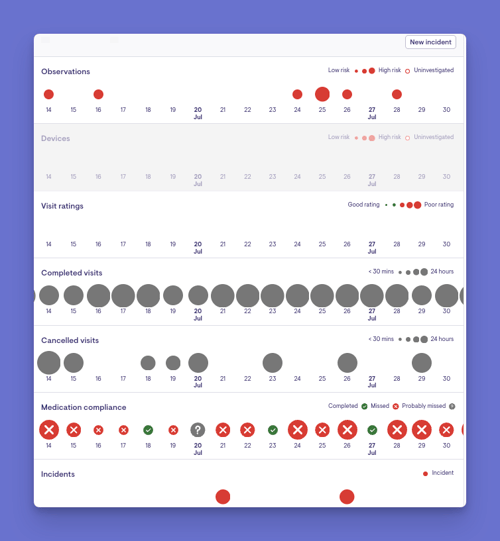
The centre of the page shows a timeline covering roughly the last three months. Each row tracks a different aspect of the Member's health, with a coloured dot on each day where something happened. Rows can include:
- Observations, which are things Helpers have flagged during visits, colour-coded by risk level
- Device readings, from any connected health devices
- Visit ratings, showing good or poor-rated visits
- Completed visits and cancelled visits
- Medication compliance, showing whether medication was taken, missed, or probably missed
- Incidents
- Assessments
Select any dot on the timeline to open a small pop-up with the detail for that day, and a link to view the related notes.
Step 3: Review the side panels and summary
Alongside the timeline, you will see supporting sections:
- A summary of the Member's most frequent and most recent observations over all time
- A review panel showing when the Member's next review is due
- A list of observations that still need investigating
- Pinned notes for the Member
- Any connected devices linked to the Member
- Active surveys and, where enabled, assessments
Step 4: Take an action (only if permitted)
If you have editing access to the Member, this tab also lets you:
- Start a new assessment
- Log a new incident
- Add a new note
- Edit the next review date
- Begin investigating an outstanding observation
Select the relevant option, complete the requested details, and confirm to save.
What happens next?
After you view or act within the Lookout tab:
- Anything you add, such as a note, incident, or completed assessment, becomes part of the Member's record and appears in the relevant section.
- Investigating an observation moves it out of the list of items still needing attention.
- Updating the review date changes the countdown shown in the review panel.
- The timeline refreshes to reflect recent activity as it comes in from visits and devices.
What Users / Staff / Members will see
For Admins and Staffers
-
- Can view the full Lookout tab for any Member they can access, including the timeline, summaries, outstanding observations, notes, devices, surveys, and assessments.
- Can add notes, log incidents, start assessments, investigate observations, and update the review date where they have editing access to that Member.
For Helpers
-
The Lookout tab is only available to Staffers and Admins. Helpers use a separate care delivery app and cannot access Lookout or its health overview.
-
Helpers contribute information through visit notes, which may generate observations, but they cannot see the observations, timelines, or investigations. The only information shared back to Helpers is any Staffer response related to an observation, which appears in the Helper app.
For Members
- The Lookout tab is part of the internal admin desktop website used by Staffers and Admins. Members do not see this view. Notes and observations recorded by Helpers during visits are not visible to the Member.
Troubleshooting
I cannot see the Lookout tab or a particular section
- Check your access role and confirm you can open that Member's profile.
- Some sections only appear when the related feature is turned on for your organisation, for example, assessments, incidents, or connected devices.
- A section may simply be empty if there is no relevant activity yet for that Member.
- Try logging out and back in.
I completed an action but nothing changed
- Make sure you confirm and save rather than leaving the entry partway through.
- Check for any on-screen messages pointing to details that still need completing.
- Remember the timeline only covers a recent window, so older activity may not appear there.
- Contact support if the issue persists.
Related articles
Still need help?
If you are still experiencing issues, please contact our Support Team and include:
- Screenshots (if possible)
- The Member's name or email
- The exact steps taken
- Any error messages received