
This guide explains how to access and use the Finance tab within a Member's membership profile. It outlines the purpose of each section, the prerequisites required before you begin, and the troubleshooting steps to follow if information is missing or displayed incorrectly.
Overview
The Finances tab is where you'll find everything about a Member's money and funding in one place. From here, you can:
- Check their account balances - how much funding they have
- Look back over their transaction history - what's been spent and when
- View invoices and client contribution details - what's been billed and what the Member contributes towards their own care
- Create and download statements
What you see on this tab depends on the Member's funding type - for example, a Home Care Package (HCP) or a Support at Home (SaH) arrangement. Lookout automatically shows only the financial information that's relevant to their specific funding, so you're never looking at details that don't apply to them.
Before you start
To use this section, make sure:
- You have finance viewing permissions on your account. Without these, the Finances tab will not appear.
-
To create a new transaction or invoice, you need the additional permission that allows adding financial records:
| Action | Permission required |
|---|---|
| See the Finances tab/view accounts | Finance accounts read |
| Add a transaction | Finance accounts write |
| View invoices | Invoices read |
| Add an invoice | Invoices write |
-
The Member you are looking at has an active funding arrangement. Some sections only appear once accounts or funding sources exist.
Please note: The Finances tab does not look the same for every Member. The sections and headings you see are determined by the type of funding the Member is on, so two Members can have quite different layouts within this same tab.
Step-by-Step instructions
Step 1: Navigate to the Member's Finances tab
- From the main navigation menu, click Members to open the full list of Members.
- Find the Member you're after - use the search box to type their name, or narrow the list using the filters.
- Click the Member's name to open their profile. This will load their Member dashboard.
- Click their Finances tab.
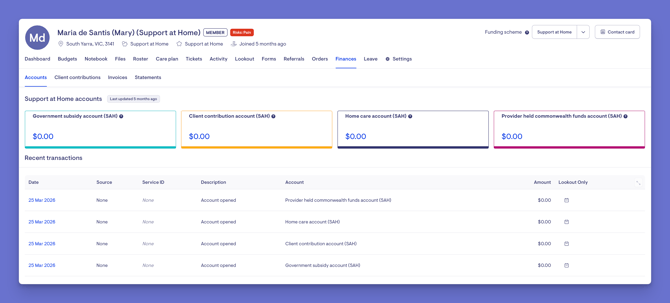
Step 2: Choose the section you need
Once inside the Finances tab, a second row of options appears. Which ones you see depends on the Member's funding type and your permissions. These can include:
-
Accounts, showing current balances for the Member's funding
-
Transactions, listing individual amounts going in and out
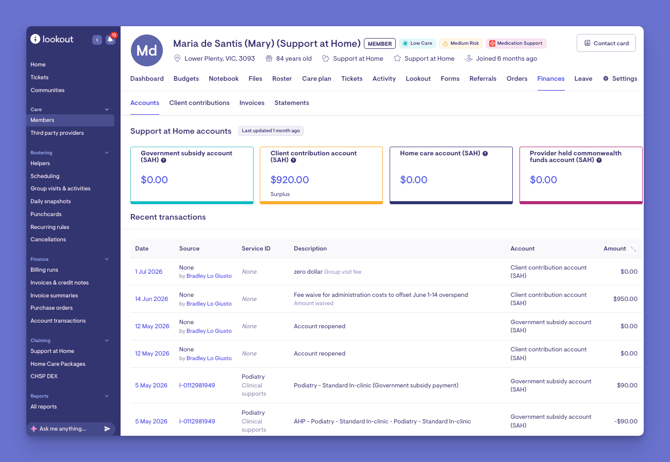
-
Client contributions, showing the amounts the Member is expected to pay toward their care
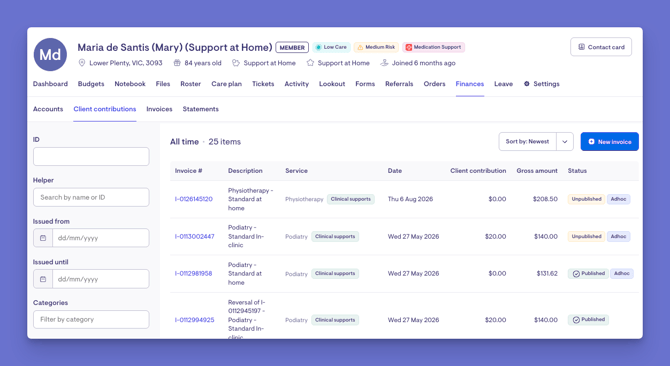
- Invoices, showing bills raised against the Member
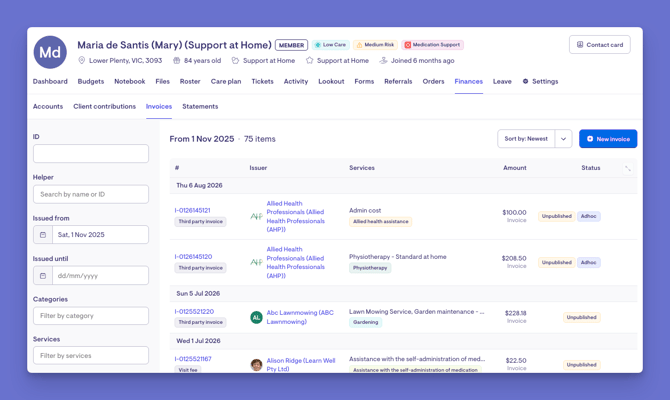
- Statements, where you can open a formatted summary document for a chosen period
Select the section that matches what you are trying to review.
| What appears in the Finances tab by funding scheme | |
|---|---|
| Funding scheme | Sections shown in the finance tab |
| NDIS | Transactions, Invoices* |
| CHSP | Transactions, Invoices* |
| DVA | Transactions, Invoices* |
| VHC | Transactions, Invoices* |
| Private funding | Transactions, Invoices* |
| Support at Home (SAH) | Support at Home accounts, Invoices, Client contributions, Statements |
| Home Care Package (HCP) | Home Care Package accounts, Invoices, Statements, Projected balance |
* If more than one account exists, then it will display Accounts.
Step 3: Review, filter, or add records
Within each section, you can:
-
Read through the listed accounts, transactions, invoices, or contributions
-
Use the filters on the side to narrow results by date or other details, then apply them
-
Sort the list using the sorting option at the top
-
Add a new transaction or invoice using the add button, if your permissions and the Member's account status allow it
- For statements, choose the recipient from the dropdown, then open the statement as a document to view or download it.
What happens next?
After you make changes in this tab:
- Any new transaction you add updates the Member's balance and appears in their transaction history
- New invoices appear in the invoices list and feed into the Member's overall financial records
- Balances shown at the top of each section update to reflect the latest activity
- The system records when the account was last updated, shown as a small note near the account details
What Users / Staff / Members Will See
For Admins and Staffers
- Staffers with finance permissions can open the Finances tab, review balances, transactions, invoices, contributions, and statements, and, with the right permissions, add new financial records.
For Staffers without finance permissions
- The Finances tab will not appear on the Member's profile at all, and its sections cannot be reached.
For Members (Lookout App)
- Members do not see this Admin tab. They experience the outcomes of it, such as receiving statements or seeing balances reflected in their own view, rather than the management screens themselves.
Troubleshooting
I cannot see the Finances tab
- Check that your account has finance viewing permissions, as the tab is hidden without them
- Confirm the Member actually has a funding arrangement set up
- Try logging out and back in
I can see the tab but a section is missing
- Some sections only appear for certain funding types, such as Support at Home or Home Care Package
- Client contributions and some other sections only appear once the relevant funding and settings exist for that Member
- The accounts section for other funding types only appears when the Member has more than one account
I added a transaction or invoice but nothing changed
- Make sure you completed and confirmed the form rather than leaving it open
- Check that the account is open, as some actions are only available on active accounts
- If the balance still looks wrong, contact support
Related Articles
Still Need Help?
If you are still experiencing issues, please contact our Support Team and include:
- Screenshots, if possible
- The Member's name
- The exact steps you took
- Any error messages you received