
Before you start
To use the Home Dashboard, make sure:
- Any required setup has been completed by your organisation - the dashboard content depends on your organisation’s configuration
- You know which communities (groups of members) you're assigned to, as this changes what the dashboard shows you.
Top tip: No two administrators see an identical dashboard. Sections appear and disappear based on your organisation's enabled features and your community assignments. Most sections only draw attention when there's something outstanding to action.
Dashboard overview
When you log in to Lookout as an administrator, the Home Dashboard is the first screen you see.
Think of it as mission control: a single page that pulls together everything demanding attention across the care operation, so you don't have to go hunting through different areas to find out what needs doing.
The dashboard is built around one simple idea: surface what needs action, and get out of your way when everything's fine. Rather than showing endless data, it highlights the members, workers, and situations that require a decision or a follow-up. When a section has nothing outstanding, it tells you "All reviews are up-to-date!" so you can move on with confidence.
How the Dashboard appears
The page is organised into two columns of panels, each focusing on one type of task or insight.
At the very top, there's a Daily Visits shortcut button that takes you straight to today's visit schedule for the members you're responsible for (available if your organisation uses the scheduling features).
Sections will appear based on the enabled insights your organisation holds and the communities you belong to as an admin.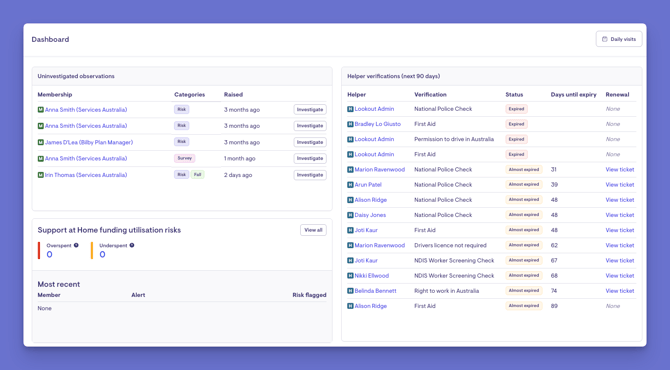
Release Hub-enabled insights
Release Hub-enabled insights are available only when the Release Hub feature is enabled in your environment. These insights provide additional visibility into release-related activity, helping users monitor progress, track key updates, and stay informed about relevant release information.
Release Hub can be enabled by users with the appropriate administrative permissions, such as system administrators or designated platform administrators. If Release Hub is not enabled, the insights described in this article will not be available.
The following sections describe each Release Hub-enabled insight and the information it provides.
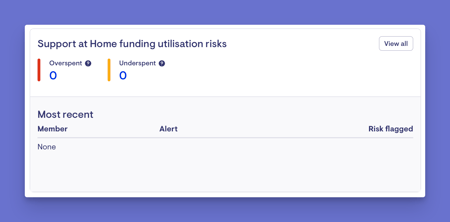
Support at Home funding utilisation risks
Keeps an eye on Members' budgets and warns when someone is heading toward a problem:
-
Overspent (projected to use more than 100% of their funding)
- Underspent (projected to use less than 80%).
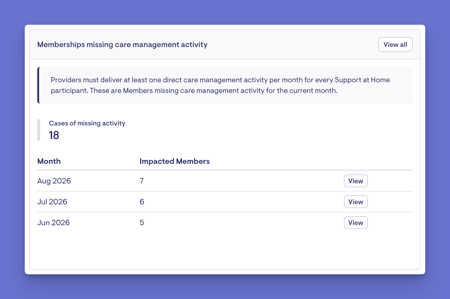
Memberships missing care management activity
- Flags Members missing their required monthly care-management activity
- Shows a running total broken down month by month, with view links to see exactly who's affected.
Community-based Insights
Insights are displayed according to the communities assigned to your profile. These assignments determine which insights are relevant to your role and responsibilities, helping ensure you see information specific to the communities you support. The following sections describe each available insight and explain the information it provides.
Uninvestigated observations
Notes or concerns raised about Members that haven't been reviewed yet. Each entry shows the Member, the category of concern, and how long ago it was raised, with an Investigate button to review and resolve it.
Community summary
A quick health-check of the communities you look after over the last 30 days: the share of visits rated 4 stars or higher, and the share of Members who had observations raised.Membership reviews
Lists Members whose care reviews are due within the next 30 days, including the review date and the number of days remaining. Click a Member's name to carry out the review.
Members on Leave
Shows Members currently pausing their care. If you look after specific communities, it lists individual Members with their leave type and whether their packages are suspended; with an organisation-wide view, it summarises Members on leave, grouped by funding scheme.
Helper verifications
Lists Helpers' certificates and checks that are expiring within the next 90 days or have already lapsed, colour-coded by status, with links to any renewal already underway.
Helper Leave requests
Lists Helpers with pending leave requests awaiting your decision, with a View button to open and action each one.
Matches missing requirements
Catches any Helpers matched to a member without all the qualifications or checks that Member's care requires, showing exactly what's missing. Refreshed hourly.
What happens next?
Use the insights on the Home Dashboard as a prioritised action list. Review each section and select any item that requires attention to navigate directly to the relevant Member, worker, match, or record and complete the necessary action.
As items are resolved, the associated insight will update, shrink, or disappear from the dashboard.
Sections with no outstanding actions display a confirmation message, so you can quickly identify areas that are up to date. The dashboard refreshes with current information each time it is loaded, and some insights update automatically on a scheduled basis.
By regularly reviewing and acting on dashboard insights, you can stay on top of key tasks, maintain compliance, support Member safety, and help ensure that services and funding remain on track.
What different users / Staff / Members will see
Admins
Can see the full Home Dashboard, tailored to their communities and their organisation's enabled features, and can act on every outstanding item.
Staff
Staff assigned to specific communities see a dashboard tailored to just those communities. For example, community-specific summaries, Member reviews, worker verifications, and matches. For Staff with an organisation-wide view, see broader, organisation-level summaries instead of community-specific lists. For example, Members on leave grouped by funding scheme.
Members and Helpers
The Home Dashboard is an administrative screen and is not shown to Members or Helpers in the Lookout app.
Troubleshooting
I can't see a particular section
-
Check that your organisation has the relevant feature enabled (some panels require the full care toolset or a newer financial-risk feature).
-
Confirm your community assignments - several sections only appear when you're assigned to specific communities.
-
Try logging out and back in.
A section is empty when I expected items
-
Empty sections usually mean there's genuinely nothing outstanding - look for the confirmation message.
-
Double-check you're viewing the right communities.
The numbers don't look up-to-date
-
Some sections refresh on a schedule (for example, matches missing requirements update hourly), so recent changes may take a short while to appear.
-
Reload the page to pull the latest information.
Related Articles
Quick Start Guide for Care Managers