
This guide explains what the Helper Files tab is, why it matters, and how to use it - including where files come from, how to search and filter, how to view or delete a file, and how to upload one directly.
Want the full profile picture? The Files tab is one part of the wider Helper profile. For dedicated articles on the Member dashboard and each of the other tabs within a Helper's profile, please explore the Helpers section within our Help Centre.
The Files tab
The Files tab is a central document hub on a Helper's profile. It brings together documents related to that Helper - gathered automatically from across Lookout, alongside anything you upload yourself - so you can find what you need without digging through individual notes or tickets.
The Files tab keeps a Helper's documents organised and easy to find. It helps your team:
- Find documents fast - everything is in one place.
- See where each file came from - every file shows its source, so you have context.
- Keep a complete record - files from across the system are gathered automatically.
Navigating to the Files tab
- From the main navigation menu, click Helpers to open the full list of Helpers.
- Find the Helper you're after - use the search box to type their name, or narrow the list using the filters.
- Click the Helper's name to open their profile. This will load their Helper dashboard.
- From the horizontal menu, select Files.
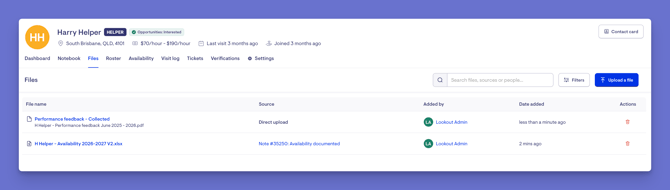
- You'll see every file attached to the Helper's record.
Where files come from
Files gather here from a few places, so you see a complete picture:
- Notes - files attached to notes in the Helper's Notebook. (These appear if you have access to the Helper's Notebook.)
- Tickets - files attached to tickets, or to ticket comments, relating to this Helper.
- Direct uploads - files uploaded straight from the Files tab.
For each file, you'll see the file name, its source, who added it, the date it was added, and an action to delete.

Uploading a file directly
- From the main navigation menu, click Helpers to open the full list of Members.
- Find the Helper you're after - use the search box to type their name, or narrow the list using the filters.
- Click the Member's name to open their profile. This will load their Helper dashboard.
- Click the Files tab.
- If there are already files, you'll see every file attached to the Member's record listed.
- Click the blue Upload a file button.
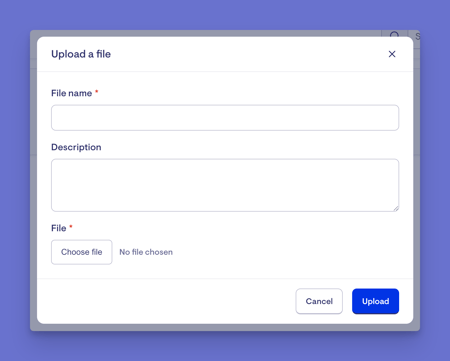
- Enter a file name and a description.
- Click the Choose file button to select the file you wish to upload from your device.
- When ready, click the blue Upload button.
- A green banner will display confirming your file has been uploaded successfully. It is now stored as a direct upload, along with the description you provided.
Searching and filtering
- If a Helper has many files listed, you can search the file tab by file name, source, or the person who added it.
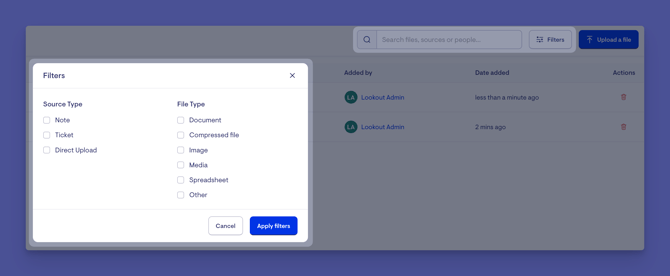
- Filter by source type or file type (such as documents, images, or spreadsheets), then click the blue Apply filters button.
- To turn a filter off, uncheck it and click the Apply filters button again.
Viewing and deleting files
- View a file: Select the file's hyperlink - it will download to your device so you can open and view it.
- Go to the source: Select the file's source to jump to where it was uploaded (for example, the note or ticket it came from).
- Delete a file: Select the red delete trashcan button located under the actions section for each file. (Requires edit access.)

Troubleshooting
I can't see the Files tab
Confirm you have access to view the Helper and permission to view their files.
I can't upload or delete a file
These require edit (write) access. Ask an administrator to review your access.
A file I expected from a note isn't showing
Files from notes only appear if you have access to the Helper's Notebook.
I can't find a file
-
Check your active filters - a source or file-type filter may be hiding it.
-
Try searching by file name, source, or the person who added it.
A file opened in my downloads instead of on screen
This is expected - selecting a file downloads it so you can open it on your device.
Still need help?
If you're still experiencing issues, please contact our Support Team and include:
- Screenshots (if possible)
- The Helper's name
- The exact steps taken
- Any error messages received