
The Member’s Activity tab is a chronological feed of all recorded activity for a Member, displayed with the most recent entry first. It consolidates visits, communications, notes, assessments, and other activity types into a single scrollable list, giving Staffers a complete picture of a Member's history and interactions.
The Activity tab serves two purposes:
- History: A record of completed activity and when it occurred.
- Workspace: A place for Staffers to log new interactions, such as phone calls, emails, and text messages.
Reading the feed
Each timeline entry displays:
- An icon identifying the activity type.
- The person who completed the activity.
- The date and time of the activity.
- A short description.
The icons and labels correspond to eight activity types:
- Visits: A Helper's scheduled care visit (these commonly appear when a Helper checks out or when a visit is cancelled).
- Calls / Texts: Logged phone calls, emails, SMS messages, chat messages, or letters.
- Notes: Free-text notes recorded about the Member.
- Observations: Something noticed, identified, or flagged about the Member.
- Assessments: Structured assessments completed for the Member.
- Care Plans / Help Plans: Updates made to the Member's care plan or help plan.
- Tickets: Tasks or cases raised for follow-up.
- Other Tracked Time: Non-visit time logged against the Member, such as care management activities.
Just scan the icons down the left to quickly spot the type of activity you care about.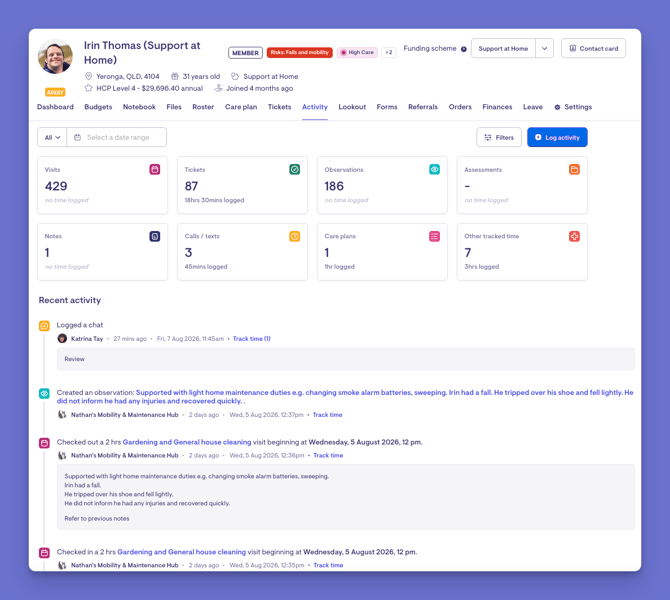
Step-by-Step Instructions
Adding an entry (logging a call or contact)
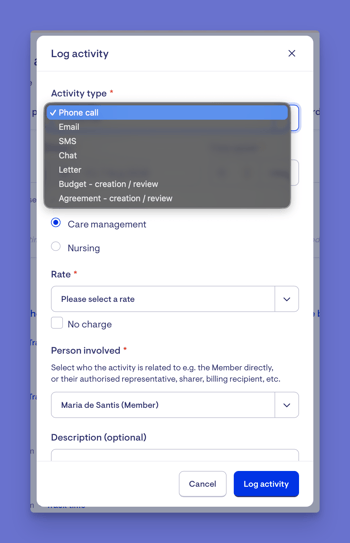
The most common activity Staffers add is a record of contact, such as a phone call, email, or text message.
Step 1: Open the Member’s Activity tab and select Add New Activity.
Step 2: Select the activity type:
-
Phone Call
-
Email
-
SMS
-
Chat
-
Posted Letter
Step 3: Record the time spent. The default entry is 15 minutes and dated today. Update the duration and date to reflect the interaction.
Step 4: Enter a description, including relevant discussion points, actions, and outcomes.
Step 5: Select Save. The activity will appear in the timeline based on its recorded date and time.
Filtering activities
Applying a filter
Step 1: Go to the Member's profile and open the Activity tab.
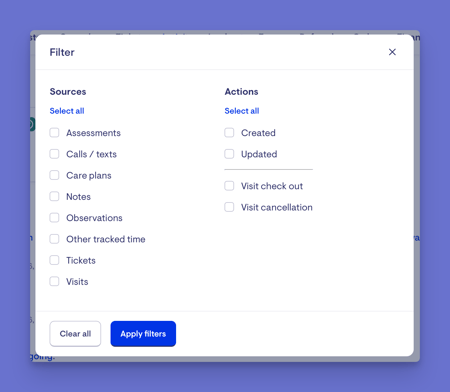
Step 2: Open the filter panel.
Step 3: Select the Activity types you want to display by ticking one or more of the following options:
- Visits
- Calls / Texts
- Notes
- Observations
- Assessments
- Care Plans
- Tickets
- Other Tracked Time
Step 4: Select an action (optional) by ticking one or more of the following:
- Created
- Updated
- Visit Check Out
- Visit Cancellation
Step 5: Select a date range (optional). Choose from:
- Today
- Last Week
- Last Month
- Last Quarter
- Year to Date
Alternatively, select Custom and enter a start and end date, or select All to remove date restrictions.
Step 6: Select Apply Filters.
Step 7: The Activity feed refreshes to display only matching entries. The summary panel also updates to reflect the displayed activity counts and time totals.
Top tip: Leave all activity types unticked to include them all.
Clearing a filter
Step 1: Open the filter panel.
Step 2: Select Clear.
Step 3: All filter settings, including activity type, action, and date range, are removed and the full Activity feed is displayed.
Changing a filter
Step 1: Open the filter panel. Your current filter selections will remain visible.
Step 2: Update the activity types, actions, or date range as required.
Step 3: Select Apply Filters to refresh the Activity feed with the updated criteria.
What Happens Next?
- Log contact soon after it occurs to maintain an accurate record.
- Record dates and time accurately, particularly when care management time may be billed.
- Use filters to find relevant information instead of scrolling through the full timeline.
- Review recent activity before a visit, call, or care decision.
- Record actions and outcomes clearly to help other Staffers understand what occurred.
- Check whether follow-up activity or a Ticket is required.
| Common Activity Filter Tasks | |
| Example Task | Filter Settings |
| See recent notes and observations before a check-in | Type: Notes, Observations Date Range: Last Month |
| Review completed visits | Type: Visits Action: Visit Check Out |
| Check tracked time for a quarter |
Type: Other Tracked Time |
| Investigate cancelled visits |
Type: Visits |
Activity tab and Funding schemes
The Activity tab provides a consistent Activity record for every Member. However, Other Tracked Time may behave differently because each funding scheme has its own billing and reporting requirements.
How funding schemes affect tracked time
|
Funding scheme |
Use of tracked time |
|---|---|
|
Support at Home (SAH) |
Care management and nursing time is recorded against a funding source and product. These entries support invoicing and provide evidence of service delivery. |
|
Home Care Packages (HCP) |
Care management and coordination time is recorded against the Member’s package funds. |
|
NDIS |
Tracked time is generally used for support coordination and may be billed against the relevant coordination product. |
|
Commonwealth Home Support Programme (CHSP) |
The Activity feed primarily supports visits and service delivery. Care management time has a smaller billing role. |
|
Department of Veterans’ Affairs (DVA) |
The feed records visits, clinical activity, notes, and other service information. Scheme-specific alerts may appear elsewhere in Lookout. |
|
Private and custom arrangements |
The treatment of tracked time depends on the organisation’s funding and billing configuration. |
The Activity tab works consistently across all funding schemes. The main difference is how Other tracked time is categorised, funded, and billed.
Troubleshooting
The timeline is empty or missing entries
- Open the filter panel and select Clear to remove all filters.
- Set the date range to All to display the full activity history.
- Confirm the activity was completed and saved. Draft or incomplete entries do not appear in the timeline.
A tracked-time entry cannot be edited or deleted
- Check whether the entry has been invoiced.
- Invoiced entries are locked and cannot be changed or deleted.
- Contact your finance team or Administrator if an invoiced entry requires correction.
- Entries that have not been invoiced can still be edited and saved.
A tracked-time entry cannot be saved
- Enter the duration in 15-minute increments, such as 15, 30, 45, or 60 minutes.
- Confirm that an activity date has been entered.
- For a Support at Home Member, select a funding source and complete all required service details.
A note is visible, but its contents are hidden
- Some notes are restricted to Staffers with the required permissions.
- Hidden content is a privacy control and does not indicate an error.
- Contact an Administrator if you believe you should have access.
A logged call or contact is missing
- Confirm the entry was successfully saved.
- Select Clear in the filter panel to remove filters that may be hiding it.
- Check the activity date, as backdated or future-dated entries appear at that point in the timeline.
- Confirm the activity was recorded against the correct Member.
- If the entry is still missing, add it again and ensure the form is completed and saved.
Related Articles
Overview: Managing MembersThe shared notebook