
Overview
You can now easily change who pays for a visit using Switch funder. This allows you to move a service between funding sources (for example, from Support at Home to private, or vice versa) while keeping your records accurate and up to date.
This update significantly improves reliability, adds bulk actions, and ensures the most appropriate rate based on the configuration and setup is automatically applied when funding is changed.
Switch funder is designed to give you more control over how services are billed, reduce manual rework, and help you respond quickly when funding arrangements change.
What’s new
This release includes several key improvements:
-
Reliable switching: the feature has been rebuilt to reduce errors and provide clearer feedback.
-
Bulk actions: you can now switch funding for multiple visits at once from key workflows.
-
API support: integrators can programmatically switch funding using a dedicated endpoint.
-
Smart rate selection: when funding is changed, the system automatically applies the most appropriate rate based on the new funding source.
How to switch funding for a visit
Single visit
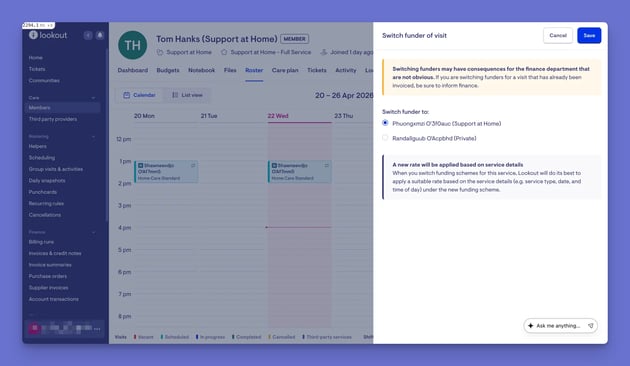
To switch funding for an individual visit:
- Open the visit.
- Select Switch funder.
- Choose the new funding source.
-
If the new funding source is CHSP, choose an Outlet. CHSP visits are reported against an outlet, so this is required.
- Confirm your changes.
This will open in a side panel and update the visit with the new funding and rate.
Please note: The Switch funder option only appears when the Member has another active membership to switch to. Archived or expired memberships aren't listed, and if there is no other active membership, the button won't show. If something prevents the change from saving, the reason is shown in the side panel.
Bulk switching from the roster in bulk
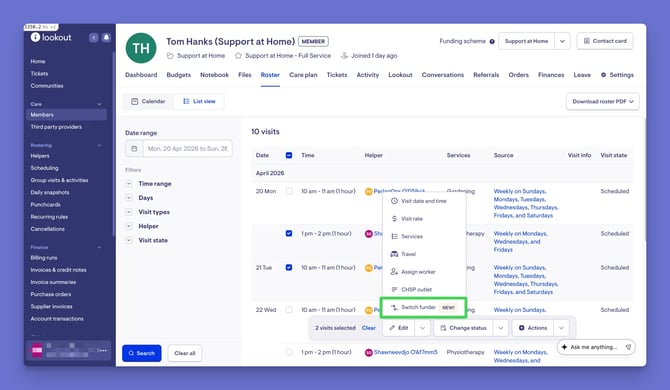
You can also switch funding for multiple visits directly from the roster:
-
Go to the roster list view.
-
(Optional) Use the Services filter to show only visits for particular services
-
Select the visits you want to update.
- Choose Switch funder from the bulk actions menu.
-
Select the new funding source.
- When ready, confirm.
-
The Services filter shows visits that match any of the services you pick. It works the same way as the Services filter on invoices.
Bulk switching from tracked expenses
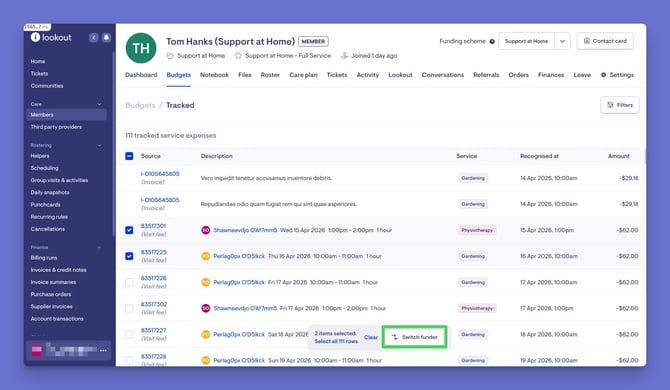
You can also switch funding from the Tracked expenses view:
- Click the Member's Budgets tab and open their tracked expenses.
- Select applicable visit-based expenses.
- Click Switch funder.
- Choose the new funding source.
- When ready, confirm.
Only visit-based expenses can be selected in this view.
What happens after switching
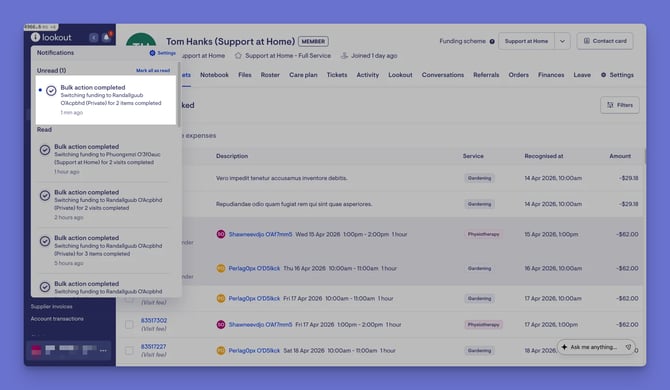
Once submitted:
- The action is processed in the background
- Selected visits will appear greyed out with a status message
- A notification will confirm when the update is complete
- Changes typically complete within a few seconds, but may take longer in some cases
There is no live progress indicator. You can refresh the page or continue working.
Smart rate selection
When you switch funding, Lookout automatically applies the most appropriate rate for the new funding source.
This is based on:
- The Member’s funding and membership plan
- Service rate configurations
- Time-based conditions (e.g. weekends, public holidays)
The selected rate will match what would be applied if the visit were created from scratch under that funding source.
API access
An API endpoint is available to support programmatically switching funding.
This allows providers to:
- Automate funding changes
- Integrate with external workflows
- Apply consistent logic outside the platform
The API behaves the same as the UI, including smart rate selection.
Troubleshooting
What does “switch funder” actually do?
It changes which funding source pays for a visit. For example, you can move a service from Support at Home funding to private funding, or vice versa.
Can I switch funding for multiple visits at once?
Yes. Bulk actions are available in both the roster view and the tracked expenses view, allowing you to update multiple visits in a single action.
Does switching funding update the rate automatically?
Yes. The system applies a smart rate based on the new funding source, using the same logic as when creating a new visit.
What happens if I switch from private to Support at Home?
Lookout will apply the appropriate Support at Home rate based on your configuration, including any time-based conditions.
What happens if I switch a visit to CHSP?
When you switch a single visit to a CHSP funder, you'll also be asked to choose an outlet, because CHSP visits must be reported against one. The list shows the outlets linked to that CHSP membership. If the membership has no outlets linked, it shows all active outlets. If the visit already has an outlet that isn't in the list, it stays selected, so you can leave it unchanged.
Why are my visits greyed out after switching?
This indicates the update is being processed. Once complete, you’ll receive a notification, and the visits will return to normal.
Can I switch funding for invoices or purchase orders?
Not currently. This feature is focused on visits only, while a broader approach for other financial items is still being explored.
Is there an API for this feature?
Yes. An API endpoint is available and mirrors the behaviour of the UI, including rate selection and validation.
What should I do if the switch fails?
If a switch can't be completed, the reason is shown in the side panel. Fix the issue and try again. If the problem persists, raise a support request through the Lookout customer portal.
Will this impact existing claims or reporting?
Switching funder updates how the visit is billed moving forward. You should ensure any downstream processes (such as claiming or invoicing) reflect the updated funding source.
Why can't I see the Switch funder button?
It only appears when the Member has at least one other active membership. Archived and expired memberships don't count, so a Member with only one active membership won't see the option.
Can I switch funding from Daily snapshots?
Not currently. Bulk switching works within one Member's roster or tracked expenses. Daily snapshots cover many Members at once, so this would need a separate feature request.
Still need help?
If you're still experiencing issues, please contact our Support Team and include:
- Screenshots (if possible)
- The Member's name
- The exact steps taken
- Any error messages received