
Lookout has two kinds of profiles for suppliers. A supplier Helper is your own record, the one you roster and raise purchase orders against. A supplier is the business behind it, found by ABN and shared across Lookout. Your team manages supplier Helpers, and the supplier manages its own business details.
This article explains how the two are linked, what you'll see on each page, what the supplier connection statuses mean, and answers common questions.
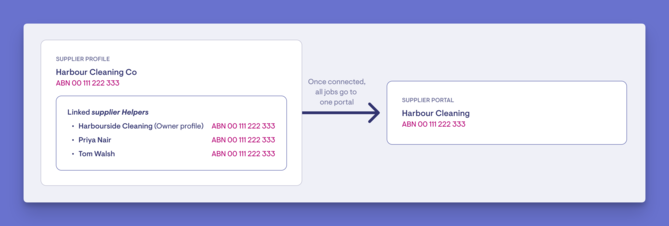
Each supplier Helper is linked to the supplier with the same ABN, and one supplier can have many Helpers. Linking alone shares nothing. The supplier only sees your jobs once your team enables the connection. Names don't affect linking. In the example, "Harbourside Cleaning" is linked to Harbour Cleaning Co because it has the same ABN.
How linking works
Lookout links supplier Helpers automatically. A Helper is linked when it has the Supplier or Clinician role, the engagement type Contractor and an ABN. Lookout links it when the Helper is added, and again whenever its ABN, role, engagement type or email changes. Existing supplier Helpers were also linked in bulk when Connected Care was set up, so links can appear without anyone on your team making them.
Please note: Linking doesn't give anyone portal access. A linked Helper's email is kept on the supplier as a contact, but that person can't sign in or appear in the supplier's team until they're invited.
The "Supplier" page
-
From the main left-hand menu, navigate to Supplier under the Procurement section.
-
Most of the page belongs to the supplier: panels marked with a lock can only be changed by them, in the supplier portal.
-
Your team controls two things here:
-
Which of your Helpers carry this ABN.
-
Whether the supplier is connected to you.
-
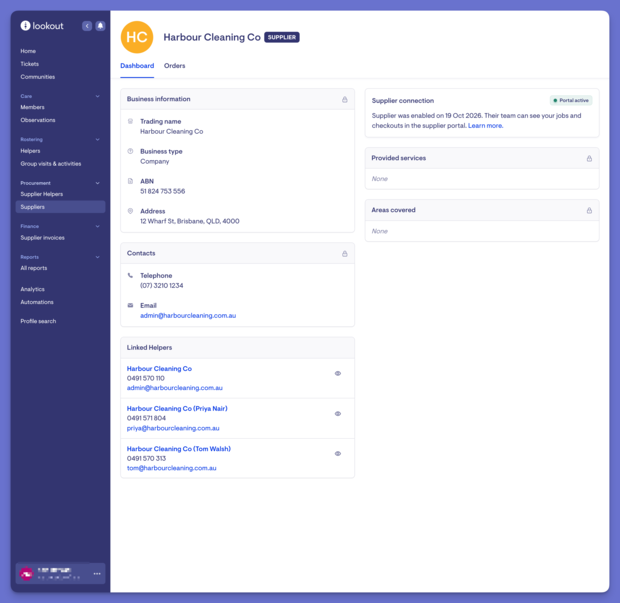
| Panel | What it shows | Who changes it |
|---|---|---|
| Business information | Name, business type, ABN, address | The supplier's portal owner |
| Contacts | Phone and email | The supplier's portal owner |
| Linked Helpers | Your supplier Helpers with this ABN. Until the supplier has a portal owner, Helpers who haven't signed in show an option to email an invitation to the portal | Your team, through the ABN on each Helper |
| Supplier connection | Whether the supplier can see your work, since when, and the portal owner (if one of your Helpers is linked to them) | Your team: Disable connection or Re-enable connection |
| Description | The supplier's description of their business, if they've written one | The supplier's portal owner |
| Provided services | The services they offer | The supplier's portal owner |
| Areas covered | The places they service | The supplier's portal owner or admins |
The Orders tab lists your purchase orders with this supplier.
Please note: Only suppliers connected to you and with a set-up portal appear on the Suppliers page. To reach a supplier that isn't connected to you, open one of its supplier Helpers instead, and enable the connection from there.
Where the supplier details come from
When Lookout first finds an ABN on a supplier Helper, it creates the supplier using that Helper's company name and address. That Helper may belong to another provider. Helpers saved later with the same ABN don't change these details, and neither does editing your own Helper.
The details only change when the supplier's portal owner updates Your company in the supplier portal. Until a supplier sets up their portal, their name and address are whatever the first record said.
The "Supplier Helper" page
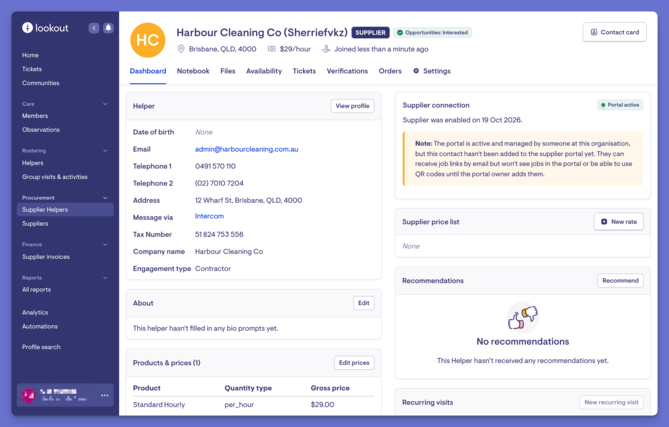
A supplier Helper's page is your own record: its name, email, ABN and rostering details are yours to edit. Two panels come from the supplier:
- Managed by the supplier shows the supplier's description, areas covered and services, with a View business profile link. It's read-only.
- Supplier connection shows whether the supplier can see your work, with the buttons to change that.
Supplier connection statuses
The Supplier Helpers list shows the same connection in its Supplier connection column. It combines two things:
-
Whether the business is connected to you, and
-
Whether this particular person can sign in to the portal.
| Status | What it means | How they get your jobs |
|---|---|---|
| Not enabled | The supplier isn't connected to you | They don't |
| Enabled - Pending invite | Connected. This person was invited to the portal and hasn't accepted yet | By email, until they accept |
| Enabled - No portal access | Connected. This person doesn't have a portal login | By email only |
| Portal enabled | Connected, and this person has signed in to the portal | In the portal |
| Revoked | Your team disabled the connection | They don't. They lose access to your open jobs and messages |
Connecting or disconnecting always applies to the whole business. Disabling the connection from one supplier Helper disables it for every Helper with that ABN.
Troubleshooting
Why can't we edit a supplier's name or details?
They belong to the supplier and are shared with every provider they work with. Your own supplier Helper keeps whatever name and details you give it.
Why does our own organisation appear as a supplier?
One of your supplier Helpers, often a placeholder or in-house record, uses your organisation's ABN. Lookout treats that ABN like any other supplier's.
Why do two suppliers have the same name?
-
They have different ABNs.
-
Each ABN is its own supplier, and each takes its name from the first Helper found with it.
-
Check the ABN on each to see which is right.
Does editing our supplier Helper change the supplier?
Only its ABN does. A new ABN moves the Helper to the supplier with that ABN. Name, email and address changes stay on your Helper.
A Helper is linked to the wrong supplier. How do we fix it?
-
Check the ABN on the Helper.
-
Correct it and save, and Lookout moves the Helper to the matching supplier.
-
Any jobs assigned to a worker at the old supplier will need to be reassigned.
What happens when we disable a connection?
-
The supplier loses access to your service requests, scheduled jobs and messages straight away.
-
Checkout links you've already sent for jobs that haven't started are cancelled, and automatic sending of checkout links is turned off on those purchase orders.
-
Re-enabling reconnects the supplier, but it doesn't undo those changes. Resend any checkout links they still need, and turn automatic sending back on where you use it.
Still need help?
If you're still experiencing issues, please contact our Support Team and include:
- Screenshots (if possible)
- The Supplier's name
- The exact steps taken
- Any error messages received