
This guide explains what a service agreement is, why it matters, and how to manage one in Lookout - creating it from a Member's membership, downloading it to sign using your own process, and recording the signed agreement against the membership.
Prefer to sign digitally? This article covers how to manage a service agreement using your own signing process. If you'd like Lookout to send and collect signatures digitally - and track the whole thing automatically - see our Digital agreements add-on article to learn more.
What is a service agreement?
A service agreement is the contract between your organisation and a Member - your agreement about the support you'll provide and the terms that apply. In Lookout, it's also referred to as the Member's Terms and Conditions.
Every membership has a service agreement area, built from your organisation's current membership agreement template, which automatically fills in details like the Member's name, funder, Authorised Representative, and the agreement date. Once a Member (or their Authorised Representative) has agreed to it, you record it against the membership so there's a clear, lasting record of what was agreed and by whom.
A note on "digital agreements": The service agreement is the underlying document. If your organisation has the Agreement Management add-on, that agreement can be turned into a digitally signed one - the "digital" part refers to the online signing. Either way, the service agreement itself can always be viewed and downloaded.
Why it matters
A clear service agreement ensures your organisation and the Member share a common understanding of the support being provided. Recording it in Lookout:
- Keeps a clear record of what was agreed, who agreed, and when.
- Stores it with the membership, so it's always easy to find.
- Helps demonstrate that the Member accepted the terms.
- Works around your process - sign however suits you, then record the outcome.
Before you start
Before creating a service agreement, make sure:
- You are logged into Lookout as a staff member with permission to manage memberships.
- Your organisation has a current agreement template set up. If there isn't one, the agreement panel will show that no valid agreement is available. (See our Agreement templates article for how to create and publish one.)
- The membership has its key details in place: the Member, the Authorised Representative (if they'll be signing), the Membership Plan, the Funder, and the Funding Scheme.
Creating and recording a service agreement
Step 1: Navigate to the agreement panel
- From the main navigation menu, click Members to open the full list of Members.
- Find the Member you're after - use the search box to type their name, or narrow the list using the filters.
- Click the Member's name to open their profile. This will load their Member dashboard.
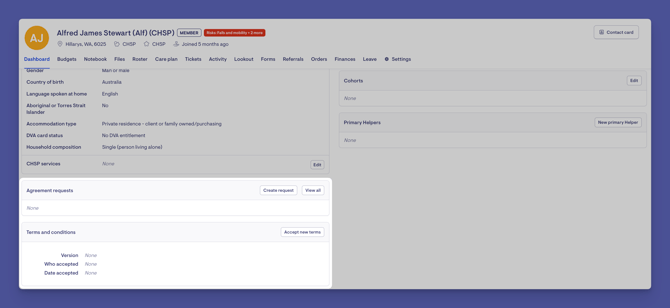
- Find the Agreement panel (also shown as the Terms and Conditions area).
Here you'll see the current agreement status - the template used, who agreed, the date, and the signed document if one has been recorded.
Step 2: Accept new terms
- In the Terms and conditions panel, click Accept new terms.
- The agreement opens in a new tab, built from your organisation's current template with the Member's details filled in.
- Download or print the agreement so it's ready to be signed.
- If there's no Accept new terms option, check that a current membership agreement template exists and that the membership has its members and funder set.
Do you have the Agreement Management add-on? If your organisation has it enabled, Accept new terms may take you to a digital signing screen instead. If so, follow our Agreement management add-on article to complete signing. This current article covers the manual process for organisations without the add-on.
Step 3: Sign the agreement (your process)
How the agreement is signed is up to your organisation. For example, you might:
- Have the Member or their Authorised Representative sign a printed copy in person.
- Email the downloaded agreement for them to sign and return.
- Follow whatever your usual service agreement protocol is.
Top tip: Some organisations like to track outstanding service agreements using a ticket. If that would help your team, you can create a ticket template for it - see our Tickets: Building Blocks article. This is entirely optional - it's up to how your organisation prefers to manage the process.
Step 4: Record the acceptance in Lookout
Once the agreement has been signed, record it against the membership:
- Record who accepted (the Member or Authorised Representative) and the date.
- Attach the signed copy so it's stored with the membership.
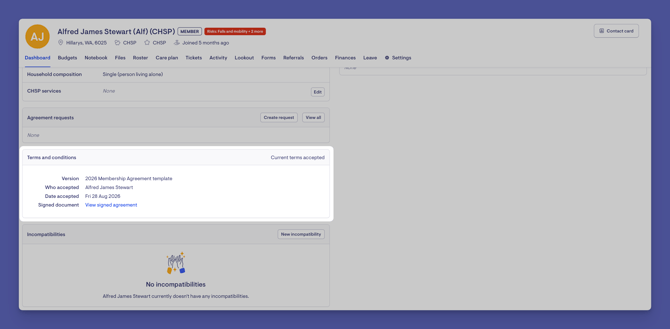
The service agreement is now recorded, and appears in the Terms and conditions panel with its version, who accepted, the date, and a link to the signed document.
What happens next?
After you record a service agreement:
- It's stored against the membership under Terms and conditions, showing the version, who accepted, the date, and the signed document.
- You (and other staff with access) can view and download it at any time.
- The Member's record now reflects that terms have been accepted.
Making the most of service agreements
Keep a current template.
An up-to-date, published membership agreement template means every new agreement reflects your latest terms - see our Agreement templates article.
Record signed copies promptly.
Attaching the signed document keeps the membership's record complete and audit-ready.
Consider tracking with tickets.
If your team handles many agreements, a ticket template can help you keep tabs on what's outstanding.
Know when the add-on helps.
If manual signing is becoming time-consuming, the Agreement Management add-on can send and collect signatures digitally and track it all for you.
Troubleshooting
There's no "Accept new terms" option
This usually means there's no current membership agreement template. Go to Settings → Agreement templates, then create, publish, and make current a membership agreement template. Once a current template exists (and the membership has its members and funder set), the Accept new terms button appears in the Terms and conditions panel. See our Agreement templates article for a more in-depth explanation.
The agreement is missing the Member's details
The agreement fills in details from the membership. Check the Member, funder, and Authorised Representative are set correctly on the membership.
Where do I download the service agreement?
Click Accept new terms in the Terms and conditions panel - the agreement opens in a new tab, where you can download or print it.
Where is the accepted agreement stored?
Once recorded, it appears in the Terms and conditions panel on the membership, with a link to the signed document.
I want signatures collected automatically instead of doing this manually
That's what the Agreement Management add-on does — it sends the agreement digitally, collects signatures, and tracks the process. See our Agreements management add-on article to learn more.
Still need help?
If you're still experiencing issues, please contact our Support Team and include:
-
Screenshots (if possible)
-
The Member's name
-
The exact steps taken
-
Any error messages received