
This article consolidates questions and answers from both the pre-submitted Q&A sessions and the live audience questions raised across the two Budgeting in Lookout webinars held in April 2026. Content is grouped by topic so you can navigate directly to the area most relevant to your query.
🎥 Webinar recordings
The questions and answers in this article were drawn from two live webinar sessions held in April 2026. Recordings and slide decks from both sessions are available below.
- Session 1 – 8 April 2026: Budgeting in Lookout Q&A Session 1
- Session 2 – 15 April 2026: Budgeting in Lookout Q&A Session 2
1. Funding sources & drawdown logic
Does Lookout recognise when to use Home Care Package surplus funds rather than Support at Home funding?
When services are invoiced, Lookout uses the service code to allocate charges to the appropriate account:
- For ongoing, restorative care or end-of-life: funding is drawn down from the main funding source and then if exhausted then funds will be drawn from Commonwealth unspent funds, then the Home Care Account (if applicable).
- For AT-HM services: funding is first drawn down from Commonwealth unspent funds, then the Home Care Account until exhausted, before AT-HM funding.
This is aligned to the Services Australia drawdown logic. Services Australia validates this allocation during the claim process and returns any corrections. Once the claim is finalised, funding balances are reconciled and reflected in Lookout.
📌 Tip: If you wish to prioritise Home Care Account funds for AT-HM services, income can be manually adjusted between budgets to reflect the intended funding use.
Why doesn't the budget tracking in Lookout match the PRODA-synced funding sources or projected spend?
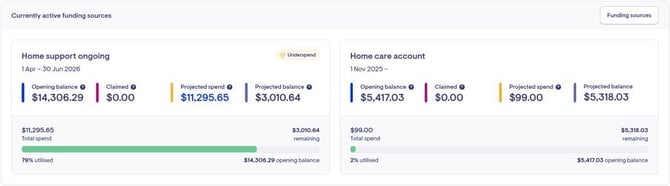
Budget tracking and funding sources show different views of a Member’s funding, so the figures won’t always match.
The funding sources area reflects the official data from Services Australia. It shows:
-
Total funding for each funding period
-
Amounts that have been claimed
-
The remaining balance based on what's been claimed up til now with Services Australia.
The live and projected balance tracking view focuses on the current budget period and includes:
-
The opening balance for that period: As reported by Services Australia at the start of the period. Includes Ongoing, Restorative and End-of-Life funding added together if applicable. Care management (10%) has been deducted from this amount for ongoing quarterly funding.
-
The total amount claimed: This is the total amount of the client's funding that has been claimed with Services Australia for the period.
-
Projected spend: The total forecast spend for this period (excludes claimed services). Does not include care management spend from the 10% care management pool.
-
A projected remaining balance: The estimated remaining balance at the end of this period. Calculated as: Opening balance − Claimed - Projected spend = Projected balance
Because budget tracking includes future scheduled services that haven’t yet been claimed, it provides a forward-looking view of expected spend. The funding sources screen does not include projected spend, only what has been claimed to date with Services Australia.
📌 Tip: Hover over the question-mark icon on the budget tracking screen or funding sources screen for a tooltip that explains what each figure represents.
What happens when the quarter rolls over, and why are new quarter balances or funding sometimes missing or incorrect?
When a quarter rolls over, there can be a delay before new quarter balances or funding amounts appear for some Members. Services Australia requires a processing period to update funding source values, and these are then synchronised via the PRODA API. You can always select the 'Sync now' button in the top-right corner when viewing a Member's funding source to check if it has updated. If it takes longer than the first day of the month to sync, please do get in touch.
Additionally, the quarter carryover amount can take up to 61 days to appear in Lookout. This delay exists because providers are permitted to submit claims for up to 60 days after the quarter has ended — only once this claim window closes can Services Australia calculate and finalise the carryover balance.
Within Services Australia business guidelines, providers may manually report earlier through the Services Australia portal if required. This should only be done after carefully reviewing and complying with the relevant government guidelines.
Why do budgets created mid-quarter not reflect the amount already claimed for the quarter?
This is a current limitation in how the budget service planning tool populates its income figures when creating a service plan. The service planning always starts from the full entitlement amount or the standard rate for the period, rather than showing what is actually still available to spend for the remainder of the period.
The system does hold data about what has been claimed (stored in the available balance from Services Australia and in internal expense tracking), however this is not currently incorporated into the service plan.
This limitation has been raised with the Lookout Product team and is being reviewed for a future update.
Is there an alert when a member starts drawing from their unspent funds, indicating they have fully utilised their ongoing Support at Home funding?
The overspend alerts in the funding utilisation widget on the dashboard acts as an indicator when a specific funding source has been exceeded where you can then check if it's now drawing down on HCP unspent funds. A dedicated alert for the transition point between funding sources is not currently available.
If this would benefit your workflows, submit feedback via the Lookout Roadmap and Feedback page to help the team prioritise this feature.
Are there plans to identify services charged to unspent funds separately from Support at Home ongoing, so teams can clearly see what is drawing from each account?
This has been raised with the team. All spending is currently aggregated in the tracking backend, which makes real-time separation technically complex. Submitting this feature request via the Lookout Roadmap and Feedback page is encouraged so the Product team can assess the level of demand.
2. Interim funding
How can I tell if interim funding has been applied to a budget?
In Lookout, interim funding is represented with a tag labelled "Interim 60%" shown on the live and proejcted balance tracking screen as well as in the funding source setup area. This tag is pulled directly from the funding source data synced from Services Australia, not from whether you've ticked 'Interim' when creating a service plan.
For members transitioning from Home Care Packages to Support at Home, interim funding is commonly used during the conversion process. The interim letter usually indicates the member is being aligned to a full Support at Home classification. This process is designed to support transition rather than disadvantage the member.
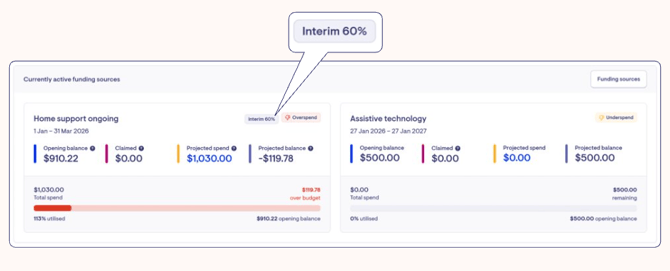
If interim funding is confirmed in Services Australia but not showing in Lookout, contact Lookout Customer Support to validate synced data.
Does Lookout automatically update from interim (MSO) to full funding (FSO) when Services Australia changes the member's status?
Yes. Lookout pulls funding classification data from Services Australia via PRODA and updates live balances and the funding setup automatically when the full service offer is applied. Existing service plans are not updated retrospectively — you will need to create a new service plan for the member to agree to when their full funding has been confirmed.
When creating a budget for a client on 60% interim funding, should the budget be based on the 60% amount, and should the period be pro-rated based on their commencement date?
Yes. Create the initial budget based on the interim 60% amount and use the member's actual commencement date as the start date. Once the member receives their full funding after the Full Service Offer is applied, create a new budget to reflect the updated amount, pro-rated for the remainder of the quarter. The income you enter should update based on the start and end dates you use for the service plan and whether you check 'interim' on or off.
Is there a way to check in bulk which members are on 60% interim funding?
There is no dedicated filter in the Lookout interface for interim funding. The most practical bulk option is to use the Data Exporter. The SAH Funding Sources export includes a sah_funding_source_interim column that you can use to identify all members on interim funding without reviewing each profile individually.
You can also try running a Memberships Data Export and checking where the report distinguishes between HCP Transitioned and full Support at Home members, this can further help narrow your list.
📌 Tip: When generating budgets in bulk, the ‘Interim’ setting is not applied automatically for Members on interim funding.
After the budgets are bulk generated, you’ll need to:
-
Navigate and open each interim Member’s budget > Edit. You can use the list you exported from data exporter to know which Member's budgets you need to edit.
-
Tick the ‘Interim’ checkbox
-
Confirm the income reflects the correct 60% subsidy for the period
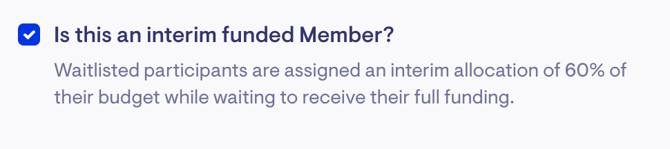
This ensures the bulk generated budget aligns with the Member’s interim funding status.
How do we bulk generate budgets for members with interim funding?
Please see the answer to the quesiton above. When generating budgets in bulk, the system automatically creates a Home support ongoing budget using the member's funding source classification. Bulk generation does not automatically detect whether a member is on an interim funded budget.
📌 Tip: Always review budgets before sharing them with members when using the bulk generation feature — especially for members with interim funding.
3. Assistive Technology & Home Modifications (AT-HM)
How does AT-HM funding become active and available for use after approval from the Government?
Funding may appear in Lookout but remain unavailable if the AT or HM funding was approved by Government but not formally accepted by the provider in the Aged Care Provider Portal (ACPP).
Providers must manually register an entry for AT and HM funding in the ACPP within a specified timeframe. If this step is missed, Services Australia may withdraw the funding in the MAC portal, even when the approval dates are still valid.
While Lookout can sync funding details via PRODA so the budget is visible and usable for planning, creating or approving an AT-HM budget, Lookout does not activate or accept the funding with Services Australia.
- Important: AT-HM budgets in Lookout are for planning and transparency only and do not replace the ACPP acceptance step.
Resource: Services Australia — Register Care Recipient Events
What is the timeframe for registering AT-HM funding in the ACPP before Services Australia withdraws it?
Services Australia does not publicly document a specific timeframe for this step. Based on patterns observed with Home Care Package processes, the recommended approach is to register the ACPP entry as soon as possible after receiving an approval notification, ideally within the same month. Under HCP, the window was effectively until the final monthly claim was submitted. Under Support at Home, the quarterly cycle suggests a window of approximately one to three months.
Because this is not formally published by Services Australia, do not delay action. If you are unsure whether an entry has been accepted, check the member's Circumstances screen in the Aged Care Provider Portal.
How do I add a personal alarm fee (classified as Equipment and Products) to a budget when the client has Home Care Package funds?
When a Member has HCP unspent funds, you will need to create an 'AT-Zero funding' budget in addition to the member's Home support ongoing budget.
The Zero Funding type indicates that services will draw down from the Member’s HCP unspent fund balances. It will pull through the current available balance for the Commonwealth unpsent funds and Home Care Account allowing you to plan expenditure against those funds.
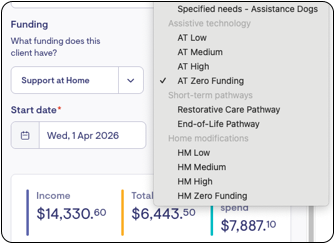
📌 Tip: If using the Build from roster functionality, it will capture all sections (recurring, exceptional, group, and purchase orders). Care managers must review the service plan before saving, as AT-HM line items may have been included automatically.
What happens if the AT-HM fund goes into a negative balance?
If an AT–HM fund goes into a negative balance, Lookout will not automatically invoice the Member.
Instead, the system will:
-
Track the overspend
-
Display a warning on the dashboard to highlight overspent funding source
-
Provide tools for staff to take action, such as reviewing real-time tracking and changing or cancelling upcoming services to avoid the overspend if possible, raising a support ticket, or dismissing the alert
If a claim is submitted for an amount that exceeds the available funding, the shortfall is allocated to the Member’s client contribution account. What happens next depends on your organisation’s policy (e.g. you can choose to invoice the Member for the overspend or write off the amount).
In short: Lookout surfaces and tracks the overspend, but your organisation decides how to handle any resulting overspend where there isn't enough funding to cover the total cost of services. Anytime funding is fully exhausted, the remaining cost will flow into the Member's client contribution account for you to decide how you want to invoice for these amounts privately.
How long does it take for PRODA funding source values to sync into Lookout after registering an AT-HM entry?
Lookout sends a request to PRODA through the API every night at around midnight. You can also manually request a sync outside of this cycle:
- Navigate to the member's profile
- Go to the Funding sources screen
- Click the Sync Now button in the top-right corner
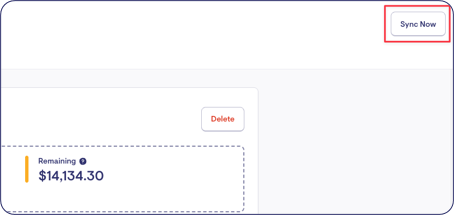
It may take a few minutes for the sync to complete. Make sure to refresh the page if values do not update immediately.
4. Overspend, tracking & utilisation
How does a budget end up showing as Overspend on the dashboard?
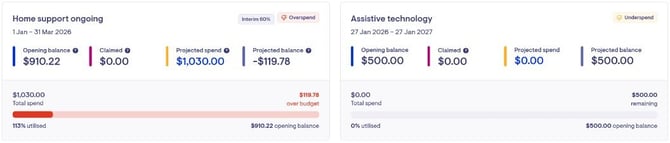
Overspend, On Track, and Underspend tags are determined by utilisation for each funding source within the budget period. Utilisation is calculated as total spend divided by the opening balance for that funding source:
- Underspend — less than 80% utilised
- On Track — between 80% and 100% utilised
- Overspend — more than 100% utilised
Total spend includes both actual charges and any forecast or rostered services which you are able to modify or cancel to increase/decrease the forecast costs. If additional services are delivered but not included in the budget — such as Public Holiday services that were rostered but not budgeted — those costs increase utilisation and can cause the budget to move into Overspend.
How do I see the previous quarter's projected balances in Lookout?
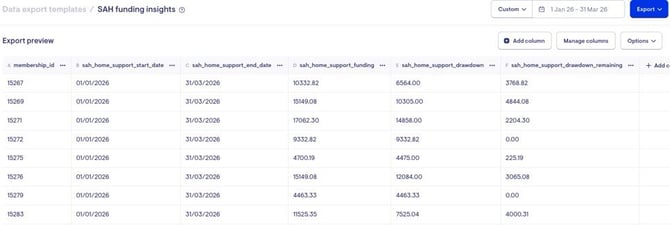
You can view the previous quarter's balance by creating a SAH Funding Sources data export report:
- Navigate to Data Export
- Select the SAH Funding Insights template (or create a custom report)
- Add the relevant columns:
- membership_id
- membership_name
- sah_home_support_start_date
- sah_home_support_end_date
- sah_home_support_funding
- sah_home_support_drawdown
- sah_home_support_drawdown_remaining
- Set the date range to the previous quarter:
📌 Tip: You can also check for interim funding in Data Export by looking for the sah_funding_source_interim column.
We have noticed that projected spend figures do not always include published invoices. Could this be a bug?
If published invoices are not appearing in projected spend figures, this is likely a bug. Submit a support ticket with specific member and invoice details so the team can investigate.
5. Budget tool & service planning
Will the budget tool automatically use the dynamic unit price from a purchase order?
Yes. When building a budget from the roster, the budget tool captures the total member service price from the purchase order line item, excluding any GST amounts.
Budget service planning uses the provisional amount, which represents the total line item value per service — including any applied markup — and does not apply a quantity multiplier. For recurring services, each repeat is planned at this provisional amount.
📌 Tip: If you are not building from the roster, you can manually enter the total amount you intend to charge the member (excluding GST and including any markup) as the provisional amount.
When running a bulk budget, does it take into account the member's funding scheme and classification?
Yes. When generating budgets in bulk, the system picks up the funding scheme and classification level recorded on the member's profile and applies it to the generated budget.
When a recurring shift is changed to an exceptional shift, the original recurring amount is not removed from the budget — causing the same service to be counted twice.
This is a known issue with how the budget tool generates from the roster. When a recurring visit has been modified e.g. a time change or a date moved to accommodate a public holiday, the budget captures both the original recurring rule and the modified exceptional visit as separate entries. This results in duplication, and any overspend warning displayed may not reflect the member's actual spend.
This behaviour is most visible when budgets are regenerated mid-quarter after multiple roster changes. The issue exists because the Generate from Roster tool was built before the system supported rate variants and does not perform a one-for-one copy of what is currently scheduled. The team is aware and this is on the roadmap to fix as part of broader finance tooling improvements.
In the meantime:
- Review all service plan line items carefully after generating from the roster
- Manually remove any duplicate entries before approving and sharing the budget
- For a mid-quarter spend check, use Live and projected balance tracking rather than regenerating a new budget
If a Purchase Order line is set to Exclude invoice line from claiming, does it also get excluded when building a budget from the roster?
No, the "Exclude invoice line from claiming" setting on a Purchase Order line does not also exclude it from budgets built from the roster. This is specifically designed for the claiming workflow (currently supported for Support at Home claims). This has been raised with the team for consideration. Submitting this feature request via the Lookout Roadmap and Feedback page is encouraged so the Product team can assess the level of demand.
When building a budget from the roster, is there a way to select only specific services to include?
This is not currently available. Building from the roster captures all services — recurring visits, exceptional visits, group visits, and purchase orders — without the ability to select or exclude items during the generation step. After the budget is generated, care managers must review the full service plan and can manually remove any line items that should not be included.
How do members access their budget after signing?
When a member signs a budget digitally, they have the option to download a PDF copy at the time of signing. If the file is not saved at that point, there are two ways to access it later:
- Via the Care app: Members or their loved ones can navigate to the member details section in the Care app. Under the relevant funding, there is a Budgets tile that allows the signed PDF budget to be downloaded again.
- Via the provider: Staff can download a copy of the signed budget from Lookout and share it with the member by email or post.
Why are client contribution rates not linking to budgets automatically?
If contribution rates are not pulling through automatically, first check that your PRODA connection is active:
- Go to Settings
- Select Subscription or Integrations
- Confirm "Integrate with the Aged Care Provider Portal" is enabled and shows both PRODA connected and Aged Care API connected

If the connection is confirmed as active but contribution rates are still not pulling through for specific members, please submit a support ticket and include the affected member details so the support team can investigate.
Why does service planning and tracking not include GST?
GST does not draw down from the member's funding. It is instead reported to and claimed via the ATO when you submit your claims to Services Australia. Including GST amounts in a Member's budget would misrepresent how much of their funding is consumed.
6. Short-term pathways: Restorative care & End-of-lifes
Is there a Restorative Care budget in Lookout?
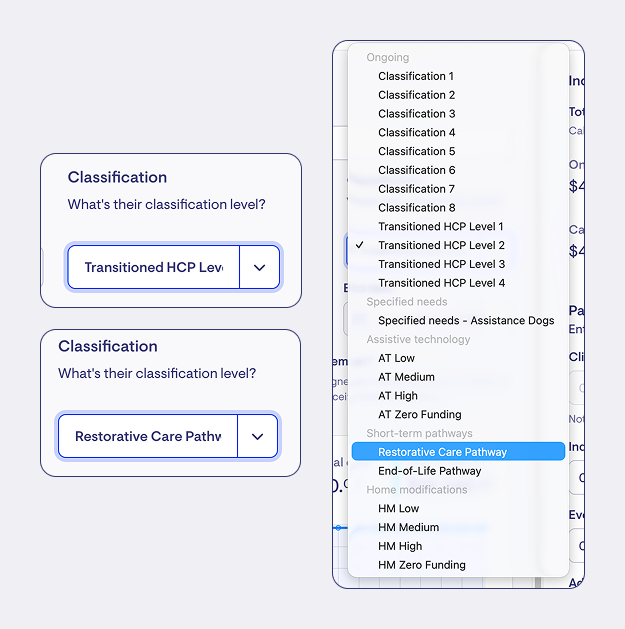
Yes. You can create a Restorative Care budget by selecting Restorative Care under the classification dropdown when creating a new service plan for a Support at Home member. You do not need to create a new member profile — multiple budget types can sit alongside each other on the one member profile.
What is best-practice guidance for planning Restorative Care pathway or End of Life budgets, particularly where invoicing is delayed?
Best practice is to treat the service plan as a point-in-time upfront agreement with the Member. It outlines how you intend to use their funding based on known needs and expected services at the time of planning.
The budget is not intended to act as a live, continuously updating document. If circumstances change significantly, a new service plan should be created for the member to agree to.
Should Home support ongoing and Short-term pathway (Restorative Care and End-of-Life) funding be tracked separately? Why are these funding streams currently pooled?
Home support ongoing and restorative care funding currently appears pooled in live and projected balance tracking. This is because the system does not prompt users to specify a funding source at the time of rostering or raising a purchase order. Without that selection being made upfront, Lookout cannot accurately delineate costs between funding sources, particularly for service codes that can apply to both funding sources, such as clinical supports.
Enabling a clean separation would require significant engineering changes across rostering, group visits, purchase orders, budgets, and live tracking logic. The team also considered that asking coordinators to select a funding source for every interaction would be cumbersome and outside their typical role. For now, funding source allocation sits at the point of claiming — when a member has both an ongoing and a short-term pathway funding source, the claim screen will alert you to select which funding source the service should draw down from.
This has been raised with the Lookout Product team. In the meantime, care managers should carefully plan and review service allocations when members receive both funding streams concurrently.
7. Other common questions
Interim funding is confirmed in Services Australia but is not showing in Lookout — what should I do?
If interim funding is confirmed in Services Australia but not appearing in Lookout, try the following steps:
- Trigger a manual sync via the member's Funding sources screen using the Sync Now button
- Allow up to 24 hours for the overnight sync to run if a manual sync is not possible
- If the issue persists after syncing, contact Lookout Customer Support with the affected member's details so the synced data can be validated
AT-HM funding was withdrawn from the MAC portal even though the approval dates are still valid — why did this happen?
This typically occurs because the AT or HM funding was approved by Government but was not formally accepted by the provider in the Aged Care Provider Portal (ACPP) within the required timeframe.
Providers must manually register an entry for AT and HM funding in the ACPP. If this step is missed, Services Australia may withdraw the funding in the MAC portal.
- Check whether the acceptance step was completed in the ACPP
- If acceptance was missed, contact Services Australia to discuss available next steps
Creating or approving a budget in Lookout does not activate or accept the funding with Services Australia. The ACPP acceptance step must be completed separately.
The budget is showing Overspend unexpectedly — what should I check?
Overspend in service plans
Overspend occurs when total spend exceeds 100% of the opening balance for a funding source. To identify the cause:
- Check whether any services were rostered and delivered but not included in the original budget, such as public holiday services
- Review whether any exceptional shifts have been counted in addition to recurring services, which can result in the same service appearing twice
- Check for any duplicate line items in the budget — if you find duplicates, submit a support ticket with the specific details
Overspend in project & live balance tracking
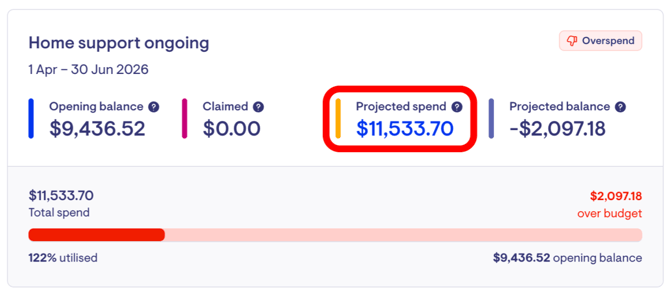
Overspend occurs when total spend (total claimed + projected spend) exceeds 100% of the total income for the period. To review and manage overspend:
-
Click on the projected spend amount to open the tracked expenses view.
-
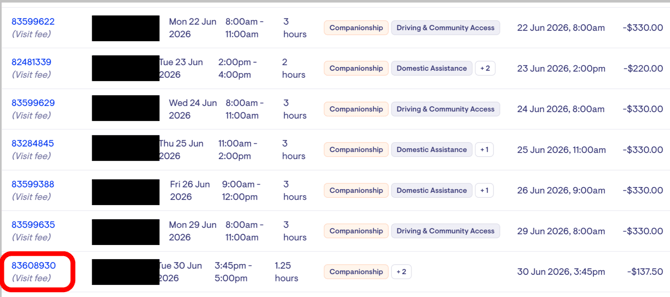
This view lists expenditure in chronological order, from oldest at the top to newest at the bottom
-
From here, you can:
-
Scroll through all tracked items, including future dated services
-
Identify upcoming services that have not yet been invoiced or claimed
-
Click into these items to modify or cancel services, helping reduce or avoid forecast overspend
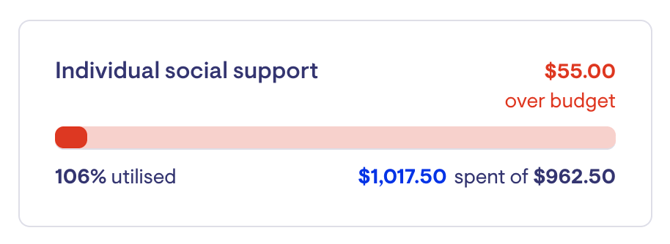
You can also use budgeted expenditure/not budgeted service allocation breakdowns to identify where actual spending has exceeded what was originally planned in the service plan, so you can manage overspends.
In the example below, $55 has been spent above the allocated amount for that service.
Clicking the hyperlinked amount (e.g. $1,017.50) will take you to the tracked expenses view for that service type, where you can review the underlying rostered services for the period and make adjustments if needed (such as modifying or removing upcoming services) so it falls back within the allocated range.
A budget created mid-quarter is showing an incorrect opening balance — what can I do?
This is a current known limitation. The budget tool starts from the full entitlement amount or standard rate rather than the amount still available to spend for the remainder of the period.
In the meantime, you can work around this by manually adjusting the income figure in the budget to reflect the actual remaining amount for the current period. This helps ensure the budget accurately represents what is available to plan against.
This limitation has been raised with the Lookout Product team and is being reviewed for a future update.
Does the budget become locked and uneditable once it has been approved or signed?
Approving a budget does not lock it, you can always edit it or revert it to draft status. Once a budget has been signed by the member, it remains technically editable in Lookout. However, best practice is to treat a signed budget as fixed: if changes are needed, create a new budget or duplicate the existing one and share it with the member for re-agreement.
The Lookout team is considering adding a formal lock that prevents editing after a budget has been signed. If this is important to your organisation's compliance process, submit it as a feature request.
New enhancements released 15 April 2026
Budget tracking in the Care App
Members can now view their Support at Home budgets and track spending in real time through the Care app. This gives members a clear, up-to-date picture of how their funding is being used.
For each SAH funding type, members can see:
- The funding period date range
- How much has been spent so far
- Their total funding amount
- The percentage of funding used
- Their remaining balance (or if they are over budget)
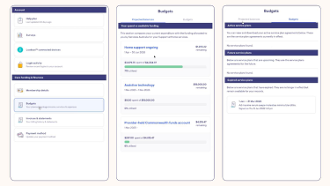
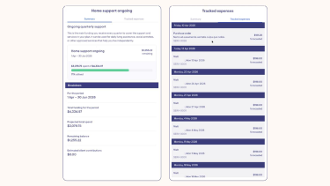
The service plan must be set as Approved in Lookout and shared and signed before it is visible to the member in the Care app. The Care app displays funding source charts only — it does not show care management spend or service-level allocations.
Will the Care App show care management spending alongside member services?
No. The Care App displays funding source utilisation only, it does not show care management spend or service-level cost allocations. Members see their own funding utilisation by source. Care management services are not shown in the Care app when it draws from the 10% pool.
Would the Care App be able to show a member's contributions as a total summary across all funding sources?
The Care App currently shows an estimated client contribution per funding source and budget, not as a combined total. The app notes that the figure is an estimate and that actuals will be invoiced by the provider. A full aggregate view of claimed contributions is available in the member's monthly statements.
Will the Care App budget view be available as a downloadable file to send to clients directly?
Members can already download their signed service plan PDF from the Budgets tab in the Care App. For the Projected Balances and Tracked Expenses view, a downloadable export is not currently available.
Vacant visits reflected in live tracking
Vacant visits have been updated to use the suggested price when calculating projected spend. Previously, vacant visits with a suggested rate were contributing zero to the projected spend figure, which caused Live Tracking to understate expected expenditure.
This change has been applied automatically across all instances — no action is required. It runs as a backfill across all vacant visits in the current quarter.
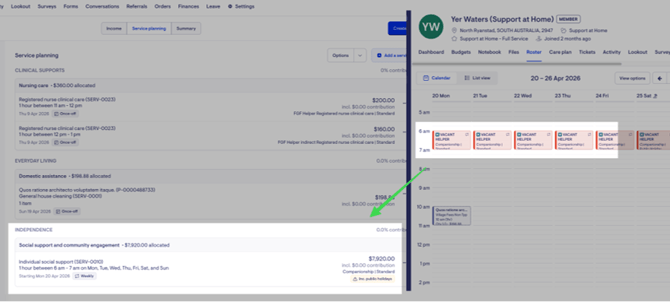
You may notice an increase in Live Tracking figures after this change is deployed, as vacant visits that previously had no associated cost will now reflect the suggested price.
🔄 Related articles & resources
- Budget Planning
- Budget Tooling
- Budgeting: Service Planning, Signature & Live Tracking FAQs
- AT-HM Budgets under Support at Home
- Budget Tool Walkthrough Video
📩 Still need help?
If you are still experiencing issues after reviewing this article, please contact the Lookout Support Team. To help us investigate efficiently, include:
- Screenshots of the issue (where possible)
- The member name or ID
- A description of the exact steps taken
- Any error messages received
- The date and time the issue occurred