
This guide explains how to open, review, and act on a referral you have been invited to as a provider, what you need before starting, and what to do if something isn't working.
Overview
When an organisation wants to engage your services, they will send a secure referral invitation via email. You do not need a Lookout user account to access the referral. Instead, you can open the provided secure link and verify your identity with a one-time passcode.
Once access is confirmed, you can review the referral details, print a copy if required, accept the referral, and access the information needed to contact the Member, arrange service delivery, manage billing, and communicate outcomes back to the referring organisation.
To better understand the terminology referenced in this guide, visit Referrals: Glossary of terms.
Before you start
To complete this process, make sure:
- You have received a referral invitation email from the organisation making the offer
- You have access to the email inbox the invitation was sent to (you will need it to receive your passcode)
- The referral is still open, and your invitation has not expired or been withdrawn
Visit Creating and managing referrals to learn how to send an invitation to a provider as an Admin/Staffer.
Step-by-step instructions
Step 1: Open the referral link
- Open the referral invitation email you received.
- Review the short summary, which includes the service, location, and budget.
- Select the secure referral link in the email to open the referral.
Top tip: Each link is unique to you. Access is only available for 30 days to protect the sensitive information in the referral.
Step 2: Confirm your identity with a passcode
- On the page that appears after opening the referral link, request a one-time passcode by clicking on Request a one-time passcode. It will be sent to the email address shown on screen, which is a combination of numbers (passcode).
There is also a Resend button that appears after you request a passcode, allowing you to generate a new one if required. - Check your inbox for the passcode. Ensure you check your junk/spam inbox too.
- Enter the passcode and confirm to verify it.
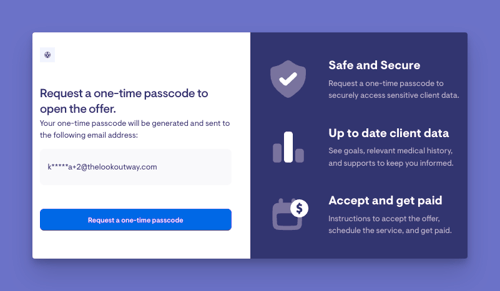
Top tip: If the passcode does not arrive, use the resend option on the passcode screen to have a new one sent.
Step 3: Review the referral
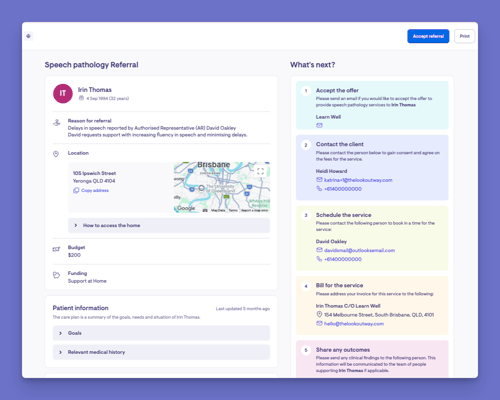
Once verified, you can see the full referral, including:
- The Member the referral is for
- The reason for the referral and any relevant details
- The budget and funding information
- A "What's next?" section with the steps to follow
- Patient Information: Summary of the care plan and Member goals
- Supports they're receiving: Summary of the hours and service types they receive
Step 4: Accept the offer and follow the next steps
The referral page guides you through what to do next:
- Accept the offer by sending an email to the organisation
- Contact the Member to gain consent and agree on fees
- Schedule the service with the nominated scheduling contact
- Bill for the service using the billing details provided
- Share any outcomes with the nominated clinical contact
Tip: Print the referral for your records using the print option, then save it as a PDF.
What happens next?
After you open and verify a referral:
- Your access is recorded, including how many times you have opened it and when you last did
- The organisation can see that you have accessed the referral
- Accepting the offer starts an email to the organisation so they know you are taking the work
- Your access remains available until you accept, the referral is closed, your invitation is withdrawn, or the 30-day window ends
What others will see
For the Providers/Clinicians
- Can open the referral through your secure link and passcode
- Can view the full details, print them, and accept the offer
- Can see the contacts you need for consent, scheduling, and sharing outcomes
For Staffers/Admin
- Can see the status of your invitation, such as active, expired, or withdrawn
- Can see how many times you have accessed the referral and when
- Can resend the invitation, or withdraw your access at any time
For Members
- Does not access this provider page, but their nominated contacts may be reached by you as part of the next steps
Troubleshooting
I can't open the referral
- Check that you are using the most recent invitation email
- Confirm the link has not passed its 30-day access window
- If you see a message that access has expired, been withdrawn, or the referral has been closed, contact the person who invited you
I didn't receive my passcode
- Check your spam or junk folder
- Use the resend option on the passcode screen
- Confirm you are checking the same inbox the invitation was sent to
I completed the steps, but can't get in
- Make sure you entered the passcode exactly as shown, before it timed out
- Request a fresh passcode and try again
- Contact support if the issue persists
Nothing happens when I click on Accept referral
- Inform your organisation, as they must configure their referral settings to trigger the button to send an email to accept the referral
-
As a workaround, manually email the organisation's contact to formally accept the referral. An email with written consent and acceptance will allow the organisation to close the referral and proceed to the next steps in processing the referral service.
Still need help?
- If you're still experiencing issues, please contact our support team and include:
- Screenshots (if possible)
- The name and email the invitation was sent to
- The exact steps taken
- Any error messages received