
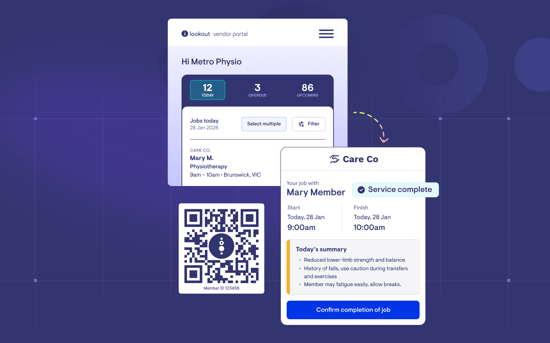
This guide explains how to download QR codes that supplier workers can scan from a member’s home to access the relevant job for check-in and check-out.
Before you start
To use QR codes, make sure:
- You have membership access permissions
- The Confirmation of Delivery feature has been enabled for your organisation
- The Supplier Portal is enabled (QR codes link to the Supplier Portal)
Step-by-step instructions
Step 1: Generate a QR code for a Member
- Navigate to the Member's profile.
- Click the Contact card button. You’ll see a QR code section with a button to view the QR code.
- This will load the QR code on screen. A download PDF button is also available. Clicking this will load a new tab with a PDF of the QR code ready for printing.
Please note: The QR code is an A5-sized PDF document.
The PDF includes:
- The QR code itself.
- Your logo.
- A note explaining that workers can scan it to check out and confirm completion of a scheduled service.
- The Member's anonymised name and identifier for reference.

Please note: The PDF is designed to be printed at A5 size, and displayed in the Member's home. For example, on the fridge or near the front door, so supplier workers can easily scan it when they arrive.
Step 2: Export QR codes in bulk
If you manage many Members, you can generate QR codes for multiple Members at once:
- Navigate to the Members list.
- Select all or the Members you'd like to generate QR codes for using the bulk action checkboxes.
- From the pop up menu, select Actions.
- Choose Download Supplier portal QR codes from the available bulk actions.
- Confirm the action. You'll see a message like: "Generating QR codes for X memberships. You'll receive an email when they're ready."
- The QR codes are generated in the background and compiled into a zip file.
- You'll receive an email when the zip file is ready. It contains a separate PDF for each Member.

Top tip: If any QR codes fail to generate (for example, if a Member doesn't have a primary contact set up), those errors will be listed in a separate text file inside the zip folder.
Step 3: Place QR codes in the Member’s home
Once you have the printed QR code PDFs:
- Place them in an accessible, visible location in the Member's home.
- Common spots include near the front door, on the fridge, or in a service folder.
- Make sure the code is flat and well-lit so workers can scan it easily with their phone camera. To ensure longevity and reliable scanning, we suggest laminating QR codes before placing them in a Member’s home.
Step 4: How supplier workers use QR codes
When a supplier worker arrives at a Member's home:
- They scan the QR code using their phone's camera.
- This takes them to the supplier portal login page. An internet connection will be required.
- This will not install an app on their phone, it is all done with their phone’s internet browser.
- They log in with a one-time passcode sent to their registered email address.
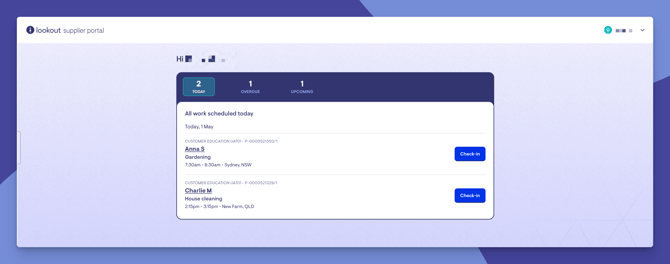
- After logging in, they're taken directly to the relevant jobs for that Member - they don't need to search through all their jobs.
- They can then check in (if required), complete any must-do tasks, and check out to confirm delivery.
Top tip: The QR code approach is particularly useful for workers who arrive at different Member homes throughout the day - it's faster than navigating through the portal each time.
What happens next?
After a worker scans a QR code and completes checkout:
- The delivery is recorded the same way as any other checkout - notes, location, must-do responses, and delivery date are all captured.
- The checkout data flows through to your claiming and reporting workflows.
- If auto-generate provisional claim item is enabled, a provisional claim item is created automatically.
What different users will see
For Admins
- Can generate and download QR codes for individual Members.
- Can bulk export QR codes across multiple Members.
- Receive the zip file of QR codes by email.
For supplier workers (Worker role)
- Can scan a QR code, log in, and see all their jobs for that Member.
- Can check in and check out as normal.
For limited workers
- QR codes are the primary access method for Limited Workers.
- After scanning and logging in, they can see jobs for that specific Member.
- This is designed for casual or temporary workers who don't need full portal access.
Troubleshooting
The QR code won't scan
- Make sure the printed code is flat, undamaged, and well-lit
- Try cleaning your phone's camera lens
- If the code is too small, try printing it larger
The worker scans the code but can't see any jobs
- The worker must be registered on the supplier’s portal.
- Make sure checkout links have been sent for the relevant line items (QR codes work alongside the checkout link workflow - the line must have had a link sent)
The QR code bulk export email hasn't arrived
- QR code generation happens in the background - it may take a few minutes for larger batches
- Check your spam/junk folder
- If some Members have issues (e.g. missing primary contacts), the zip will still be generated with the successful ones, and errors will be noted in a separate file
I can't see the QR code option on a Member's profile
- Make sure the Confirmation of Delivery feature is enabled
- Check that you have the correct permissions to view the Member's profile
Want to learn more about Connect Care and its new features? Read our article.