
This guide explains how Notifications work in Lookout for first-time users: what triggers them, when and where they appear, what the different types mean, how to control which ones you receive, and what to do if something isn't working.
Before you start
Your account and access
- You're logged in with a verified, active account.
Notifications are tied to your personal account, and the system will only deliver to accounts that are set up and able to log in. - Your role matches the notifications you expect.
Many notification types are role-specific e.g. Staffer, Helper or Member specific
If a notification type doesn't apply to your role, it won't appear for you.
Your organisation's setup
- The feature is switched on for your organisation
Some notification types only exist when the corresponding capability is enabled. - Any permission the notification depends on is held
Require specific permission (for example, integration-related warnings only go to people who manage that integration).
Your delivery preferences (channels)
- The channel you're expecting is switched on.
Every notification type can be delivered through up to three channels: in-app, email, and mobile push.
Each channel can be enabled or disabled per type in your notification settings.
If a channel is off for a type, you won't receive it that way. - Sensible defaults are applied automatically.
The first time a notification type applies to you, Lookout sets it up with default channels (for staff, mostly in-app and email; for Helpers, mostly in-app and push; with certain important types switched on everywhere). You can change these at any time. - You haven't previously unsubscribed.
Some notification emails include a one-click unsubscribe link.
If you've used it, that type will be switched off until you turn it back on.
For mobile push notifications specifically
- The mobile app is installed and has been opened at least once.
Your device must register with Lookout before push alerts can be delivered. This occurs automatically on first launch. - Your phone's system settings allow notifications from the app.
For accurate timing and content
- The underlying record must exist and be current.
- A notification always points back to something specific (a ticket, a visit, an observation, a billing run, and so on).
- Reminders and warnings are calculated from that record's details. For example, visit reminders depend on the visit being scheduled with correct times, and expiry warnings depend on the correct expiry date being recorded. If the source information is missing or wrong, the notification may not reflect accurate data.
Top tip: If a notification isn't showing up, work down this list in order: role first, then feature/permission, then
your channel settings, then (for push) your device and phone settings.
How notifications work
Notifications keep you informed about relevant activity in Lookout without requiring constant monitoring.
When notifications are created
Lookout creates notifications in two ways:
- Real-time events
You may receive a notification when someone assigns you a ticket, replies to a message, mentions you, submits a request, or shares a budget with you. - Scheduled checks
Lookout regularly checks for activity that matches your notification settings and alerts you when relevant events are found.
How notifications are delivered
Lookout sends notifications through the channels enabled in your personal preferences:
- In-app: Displayed within Lookout
- Email: Sent to your registered email address
- Push notification: Sent to your mobile device
By default, Staffers typically receive in-app and email notifications, while Helpers receive in-app and push notifications. High-priority notifications, such as visit cancellations and new opportunities, may be enabled across all channels.
You can update your notification preferences at any time.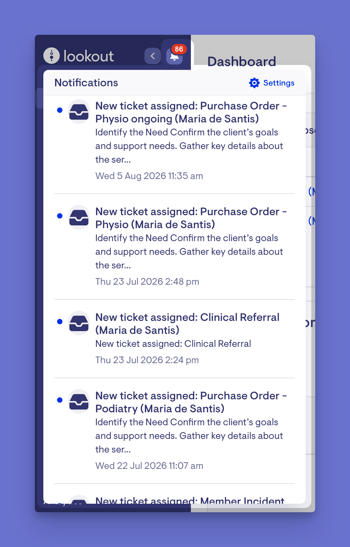
How long notifications are kept
Older notifications are automatically removed after a set period, keeping your notification list current and relevant.
Managing your notification preferences
You're in control of what you receive and how. In the web app, staff can open the notification settings page, where each notification type is listed with a short description and toggles for the available channels (in-app, email, push). Turn individual types on or off, choose which channel each arrives through, and save your changes.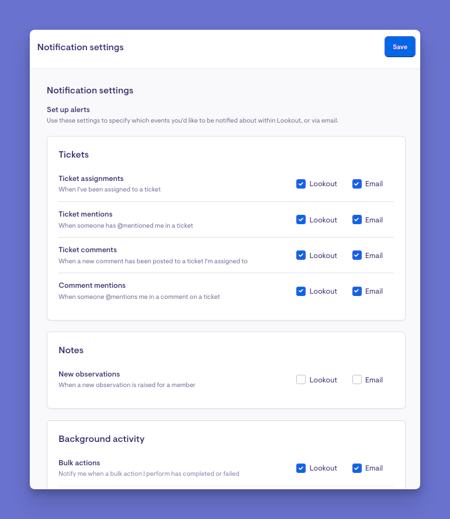
Top Tip: Some notification emails also include a one-click "unsubscribe" link that turns off that particular type for you.
What the different notifications mean
Notifications are grouped by category. You will only see notifications relevant to your role and your organisation’s configuration.
For Admins and Staffers
- Tickets: Updates when you are assigned a ticket, receive a comment or mention, or when a snoozed ticket becomes active.
- New observations: Alerts when a new concern is raised about a member.
- Background tasks: Confirmation when a task you started is completed or fails, including bulk actions, exports, billing runs, invoice summaries and expense tracking.
- Care plan drafts: Alerts when an automatically generated care plan is ready for review or cannot be generated.
- Support at Home finance: Updates when a payment statement is processed, or a claim is finalised.
- Integration warnings: Alerts when an Aged Care Provider Portal connection is approaching expiry. This only applies to organisations using the integration.
For Helpers
- Visit reminders: Reminders about upcoming visits and check-in or check-out requirements.
- New opportunities: Invitations to support a member and confirmation of new scheduled visits.
- Match requests: Requests from self-managing members who would like to connect.
- Recommendations: Alerts when you receive a recommendation or are invited to provide one.
- Verifications: Updates about verification renewals, approvals, rejections and upcoming expiry dates.
- Notes and messages: Alerts when relevant notes or messages are posted.
- Leave and availability: Updates when your leave request or availability preference has been actioned.
For Members and Representatives
- Visit updates: Alerts about visit cancellations and upcoming events.
- Budgets and balances: Notifications when a budget is shared or a weekly funding balance is available.
- Surveys and notebooks: Invitations to complete surveys and alerts when new notebook entries are posted.
What happens next?
Once a notification has been created:
- It's delivered through each channel you've allowed for that type.
- If it's an in-app notification, it appears in your notifications list and contributes to your unread count.
- Notifications you haven't opened are marked as unread; opening one (or marking everything as read) clears that status.
- Lookout prevents duplicates. if the same event somehow triggers twice, you'll only get one notification for it.
- If you've turned a type off entirely, no notification is created for you for that event on the channels you've disabled.
What different users will see
Admins and Staffers
- A notification area in the web app showing recent unread and read notifications.
- In-app and email notifications for operational activity, including tickets, billing runs, exports, observations and finance updates.
Helpers
- Push and in-app notifications in the Lookout app.
- Updates related to daily work, including visit reminders, opportunities, match requests, verifications and recommendations.
Members and Representatives
- Notifications in the Lookout app about visit changes, shared budgets, balance updates, surveys and notebook activity.
Troubleshooting
I'm not receiving a certain type of notification
- Check your notification settings and ensure that the type or channel may be switched off.
- Confirm the notification type applies to your role (some are only for staff, workers, or members).
- Confirm your organisation has the relevant feature enabled.
I'm not getting push notifications on my phone
- Make sure the mobile app is installed and has been opened at least once.
- Check that push is allowed for that notification type in your settings, and that your phone's system settings allow notifications from the app.
I'm not getting notification emails
- Confirm email is enabled for that type in your settings.
- Check you haven't previously unsubscribed via an email link.
- Check your spam or junk folder.
An older notification has disappeared
- Notifications are automatically cleared after a period of time, so older items won't remain in your list indefinitely.
Still Need Help?
If you're still experiencing issues, please contact our Support Team and include:
- Screenshots (if possible)
- The user's name/email
- The type of notification affected
- The channel you expected it on (in-app, email, or push)
- The exact steps taken